Randomizing color
Jump to Mobile or Windows 10
Quickly lay down varying colored strokes using the same brush. I’ve found this really fun to use when playing with Radial Symmetry. Set a range for the hue, saturation, and luminance of the active color.
In some of the versions of SketchBook, you can also apply randomize to brush attributes. For more information, check out Randomize.
Randomizing color in SketchBook Pro Desktop
Select or create a brush.
Open the Color Editor, either by selecting Window > Color Editor or from the toolbar, tap
 .
.Below the Color Wheel, tap
 , then the arrow and select Randomize from the menu.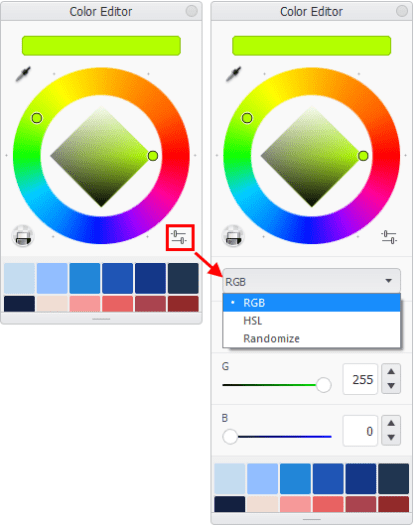
Use the sliders below to set the following:
- Hue Randomize – to set the hue range of the stroke.
- Saturation Randomize – to set the saturation range of the stroke.
- Brightness Randomize – to set the brightness range of the stroke.
Randomizing color in SketchBook Pro Mobile
Follow the instructions for the version of SketchBook Pro, and in some cases the device, you're using:
Open the Color Editor:
For tablet users:
- Tap
 at the bottom of the Layer Editor.
 - Tap the bottom section of the Double Puck.
- If your UI is hidden, with one hand tap-hold the Trigger
 and drag to select Color from the menu. With the other, make changes or select colors.
For handheld device users:
- Tap in the toolbar.
- Tap
 and tap the bottom section of the Double Puck.
- Tap
Tap
 .
.For handheld device users, you need to then tap ^ to access the sliders.
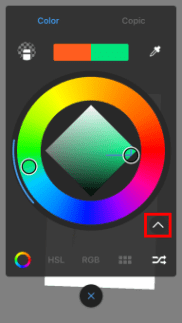
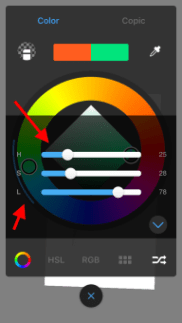
Use the sliders to set the following:
- Hue Randomize – to set the color range of the stroke.
- Saturation Randomize – to set the range from pure color to gray of the stroke.
- Luminance Randomize – to set the range of color brightness of the stroke.
For handheld device users, notice how the slider panel fades as you move the sliders, so you can see the randomized range.
Randomizing color in SketchBook Pro for Windows 10
Autodesk SketchBook Pro Windows 10 doesn’t have the Randomize Color feature; however, there are an assortment of randomize features in your brush properties. See Randomize for more details.