Deleting layers
Jump to Mobile or Windows 10
If you were working with a reference image and are finished with it, use Delete to remove the layer containing it. When you delete layers, this frees up space in the Layer Editor for new layers.
Tip:
This particularly useful for anyone using a free version with more than one layer. If you run out of layers, you can delete some to make room for new ones. Merging layers is also helpful.
Deleting layers in SketchBook Pro Desktop
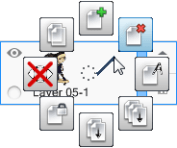
To delete a layer:
In the Layer Editor, tap a layer to select it.
Do either of the following:
tap-hold
 and flick
  .
.
click
 and select Delete.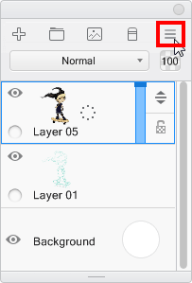
Deleting layers in SketchBook Pro Mobile
- In the Layer Editor, tap a layer to select it.
- Double-tap a layer to access the Layer menu.
- Then, tap and OK.
Deleting layers in SketchBook Pro Windows 10
There are two options for deleting:
- To delete one or more visible layers, in the Layer Editor, select the layer(s) to be deleted, then tap
 and select Delete.
 - To delete all hidden layers, tap and select Delete Hidden Layers.