Distorting a selection
Jump to Mobile or Windows 10
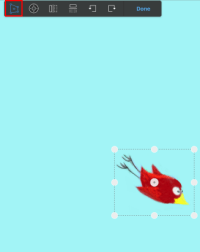
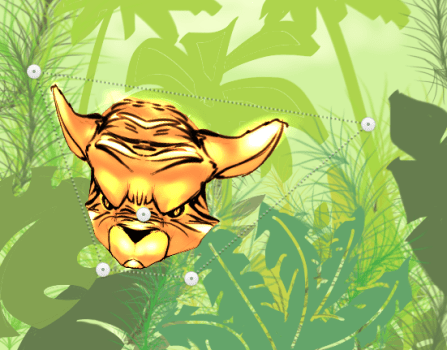
With  Distort, you can drag the handles
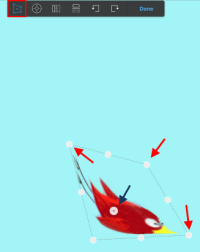
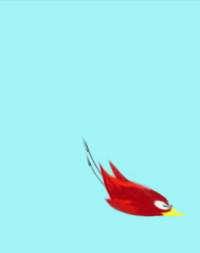
  in any direction to distort a selection. Since they aren’t constrained to 90 degrees, you can use them to create a sense of perspective or speed. Content is automatically stretched to fit the confines of the newly-shaped bounding box. Move the handles to force perspective upon the contents of the bounding box.
Use in conjunction with the perspective guide to fit something into a scene.
What is the bias
When using Distort, you will see a manipulator in the middle of the bounding box
. This is the bias. Use it to foreshorten, change the proportions of a sketch, or change the actions of a character.
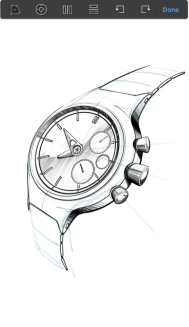
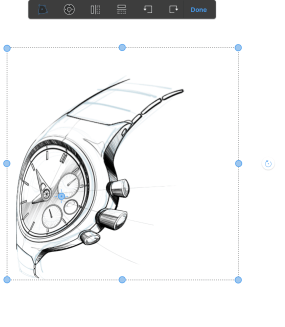
Distorting a selection in SketchBook Pro Desktop
Check out this video on How To: Transform | Distort
In the toolbar, tap
 Transform and select . A bounding box appears surrounding the content.
Tap-drag the outer handles
to automatically stretch the content to fit the confines of the newly-shaped bounding box.Note:Since the handles aren’t constrained to 90 degrees, try using them to create a sense of perspective or speed. Move the handles to force perspective upon the contents of the bounding box. Use
in conjunction with the perspective guides to fit something into a scene.Tap-drag the central handle, Bias, to foreshorten, change the proportions of a sketch, or change the actions of a character.
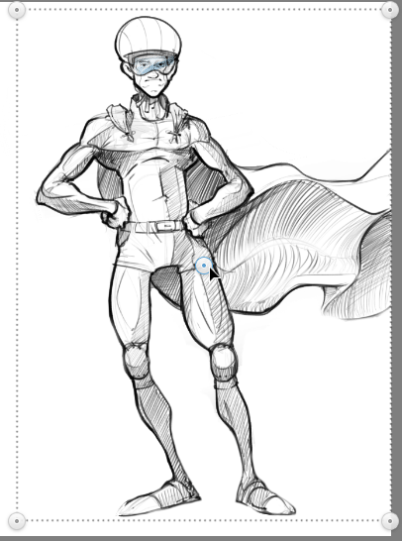
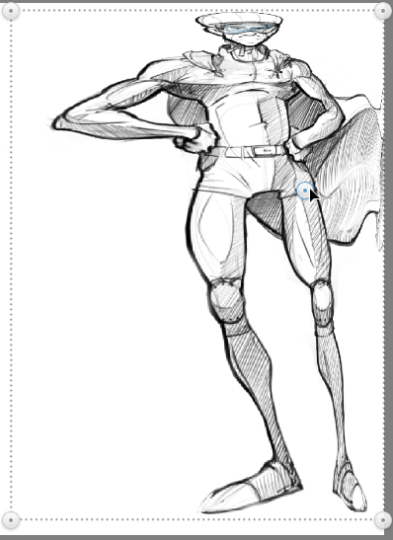
Distorting multiple layers
Select multiple layers, using Shift, then tap to apply the same distortion to them. Tag-drag to distort the content in all the selected layers.
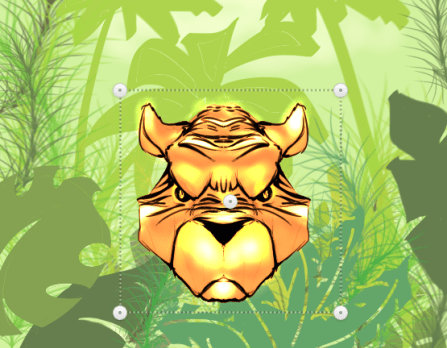
Distorting a selection in SketchBook for Mobile
Tap
 and select . A bounding box appears surrounding the content.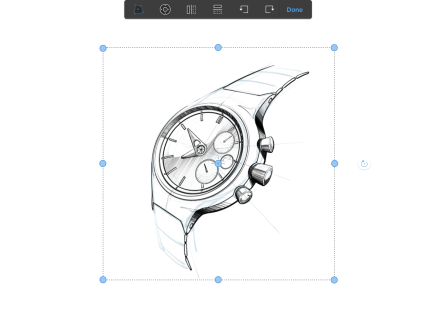
Tap-drag the outer handles
to automatically stretch the content to fit the confines of the newly-shaped bounding box.Note:Since the handles aren’t constrained to 90 degrees, try using them to create a sense of perspective or speed. Move the handles to force perspective upon the contents of the bounding box. Use
in conjunction with the perspective guides to fit something into a scene.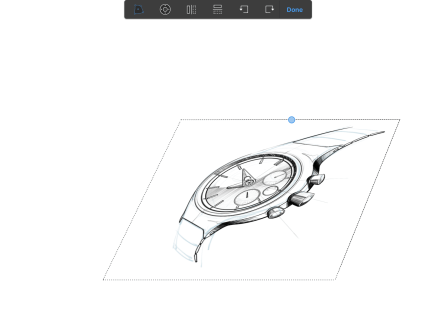
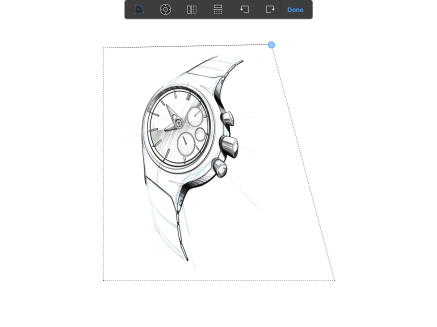
Tap-drag the central handle, Bias, to foreshorten, change the proportions of a sketch, or change the actions of a character.
Distorting a selection in SketchBook for Windows 10
The Distort tool is found in two places, in the Transform and Text toolbars. This means you can stretch both images and text.
Distorting images
In the toolbar, tap
and select .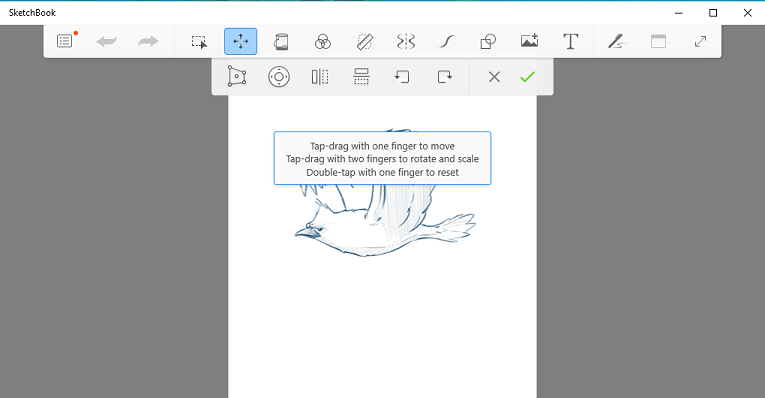
A bounding box appears surrounding the content.
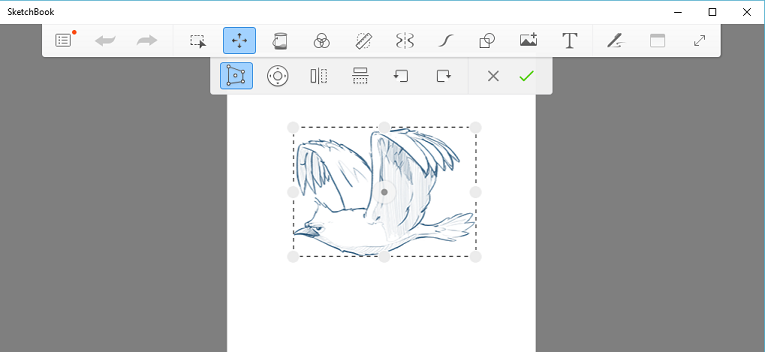
Tap-drag the outer handles
to automatically stretch the content to fit the confines of the newly-shaped bounding box.Note:Since the handles aren’t constrained to 90 degrees, try using them to create a sense of perspective or speed. Move the handles to force perspective upon the contents of the bounding box. Use
in conjunction with the perspective guides to fit something into a scene.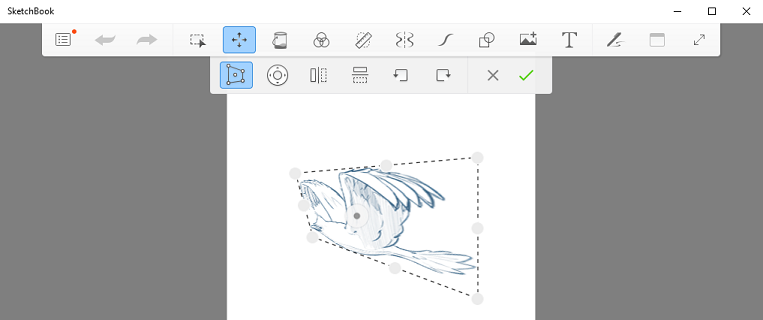
Tap-drag the central handle, Bias, to foreshorten, change the proportions of a sketch, or change the actions of a character.
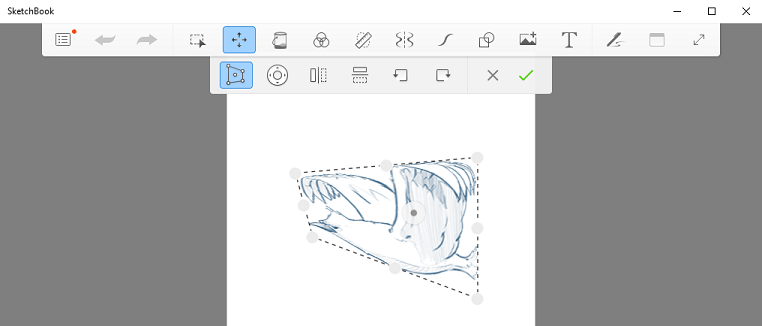
Distorting text
In the toolbar, tap
 and use the Text tools to create your text.
When your text is completed, select
. A bounding box appears surrounding the content.Tap-drag the outer handles
to automatically stretch the content to fit the confines of the newly-shaped bounding box.Note:Since the handles aren’t constrained to 90 degrees, try using them to create a sense of perspective or speed. Move the handles to force perspective upon the contents of the bounding box. Use
in conjunction with the perspective guides to fit something into a scene.Tap-drag the central handle, Bias, to foreshorten and change the proportions of the text.