Working with the Process Table
Use the Process Table to manage and edit operations in one location. These can include fiber placement and probing operations.
Open the Process Table Dialog Box
-
On the TruFiber ribbon, click Process Table
 .
.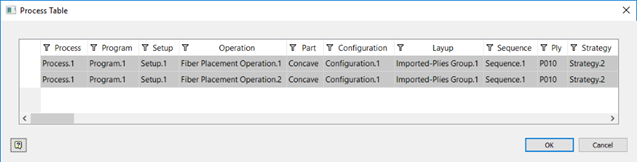
Each row in the table represents a process and its properties.
Edit the List of Processes and Properties
- To add columns to the list, right-click a column header and select Display Columns, then select which columns you want to show.
- To sort by property, click the appropriate column header.
- To move a column to the left or right, click and drag it to its new location.
-
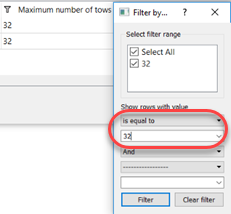
To filter the list of processes, right-click a column header and set the filter values you want.
For example, to only show processes whose maximum number of tows is 32, right-click the Maximum Number of Tows header, select "Is equal to" and enter 32 in the Filter By dialog box.
-
To edit individual values in the Process Table, make changes to them directly in the list of processes. (Gray cells cannot be edited.)
-
To duplicate, delete, or change the visibility of a process, right-click its row in the table and click Duplicate, Delete, or Visibility.
When you duplicate a process, a copy is created under the same ply as the original process in the TruFiber browser, and its name is appended with "(Copy)".
Create and Apply Views
A view is a custom layout of the Process Table that shows the columns and filters you want. There are preset views, and you can create your own. You cannot edit or delete preset views.
To apply a view:
- Right-click in the Process Table and select Apply View.
-
Select the view you want.
This can be a preset view or any view you have already created for your model. Preset views include:
- Process: Contains editable information related to machine operation, such as feed rates, compaction force, and so on.
- Strategy: Contains data related to TruPlan strategies, such as material width, strategy names, and so on.
To save a view:
- After making changes to a view, right-click inside the Process Table and select Save View.
- Enter a name for the view.
Any view you create is stored on your workstation, so you can use it with any model you are working with. It is not stored with your model, so if you open your TruFiber file on another workstation, you will not have access to your custom view.
Copy and Paste within the Table
You can copy and paste within the Process Table using standard Windows shortcuts:
- Right-click and select Copy or Paste, or;
- Press Ctrl-C or Ctrl-V
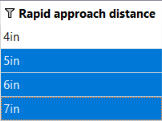
You can copy and paste one cell to another cell as you normally would, or paste values to multiple cells.
To copy and paste a value to multiple cells:
-
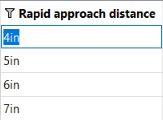
Copy a cell; for example, Rapid Approach Distance.
-
Select multiple target cells (using Shift- or Ctrl-click).
-
Paste the copied value onto the selected cells.
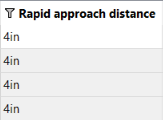
To copy and paste a row to the whole table:
-
Select a row in the table using Shift- or Ctrl-click across the cells.
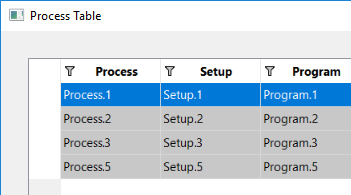
-
Copy the row.
-
Select the upper left corner of the table to select the full table as your paste destination.
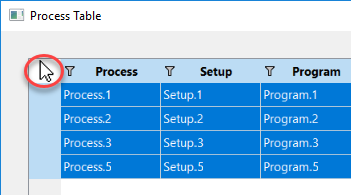
-
Paste the row.
The copied row is pasted to all rows in the table.
Import and Export Data
You can import and export all or parts of the Process Table to comma separated values (CSV) or eXtensible markup language (XML) files. This can be useful for:
- Using spreadsheets to calculate data; for example, calculate tow compaction force so it is smaller than total compaction force divided by the maximum number of tows.
- Create process reports that can be shared with other engineers.
To export from the Process Table:
- In the process table, select the cells you want to export.
- Right-click the selection and select Export.
- Enter a file name and path for the export and click OK.
The appropriate data, including column headers, are exported to the file.
To import data to the Process Table:
-
Prepare the CSV or XML file that you want to import.
For example, you can make changes to a file you previously exported from the Process Table, or you might have a spreadsheet that you created using data from your work environment. Make sure your column headers match those in the Process Table, so that TruFiber can place the data correctly. The order of columns does not matter, as long as the header names match.
-
In the Process Table, click anywhere in a row to designate that row as the start point for data import.
The cells you import will be inserted starting in this row, into the appropriate column headers.
-
Right-click inside the table and select Import.
- Navigate to the file you want to import and click OK.
The file is imported and the appropriate cells are replaced starting at the row you selected. If the imported file has columns that are not present in the current Process Table view, they are not imported.