Process Zone Dialog Box
With a setup created, click Process Zone  on the TruFiber ribbon.
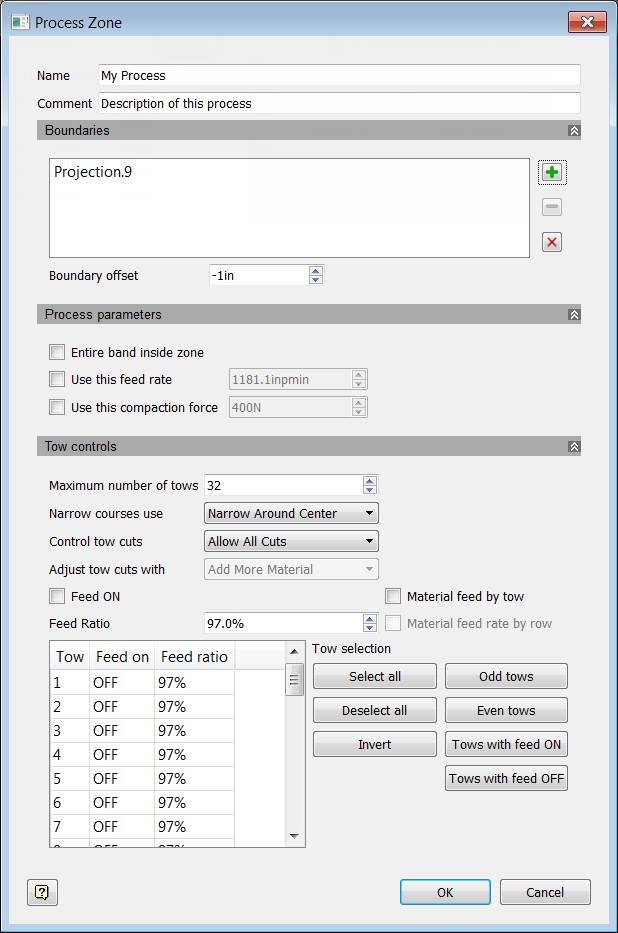
Boundaries
Add point or curve projections from the TruFiber browser to this box. Use Boundary Offset to set how close the tows should be to the boundary.
Process Parameters
Set custom values for the process zone.
Entire Band Inside Zone
Use the entire band of tows inside this zone.
Use This Feed Rate
Set a custom feed rate for the zone. If you do not select this, the laying feed rate set in the Feed Rate tab of the Fiber Placement dialog box is used.
Use This Compaction Force
Set a custom compaction force for the zone. If you do not select this, the force set in the Cycle tab of the Fiber Placement dialog box is used.
Tow Controls
Enter tow conditions and settings that will exist within the boundary.
Maximum Number of Tows
The maximum number of tows that can be forced into the process zone.
Narrow Courses Use
Portion of the roller from which the maximum number of tows should be applied. For example, if the maximum number of tows is set to 16 on a 32 tow roller, select Narrow Around Center to use tows 9-24, Narrow Using Left Tows to use tows 1-16, or Narrow Using Right Tows to use tows 17-32.
Control Tow Cuts
Specify where and how to allow tow cuts in this process zone.
- Allow All Cuts: Allow all cuts in the process zone.
- Remove Boundary Cuts: Any cuts inside the process zone that would normally occur on the ply boundary are to take place outside of the process zone. Control whether to cut before or after the process zone using Adjust Tow Cuts With.
- Remove Overlap Cuts: Any cuts inside the process zone that would normally occur inside the ply boundary are to take place outside of the process zone. Control whether to cut before or after the process zone using Adjust Tow Cuts With.
- Remove All Cuts: All cuts that would normally occur inside the process zone are to take place outside of the process zone. Control whether to cut before or after the process zone using Adjust Tow Cuts With.
Adjust Tow Cuts With
If cuts are enabled, specify at what point they happen.
- Add More Material: Add more material so that cuts take place after the end of the process zone boundary. Use a high fee ratio in the tow feed table at the bottom of the dialog box for this.
- Remove Material: Cuts are done at the beginning of the process zone boundary, laying less material.
Tow Controls (Feed Settings)
Enable or disable feeds for selected tows or all tows, and adjust feed ratios. The table at the bottom of the dialog box shows all available tows on the roller.
Feed ON
- Turn feed on or off for selected tows if Material Feed By Tow is enabled.
- Turn feed on or off for all tows if Material Feed by Tow is not enabled.
Feed Ratio
- Set the ratio for selected tows if Material Feed Rate By Tow is enabled
- Set the ratio for all tows if Material Feed Rate By Tow is not enabled.
The ratio is the percentage of the process zone feed rate.
Material Feed By Tow
Select this if you want Feed ON to only affect selected tows in the table. Deselect this if you want Feed ON to affect all tows in the table.
Material Feed Rate By Tow
Select this if you want Feed Ratio to only affect selected tows in the table. Deselect this if you want Feed Ratio to affect all tows in the table.
Tow Selection Buttons
Use these to change which tows are selected in the table. For example, click Even Tows to select all even numbered tows, and Invert to invert that selection.