Work with Sheets & Models in the Takeoff Viewer
Sheets & Models Panel in the Takeoff Viewer
In the Takeoff viewer, use the Sheets & Models panel to locate, view, and perform takeoff on sheets and models.
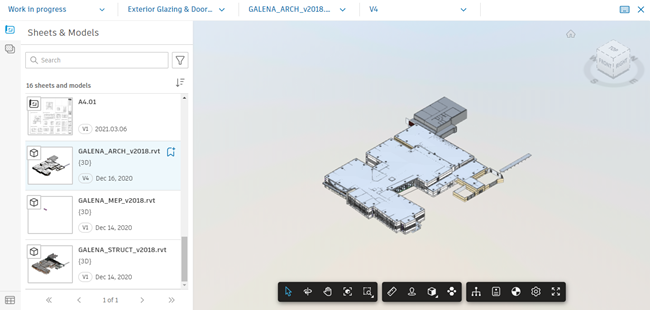
The Sheets & Models panel shows the list of all uploaded and published sheets and models that can be used for takeoff. Click a sheet or model in the panel to open it in the Takeoff viewer.
To navigate to the Sheets & Models panel
- Click Takeoff in the left navigation in Preconstruction to open the list of takeoff packages for your project.
- Select and open a takeoff package from the list. The Sheets & Models panel opens in the Takeoff viewer.
Panel Tools in Sheets & Models
The following Sheets & Models panel tools can help you locate the files you want to use for takeoff in a given takeoff package:
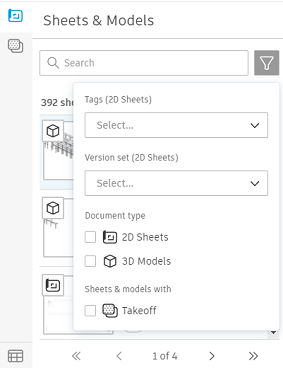
- Filters – Locate sheets and models for takeoff by filtering by tag, version set (for 2D sheets), document type, or files with takeoffs.
- Search – Search the list of sheets and models by name or title.
- Sort – Sort the list by name or title or date modified.
- Bookmark – Bookmark a file within a takeoff package by clicking the bookmark icon in the panel list. Bookmarking moves the file toward the top of the list for that takeoff package.
Locate Sheets & Models with Takeoff Items
You can easily locate sheets and models that have existing takeoff items in a takeoff package by using filters and reviewing the inventory.
Use Filters - Filter files by ‘Sheets & Models with Takeoff’ in the Sheets & Models panel.
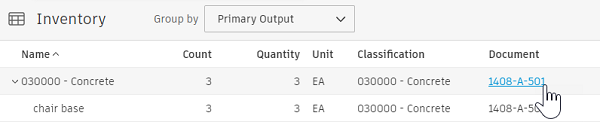
Review the Inventory - Look in a takeoff package’s Inventory. Under the Document column, find a list of files with takeoff items, along with links to the files.
Want to learn more about this topic?
Check out our video courses on how to upload and publish 2D sheets and 3D models to Autodesk Takeoff.