Inventory
The Inventory panel gives you a cumulative view of all takeoff items and outputs from all sheets and models in a package. Within the inventory, you can group takeoff, view takeoff details, and make edits to takeoff items.
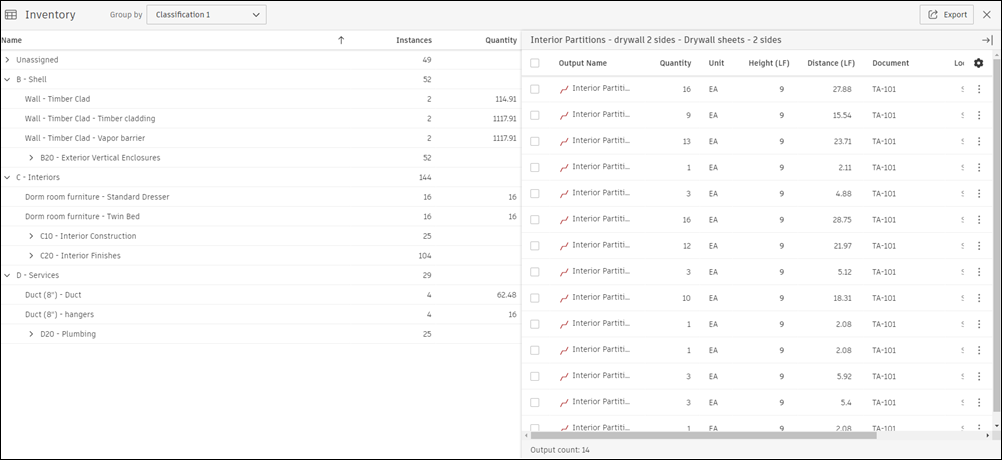
When takeoff on a package is complete, you can export inventory data to an XLSX file. You can also create a Takeoff inventory report presented as an XLSX or PDF file using the Reports tool.
Open Takeoff Inventory
To open the Takeoff Inventory
- Click the Inventory
 icon at the bottom of the left panel in the Takeoff viewer.
 - The Inventory panel opens at the bottom of the page. This panel can be popped out and moved to a different location or monitor on your desktop as needed.
Work with the Inventory
Group Inventory Items
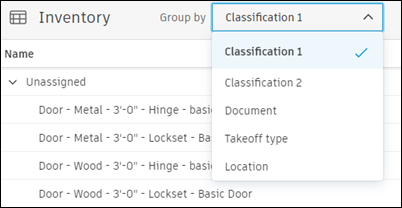
You can change the view of your inventory by grouping items in the table by Classification 1, Classification 2, Document, Takeoff Type, or Location.
Inventory Details
Clicking a line item in the inventory opens information about the takeoff items and outputs for the takeoff. This information appears in a details panel to the right of the Inventory panel. This view is open by default, but can be minimized. In the panel, you can:
- View quantity details of selected outputs
- Fit to view to show selected takeoff in sheet or model
- Reassign an object to a different takeoff type
- Delete takeoff
Bulk Edit Line Item Details
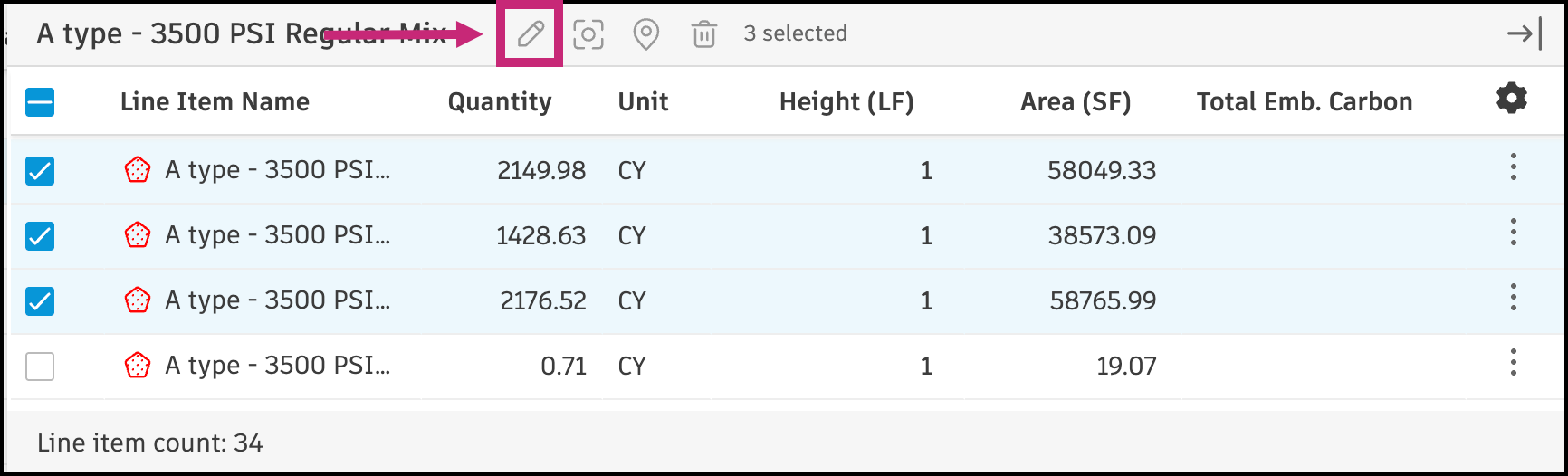
Select multiple line items in the inventory details panel.
Click the Pencil icon at the top of the inventory details panel.
In the Update multiple objects dialog, make the desired changes to the selected items.
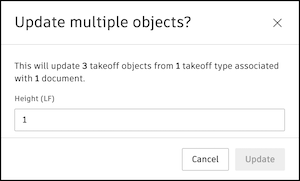
Click Save to apply the changes to all selected line items.
Cost in the Inventory
The Package Total Cost, if one is available, is shown at the top of the Inventory panel.
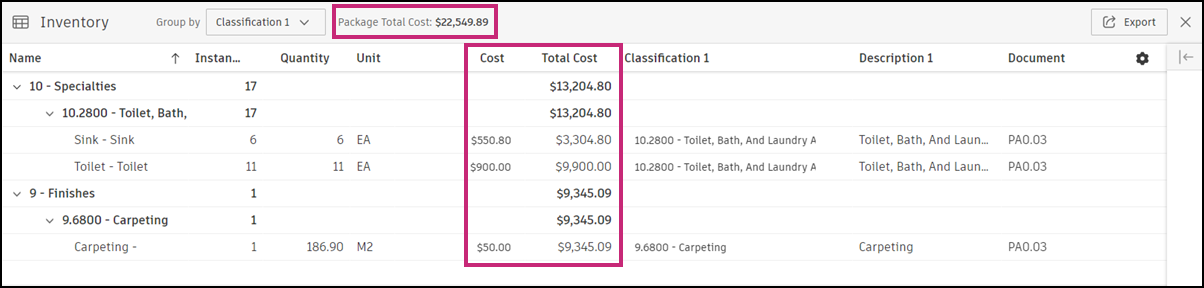
If you have assigned a cost for any takeoff outputs in your package, the unit Cost of these outputs and Total Cost of all quantities of that output will be shown as columns in the inventory.
Total Cost in the inventory is calculated by multiplying Cost x Quantity of a given takeoff output.
## Exporting Takeoff Inventory
You can export takeoff data from your inventory as an XLSX file. Data in the exported file is organized by the grouping present at export.
- Each export is limited to total 65,000 takeoff outputs.
To export takeoff inventory data
- Open the inventory by clicking the Inventory icon at the bottom of the left panel in the viewer.
- Click Export at the top right of the Inventory panel.
- Download and save the exported XLS file to your computer.
When exporting inventory, the exported XLSX file includes two sheets:
- Sheet 1: Inventory summary matching the current Group by
- Sheet 2: Inventory details
Inventory export sheets have fixed content and do not change based on column settings in either inventory panel. Only Group by determines the layout of Sheet 1.