Locations in Takeoff
Locations can be assigned to takeoff in a project in Forma Takeoff. Associating location information with takeoff can help estimators more easily calculate the cost to build a certain part of a building or project.
In Takeoff, add a location to a takeoff item by selecting an output for that item from the inventory and assigning a location. Selecting outputs from multiple items in the inventory at once and assigning a location will assign that location to all the selected items and outputs.
You can also select an item and assign a location when working with a sheet or model in the Takeoff viewer. All outputs under the item will share that location.
Another option is to temporarily set a default location for takeoff on the sheet or model you’re working on. After setting a default location, all newly created takeoff drawn on that document will automatically be assigned that location. The default will be persisted, even when the page is refreshed.
Before you use Locations in Takeoff, a project administrator must set up locations for the project in Project Admin. Visit Locations in Project Administration to learn about setting up locations for your project.
Assign a Location from the Inventory
To assign a location to takeoff from the inventory:
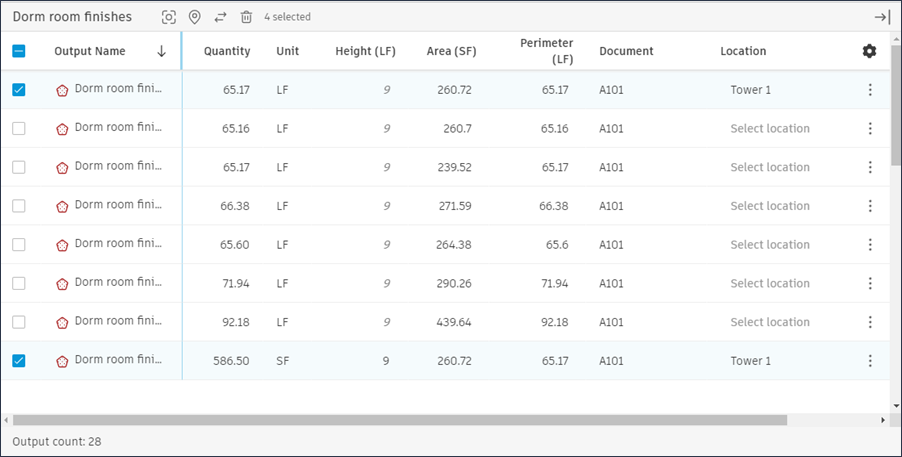
Select one or more takeoff outputs in the Inventory detail.
Click Assign location
 at the top of the Inventory detail.
 In Assign a location, use the Location drop-down to browse or search for a location to assign to the selected takeoff. Select a location, then click Assign.
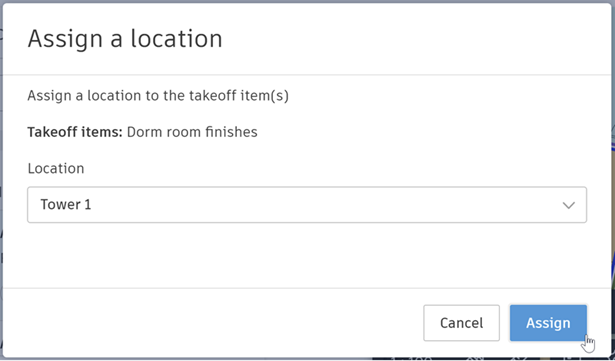
The takeoff items for the selected outputs will have the location assigned to them. All outputs under a takeoff item will have the same location.
Assign a Location from the Takeoff Viewer
You can assign a location to one or more takeoff items on sheets and models within the Takeoff viewer.
In the Takeoff viewer, right click one or more takeoff items on a sheet or model.
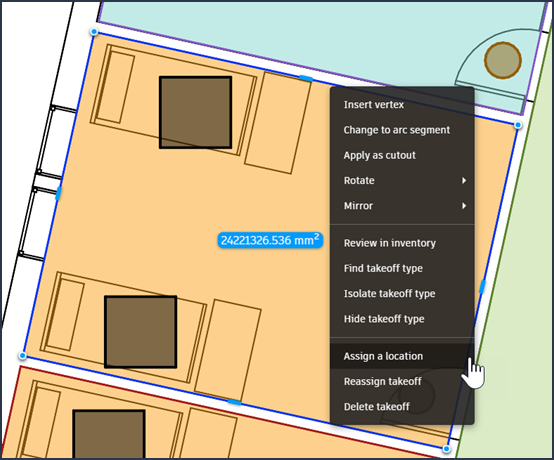
Select Assign a location in the takeoff context menu.
In Assign a location, use the Location drop-down to browse or search for a location to assign to the selected takeoff. Select a location, then click Assign.
The selected takeoff item will now have the location assigned to them. The location will appear in the inventory detail Inventory category, associated with every output for the selected takeoff items.
Set a Default Location for Takeoff
You can set a default location to assign that location automatically to all newly created takeoff drawn on a sheet or model.
Your project administrator must configure locations for the project before you can set a default location.
To set a default location
Open a sheet or model.
Click the Location
icon in the viewer toolbar.If the Location icon in the viewer toolbar is inactive, locations have not been configured for the project. Contact your project administrator to configure locations.

The Set a default location modal will open.
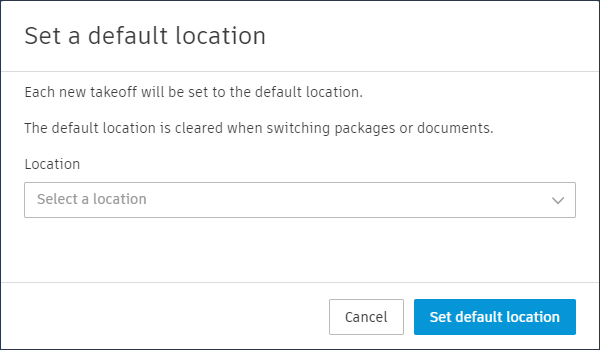
Use the Default Location dropdown in the modal to select a default location for takeoff on the sheet or model.
Click Set location.
The default location will be displayed at the top of the sheet in the viewer. All new takeoff drawn on that sheet or model will be assigned the default location automatically.

The default location for that sheet and its takeoff will remain set. Takeoff that you copy and paste to another sheet will carry over that location setting.
Group Inventory by Location
You can group items in the Inventory by location and export inventory grouped by location.
View Inventory Grouped by Location
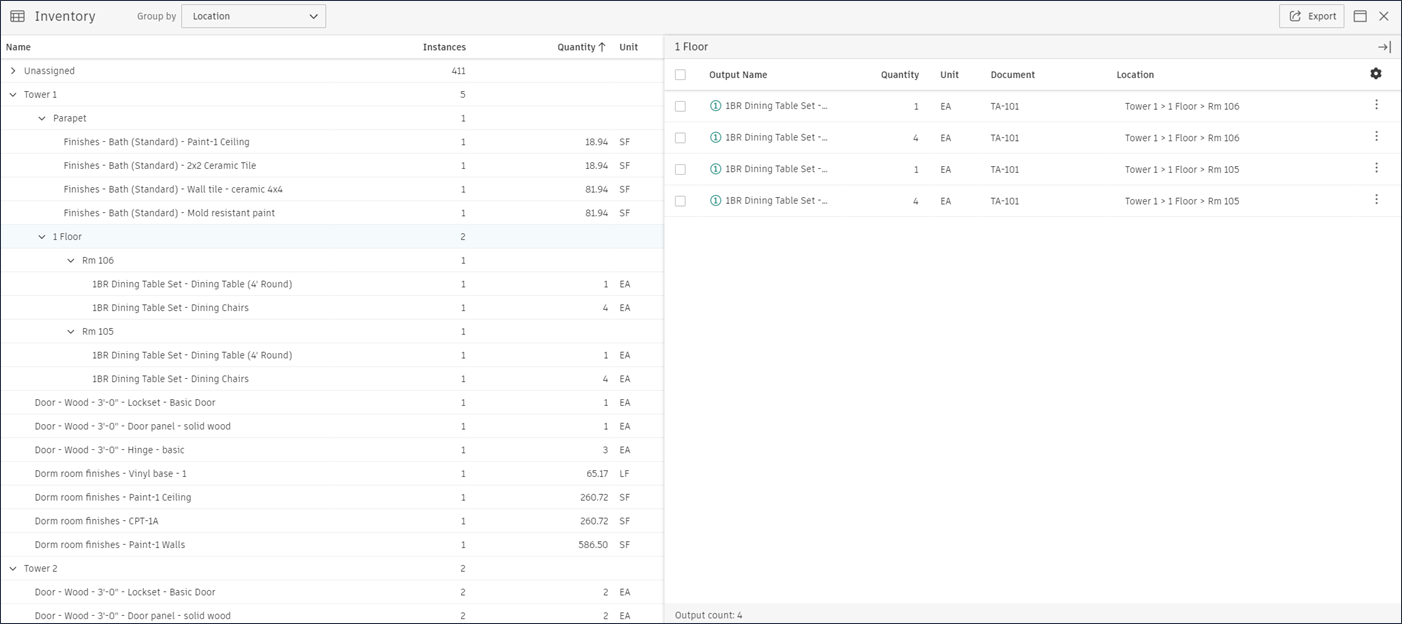
To sort and group inventory items by location, select Location in the Group by selector at the top of the Inventory.
The inventory will then be grouped by location. You can click a location grouping to view more specific locations (where they exist) for your takeoff items.