Explore the change request interface
The change request (CR) interface is divided into three main areas:
- CR header
- CR tabs
- CR center view
CR header
The CR Header displays:

- CR Basic Information: The name of the CR, its creator, status, and the name of the project.
- Description: A text field that enables you to describe the purpose of the CR. This acts as a name for the CR that you can use to search for the CR in the CR dashboard.
- CR Maturity: This field only appears when the selected workflow is configured to update an item's maturity status. Use this drop-down to select an item maturity to set during the workflow.
- Workflow: A drop-down list to choose the CR workflow that you want to use. If you selected the incorrect one when sending items from the cart in the CAD plugin, you can correct it here.
- Workflow action: A button or information bar that appears at the beginning and throughout the selected workflow's progress. Initially, this button is used to start the workflow. Subsequent actions are displayed when you click the information bar. Your Tenant Administrator configures the text in these buttons.
- Reject: If selected, this option puts the CR into a Canceled status and any in-progress tasks are closed. All selected items have their structural lock removed. This action cannot be undone.
- Edit/Save/Cancel: Buttons that enable and save changes to CRs in a Draft state.
- Close: An X button that closes the CR and returns you to the main CR dashboard page.
CR tabs
Each CR tab contains different information relevant to the CR. Click each one to display its contents in the center view.
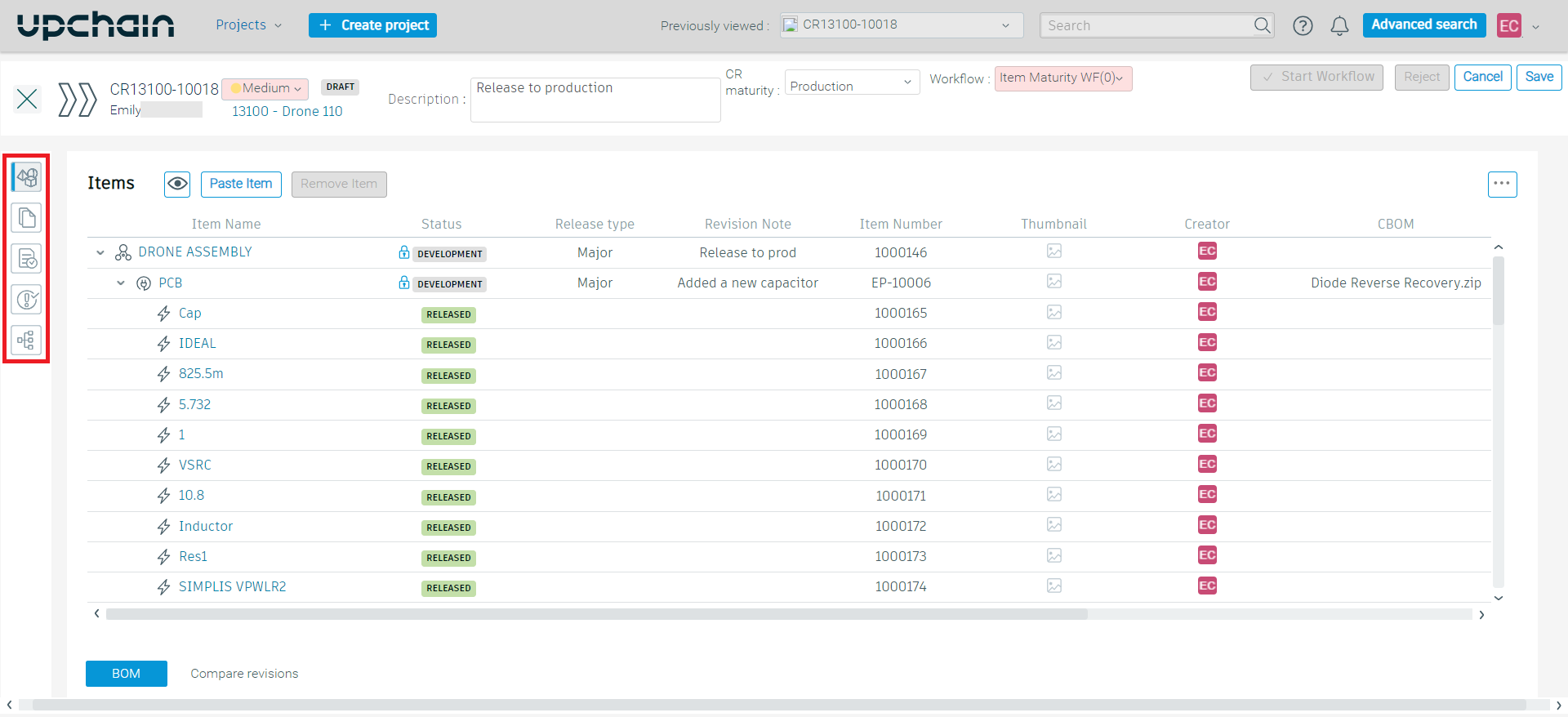
Items tab
The items tab ( ) displays the items chosen for this CR and where you configure additional information about the items that affect how they are released, including the release type and revision note.
Click an item to view its details on the right side of the window.
If required, you may edit the table to display additional columns.
Documents tab
The Documents tab ( ) is where you can associate documentation with the CR. The same Document categories that were configured by your tenant administrator are shown here to allow you to organize your documents in the same way.
Tasks tab
The Tasks tab ( ) displays a list of activities that have been created in this CR and displays the roles and users assigned the task, who completed the task, when they did so, the step explanation, and what the action was. When a decision assignee leaves comments, they are shown in the Comments column.
Relationships tab
The Relationships tab ( ) displays a list of investigation requests (IR) that resulted in the current CR. This helps other users track the reason for the current CR.
While the CR is still in a Draft state and the workflow has not begun you can link IRs to it. To do this:
- Click Link IR at the top of this page.
- Locate the relevant IR under the Design heading or RFQ under the RFQ heading.
- Select all relevant IRs.
- Click Save.
This adds the selected IRs to the list. You can click it to open its details view on the right. Click the menu icon ( ) next to the IR to unlink it from the current CR.
Workflow actions tab
The Workflow actions tab ( ) gives a summary of each step taken in the workflow, what the action was, who took the action, and the time and date it was completed. Hover your cursor over the Step owner to see more information, such as the list of quorum decision assignees and their decision. When a decision assignee leaves comments, they are shown in the Notes column.