Generic plugin settings
You may access the generic plugin settings by selecting the settings icon ( ) near the bottom of the menu bar.
The following customization options are available:
- Enable or disable auto-login when the plugin starts.
- Toggle menu sidebar on or off.
- Enable or disable auto refresh after download.
- Change the default Project BOM filter. This is the default filter that is displayed when you switch to a project BOM.
- Change the default view you will be shown upon logging in. Select from My Workspace, Item View, BOM Views, Last Accessed Project, and My Projects.
- Change the default home folder location.*
- Change the CAD attribute mapping.
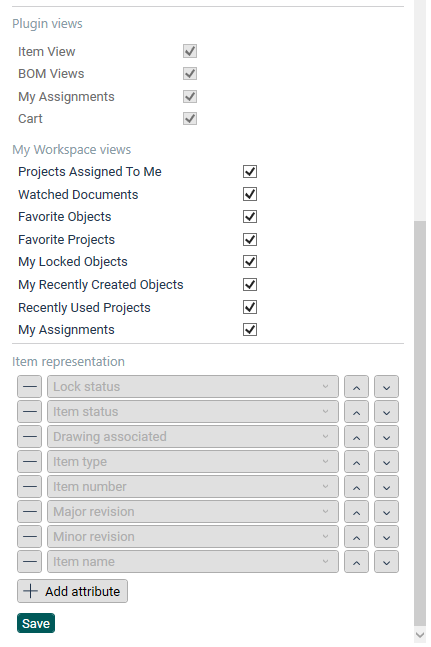
- Configure Item View, BOM Views, My assignments, or Cart to not be displayed in the plugin.
- Configure My Workspace to display or hide certain sections. Sections include Projects Assigned to Me, Watched Documents, Favorite Objects, Favorite Projects, My Locked Objects, My Recently Created Objects, Recently Used Projects, and My assignments.
- View item representation settings (not currently configurable).
*See the following section on changing the default home folder location.
Change the default home folder location
- The default download folder for Upchain generic plugin files from a project is
C:\home\your_username.
You may change the home folder location in the plugin settings.
New users
- Navigate to the plugin settings by selecting the settings icon () near the bottom of the menu bar.
- In the --Login Settings-- section, change the path under the --Home folder location--.
- Restart the plugin.
Current users
- Make sure all your files are checked in.
- Navigate to your CAD plugin settings by selecting the settings icon () near the bottom of the menu bar.
- In the --Login Settings-- section, change the path under the --Home folder location--.
- Move all files from the old location to the new one.
- Restart the plugin.
Language settings in the Generic Plugin
The display language of the plugin corresponds to the regional language settings of your Windows Operating System (found in Windows Settings > Time & Language > Region > Regional format). The available languages are:
- English
- German
- Spanish
- Italian
- French
- Korean