Install and sign into the Office plugin
Download the Upchain for Office installer
Click the chevron
 next to your profile picture or initials, located at the top right corner of Upchain's interface.
Select Plugins from the drop-down options.
The Plugins page opens.
Scroll down to the Productivity section.
Click Download next to Upchain for Office to download the installation file.
After the download is complete you may proceed with installation.
Install the Upchain for Office plugins
- Run the downloaded installer.
- The installer requires you to verify that you want to run the installer — click Run.
- Proceed through the installation wizard, accepting the Terms and Conditions and any default settings.
The plugin is now installed for Microsoft Office applications: Word, PowerPoint, and Excel.
Sign into the Upchain Office plugin
Open the desired Office application.
Select the Upchain tab in the MS Office ribbon.
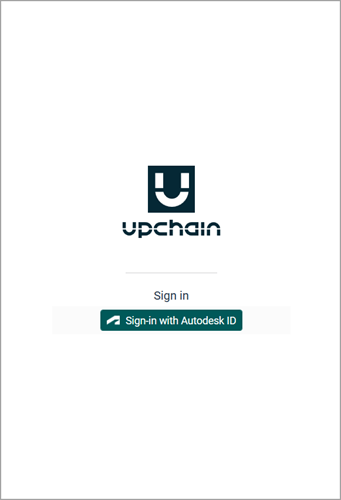
Click Sign-in with Autodesk ID.
A window opens indicating that the sign-in procedure continues in a web browser. The browser opens as well.
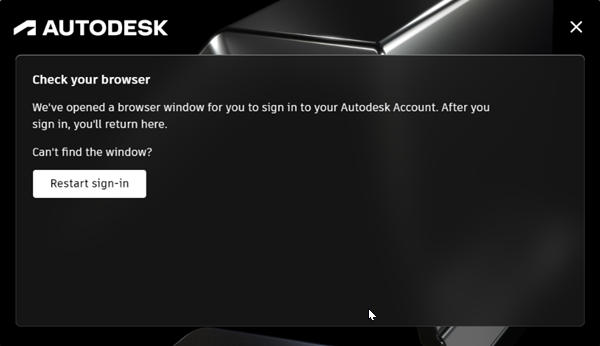
In the browser, sign in with your Autodesk credentials.
Note: If you are already signed into other Autodesk products, such as Inventor or AutoCAD, you do not need to sign in again. The browser displays a message that indicates who you are currently signed in as.Click Go to product.
You are now signed into the Office plugin. You can close the browser and begin working with the plugin.
Once you've signed into the Office plugin, you'll also be signed into the Web application and any other Upchain plugins as well when you launch them.
You'll remain signed in until you sign out, even if you close and re-open the Office application.