Track project progress
There are two main ways to track project progress in Upchain:
- From the main dashboard
- From a specific project's dashboard
Project progress on the main dashboard
View information pertaining to your favorite or active projects on the main dashboard. Projects are listed in the Projects section. Click the Filter drop-down list in the top-right corner to show your favorite projects or all active projects you have access to.
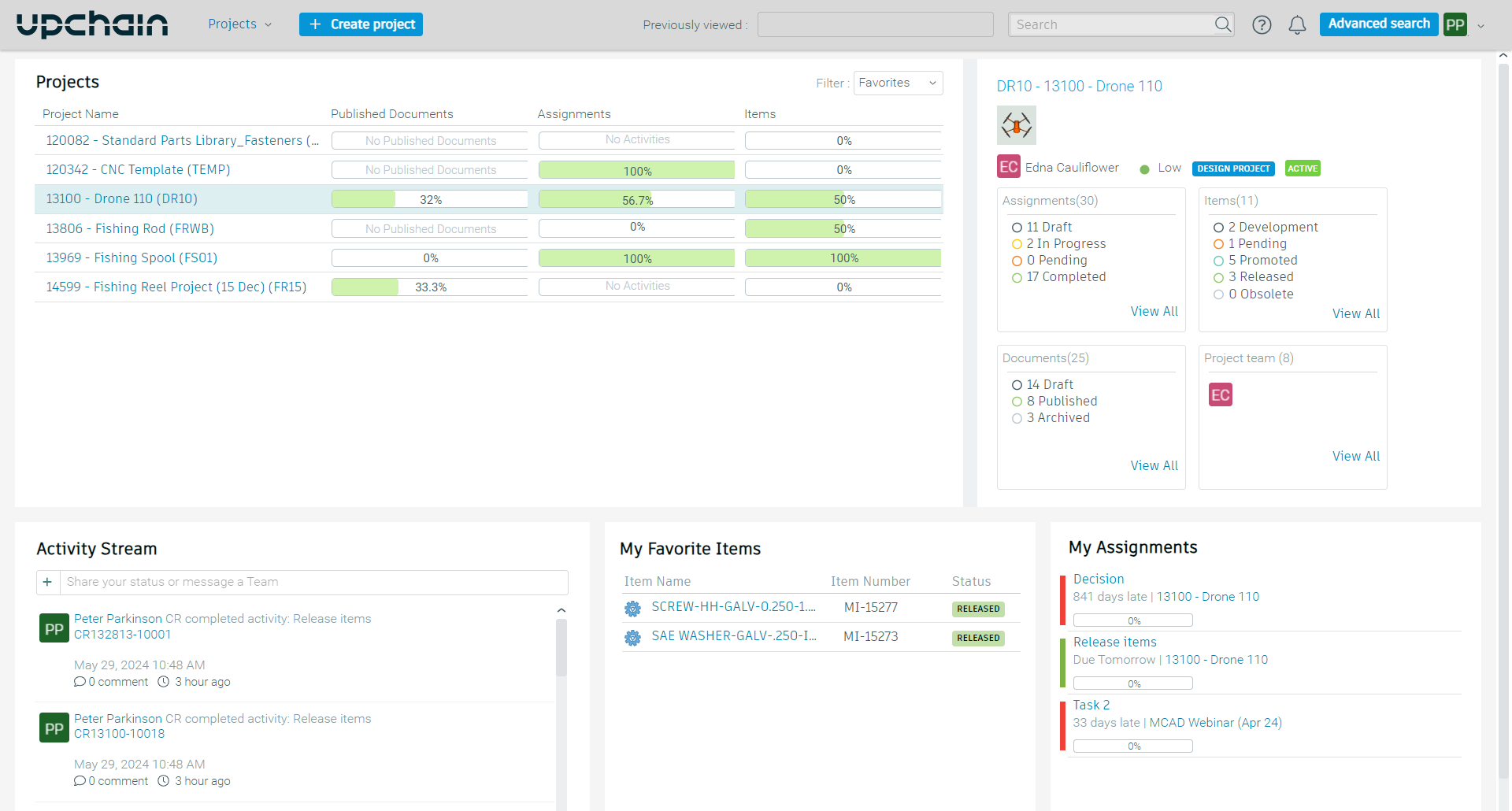
Read more about the main dashboard in Upchain interface overview.
Project progress on the project dashboard
When you navigate to a project, you are taken to the project's dashboard. There are three dashboards to choose from and each provide different information:
- Default - Displays charts that provide a quick overview of the project's progress. This dashboard always loads first when you open this section of the project. This dashboard is useful for all participants in the project.
- Design - Displays recently created objects including items, change requests (CR), change notices (CN), and tasks related to CRs and CNs. This dashboard is most useful for users who spend most of their time in the CAD plugins.
- Project management - Displays a summary of the BOM's total and individual costs, quantities, and what percentage of items have been released (through a CR) and requisitioned (through a CN). This dashboard is most useful for users who are tracking the completion of the design phase closely.
To return to the project dashboard section from other areas of a project, click the project dashboard icon ( ) in the project sidebar.
Default dashboard
This dashboard contains a number of charts and graphs to summarize the completion of tasks within the project.
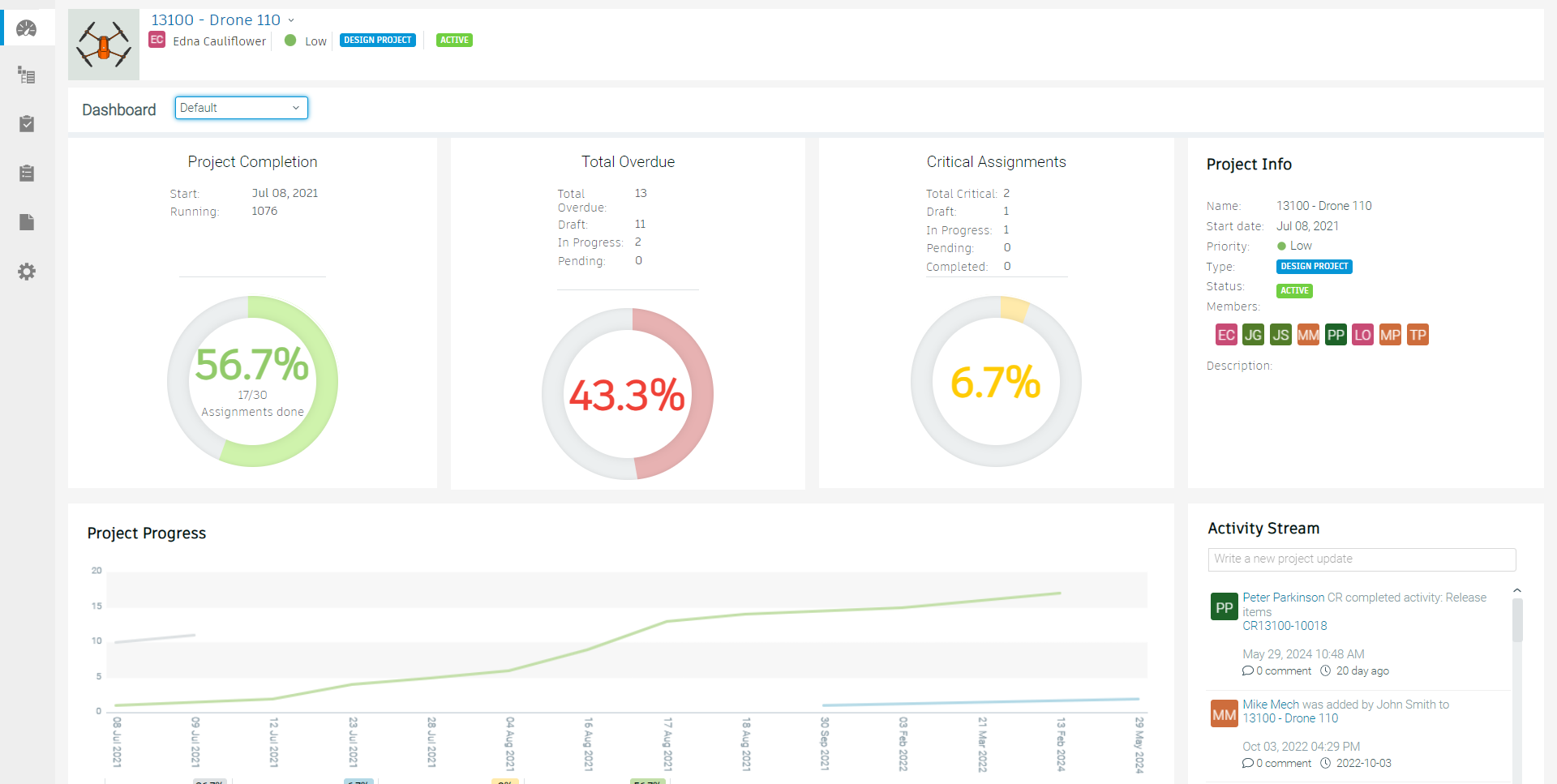
- Project Completion chart - Displays the percentage of completed tasks in your project. Clicking inside the chart shows a list of completed activities, including their name, completion date, and status. Click the activity name to open that activity.
- Total Overdue chart - Displays the percentage of overdue tasks in your project. Click inside the chart to show a list of all overdue tasks, including names, due dates, and statuses. Click the activity name to open that activity.
- Critical Assignments chart - Displays the percentage of critical tasks in your project. Click inside the chart to show a list of all critical tasks, including names, due dates, and statuses. Click the activity name to open that activity.
- Project Progress graph - Displays the status of all tasks created in the past 30 days. The project manager sees data from project creation to the present date.
This dashboard also contains these areas:
Project Info - Displays the project’s name, unique identifier, start date, priority, status, members, and description.
Activity Stream - Provides you a chronological overview of all activity in the current project, enabling you to easily track who is doing what.
- Click an activity, document or item name to navigate to the object's details.
- Click a user name to view the user's profile page.
- Click comment to add a comment to the activity, document, or item.
To write a new update in the Activity Stream:
- Click the empty field at the top of the Activity Stream.
- Write your update.
- Press Enter.
Design dashboard
This dashboard contains information that CAD plugin users may find useful.
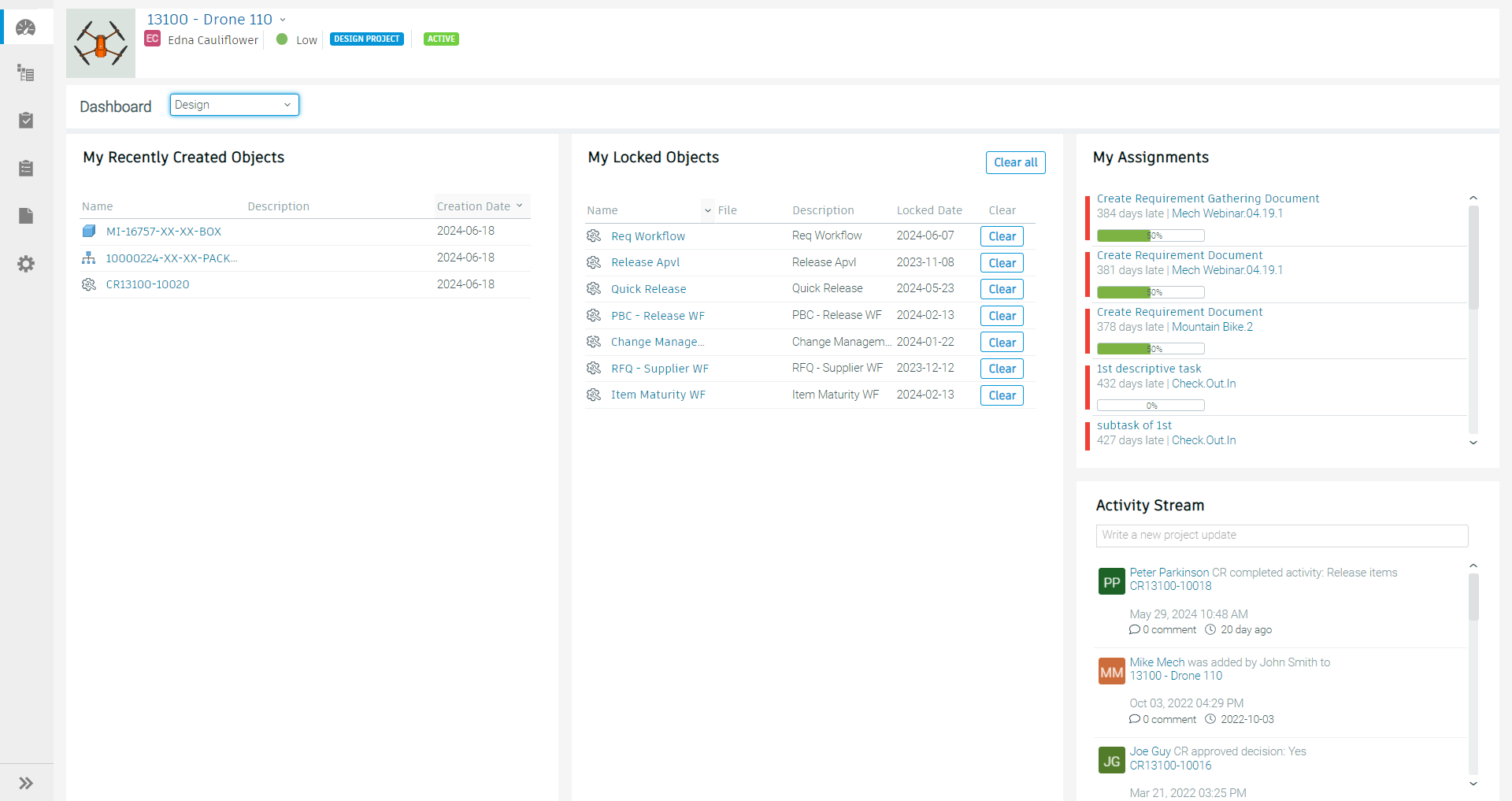
- My Recently Created Objects - Displays objects that you have created in this project within the past seven days. Objects that you have created before then but have been modified within the past seven days, even by other users, also appear here.
- My Locked Objects - Displays a list of objects that are currently locked by you for editing.
- My Assignments - Displays a list of any ongoing tasks you have been assigned across all of your projects. Click on the task to load the corresponding business process or project management activity to which it belongs.
- Activity Stream - Provides a chronological overview of all activity in the current project, enabling you to easily track who is doing what.
Project management dashboard
This dashboard displays a summary of the project BOM's total and individual costs, quantities, and what percentage of items have been released (through a change request) and requisitioned (through a change notice). This dashboard is most useful for users who are tracking the completion of the design phase closely.
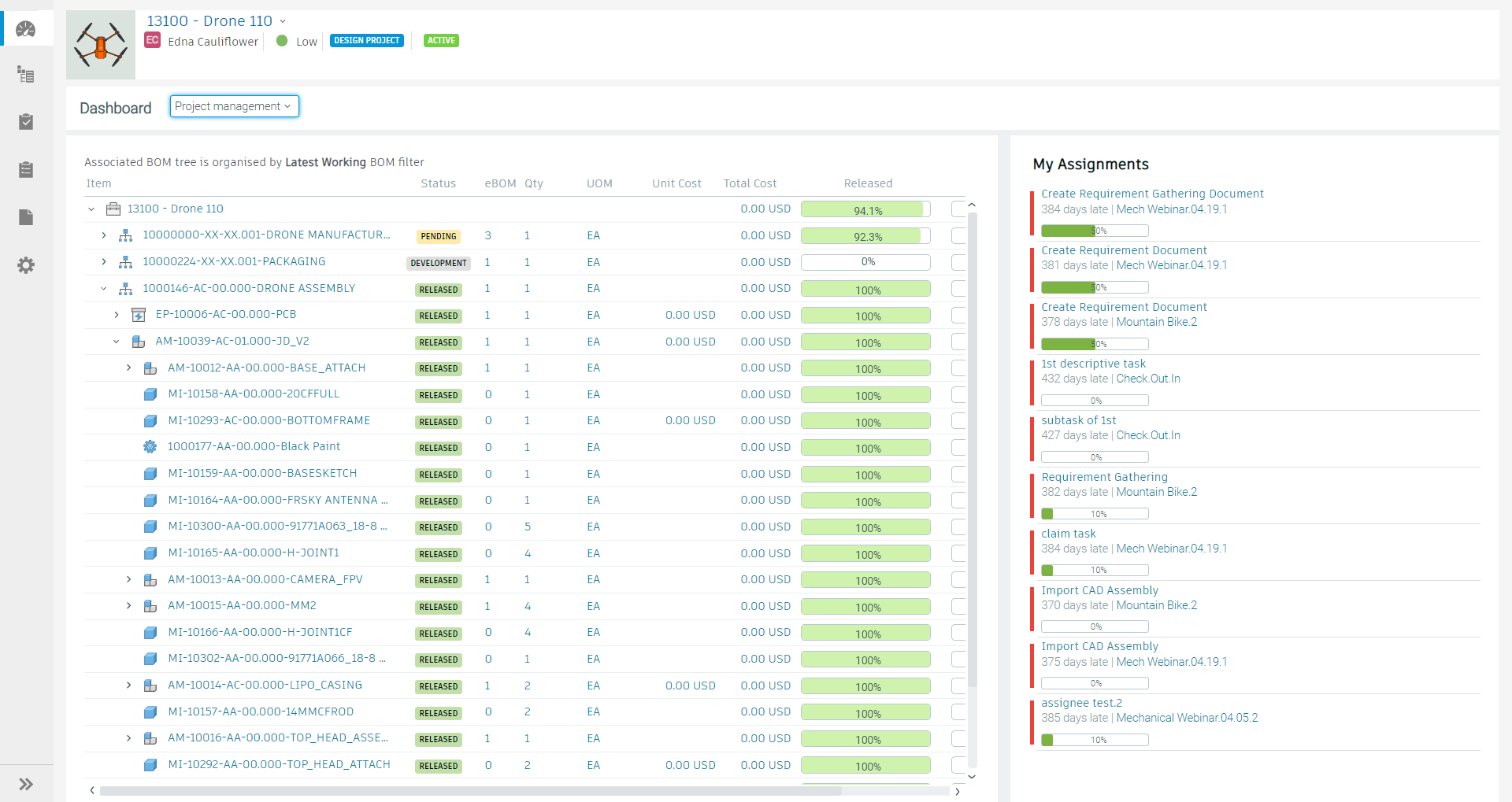
This dashboard also contains the My Assignments section, which displays a list of any ongoing tasks you have been assigned across all of your projects. Click on the task to load the corresponding business process or project management activity to which it belongs.