What's New in Upchain 21.4
Release date: October 11, 2021
Overview
This document describes the new features, enhancements, and fixes provided in the Upchain 21.4 update.
In between major service updates, Upchain deploys weekly minor updates to address any critical issues reported by our customers. This document includes details of the changes introduced in the weekly updates, denoted by an asterisk (*).
Upgrading the CAD Plugin
Users must upgrade their CAD Plugin to 21.4 for continued access to the service as well as receive the new capabilities of Upchain 21.4. The latest version of the Upchain CAD Connector is available for download on the Plugins page immediately following the service update maintenance window.
What's New
CR Upchain allows translations of a document to be manually attached to the original document that otherwise could not be viewed in the PDF Viewer. Translations may be one of the following file types:
- BMP
- DGN
- DOC
- DOCX
- DWF
- DWG
- DXF
- GIF
- JPEG (JPG, JP2)
- ODP
- ODS
- ODT
- PNG
- PPT
- PPTX
- RTF
- TIF (TIFF)
- TXT
- VSD
- VSDX
- WMF
- XLS
- XLSX
A translation may be attached to an original document from one of the following three areas in Upchain:
- Project's 'Documents' page
- A selected Change Request
- A selected Change Notice
The steps to attach a translation to the original document varies based on the area of Upchain from which the translation is attached.
Adding a translation to the project’s ‘Documents’ page
First, the original document is added to any one of the folders on the ‘Documents’ page, and then its translation is added by selecting More Actions ( ) > Import Viewable Files.
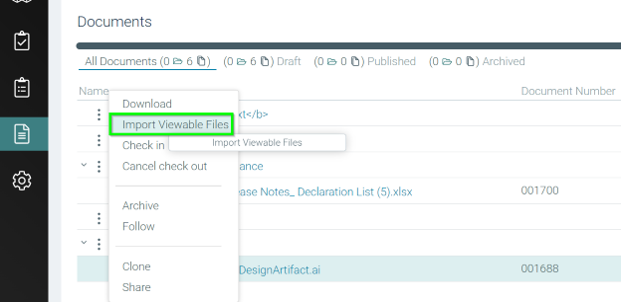
Adding a translation to a CR or CN
Translations may be added to the original document directly from the ‘Translations’ section for the original document by clicking on the Import new translation button ( ) located in the new ‘Translations’ section under the ‘Documents’ tab (
 ) > ‘Linked documents and translations’ () when viewing a CR or CN. Translations must be attached prior to initializing the CR’s or CN’s workflow.
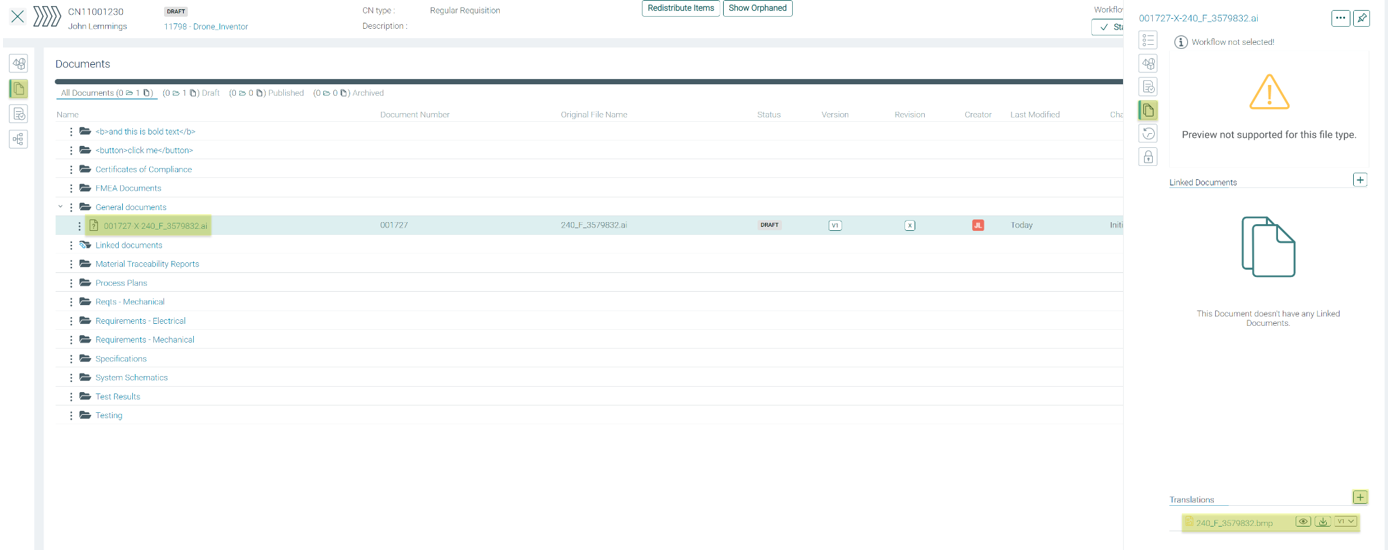
Translations are listed in the Translations section under the Linked documents and translations tab (), when the original document is selected either from the project’s Documents, CR and CN contexts.
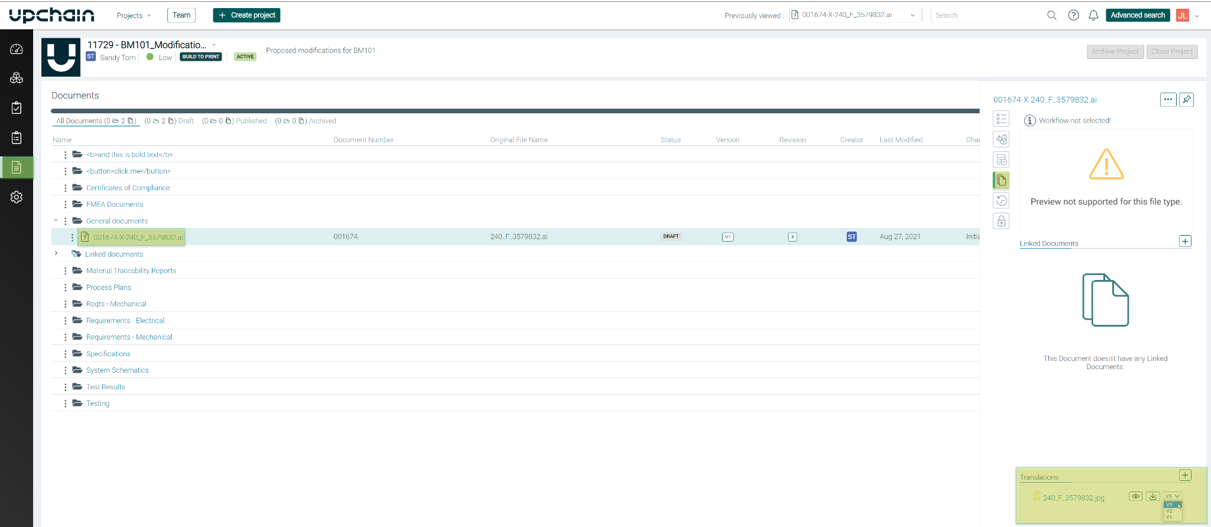
A translation’s version number increments when:
- The translations all have the same name; and
- The translation is imported to the same original document.
When viewing the translation in the PDF Viewer you may use all of the capabilities of the PDF Viewer such as adding markups; creating a related Investigation Request (IR), etc.
Upchain for inventor: enhanced support
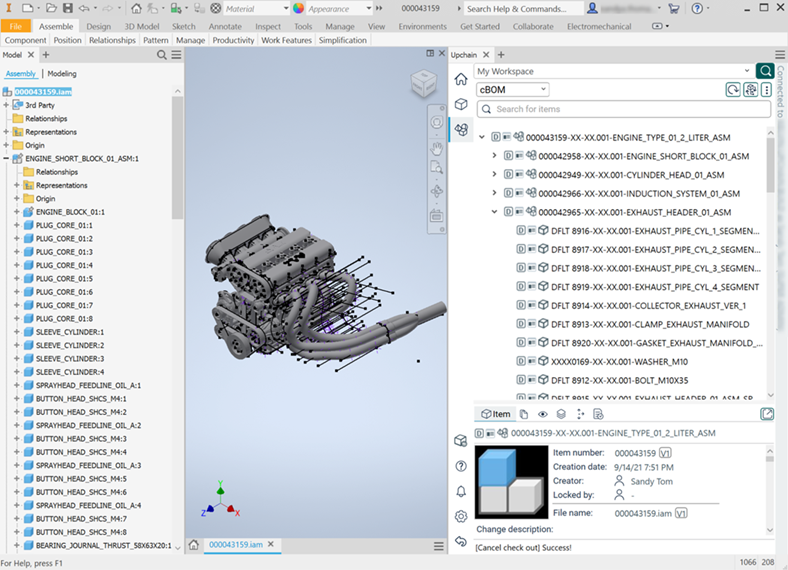
Upchain reads the BOM table in Inventor when registering CAD into Upchain to determine item types and eBOM quantities. After registering the CAD, changes to the BOM table in Inventor, such as the BOM structure-type or the quantity, are updated in Upchain the next time the assembly is saved or checked in.
The following table shows how the different Inventor BOM structure types are mapped in Upchain when registered:
| BOM structure types in Inventor | Upchain cBOM | Upchain eBOM |
|---|---|---|
| Normal | Manufactured part  (for .ipt files) or assembly (for .ipt files) or assembly  (for .iam files) item type, usual item representation (for .iam files) item type, usual item representation |
Manufactured part (for .ipt files) or assembly (for.iam files) item type, usual item representation |
| Reference | New Reference icon  , phantom file representation , phantom file representation |
No representation, file is phantom in Upchain |
| Purchased | Purchased mechanical part  , usual item representation , usual item representation |
Purchased mechanical part , usual item representation |
| Phantom | Phantom icon  , usual item representation , usual item representation |
Manufactured part (for .ipt files) or assembly (for .iam files) item type, usual item representation |
| Inseparable | Manufactured part (for .ipt files) or assembly (for .iam files) item type, usual item representation |
Manufactured part (for .ipt files) or assembly ( (for .iam files) item type, usual item representation |
Custom properties, configured in Inventor > iProperties, write to CAD files when it is checked out of Upchain.
Additionally, the Upchain Plugin is now embedded in Inventor and managed as an add-in.
Multi-tenant users: support for different roles on different tenants
Multi-tenant users may be assigned different roles on different tenants. For example, a user may be a ‘Project Manager’ on one tenant and be assigned the role of a ‘Customer Manager’ on another tenant. All of the following out-of-the-box roles are available to be assigned to any user on all tenants:
- Buyer
- Customer
- Customer Manager
- Electrical Designer
- Lead Electrical Designer
- Lead Mechanical Designer
- Mechanical Designer
- Project Manager
- Quality Manager
- Requisitioner
- Viewer
Tenant Administrators may follow existing steps to invite a user to a tenant and assign the user a role. Users assigned a supplier’s role in one tenant may also be assigned an out-of-the-box role on another tenant. The following information about a multi-tenant user is common across all tenants to which the user belongs:
- First name,
- Last name,
- E-mail,
- Username, and
- Thumbnail.
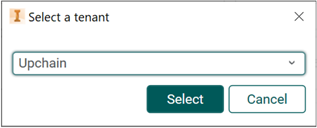
When multi-tenant users log in to Upchain Web or the CAD Plugin they are prompted to select a tenant.
Users: More insight into usage statistics
Tenant Administrators have easy access to more statistics related to a user’s usage of Upchain. The users’ table in the Administration > Users page now includes the following additional information:
- Last login date and time | Invited by |
- Access point whether: ‘Web App’, ‘CAD plugin’, ‘Office plugin’ or the ‘API’.
- Last plugin version used
- Last app version used
- Creation date
- Created by
- Invitation sent
- Invited by
- Activated date
- Last deactivated date
- Last deactivated by
- Reactivated date
- Reactivated by
Information that records dates such as ‘Last login date and time’, ‘Last deactivated date’, etc. are saved as
User details pane
In the user’s details pane, the user’s usage statistics is listed under the new ‘Job details’ tab and the user’s personal information is listed under the new ‘Personal information’ tab.
Exporting users information
Users’ information exported to a spreadsheet includes all of the new information. If any filters are applied to the users listed on the Administration > Users page, this is reflected in the generated spreadsheet. 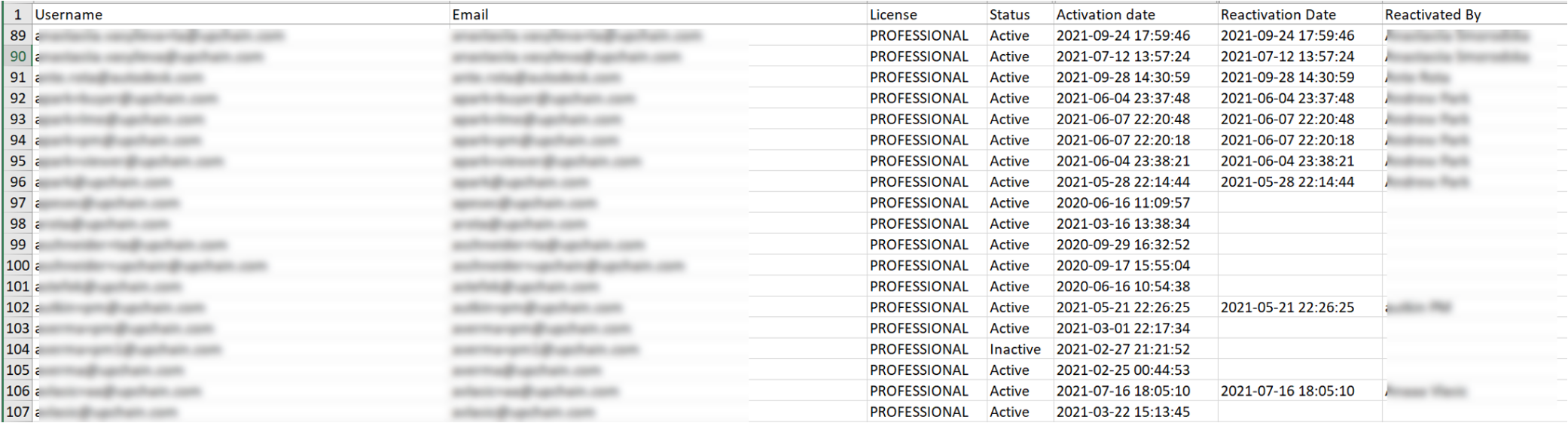 Screenshot: Spreadsheet includes the new information and is filtered to list only users with a ‘Professional’ license in Upchain. View related [API Enhancements](### Users).
CAD Plugin: Terminated support for Onshape
As of Upchain 21.3.4, Upchain no longer offers teh CAD Plugin for OnShape.
Upchain Help Center: Now available from Autodesk’s Knowledge Network
Upchain’s Help Center is now a part of Autodesk’s family of products’ knowledge network and may be accessed from October 12, 2021 and onwards. Visit Upchain Help to review existing, new and updated Help Center articles for Upchain.
All links to Upchain’s Help Center from within Upchain now point to the new Upchain Help.
Enhancements
Administration
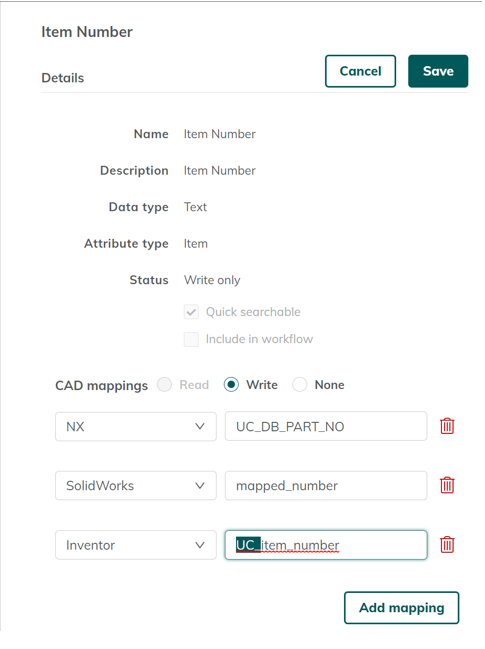
- *‘UC_’ is no longer prefixed to CAD file attributes when configured to 'Write' to the CAD file from Upchain. Mappings created prior to upgrading to Upchain 21.4 will still have ‘UC_’ appended to their names after the upgrade. Tenant Administrators are able to edit the mapped attributes’ names in the Administration > Item attributes > <selected attribute’s> details pane.Tenant Administrators may decide whether to keep the prefix; remove it; or even add the prefix to newly mapped attributes.
 |
|
BOM
*‘Note’ is now an editable field for a released child-item, as long as the parent-item is still in development. Previously, only ‘Qty’, ‘Spare’, ‘Rec. Spare’, ‘Only Cost’, ‘Apvl’, ‘CofC’, ‘Ref. Only’, ‘Pcwp’, and ‘Mtr’ could be edited. A message warns users when they are editing a released child-item. The edits may be made either from the eBOM table or the item details pane in Upchain Web > BOM.
*Electrical packages may have attributes that use a new value type called 'LongText', which accepts up to 8000 characters in length. This item or eBOM attribute type may be modified from the item details pane.
*Users may directly access a specific CRs or CNs details page when they click the CR or CN from the Business processes tab
 in the BOM page > item details pane.
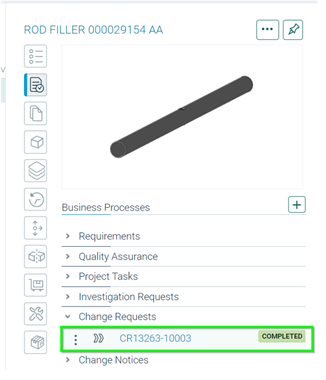
Click CR in item details pane.

Directly opens CR’s details page.
- *Upchain optimized returning Change Notices (CNs) associated with a selected item both under the Change Notices section in the Business processes tab ; and the Activities section in the Where used tab
 of the item details pane.
CAD Plugin
- Upchain’s performance is enhanced to reduce the amount of time it takes to check in large assemblies.
- *Upchain CAD Plugin is available for Inventor 2022 as of 21.3.2.
- Tenant Administrators may now configure what and how an item’s information is displayed for items listed in the cBOM, eBOM and Project views, for each tenant from the CAD Plugin settings > Item representation section. The ‘Configuration name’ item representation requires the enable.configurations.solidworks tenant property to be enabled and is currently only supported for SolidWorks and AutoCAD. Note: View related API Enhancements.
- *The CAD Plugin for Inventor has a markedly improved performance when registering and checking in large assemblies.
- *Upchain now writes item attributes to Inventor CAD files in the Custom tab of the iProperties.
Quick Search
- Search terms may be prefixed with an asterisk () in the quick search bar. For example: Search for ‘123’ returns all objects in Upchain that end with ‘123’. Note: View related API Enhancements.
API Enhancements
CAD Plugin
GET: /api/item-representation/v1/item-representation: The endpoint returns an array of strings that list the item representations configured for the tenant, as indicated by the{Upc-Selected-Company}parameter.
Change Request
POST: /api/cr/v1/crs: Tenant Admin or Support can use this endpoint to create either an empty CR, or send an item, sub-assembly, or assembly to a CR workflow. |POST: /api/cr/v1/crs/items: Team members on a project may use this endpoint to add an item/sub-assembly/assembly to an existing CR. The search criterion is provided in thequeryparameter and accepts one of the following values:- Part name
- Part number
- Supplier part number
- Item attributes The search criterion may be prefixed with an asterisk (*) in case the exact criterion is unknown.|
POST: /api/cr/v1/crs/{crId}/actions/start-workflow: Team members may use this endpoint to start the workflow identified by{crId}.POST: /api/cr/v1/crs/{crId}/files: Team members may use this endpoint to attach general documents to the CR workflow. The documents is identified in the request body.POST: /api/cr/v1/crs/{crId}/{Id}: All team members may update the following information about an existing CR:- Workflow Definition Id
- Description
- Priority
- Print Zone Id
- Release maturity status.
POST: /api/cr/v1/crs/{crId}/items-bulk: Creates therevisionNoteandreleaseTypefor items in the specified CR that are in ‘Development’ state.POST: /api/cr/v1/item-versions/cr-workflows: The response is an array of all CRs created for the specifieditemversionId, listed from the latest to the earliest, regardless of status.POST: /api/cr/v1/workflow/quorum/assignee_actions: A successful request returns the name of the task, the assignee, and the status of the task.POST: /api/cr/v1/crs/{id}/items: The request returns an array of items that match the state specified by the itemState field that was previously in Development.
Document Management System
POST: /api/dms/v1/documents/{documentVersionId}/viewables: Attaches a viewable translation to a specified document. Supported file types are: BMP, DGN, DOC, DOCX, DWF, DWG, DXF, GIF, JPEG (JPG, JP2), ODP, ODS, ODT, PDF, PNG, PPT, PPTX, RTF, TIF(XTIFF), TXT, VSD, VSDX, WMF, XLS, or XLSX. Filename should include the file extension when listing the viewable translations in the file field in the request body. Viewable translations are associated with the original document identified in the {documentVersionId} parameter.GET: /api/dms/v1/documents/{documentVersionId}/viewables: Returns a list of all viewable translations attached to the original document, where {documentVersionId} identifies the original document.DELETE: /api/dms/v1/documents/{documentVersionId}/viewable/{documentId}: Deletes a document’s viewable translation, where {documentVersionId} identifies the original drawing and {documentId} identifies the viewable translation.
Quick Search
POST: /api/search/v1/item-versions/search: Endpoint allows quick search for items to be performed from the API. Accepted values are:- Item name
- Item number
- Legacy item number
- Supplier part number
- Any item attribute configured as searchable
Users may prefix an asterisk to their search query to return all search results that contain atleast the search query terms. For example, ‘*123’ returns all objects in Upchain that end with ‘123’.
Users
GET: /api/user/v2/users/current-user/details: New endpoint returns the requester’s details as recorded for the tenant specified in the{Upc-Selected-Company}parameter.GET: /api/user/v2/users/{username}: Returns{username}’s details for the tenant specified in the{Upc-Selected-Company}parameter.
Note: The following endpoint is deprecated:GET: /api/user/v1/userand is replaced byGET: /api/user/v2/users/{username}.POST: /api/user/v2/users/export: The downloaded spreadsheet may be manipulated to list users that meet the condition defined by one or more of the following filters:licenseType- Expected values: ‘Free’, ‘Lite’, ‘Standard’, or ‘Professional’.query- Expected values are the user’s<first name>,<last name>,<username>, or<emailId>{zoneOffsetHours}- An integer that reflects the difference, in hours, between the user’s local time and UTC. For example: -2, populates the spreadsheet with a list of users with a -2 time difference with UTC{sort}- Sort users referencing one of the following specific information types: full name, username, license type, status, and user’s primary role. By default users are listed in ascending order. Include ‘desc’ to change the default ascending order to descending order.
For example: If sort has the values ‘Free’, ‘desc’ then the generated spreadsheet lists all users with a free license in descending order.
Utility
GET: /api/version/v1: The new endpoint returns the version of Upchain Web running on the server. Note: This endpoint is available under the ‘utility’ section in Swagger.