AOVs
 |
 |
 |
 |
 |
 |
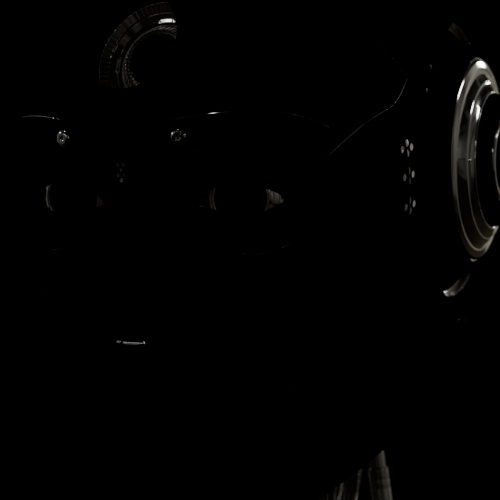 |
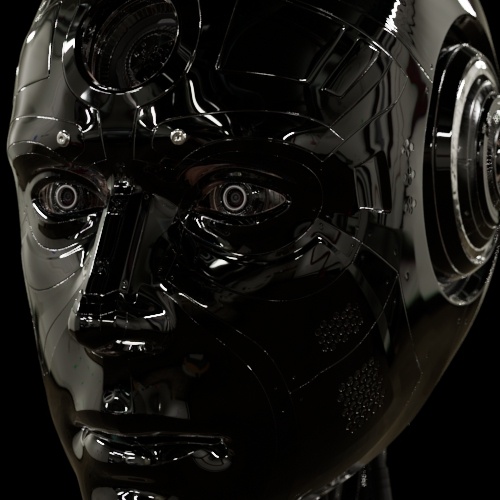
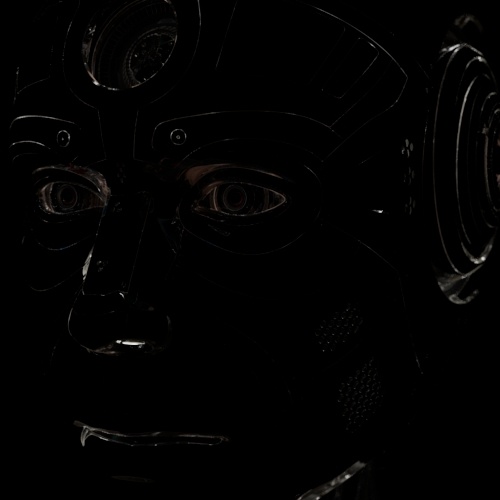
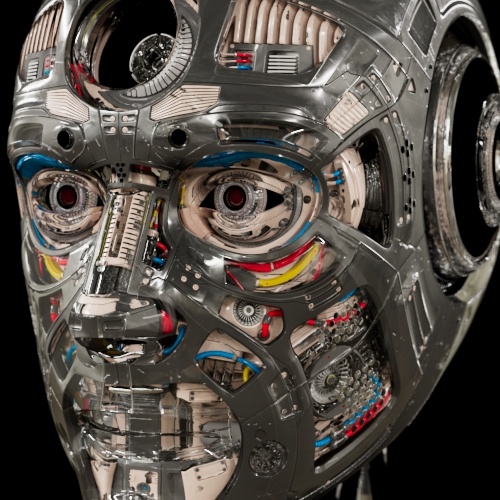
| beauty | direct | indirect | diffuse | specular | specular indirect | coat |
 |
 |
 |
 |
 |
 |
 |
| transmission | emission | albedo | specular albedo | transmission albedo | ID | Z |
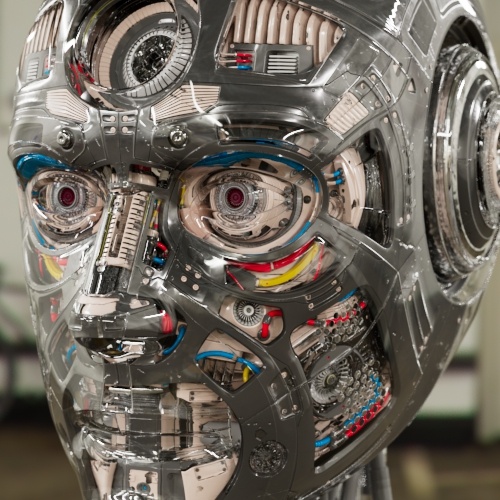
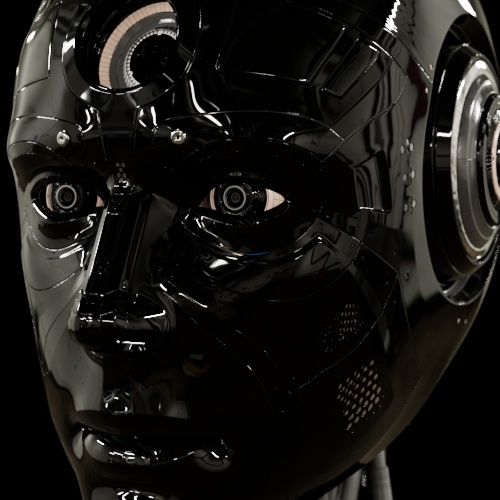
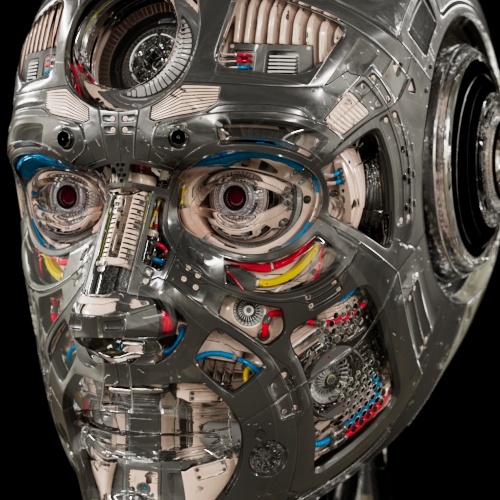
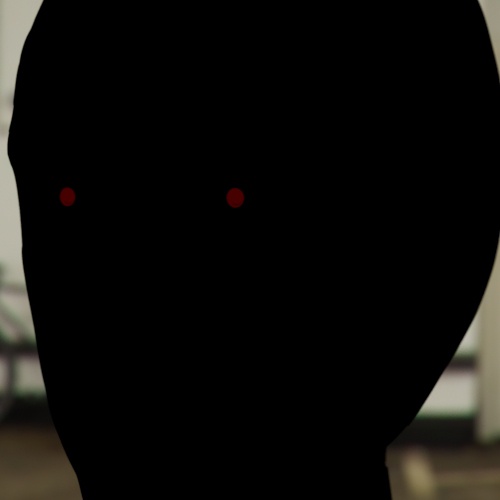
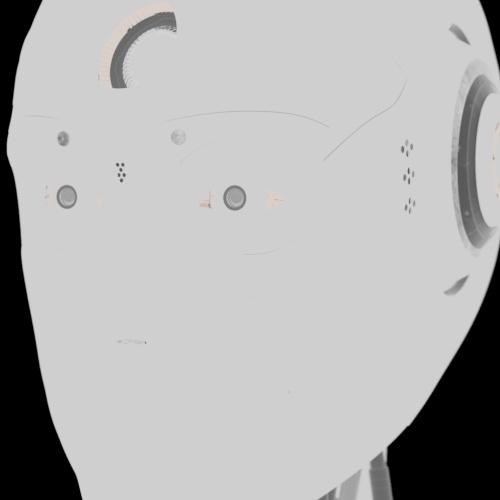
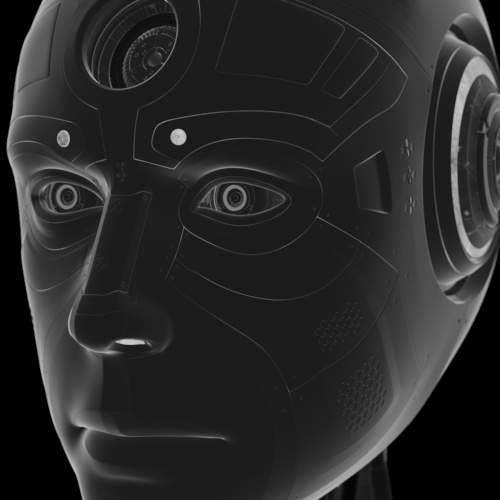
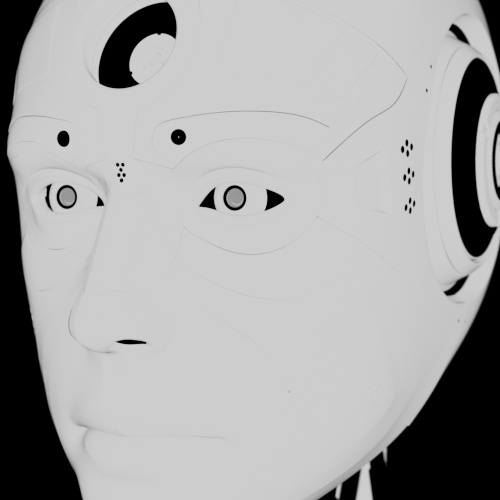
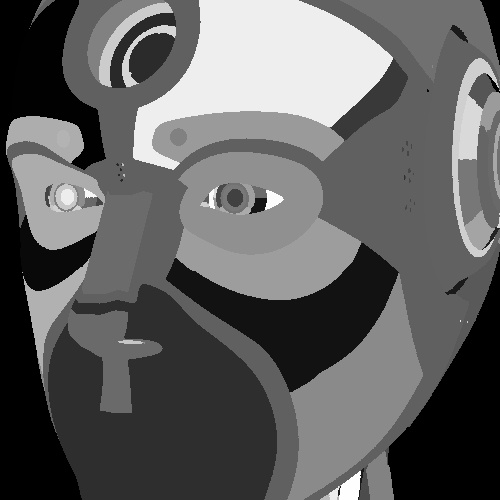
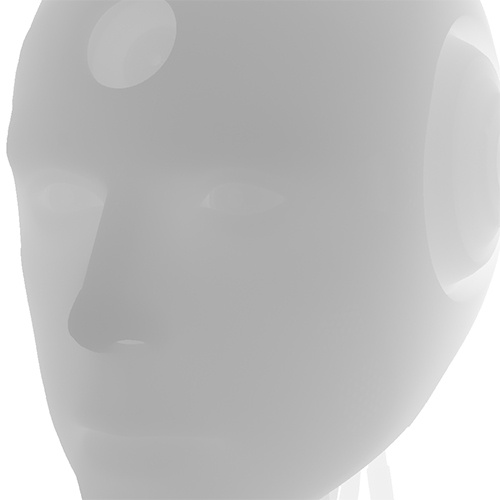
AOVs (Arbitrary Output Variables) provide a way to render any arbitrary shading network component into different images. For example, an artist might find it convenient to separate direct and indirect lighting contributions and later recombine them during compositing. Arnold provides built-in AOVs for outputting depth, position, and motion vectors.
The AOVs tab of the Arnold Renderer settings shows the available and active AOVs of drivers from the scene. By default, the display driver is shown, which controls the output in the Picture Viewer and the IPR. You can add a new driver to the scene with the New driver... button.
AOVs can be enabled by adding them to the Active AOVs list (drag & drop or double-click on an AOV). The AOV is added to each selected driver. AOVs which are only added to some of the selected drivers but not all of them are displayed with a pale color.
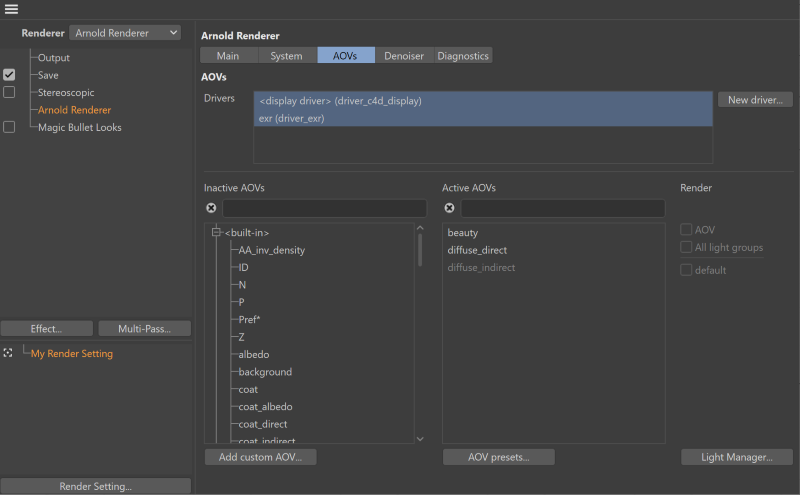
Info: You can also add a new Arnold Driver object from the Plugins > C4DtoA menu if the dialog is closed. See Arnold Driver (Outputs) for how to set up a driver.
Info:
- C4DtoA supports Cryptomatte AOV shaders. A tutorial that shows how to set up cryptomatte can be found here.
- Light path expressions can be used to output light into specific AOVs. A tutorial with a scene file can be found here.
- An introduction to AOVs for compositing tutorial can be found here.
Note: Using closures as AOVs is not currently supported.
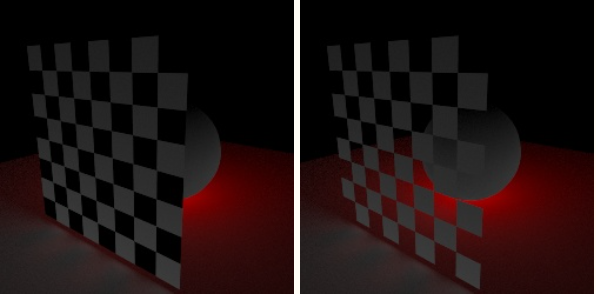
Note: The example below shows a plane with a checker texture connected to Standard Surface Opacity. Currently, we do not support opacity composition in AOVs of RGB types.
Indirect Diffuse AOV
Built-in AOVs
| See the Arnold User Guide for a list of available built-in AOVs. |
A tutorial about compositing AOVs can be found here.
Custom AOVs
You can define custom AOVs in the scene via the Add Custom AOV button if you want to render a custom effect that is not available from the existing AOV list. This custom AOV can be used with any compositing software, such as Nuke. You can write the output of a shader in a custom AOV via an AOV Write shader.
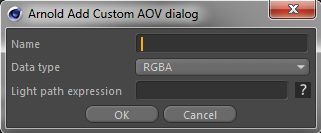
First, you have to define the name and type of the custom AOV. There are different methods to pass data to a custom AOV:
You can define custom Light Path Expressions to write lighting components into separate AOVs (a tutorial with a scene file can be found here).
You can write the output of a shader in a shader network via the aov_write shaders. See this page for more info about this workflow.
You can add the Arnold Custom AOV tag to an object. This is useful for example to create holdout mattes on a per-object basis. You have to define the name and type of the AOV along with an override material, which provides the data for the AOV, for example, a flat or utility shader used for masking purposes.
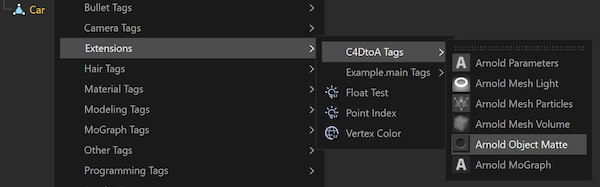
You can add the Arnold Object Mask tag to an object. This is a special custom AOV that writes out a mask of the objects that belong to the same group. See this tutorial on how to use the Arnold Object Mask tag.
The newly created custom AOV will be automatically activated.
Custom AOVs are displayed with the (custom) postfix in the lists, so to find them, you have to type custom in the name filter.
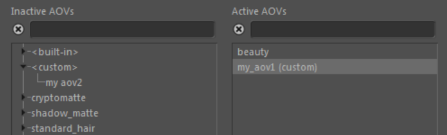
Info: See this tutorial on how to setup Puzzle Matte AOVs.
Light Groups
The contribution of multiple light sources can be written out to separate AOVs when they belong to the same light group. A light group can have multiple lights, but one light can belong to only one group. The group is defined by the AOV light group parameter of the light. The available light groups are listed on the right in the dialog, you can select which light groups are rendered by the selected AOVs. Each selected light group represents a new AOV with the name of the light group as a postfix (e.g. diffuse_direct_group01, specular_direct_group02, sss_default ). The group called default contains those lights which do not belong to any group (the AOV light group parameter is empty). The group is defined by the AOV light group parameter of the light.
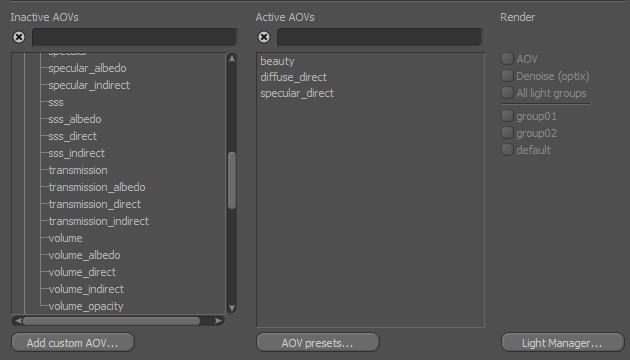
The AOV checkbox controls whether the selected (non-light group) AOV is rendered or not. For example, you can render only the light group AOVs when disabled.
When the All light groups checkbox is enabled, then each of the light groups will be rendered. Otherwise, only the selected ones.
To edit the light groups, click on the Light Manager... button at the bottom of the dialog.
Besides the <L.'groupname'> syntax, any built-in or custom LPE can be split into multiple AOVs to output a subset of lights with a specific AOV group assigned in the light.aov parameter. For this, a postfix must be added to the LPE AOV name in options.outputs.
outputs "diffuse RGB filter driver"            # all lights in one AOV
outputs "diffuse_* RGB filter driver"          # output multiple AOVs, one for each light group
outputs "diffuse_groupname RGB filter driver"  # only light in AOV group "groupname"
outputs "diffuse_default RGB filter driver"    # only lights with no AOV group assigned
Example
In this example, a sphere is lit by three lights: a blue, a red, and a green light. The blue and red lights have different AOV light groups defined, while the green light does not belong to any group.
" default " is the beauty AOV that is lit by lights, not in any AOV light group. " RGBA_default " + " RGBA_red " + " RGBA_blue " give the total RGBA beauty pass.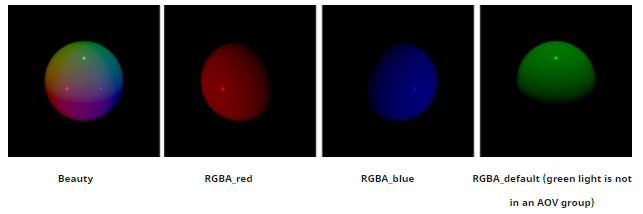
Note: A maximum of 16 different light AOVs are supported, although a given AOV can contain a bundle of any number of lights.
A scene file that demonstrates light group AOVs (with denoising) can be downloaded here.
AOV Presets
The list of active AOVs can be saved as a preset and used later in other drivers in other scenes.
Click on the AOV presets... button under the Active AOVs list which offers you to load, save or delete the presets.
Info: AOV presets are stored in the arnold user.lib4d preset library under the Cinema 4D preferences folder, they are object presets and can be loaded from the Object Manager or the Content Browser.