ACES Workflow
Info: More information about color management in Arnold can be found here.
Color Manager
Cinema 4D 2023
Cinema 4D 2023 brings native OpenColorIO support. The recommended workflow is to switch to the OCIO color manager in the Project Settings and select the Cinema 4D color manager in the Arnold render settings.
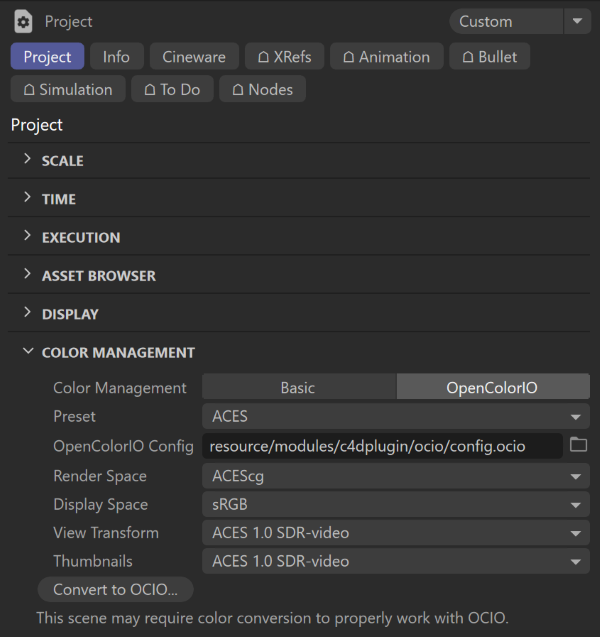 |
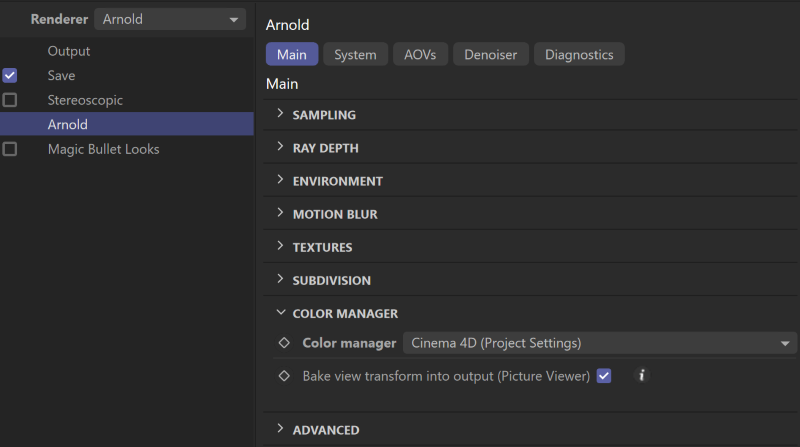 |
Info: The default color manager in Cinema 4D is Basic. To avoid having to do these changes every time a new scene is created, it is recommended to save a new default scene (Window > Customization > Save as Default Scene) with the OpenColorIO color manager selected and set the Cinema 4D color manager in the Arnold Preferences as the default.
Note: When rendering to the Picture Viewer, set the Bake View Transform flag based on the format of the output image:
- Turn on the flag when saving to 8/16-bit integer image (e.g. JPEG, PNG).
- Turn off the flag when saving to 32-bit float image (e.g., EXR).
Cinema 4D S26 and below
The default color manager (available since C4DtoA 4.0.0 / Arnold 7) is configured to render in ACEScg color space and display a tone mapped sRGB image (ACES 1.0 SDR-video (sRGB)), thus no further setup needed.
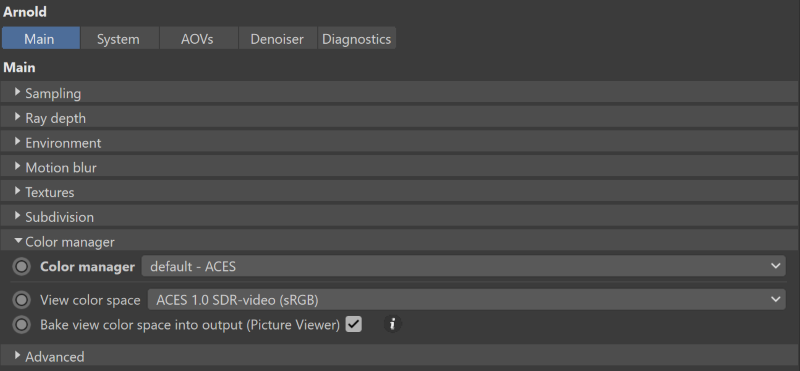
Note: When rendering to the Picture Viewer, the Bake View Transform flag has to be set based on the format of the output image:
- Turn on the flag when saving to 8/16-bit integer image (e.g. JPEG, PNG).
- Turn off the flag when saving to 32-bit float image (e.g., EXR).
Textures
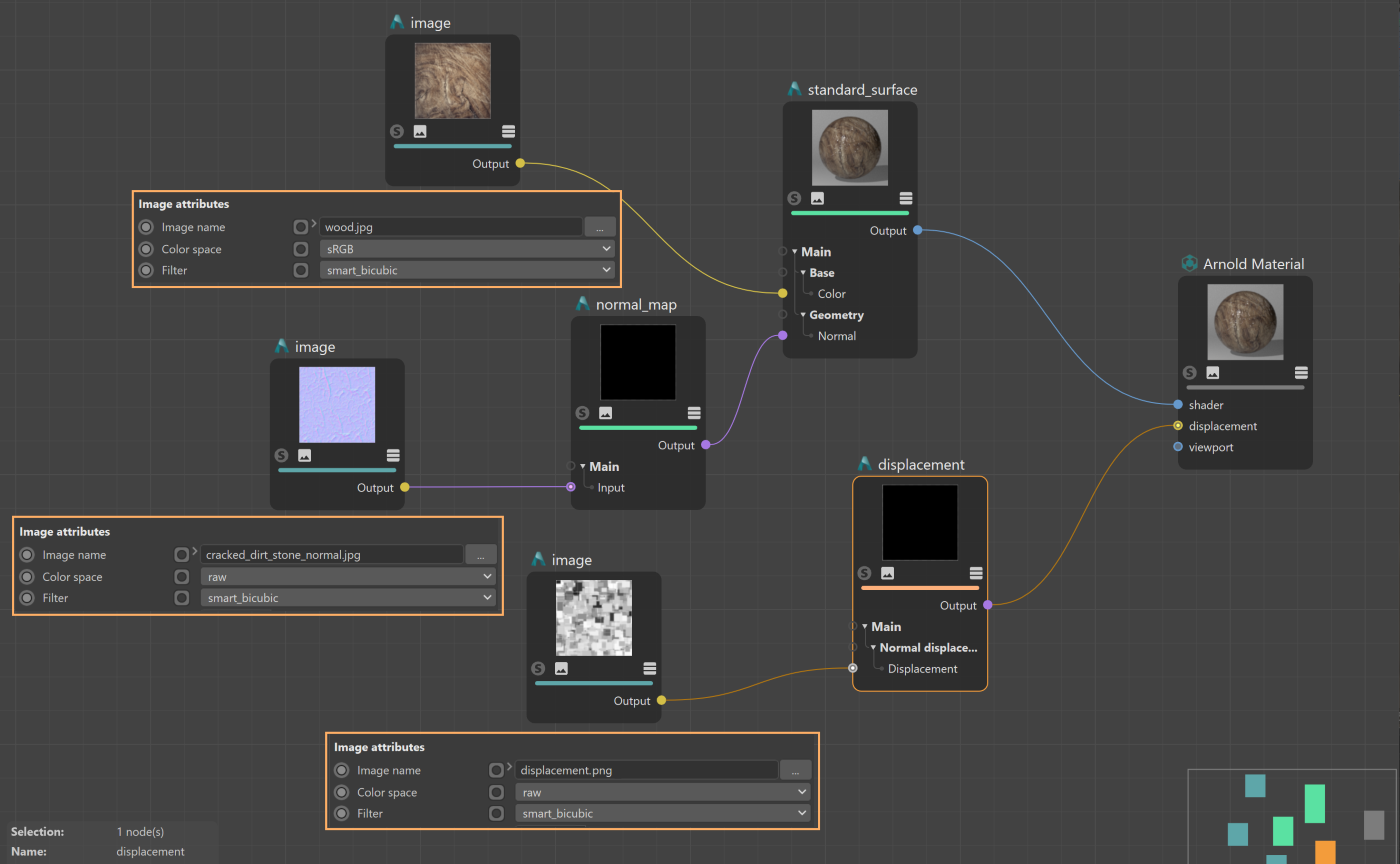
Set the color space of your textures following these rules:
- sRGB: low dynamic range sRGB color images (JPEG, PNG).
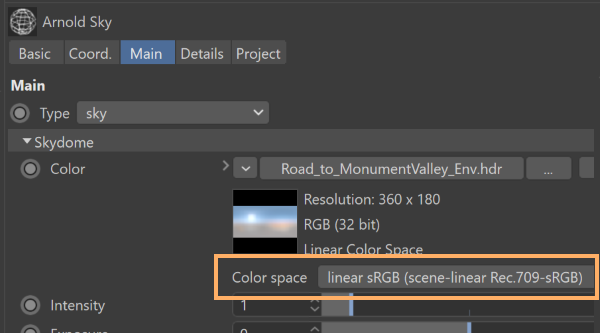
- linear sRGB (scene-linear Rec.709-sRGB): high dynamic range color images (EXR, HDR), for instance, sky or quad light textures.
- raw: non-color data maps, such as normal, bump, displacement, roughness, etc.
- ACEScg: pre-converted ACEScg textures.
 |
 |
IPR Window
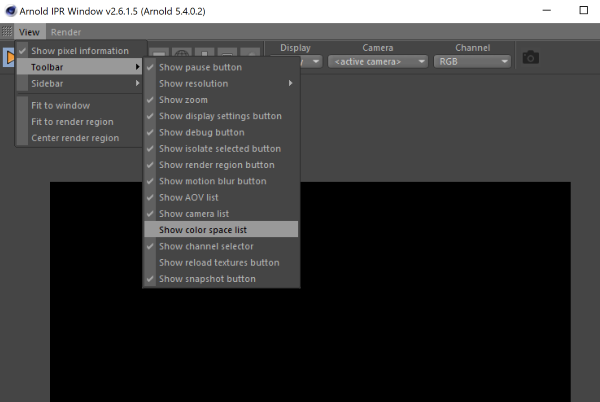
By default, the IPR window uses the same view color space defined in the render settings (ACES 1.0 SDR-video (sRGB)). You can select a custom view color space on the toolbar.
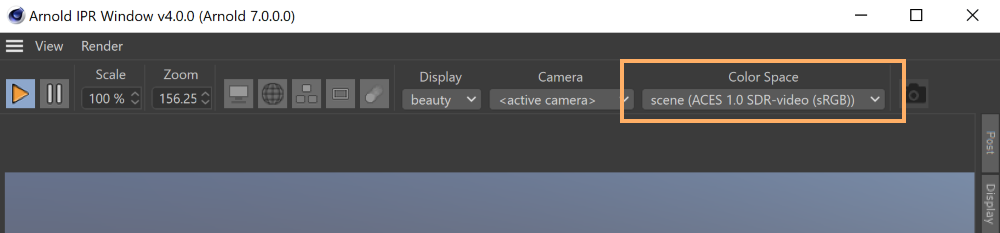
If the color space list is not visible, go to View > Toolbar > Show color space list to add it to the toolbar.