To create update policies
Update policies allow Primary and Secondary administrators to configure update schedules for their users. At the scheduled date and time, available updates will be installed on users' devices.
Scheduled Updates install minor updates such as 2026.1 or 2026.2. They do not install new major product releases such as 2027. For the full list of supported and unsupported update types, see Scheduled update guidelines. Manage unsupported updates through the applicable Autodesk Account or product-specific workflow.
Before you start
Make sure that:
- You are a primary or secondary administrator for the team.
- Your team has an active subscription with at least one product eligible for Scheduled Updates.
- You can choose a start date at least 48 hours in advance.
- The users and groups you want to assign are available in Autodesk Account and belong to the team.
If you cannot add a user or group, verify that it belongs to the team and that you have permission to manage the team’s users and groups.
Create an update policy
- Go to Autodesk Account and sign in.
- Select Products and services in the top navigation.
- Select Scheduled updates at the top of the page.
- Click Create policy to add a new policy.
- Configure the policy, then save it.
Configure an update policy
- Give the policy a name that helps you identify the policy. This name appears in the Update Policies list.
- Select the Policy type:
- Schedule updates: Installs updates for the assigned users on a regular schedule.
- Disable updates: Prevents users from seeing and installing updates and does not set a schedule. This achieves the same result as using the DisableManualUpdateInstall registry setting with a value of 1. If this policy is set for a user, Access ignores the registry setting on their device. See Registry-based settings reference for more information.
- Select Groups and/or Users to assign them to the policy.
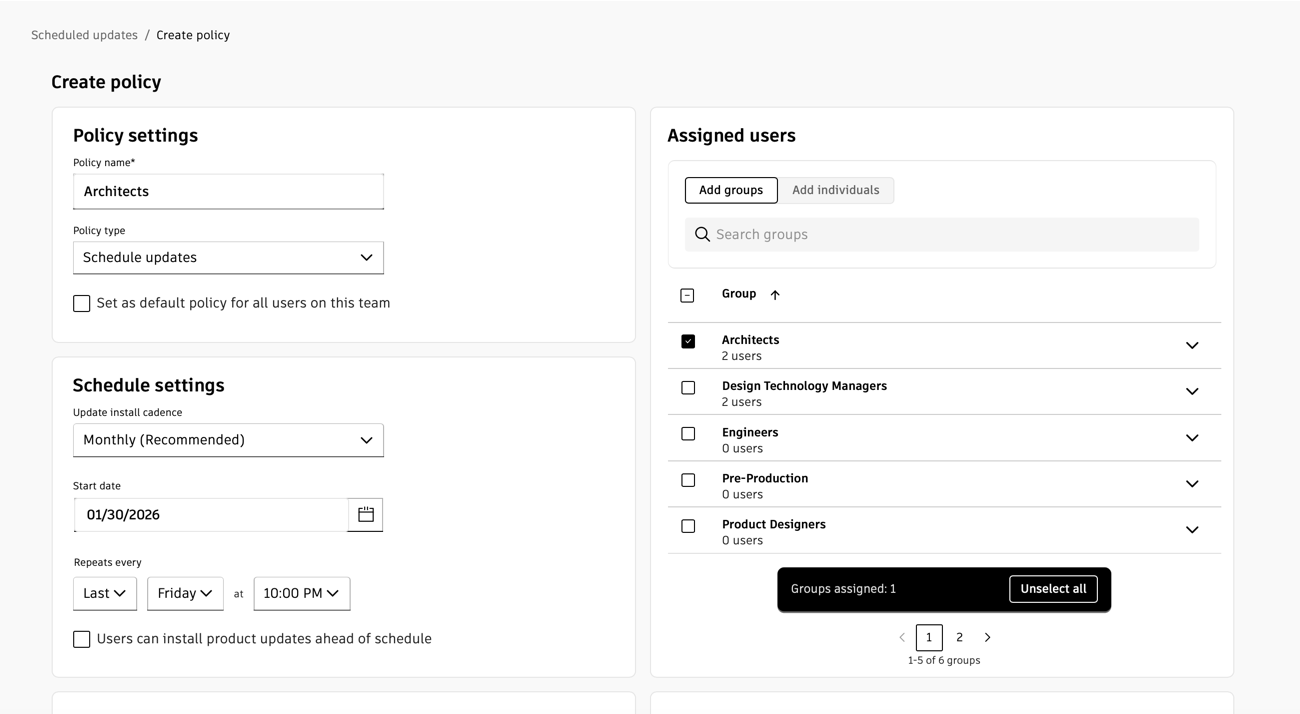
- Click Next
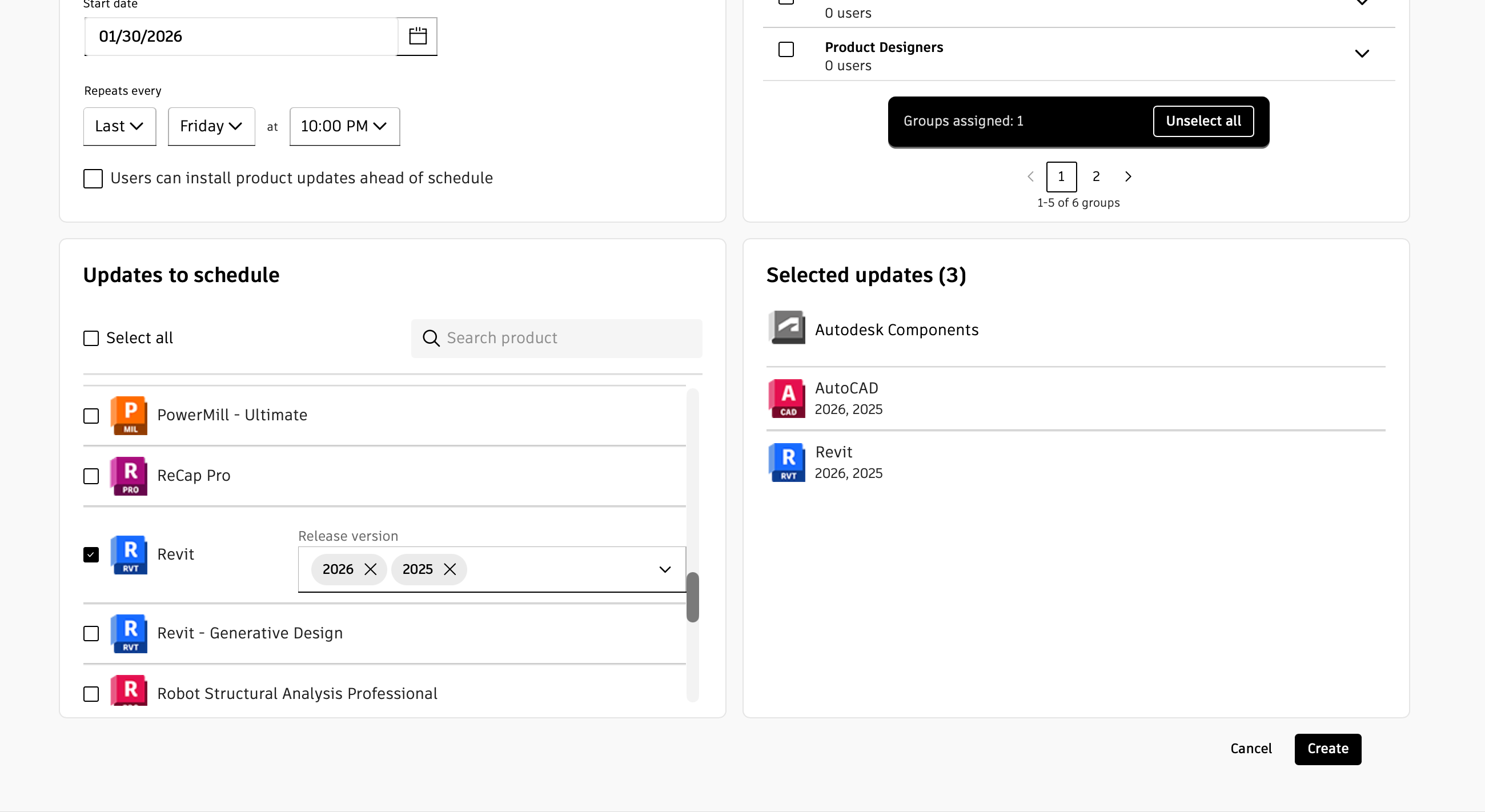
- Choose an Update install cadence:
- Weekly: Installs the latest available updates that are older than four days, once per week. Recommended for early adopters and those that are subject matter experts. Creates schedules that occur 52 times in a year. Critical updates will be installed if they are older than two days.
- Monthly: Installs the latest available updates that are older than 15 days, once per month. Recommended for most users. Creates schedules that occur 12 times in a year. Updates marked as Critical will be installed on a faster cadence of Weekly, and they must be older than four days to be installed.
- Quarterly: Installs the latest available updates that are older than 45 days, once per quarter (three months). Recommended for users who are less tolerant of updates or need the fewest changes. Creates schedules that occur four times in a year. Updates marked as Critical will be installed on a faster cadence of Monthly, and they must be older than 15 days to be installed.
- Choose the start date for the first scheduled updates to occur. You must pick a day at least 48 hours in advance, so today and tomorrow are not selectable. Once the start date passes and schedules start, this date is no longer used.
- Choose the month/week/day and time you want the schedule to start installations. This is the local time on the device that the installations will start and may vary by a few minutes.
Tip:
For updates to install, users need to keep their device on, stay signed in, and close Autodesk products during the four-hour installation window. If a device misses the window, Access retries at the same time on the following three days.
- Select Users can install product updates ahead of schedule if you want your users to be able to install the updates early.
- Choose the products and versions that you want to schedule. This list shows the schedulable products available on the team’s subscriptions.
- Click Create to finish. You will see a confirmation message that the policy has been created.