
Issue:
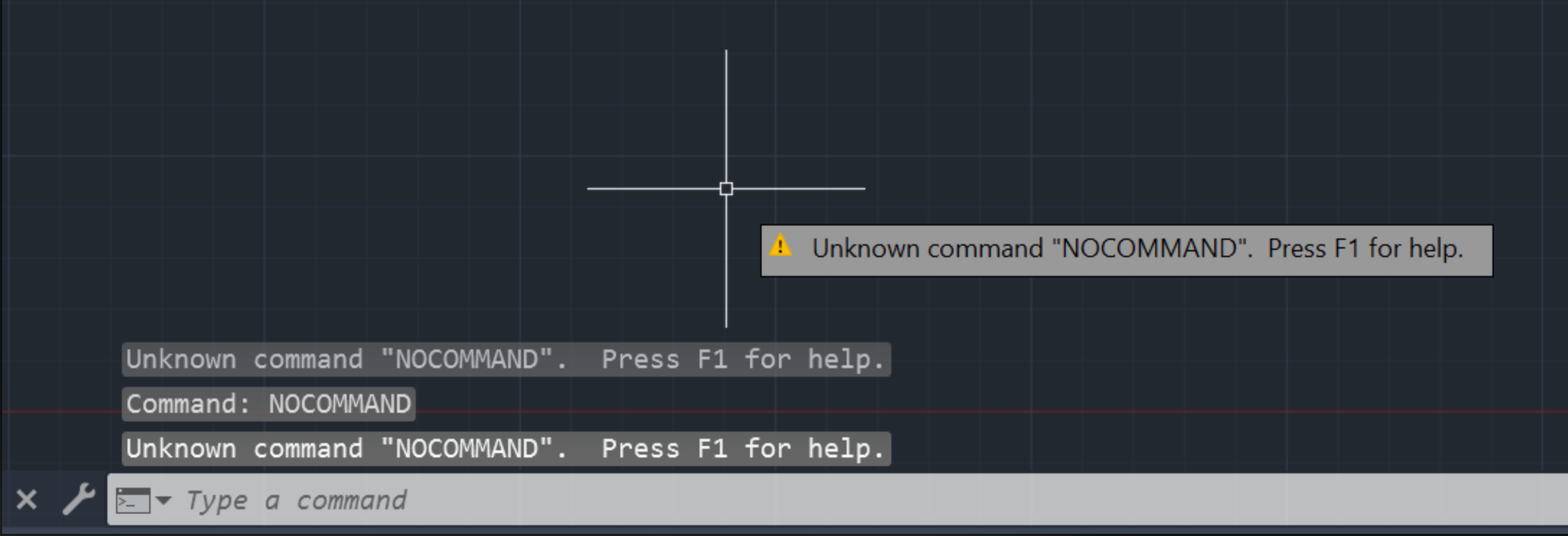
After entering a command in AutoCAD products, the command fails and the following message is shown on the command line or next to the crosshairs:
Command: <command>
Unknown command "<command>". Press F1 for help.
Causes:
Command availability
- The command is not available in the AutoCAD product is being used. Some toolsets have unique commands.
- Running an English command on non-English version.
Custom Commands
- A new custom command was defined by the user in the CUI editor.
AutoCAD product settings and configuration
- Incorrect support folder path.
- Wrong partial customization file (ACAD.cuix) loaded.
- Missing ARX files.
- Missing CRX files.
- Missing acad<version>doc.lsp file.
Third party add-ons (plug-ins)
- The add-on containing the custom command is not registered correctly in the AutoCAD environment.
- The add-on version is not compatible with the AutoCAD version
- Missing AutoCAD updates.
- acopm.arx does not find the necessary procedure
Solution:
Command availability
- Verify that the intended toolset or toolset profile is being used in OPTIONS > Profiles.
- Verify that the command is available in the specific AutoCAD product or toolset that is being used.
- Run the English command with an underscore before (for example "_line") or use the command, which is available for that installed language version.
- Change the language version of AutoCAD if needed (see How to change the language of AutoCAD products).
-
Fix missing support paths for language:
-
Enter OPTIONS on the command line or click Options under the application menu.
-
Click the Files tab.
-
Expand Support File Search Paths.
-
If the following path is not present, add it:
-
C:\Program files\Autodesk\<product>\support\<language>
Note: This is normally listed right after C:\Program files\Autodesk\<product>\support. Be sure to edit this path for the installed version of AutoCAD and for the correct language. For example, the last folder should be de-DE for German, en-US for American English.
Custom commands
- For custom commands added through the CUI editor, add them to buttons on toolbars or ribbon panels, or as drop-down list items. Alternately, they can be defined within LISP routines and loaded with APPLOAD (not available in AutoCAD LT).
- For custom commands added by an add-in/add-on, check the add-ons' compatibility with AutoCAD, uninstall, and reinstall it.
AutoCAD product settings and configuration
-
For all AutoCAD products except AutoCAD LT, check ObjectARX loading:
-
Enter OPTIONS on the command line or click Options under the application menu.
-
Click the Open and Save tab.
-
Change "Demand load ObjectARX apps" to "Object Detect & Command Invoke."
-
Click OK on the Options window.
-
-
Missing acad<version>doc.lsp file:
-
Open Windows Explorer and search in AutoCAD installation folder for acad<version>doc.lsp. Path: C:\Program Files\Autodesk\AutoCAD <version>\Support\<language>.
-
Type OPTIONS on the command line to see if the location of the acad<version>doc.lsp file is listed under Support File Search Paths.
-
Type APPLOAD on the command line and see if acad<version>doc.lsp is loaded. If not, navigate to the path above and load acad<version>doc.lsp.
-
- Reset the CUI (see How to reset the CUIx in AutoCAD).
- Reset AutoCAD to defaults (see How to reset AutoCAD to defaults).
- If using Civil 3D, reset Civil 3D to defaults (see How to reset Civil 3D to default).
- Repair the AutoCAD installation (see How to repair or reinstall an AutoCAD installation).
- Install available AutoCAD updates (see Install Updates, Add-ons, and Enhancements).
Third-party add-ons (plug-ins)
- Ensure the add-on is installed (see About Installing and Uninstalling Plug-In Applications).
- Verify with the add-on author that its version is compatible with the version of AutoCAD it is installed on.