
Issue:
You would like to automate the process of cleaning up and optimizing AutoCAD drawing files.
Causes:
Over time, drawings can accumulate unused entities and data, causing performance and quality of the drawing to be negatively affected. A few examples of the various types of data and objects are:
-
Geometry.
-
Annotations.
-
Layers.
-
Blocks.
-
Attributes.
-
External references (Xrefs).
Solution:
The Autodesk Drawing Cleanup Utility for AutoCAD is a lightweight standalone application that aims to help users automate the process of cleaning and optimizing AutoCAD drawing files.
Current Capabilities
Purging objects such as:
- Blocks.
- Dimension Styles.
- Layers.
- Linetypes.
- Text Styles.
- Registered Applications.
- Drawing Scales (see Note).
- Materials.
Purging nested items and unnamed objects:
- Zero-length geometry.
- Empty text objects.
- Orphaned data.
Downloading of a Report (Excel document) which summarizes information of the cleanup job executed, including items purged.
Notes:
- The utility will purge all Drawing Scales that are unused. Default drawing scales will not be added back automatically. Please use the SCALELISTEDIT (command) on the command lined in AutoCAD to add back default drawing scales if needed.
- Additional features and enhancements will be added to the utility in the future.
- This utility is only available in English and supports DWG and DXF files only.
To Install the Drawing Cleanup Utility
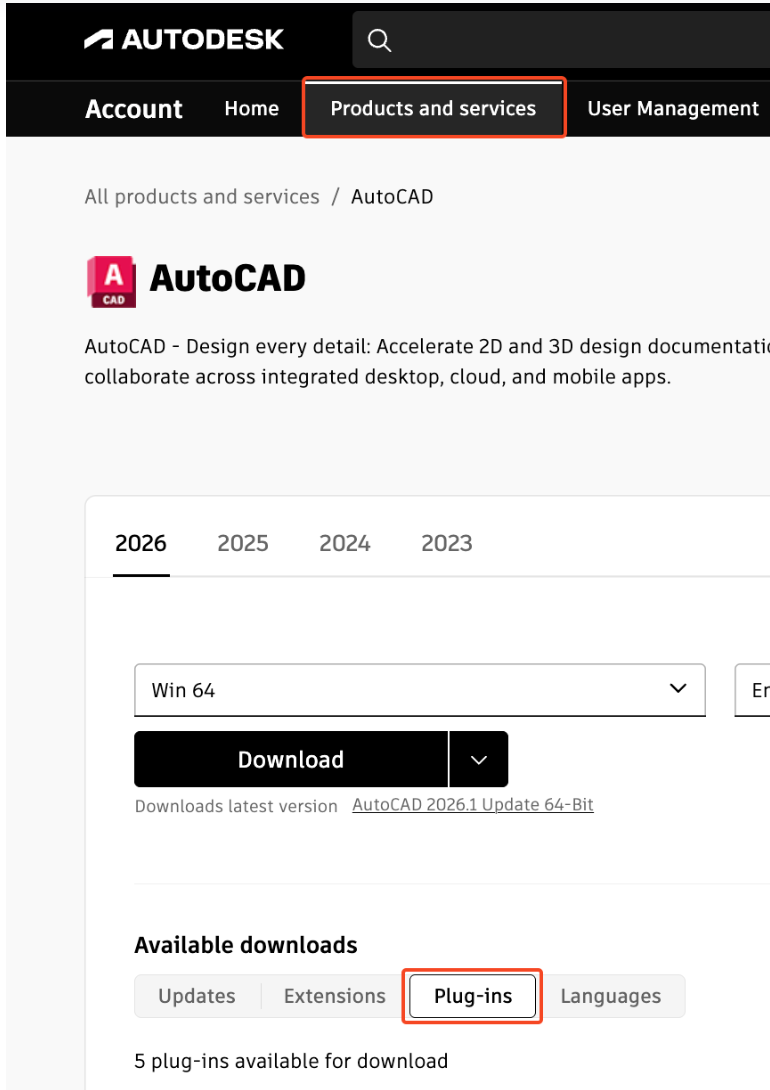
Download Autodesk Drawing Cleanup Utility for AutoCAD from your Autodesk Account.
- Sign into the Autodesk Account portal.
- Go to Products & Services > AutoCAD > View Details > Plug-ins.
- Find the AutoCAD_Drawing_Cleanup_Utility.exe and double-click to start installation.
Notes:
- This utility is only supported on Windows 64-bit.
- It requires either of the following products to be installed to run:
- Autodesk AutoCAD 2024-based products.
- Autodesk AutoCAD 2025-based products.
- Autodesk AutoCAD 2026-based products
- This utility will not run if only AutoCAD LT is installed.
- For supported operating systems, see System Requirements for AutoCAD.
- If object enablers are installed in the machine, ensure that the version of the object enablers matches the version of the AutoCAD-based product installed.
To Uninstall the Drawing Cleanup Utility
Windows 11:
Go to Settings > Apps > Installed Apps.
- Select 'Autodesk Drawing Cleanup Utility for AutoCAD'.
- Select Uninstall.
Windows 10:
Go to Control Panel > Programs and Features.
- Select 'Autodesk Drawing Cleanup Utility for AutoCAD'.
- Select Uninstall.
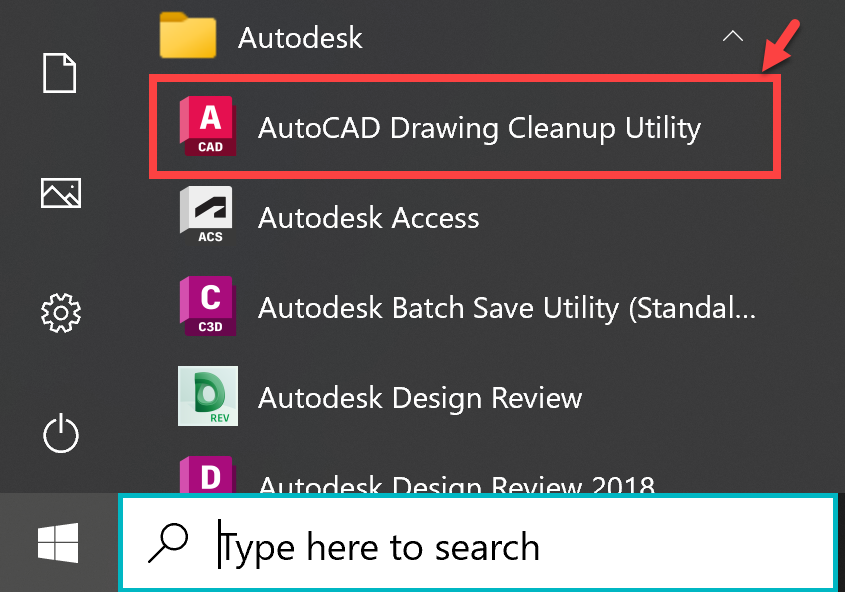
Launching the Utility
From the Windows Start menu, click on AutoCAD Drawing Cleanup Utility.
Using the Utility
Clean Drawing Files:
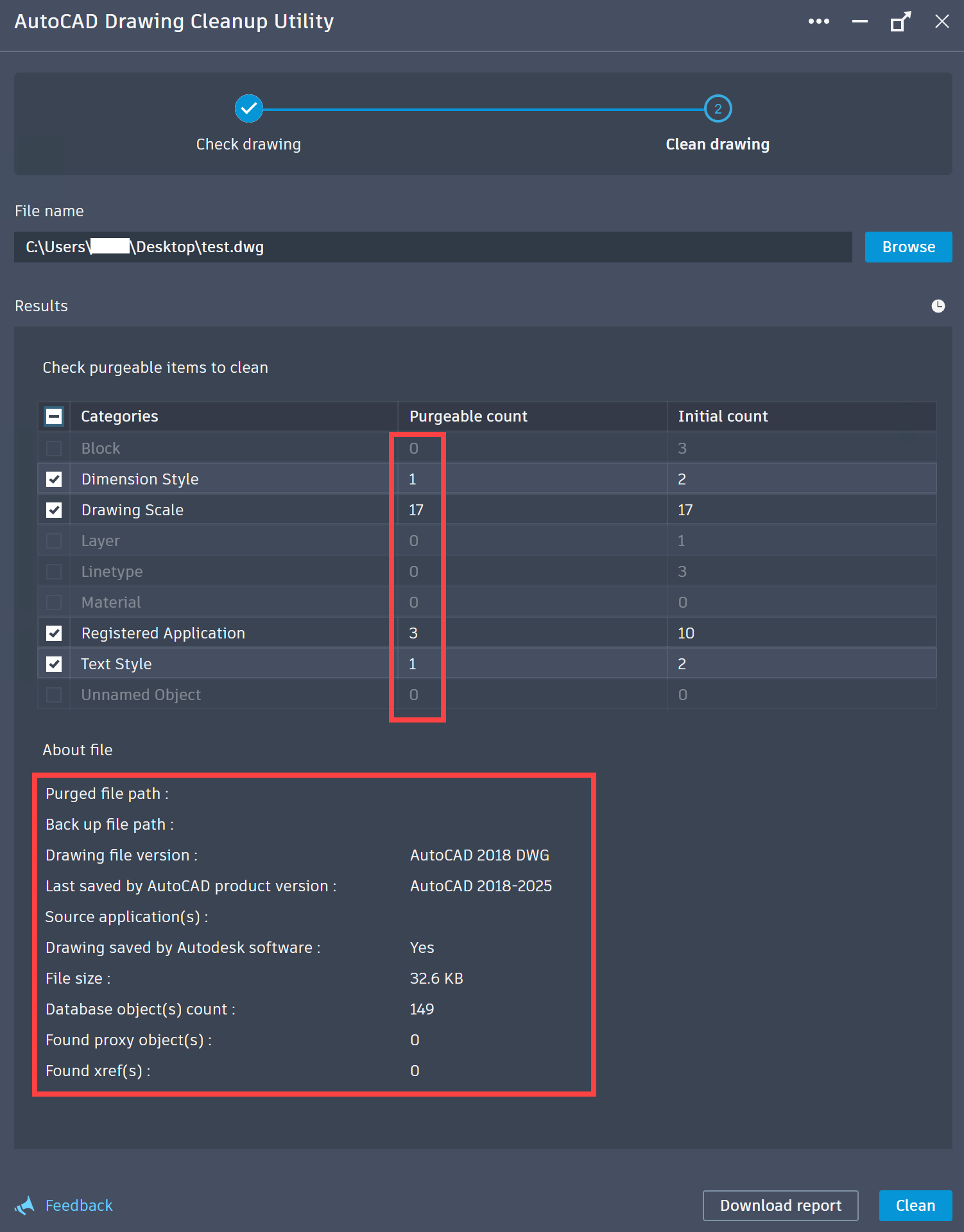
Under 'File name', click ‘Browse’ and select the drawing to clean. Check drawing process will run.
Files saved in any of the following cloud providers can be selected to clean: Autodesk Docs, Autodesk Drive, Microsoft OneDrive and Dropbox.When the check drawing process completes, information about the file as well as purgeable items will be displayed in the 'About File' and 'Results' section respectively. Example:
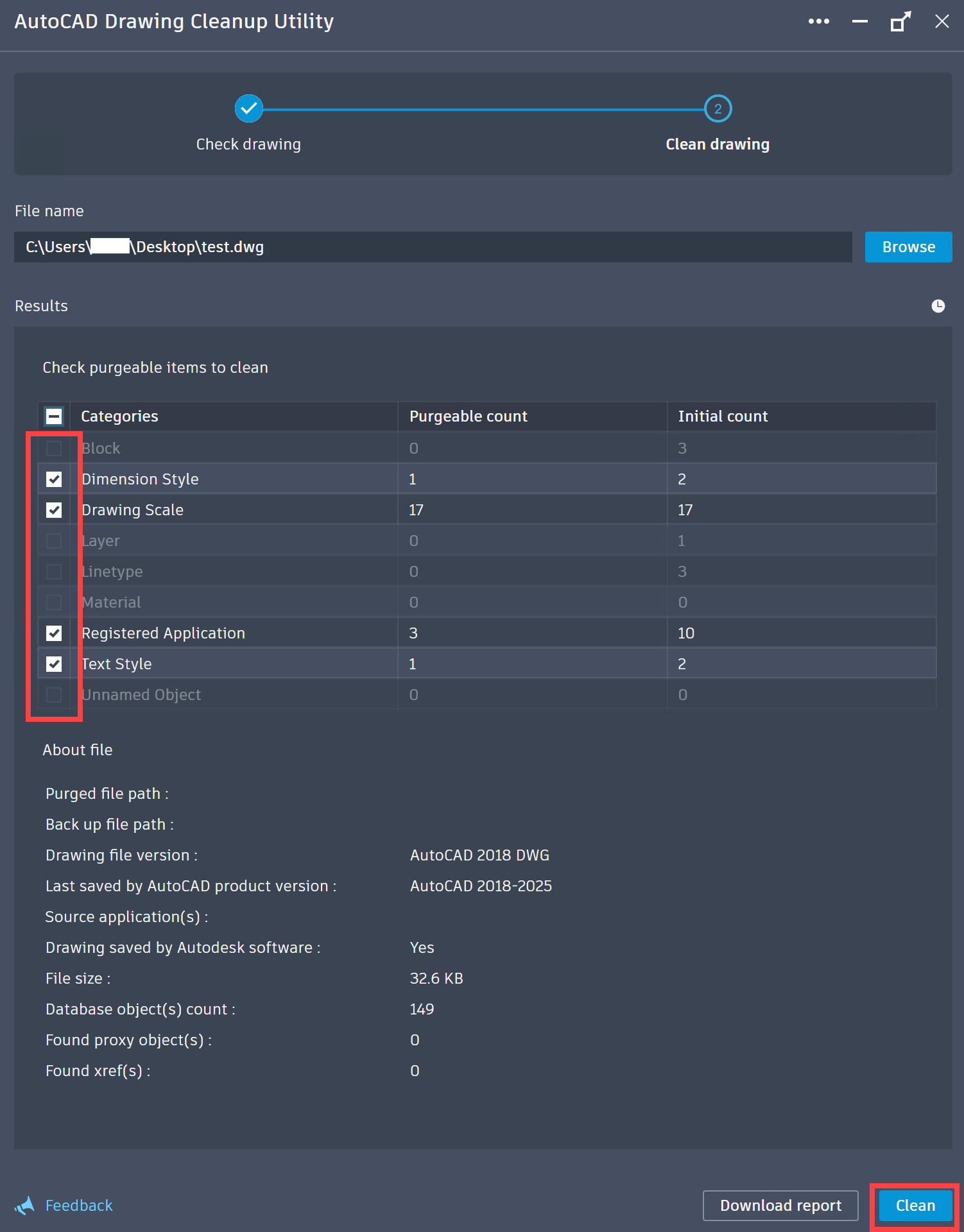
- Under 'Results', check the purgeable items to clean and click on 'Clean' button. Clean drawing process will run.

Notes:
-
- When the Clean drawing process completes, both the cleaned drawing file (<filename>.dwg) and the backup file (<filename>-backup.dwg) will be saved in the same folder location as the selected drawing.
- There will be added columns named 'Purged Count' and 'Remaining Count' which will display values.
- The 'Purged file path' and 'Back up file path' in the 'About File' section will also display paths.
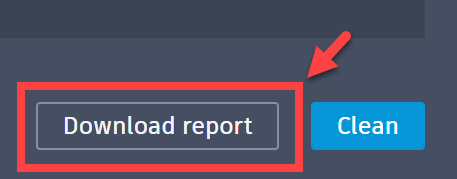
4. (Optional) Click ‘Download Report’ to download an excel file containing information about the file and purgeable entities.
Notes:
- Drawing files will be saved to AutoCAD 2018 Drawing (*.dwg) format by default when cleaned.
- When Drawing Scales is checked for cleaning, all unused Drawing Scales in the drawing will be purged. Unlike desktop AutoCAD, the default list of Drawing Scales will not be added back to the drawing.
- There may be instances where registered applications are automatically recreated by object enablers loaded in AutoCAD even after purging all purgeable registered applications in a drawing.
- The utility currently does not support cleaning of external references (XREFs) attached to the drawing. If the drawing has XREFs, it is recommended to clean all XREFs prior to cleaning the host drawing. This is especially important when cleaning registered applications and drawing scales. To check if a drawing file has XREFs, refer to steps under 'Check for External References' below.
Check for External References
Launch the utility.
Under 'File name', click ‘Browse’ and select the drawing to clean. Check drawing process will run.
When the check drawing process completes, click ‘Download Report’. Save the .xlsx file.
Open the downloaded .xlsx file and navigate to sheet 'Xrefs'. Information on the attached external reference files (if any), including file paths, will display in this sheet.
Start a New Cleanup Job
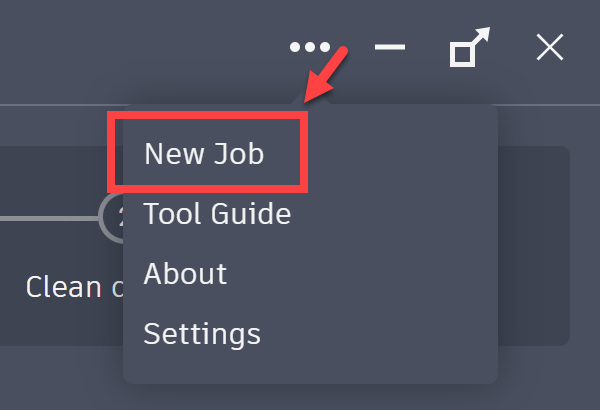
After performing a cleanup on a drawing, to start a new cleanup job, click on the meatball menu button on the top right of the utility and select 'New Job'.
Cleanup Job Execution Time
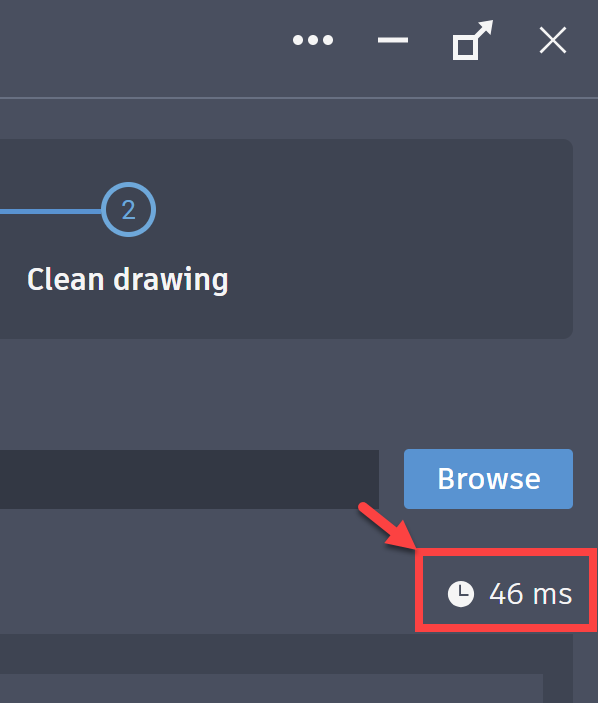
Total execution time for each cleanup job is displayed below the 'Browse' button.
Settings Dialog
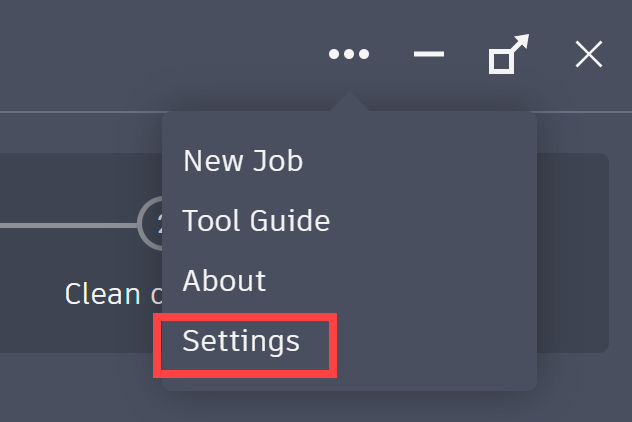
The utility's settings dialog contains 2 settings:
- Disable backups for local drawing files
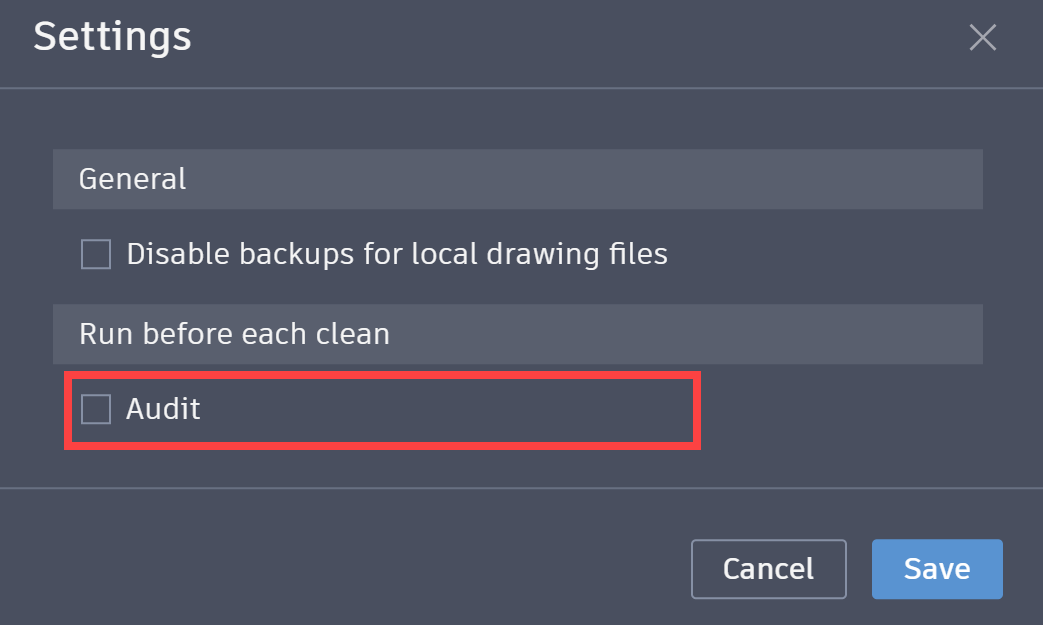
- Run before each clean - Audit
Disable backups for local drawing files
The utility creates a backup file named <filename>-backup.dwg with every clean job by default. To disable this feature:
- Access the settings panel, see above.
- Check "Disable backups for local drawing files".
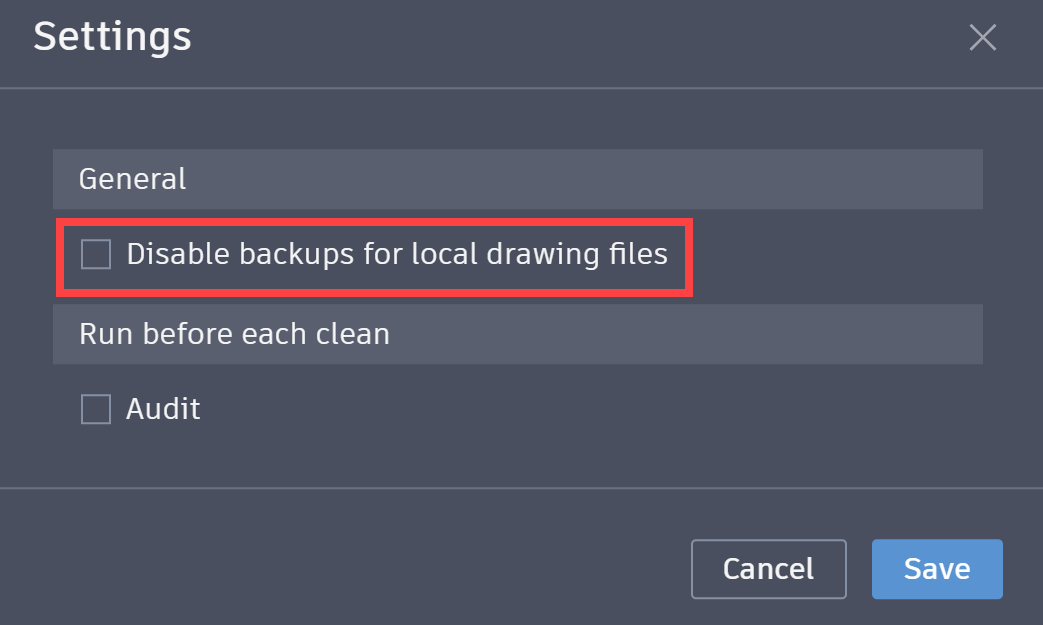
Note: If a drawing file selected to be cleaned is saved in one of the following cloud providers: Autodesk Docs, Autodesk Drive, Microsoft OneDrive and Dropbox, this backup is automatically disabled. These cloud storages come with Version History features. It is recommended to use the cloud storage's Version History feature to restore older versions of the drawing file if needed.
Run before each clean - Audit
Check the 'Audit' setting to have the utility automate the running of Audit before each clean job.
Providing Feedback
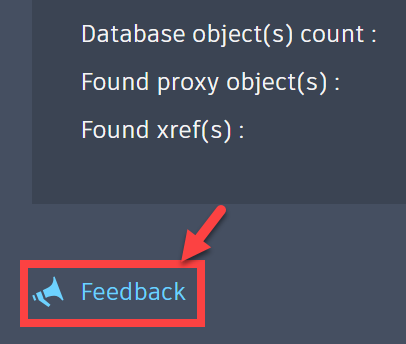
Click on the 'Feedback' button that is available at the bottom left of the utility. Fill in your thoughts in the survey and submit.
Troubleshooting
If the Utility errors when cleaning drawings, retrieve the main.log in folder C:\Users\<user>\AppData\Roaming\AutoCAD Drawing Cleanup Utility\logs and reach out to Autodesk Support.
Terms of Use
Autodesk Drawing Cleanup Utility for AutoCAD is subject to the Autodesk Terms of Use.