
Issue:
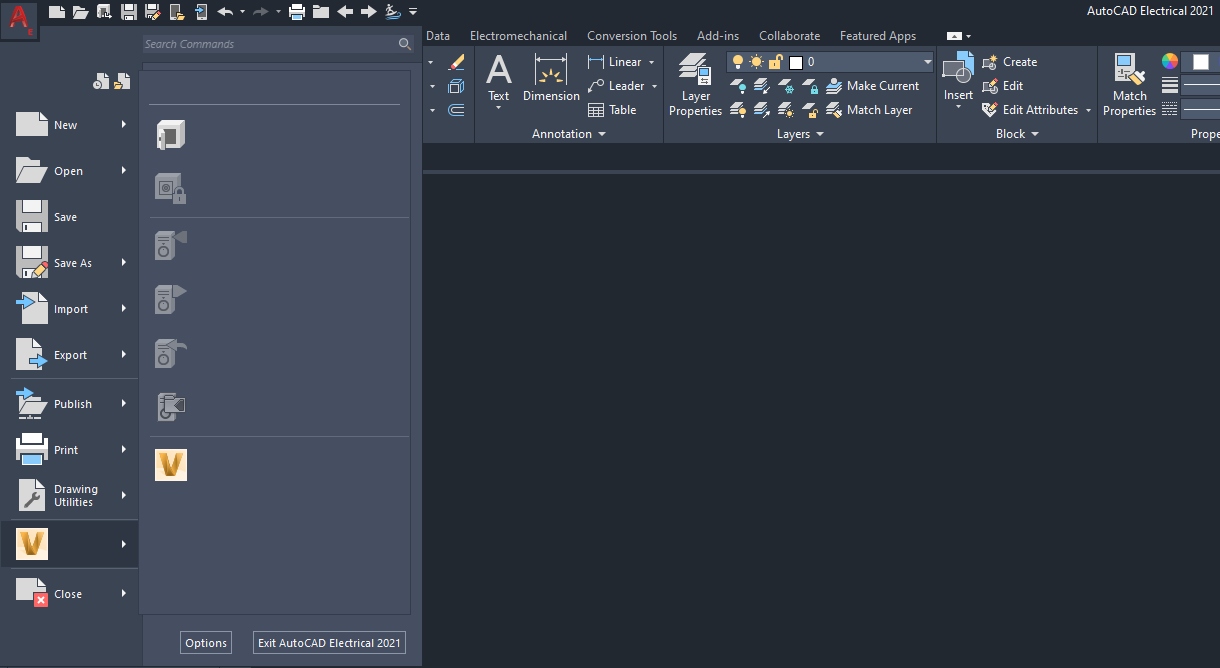
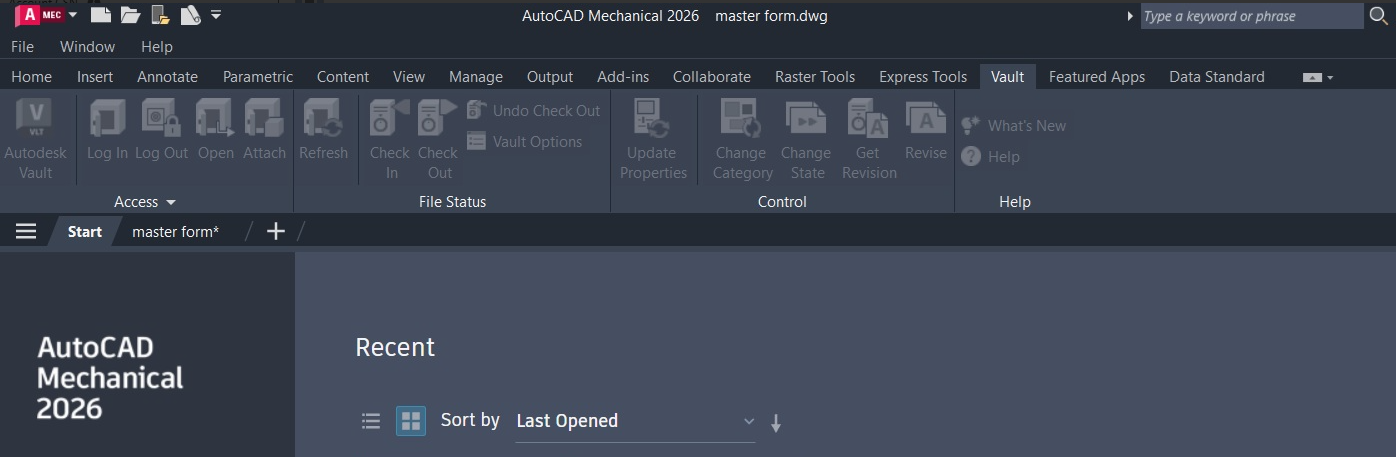
After installing both Vault and AutoCAD products, the Vault ribbon does not appear or is missing, is blank, empty, disabled, inactive, or disabled in AutoCAD. This issue may affect other products, such as Inventor.
Causes:
- Vault was installed before AutoCAD.
- Vault version does not match AutoCAD version.
- Client Operating System not supported by AutoCAD or Vault.
- Multiple AutoCAD versions are installed on the same machine.
- Vault CUI did not load correctly.
- Setup of AutoCAD installer was customized.
- Vault Data Standard for AutoCAD is installed.
- Vault Office is being used which does not support CAD integration.
- Windows machine has an issue since they installed a newer AutoCAD version, uninstalled AutoCAD and cleaned the windows registry manually.
Solution:
Install the Vault Client version that matches the CAD version
For example, to use the AutoCAD 2025 Vault Add-in, the Vault 2025 client must also be installed. See: How to install Vault Add-in 2022 for CAD 2022 applications.
Multiple versions of AutoCAD installed
If multiple versions of Vault and AutoCAD are installed it can cause issues with the AutoCAD add-in.
- Identify if any old versions of AutoCAD or Vault are installed that are no longer needed
- Remove previous versions of AutoCAD or Vault
- Reinstall the required versions
- If any issues persist reset the local profile of Vault for the Windows user: How to delete the local Vault client profile and the Windows User Profile
Confirm that the client OS is supported for Vault
System requirements for Autodesk Vault products.
Switch Workspace
Switch from the current Workspace to a different one, and switch back to the previous one.
Remove and restore the ribbon
Note: For Vault 2022 and newer, Vault Client must be uninstalled and installed again to reinstall CAD add-ons: How to install Vault-Addin 2022 for CAD 2022 applications.
- Start AutoCAD.
- Run CUILOAD.
- Click Browse and choose "Vaac.cuix".
- Click Load.
- Uninstall AutoCAD and reinstall AutoCAD using the normal setup. Restart the process from step 1 to add the Vault ribbon back into AutoCAD. See: How to repair or reinstall an AutoCAD installation.
Note: If Windows Registry entries of the Vault Client have been modified, a full Uninstall and Reinstall of the Vault Client will be required. Make sure that only one AutoCAD version installed.
When using Vault with AutoCAD Mechanical, Architecture, Electrical, or other Toolsets
- If the Vault ribbon is not present:
- Open any drawing (can be new) in AutoCAD.
- Enter CUILOAD on the command line and press Enter.
- Select VAULT and click Unload.
- Select "Vaac.cuix" and load it.
- Close and restart AutoCAD.
- If the Vault ribbon is present, but the command buttons are disabled in the ribbon, reset AutoCAD to default settings. See the article: How to reset AutoCAD to defaults.
Alternatively:
- Navigate to the Vault folder to open a file.
- Follow these steps to reinstall Vault Client: Install Vault Pro add-on for AutoCAD Electrical.
Check whether the Windows account has sufficient rights
The current Windows account needs Full Access to the %APPDATA% folder.
If using Vault Data Standard
Make sure that the updates for Autodesk Vault Data Standard are installed.
Using the Vault ribbon with Enterprise Customization Files
If an Enterprise CUI is being used, the Vault ribbon tab needs to be added to it. See: About Enterprise Customization (CUIx) Files.
3rd party add-ins cause the ribbon not to load
It's been reported that certain 3rd party tools cause issues with Vault ribbon in AutoCAD including crashing and the ribbon not loading. Test removing all 3rd party add-ins then fully uninstalling AutoCAD and Vault then reinstalling AutoCAD first then Vault to see if 3rd party tools might be causing an issue. 3rd party tools that have known issues with AutoCAD are:
- CADWORX
- AEP
Vault Office Client is being used
Vault office does not support CAD integration. For the ribbon to appear:
- Verify that a supported version of Vault is being used (Basic, Workgroup, or Professional).
- Reinstall the Windows machine new and then install AutoCAD and Vault new with the current updates.
Change Install from Deployment
If Vault and AutoCAD were installed from a deployment, try uninstalling and installing using a different method such as individual: