
Issue:
Users reported that Autodesk installation or uninstallation remains stuck at 97% and it never completes the process.
Environment:
- Windows
Causes:
- An Installation process is running in the background.
- Corrupted installer.
Solution:
Note: If you are not an administrator or you are working in a controlled or secure environment and receive errors while troubleshooting, you may need to contact a member of your IT team to help with the below solutions.
An Install or uninstall process is running in the background
Stop the running install or uninstall process.
If the install or uninstall stops and shows no progress for more than 30 minutes, consider doing the following:
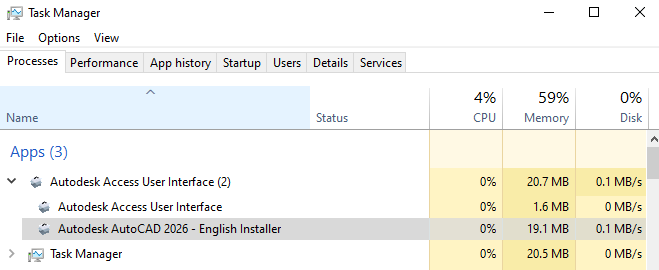
- Go to Task Manager > Processes.
- Click the drop-down arrow located to the left of "Autodesk Access User Interface".
- Right-click on the product installer and click "End Task".
In the following image, the product installer is called "Autodesk AutoCAD 2026 - English Installer".
Start the installation/uninstall again to see if the issue is resolved.
Corrupted installer
If the issue is occurring while installing the product and the above solution did not resolve the issue, Download a new installer using the Direct Download method from your Autodesk account.
- Sign in to your account at manage.autodesk.com.
- From the Products and Services tab, select the product and click "View details".
- Click on the drop-down menu beside Install.
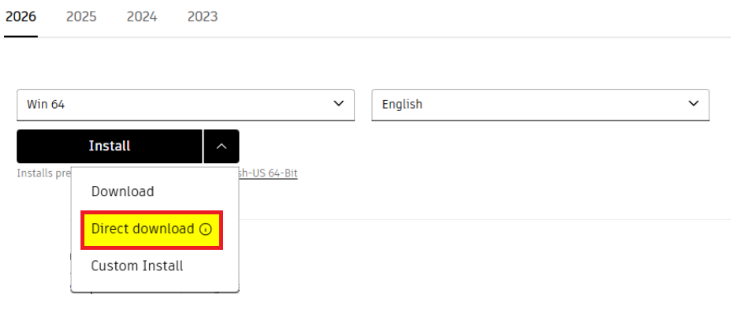
Select: Direct Download, a zip file will start downloading.
-
Once downloading is finished, open the file location by clicking on the folder icon in the top right corner of the download.

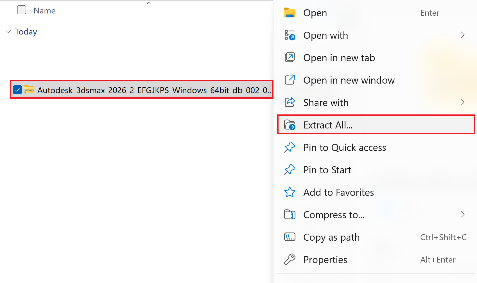
Right-click the downloaded zip file and select Extract All.
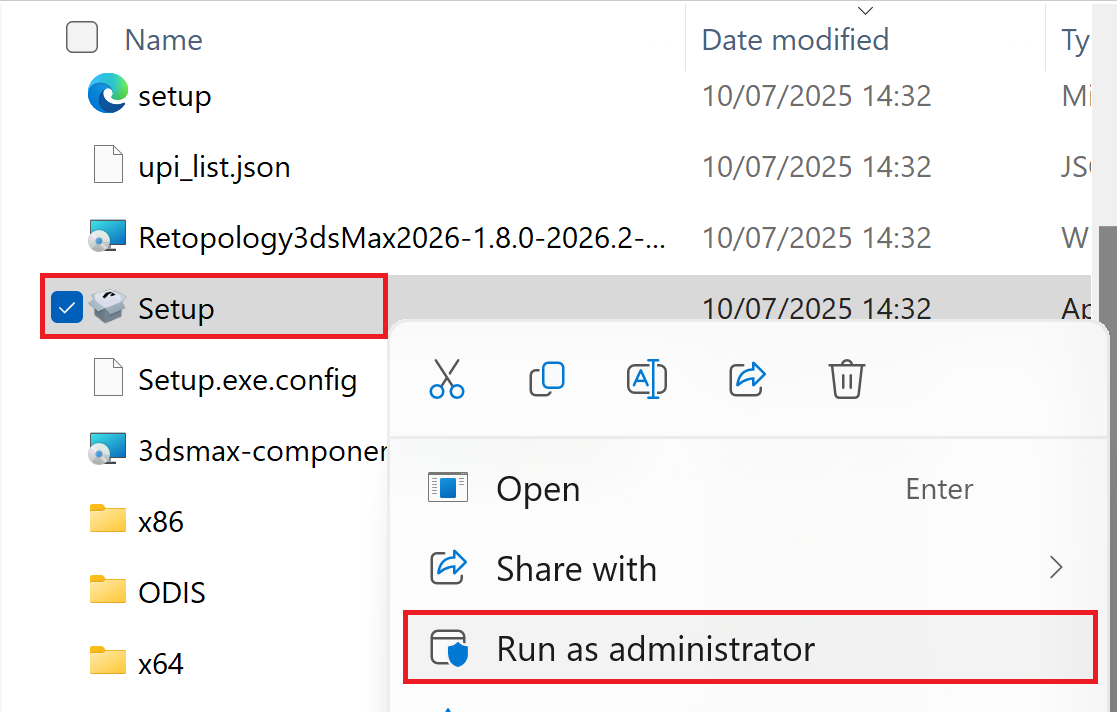
Open the extracted zip file then right click the setup.exe file and select to Run as administrator.
After the installation is finished, if needed, download and install updates separately from the Product Updates tab in your Autodesk account.
Note: If the issue is occurring while uninstalling, consider downloading and using Microsoft Fix It to uninstall the software.