
Issue:
One or more tabs, panels, or other controls are missing from the ribbon in AutoCAD products. Maximizing the program window may or may not display the missing user interface elements.
Causes:
AutoCAD settings and configuration
- The missing Tabs or Panels are turned off.
- Settings migrated from a previous version have altered the ribbon display.
- The missing Tabs or Panels are not displayed in the current workspace.
Corrupted or damaged program elements
- Corrupted user profile in AutoCAD.
- The default or loaded Custom User Interface (CUI or CUIX) is damaged or corrupted.
Profile and product do not match
- AutoCAD, AutoCAD LT, and AutoCAD Toolsets install with different ribbon layouts.
- Toolset-specific Tabs or Panels (for example Mechanical, Electrical, Architecture) are not available when running as the Vanilla profile, or if only AutoCAD has been installed on the machine.
- Also, some plain AutoCAD commands may not be present in toolset-specific workspaces (Civil 3D, for example).
- Some Tabs and Panels in the full AutoCAD version are not available when running AutoCAD LT.
- Custom profiles can appear very different from default profiles.
System permissions
- Local administrator permissions were not granted for AutoCAD at the time of installation.
- AutoCAD could not access certain system or installation files due to permissions.
Solution:
Do one or more of the following:
Turn on the missing tabs and panels
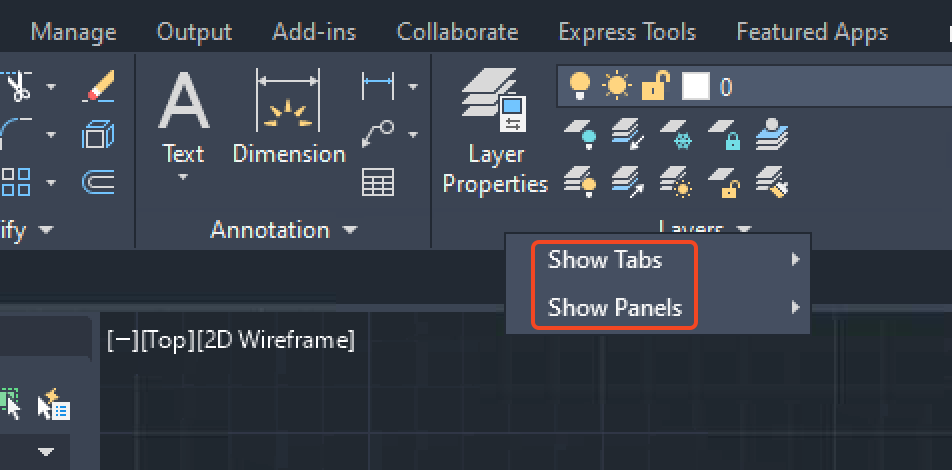
- Right-click anywhere on the ribbon.
- Select Show Tabs and Show Panels menus.
- Select the desired tabs and panels to display them.
- Alternatively, the command RIBBON can be used.
Adjust the ribbon display
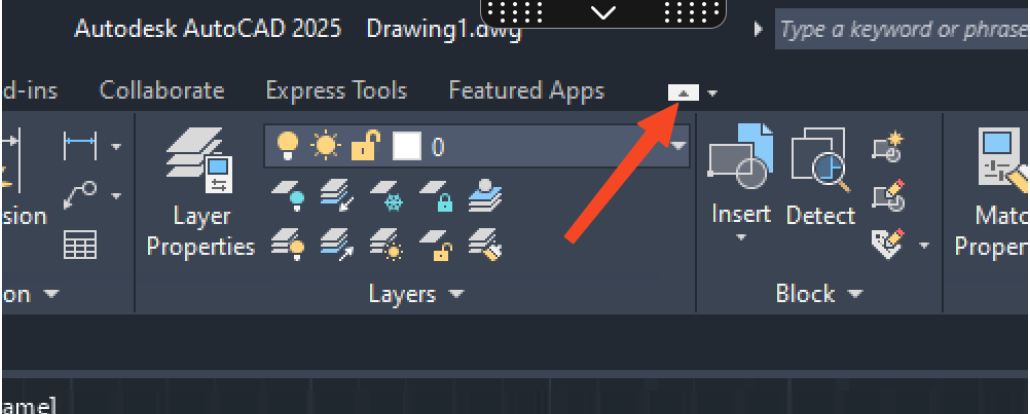
Click the button at the far right of the Ribbon labels. Depending on the selected setting in the menu in the drop down arrow next to the button, you may need to click a couple times to expand the Ribbon completely.
Check the AutoCAD workspace
Different workspaces have different tab configurations. Try changing the workspace using one of these methods:
- On the status bar, click Workspace Switching (gear icon) and select the workspace.
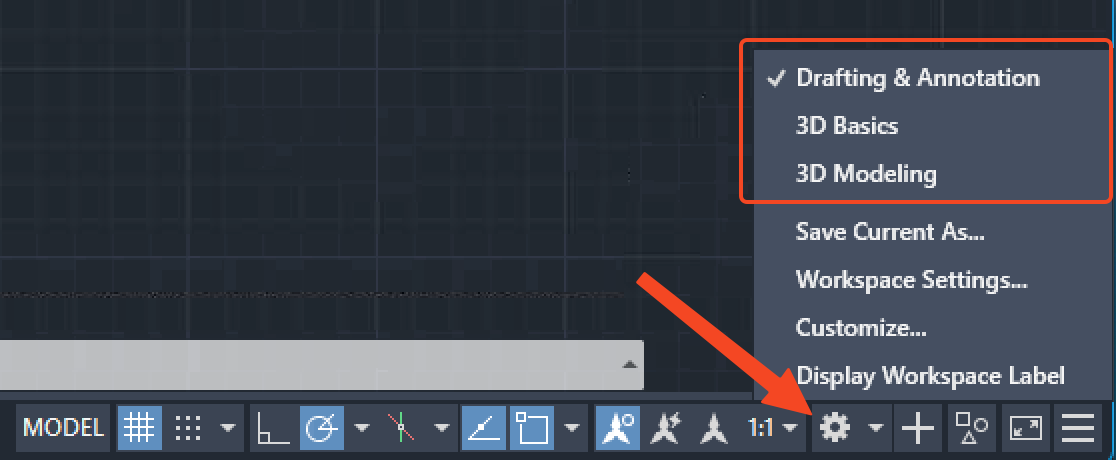
- Select a different workspace on the Quick Access toolbar.
- Type WSSETTINGS on the command line and select a new workspace in the "My Workspace drop-down menu."
- Customize the user interface to add missing tabs, panels, or other controls. See AutoCAD Help | To Customize a Ribbon Tab.
- If a known-good CUIx file is available, use the CUI editor. See AutoCAD Help | To Transfer Custom Settings Using the CUI Editor.
Verify the correct version of AutoCAD is being used
To check the version being used, enter ABOUT on the command line in AutoCAD.
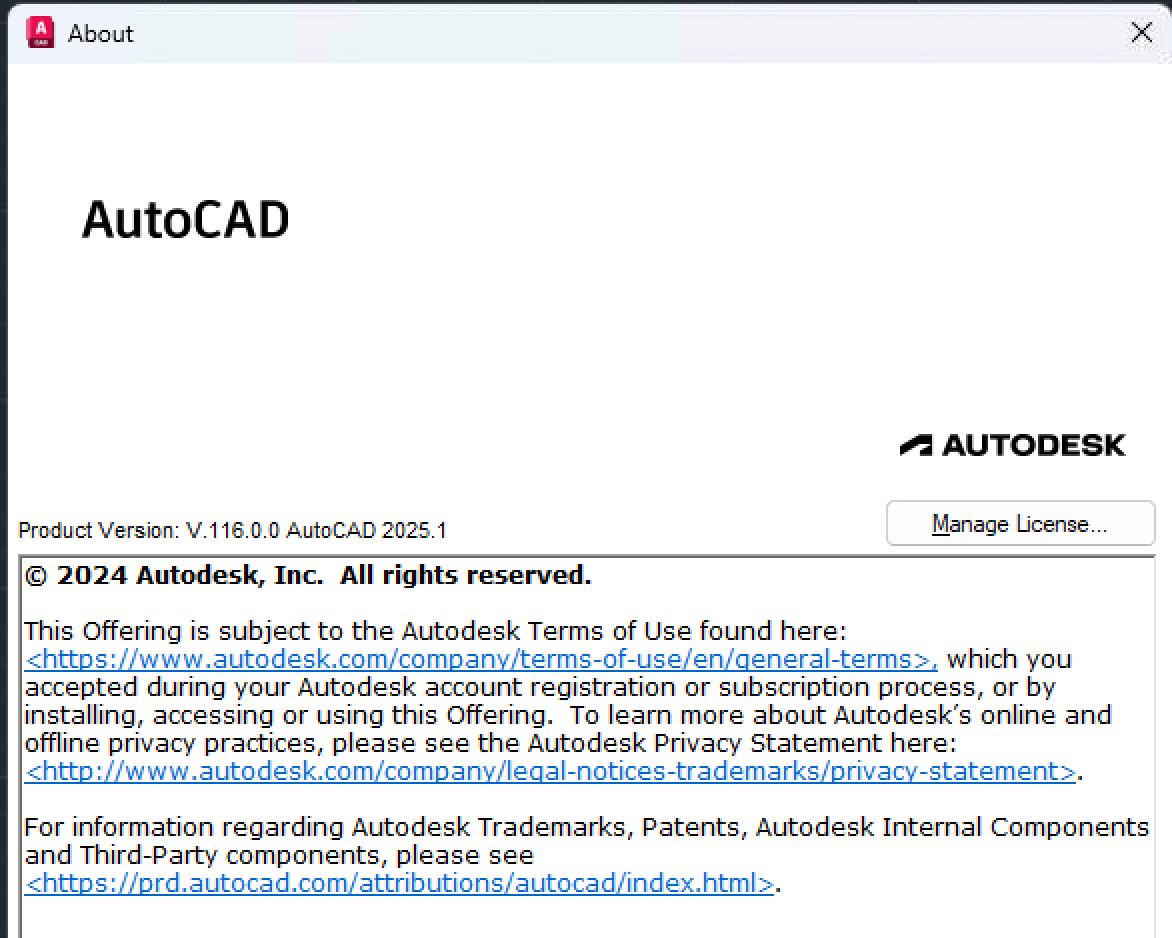
If the product displayed is not the one intended or does not match the profile in use:
- Change the profile:
- Open or start a new drawing in AutoCAD
- At the command prompt type Options.
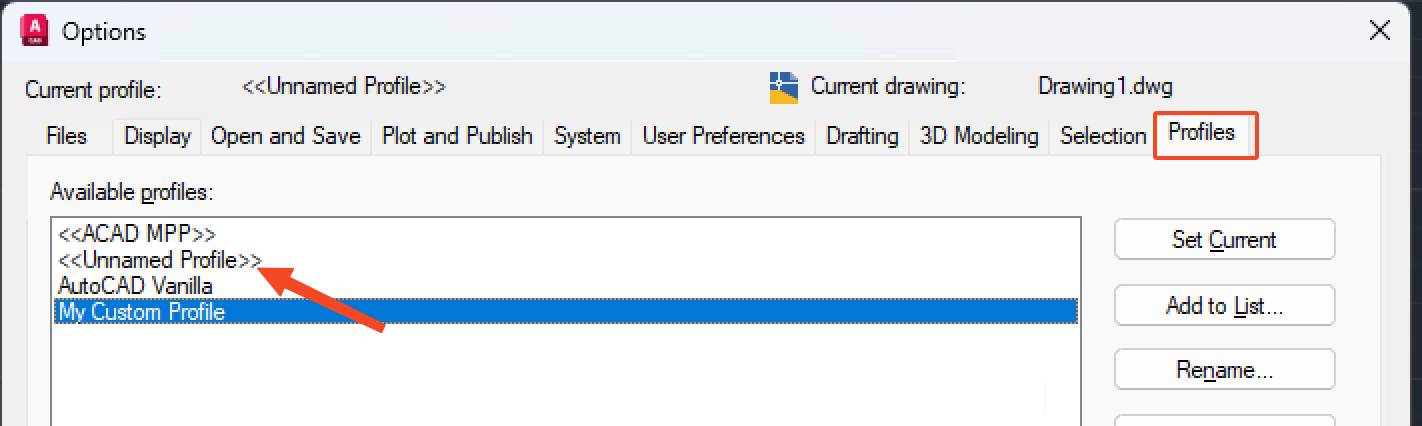
- In the Options dialog select the Profiles tab.
- In the Profiles tab select <<Unnamed Profile>>.
- Select Set Current.
- Select Apply and Close.
- Install the intended or correct version for the profile or Custom User Interface (CUIX) in use. See Where to download software and updates.
Note: Though most subscriptions to AutoCAD include the AutoCAD toolsets, each toolset needs to be installed separately.
Menu (CUIX) corruption
- Reset or restore the default CUIX. See How to reset the CUIx in AutoCAD Products.
- Unload and reload custom or partial CUIX:
- Type in the CUILOAD in the AutoCAD command line.
- Custom CUIX is already loaded, unload it first and then load it again,
- Click Browse and load Custom CUIX.
- Type CUI in the command.
- Open Custom CUIX under the all customization file.
- Select Apply and OK.
Extra troubleshooting
- Install the latest updates for AutoCAD See Install Updates, Add-ons, and Enhancements.
- Reset AutoCAD to defaults See How to reset AutoCAD to defaults, How to reset Civil 3D to defaults.
- Reinstall AutoCAD with local administrator permissions See How to repair or reinstall an AutoCAD installation.
- Check Options > Files > Customization Files > Main Customization File to see whether acad or acadlt is specified. If not, change to the default CUIx file for your AutoCAD product. The file can be found in the current user's AutoCAD directory path, in the Support folder.
- If using Civil 3D, ensure using "Civil 3D" versus "Civil 3D as AutoCAD."
See Also:
- "The Ribbon does not have any tabs or panels currently loaded" is displayed in AutoCAD
- How to restore the classic workspace in AutoCAD 2015 and later
- Ribbon or toolbars are missing, blank, or disappear in AutoCAD
- AutoCAD specific panels are missing on the ribbon in AutoCAD Architecture/MEP
- "Customization file load failed. File not found: [filename]" when launching AutoCAD Products
- Missing MEP or Architecture tools in AutoCAD MEP or AutoCAD Architecture