
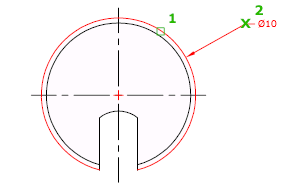
Creates a diameter dimension for a circle or an arc.
Access Methods
Tool Set:
.

Menu: .
Summary
Measures the diameter of a selected circle or arc, and displays the dimension text with a diameter symbol in front of it. You can use grips to easily reposition the resulting diameter dimension.
List of Prompts
The following prompts are displayed.
Select arc or circle:
Specify dimension line location or [Mtext/Text/Angle]: Specify a point or enter an option
- Dimension Line Location
-
Determines the angle of the dimension line and the location of the dimension text. If the dimension is placed off of an arc resulting in the dimension pointing outside the arc, AutoCAD 2025 automatically draws an arc extension line.
- Mtext
-
Displays the In-Place Text Editor, which you can use to edit the dimension text. Use control codes and Unicode character strings to enter special characters or symbols.
If alternate units are not turned on in the dimension style, you can display them by entering square brackets ([]).
The current dimension style determines the appearance of the dimension text.
- Text
-
Customizes the dimension text at the Command prompt. The generated dimension measurement is displayed within angle brackets.
To include the generated measurement, use angle brackets (< >) to represent the generated measurement. If alternate units are not turned on in the dimension style, you can display alternate units by entering square brackets ([ ]).
Dimension text properties are set on the Text tab of the New, Modify, and Override Dimension Style dialog boxes.
- Angle
-
Changes the angle of the dimension text.