
Issue:
Arnold can generate a log reporting all the steps needed to render an image, as well as any warnings and errors encountered by the renderer. This log also provides detailed statistics that are useful for debugging, optimizing and benchmarking renders.Solution:
To obtain a full render log of the Arnold rendering settings, follow these steps:
- In 3ds Max, go to the Rendering > Render Setup > Arnold > Diagnostics tab.
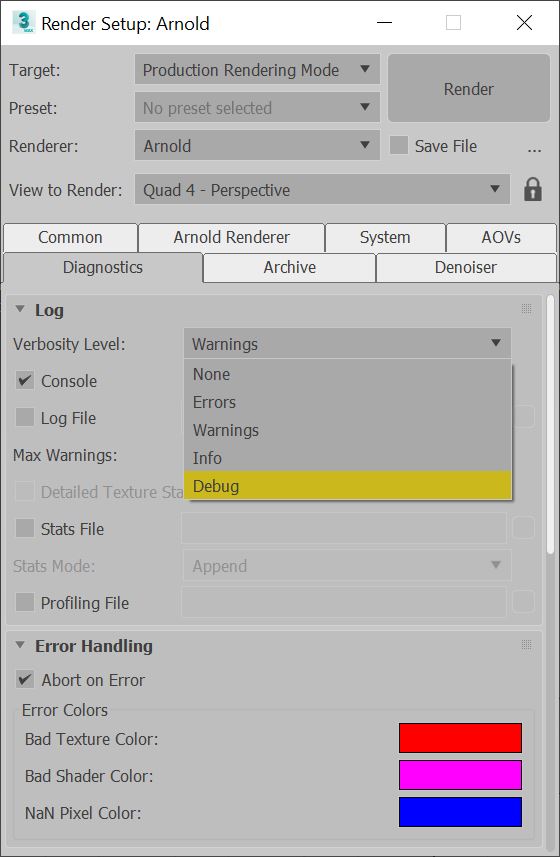
- Set the Verbosity level. This setting specifies the amount of information in the log messages, with Warnings being least amount of detail and Debug most:
- Errors (default): Show errors only
- Warning + Info: Show warnings, statistics and any info that does not slow down rendering.
- Debug: Shows all information. Take care when using this mode as render times may increase.
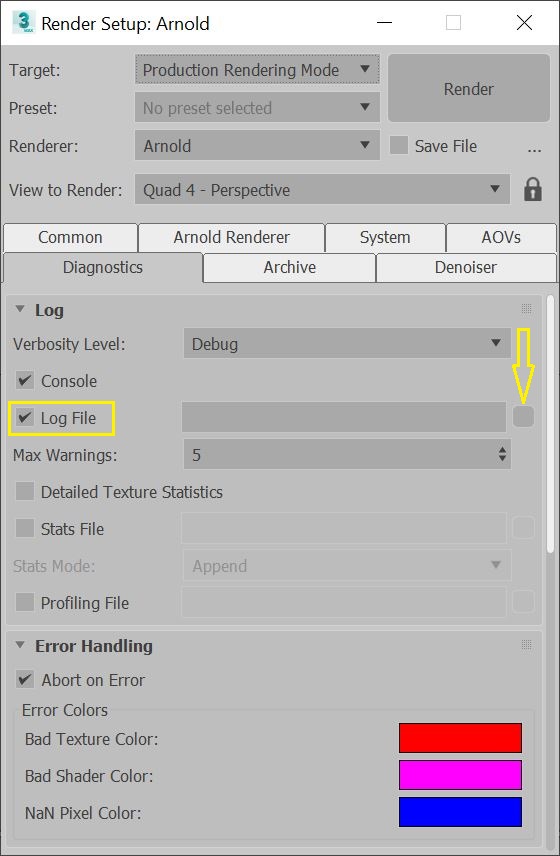
- Click the File check box to enable file logging (by default, the log file will be saved in the last folder you browsed to).
- To specify where the file will be saved, click the folder icon beside the Filename box, and select a name and location for the Arnold log file.
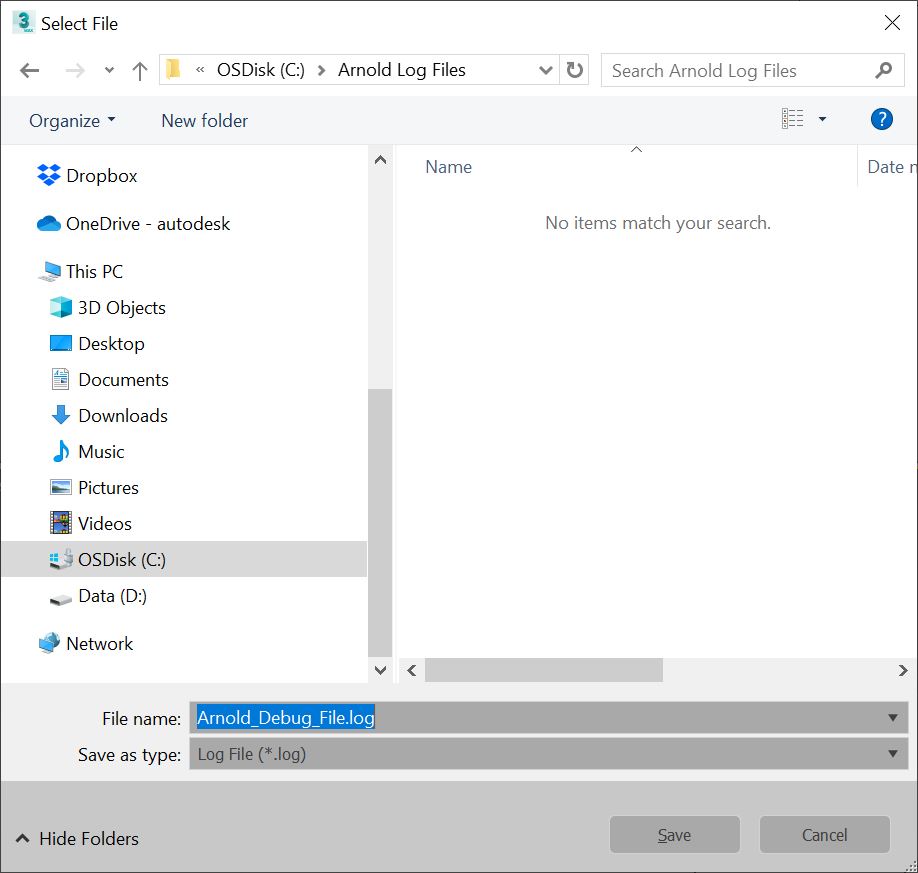
- Start the render. The .log files will be saved in the specified location.