
Line - Arnold User Guide
 |
 |
 |
| Line -> UV Transform (screen space) | Line -> UV Transform (screen space) | Line -> Triplanar |
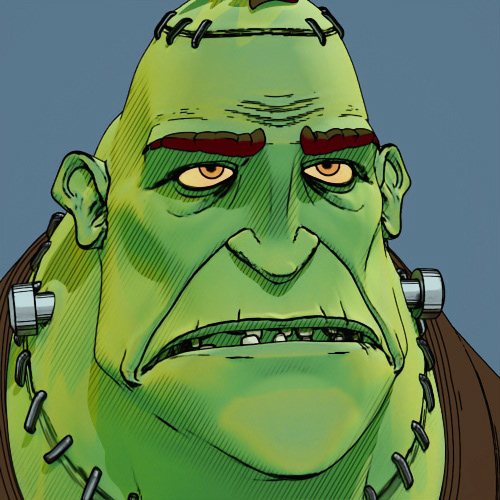
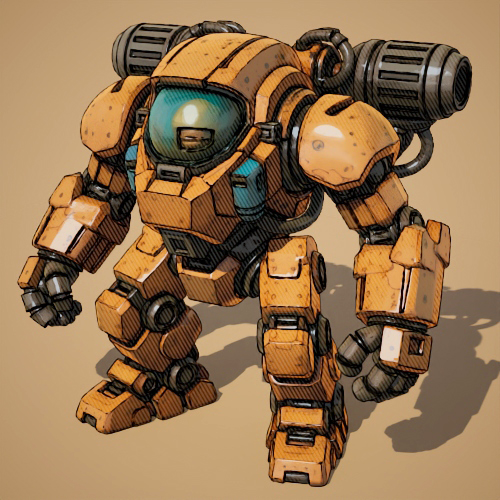
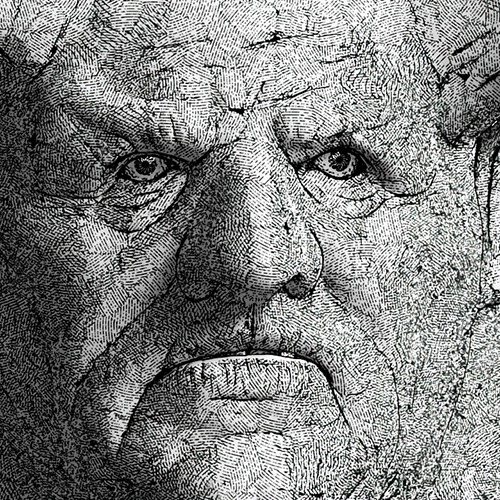
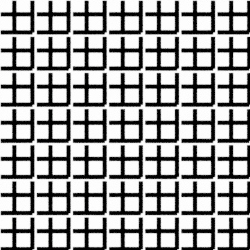
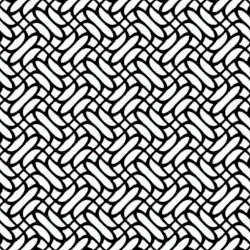
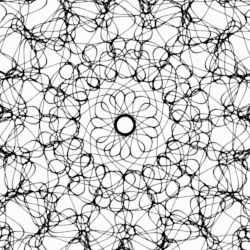
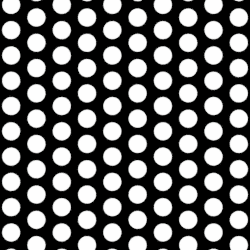
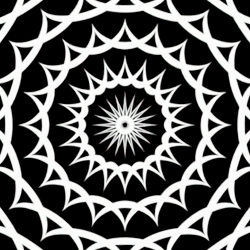
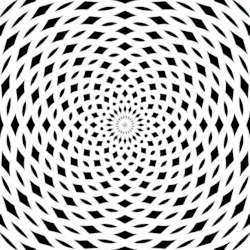
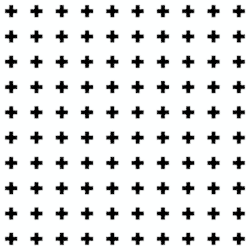
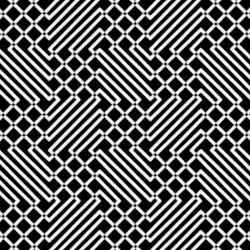
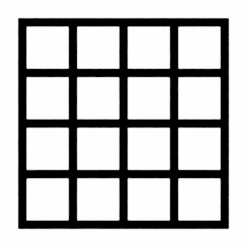
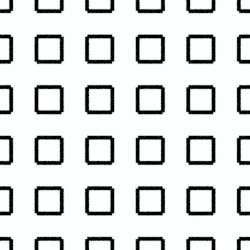
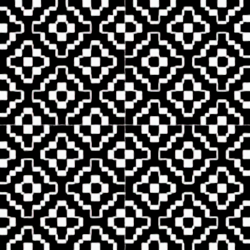
The Line shader draws parametrized procedural lines over a surface. Line can be used to simulate hatches, etching, geometric patterns, or brush-stroke-like textures when combined with noise, textures, and various other effects in 2D space. There are several different modes to choose from, but some line modes are better suited for specific situations. Tone-remapping is also supported by linking the colors to another node, as long as the child node reads the UV coordinates of the lines. This is useful for creating gradients or color patterns along the lines.
 |
 |
 |
 |
 |
 |
 |
 |
 |
 |
 |
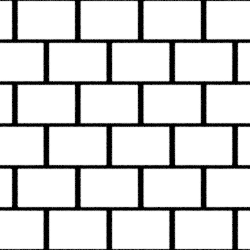 |
Line preset examples
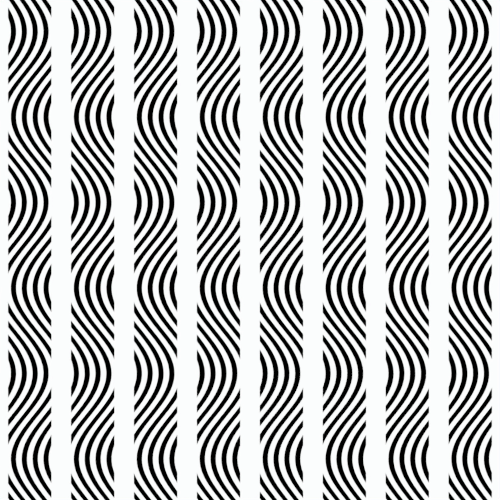
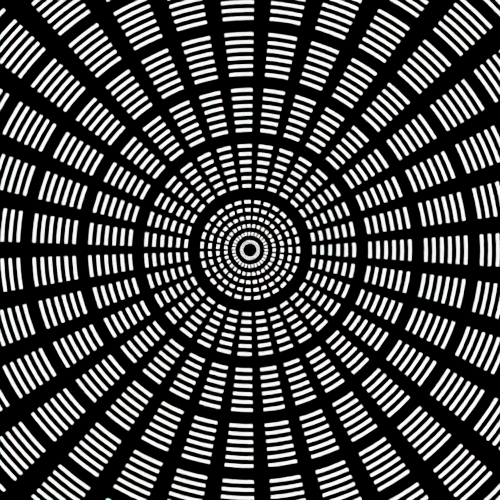
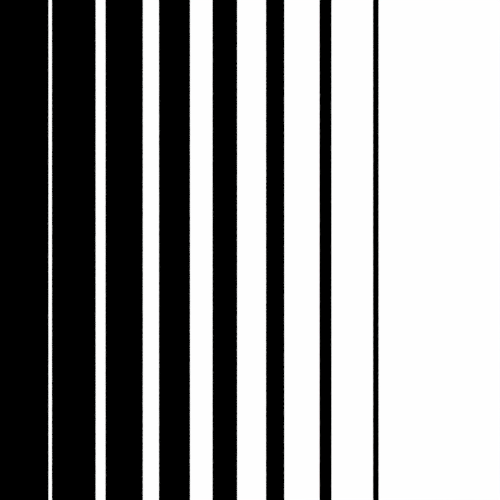
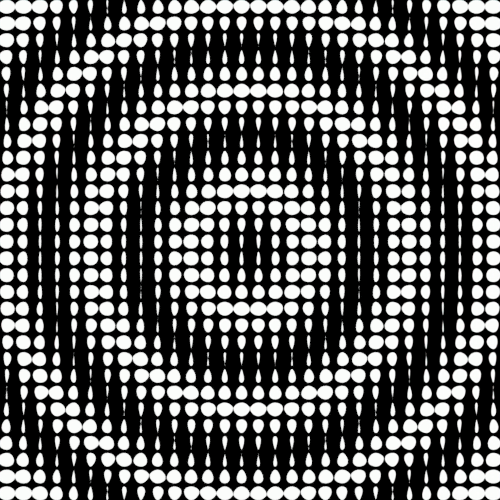
Complex hierarchical patterns can be generated by connecting shaders (including other line shaders) to line shader parameters:
 |
 |
 |
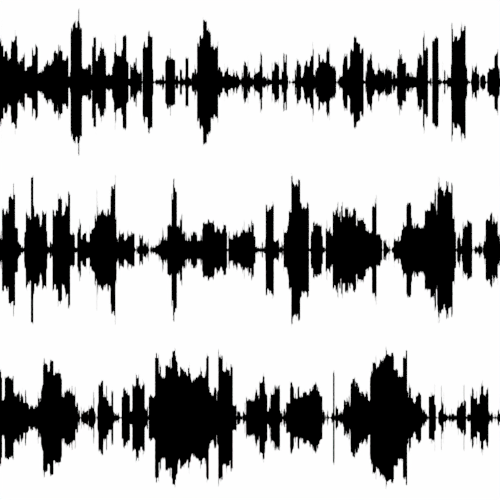 |
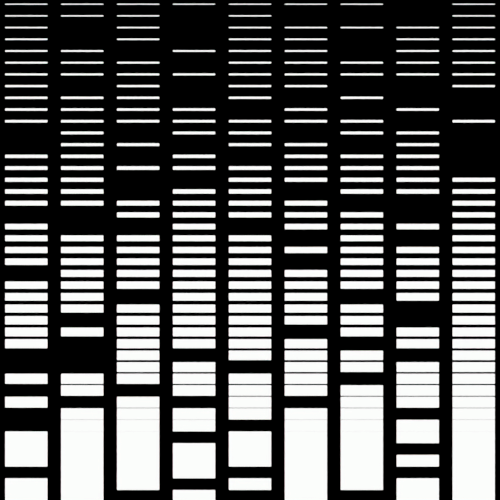
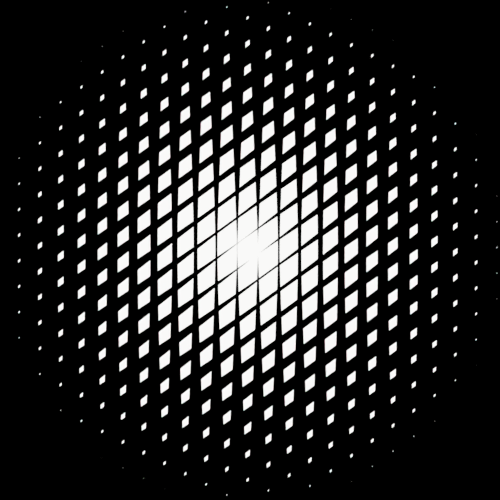
| Line (sine style) -> line color | Cartesian line -> concentric line color | Ramp float -> width | Cell Noise -> width |
 |
 |
 |
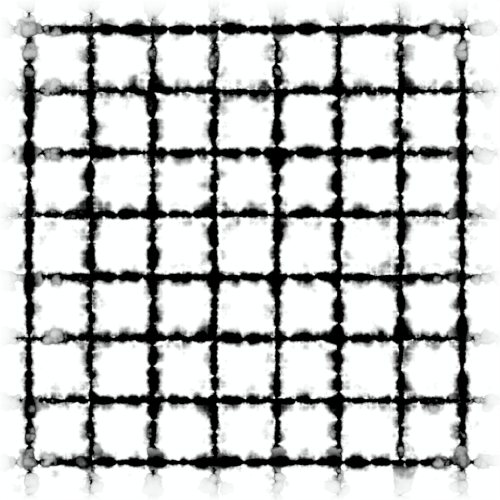 |
| Ramp float (spherical) -> width (tip shape: elliptic) | Ramp float -> length (num segments: 43) | Ramp float -> width (num layer: 2) | Cell Noise (alligator) -> width (num layer: 2) |
The UV Transform shader can be used to control the position, rotation, and scaling of the lines:
Canvas
Background Color
The color (default is black) for the area outside the lines. Texture can also be applied.
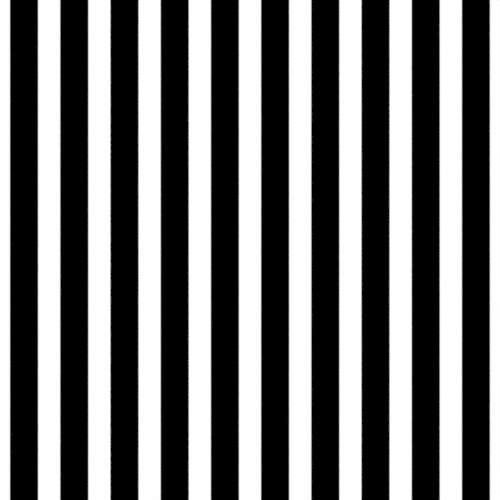
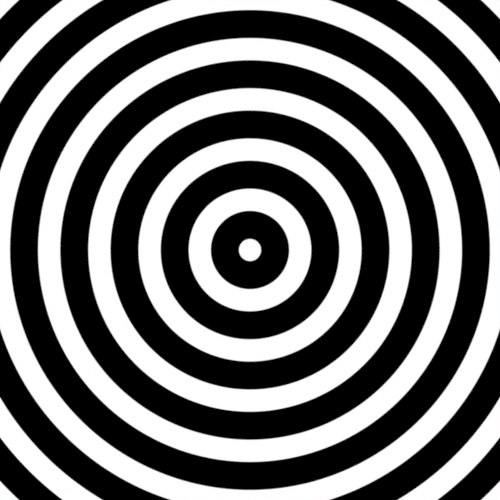
Coordinate
Coordinate System
Selects the coordinate system.
 |
 |
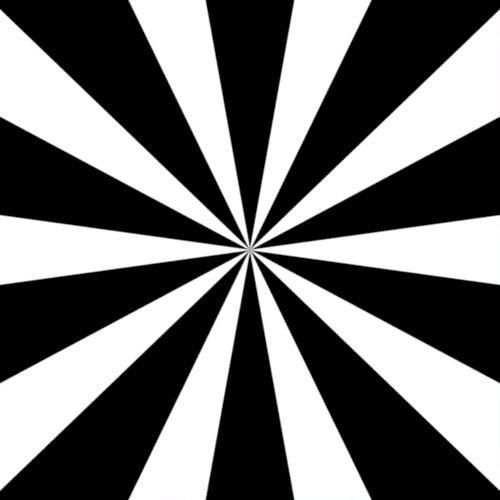 |
| Cartesian (default) | Concentric circles | Polar |
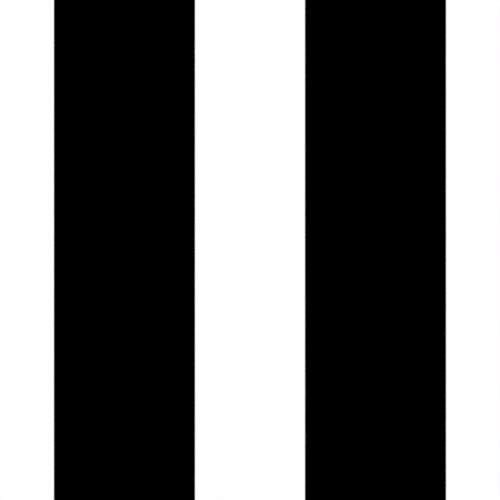
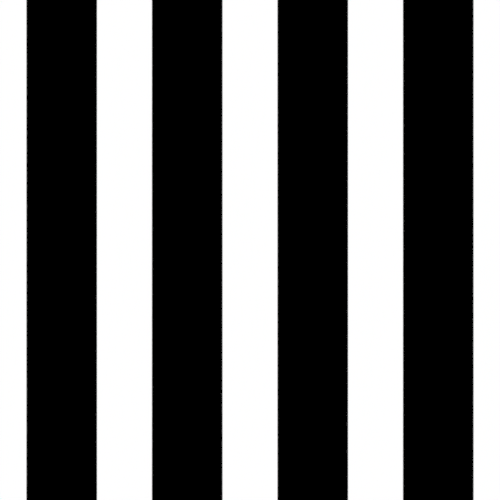
Num Lines
Number of lines per unit area [0,0] x [1,1]
 |
 |
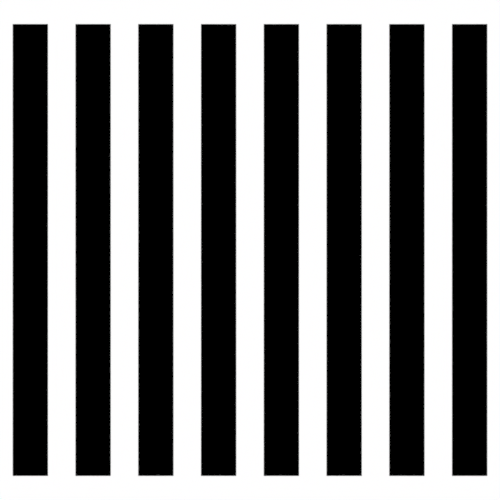 |
| 2 | 4 (default) | 8 |
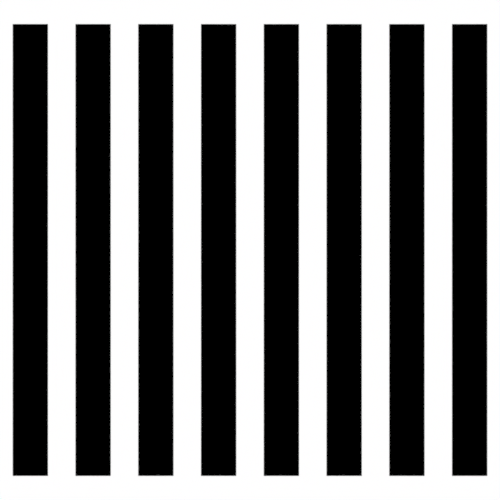
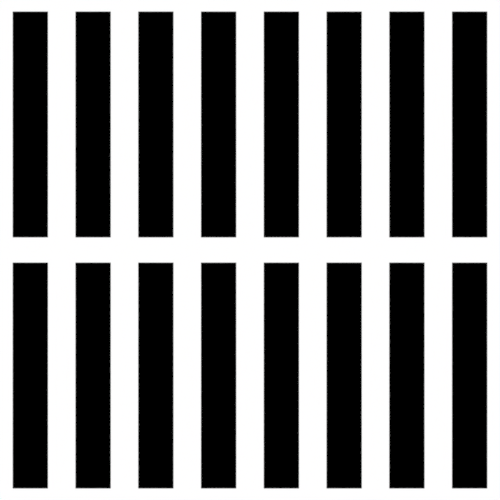
Num Segments
Number of segments to divide a unit-length line into. Use a value greater than 1 for dashed lines.
A line length less than 1 (default is 0.9) is required to view line segments.
 |
 |
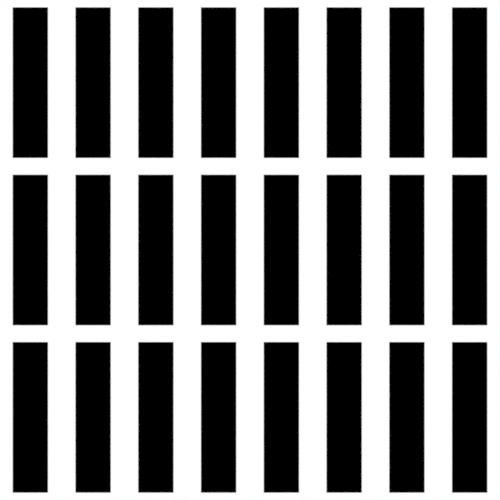 |
| 1 (default) | 2 | 3 |
Line
Color
Line color (default is white). A texture can also be applied here.
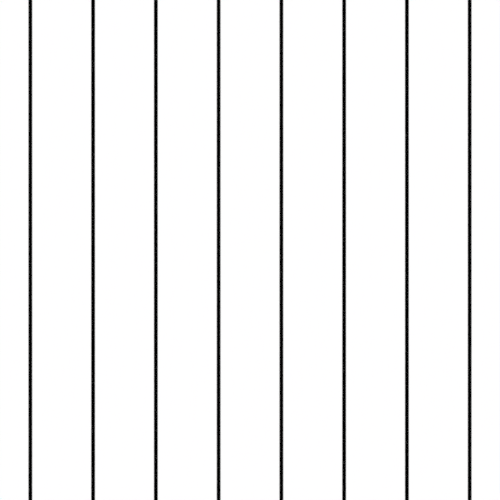
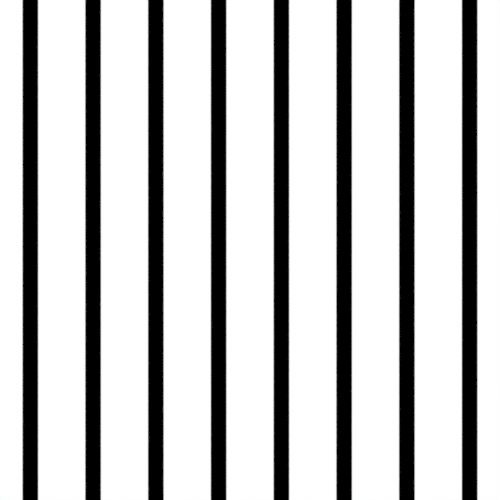
Width
Line width.
 |
 |
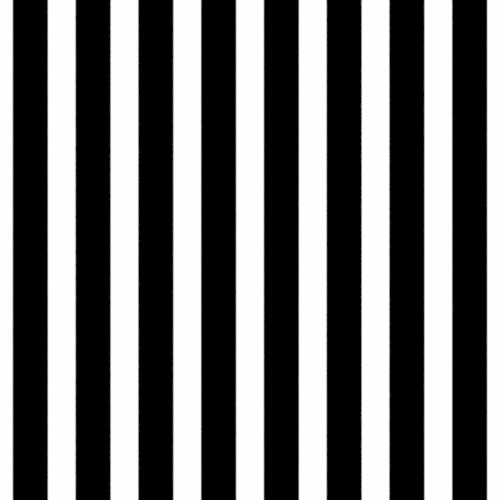 |
| 0.25 (default) | 0.5 | 0.75 |
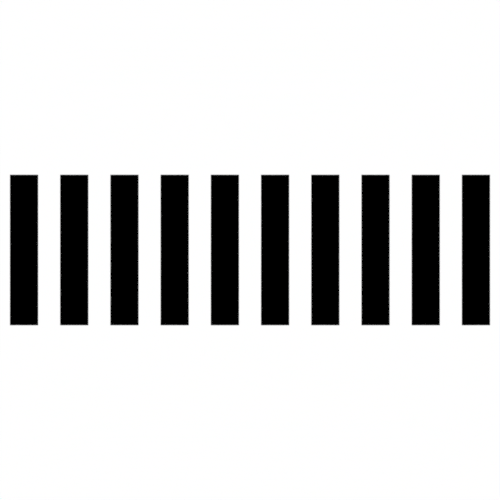
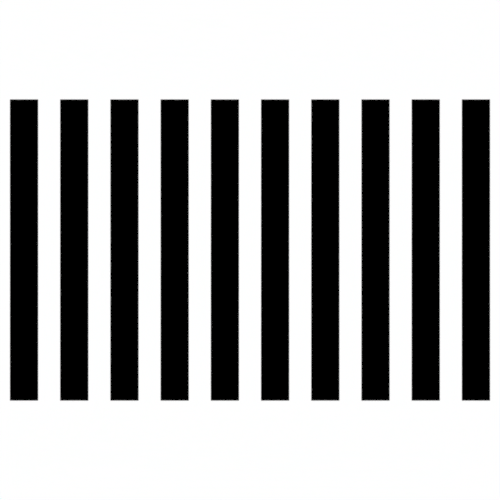
Line Length
Line length.
 |
 |
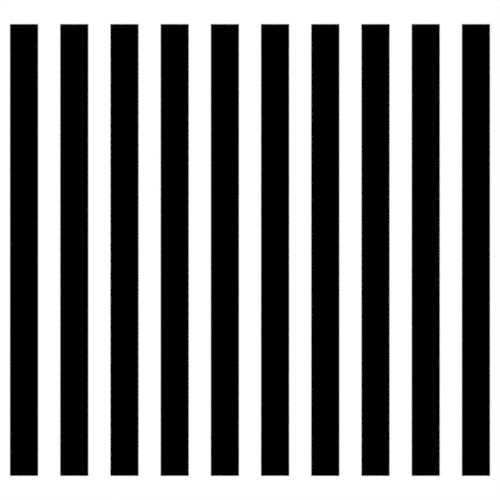 |
| 0.3 | 0.6 | 0.9 (default) |
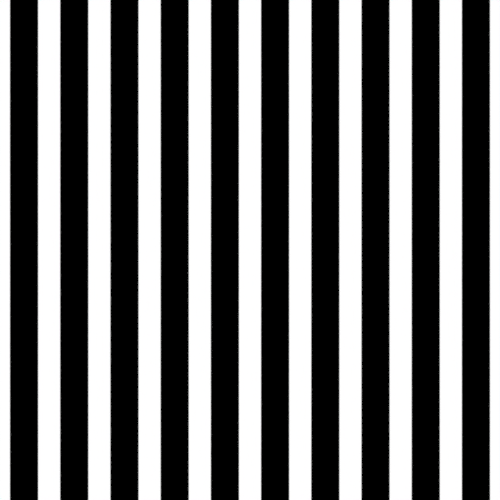
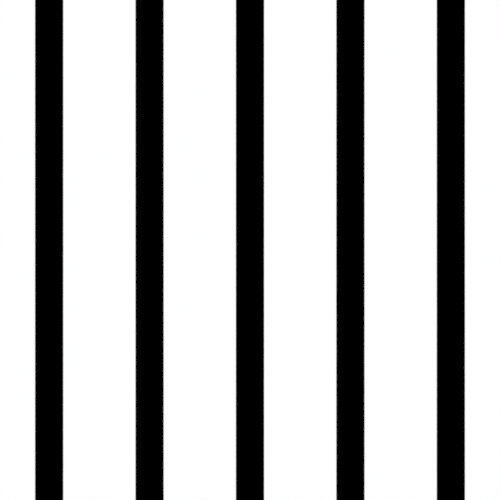
Interval
Increases the span between lines.
 |
 |
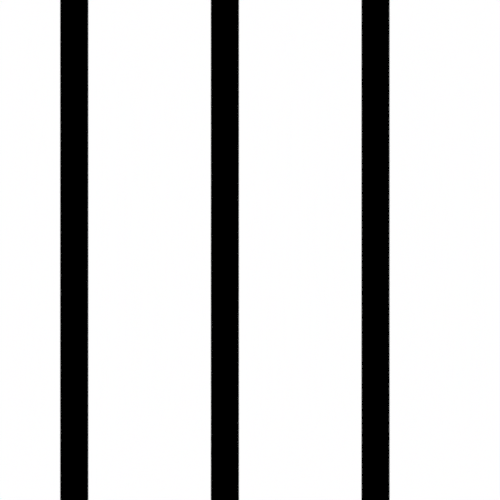 |
| 0 (default) | 0.1 | 0.2 |
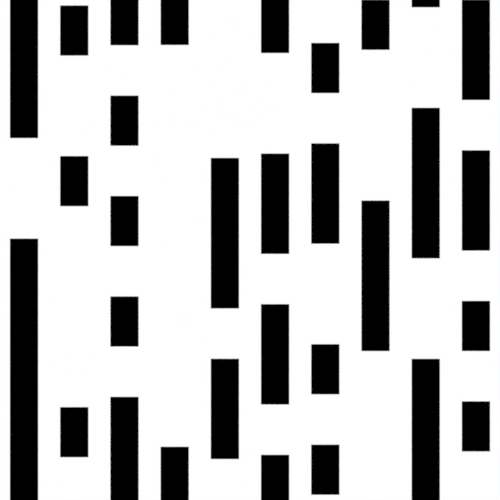
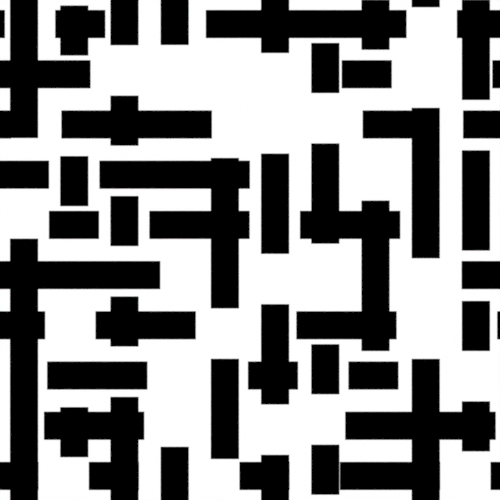
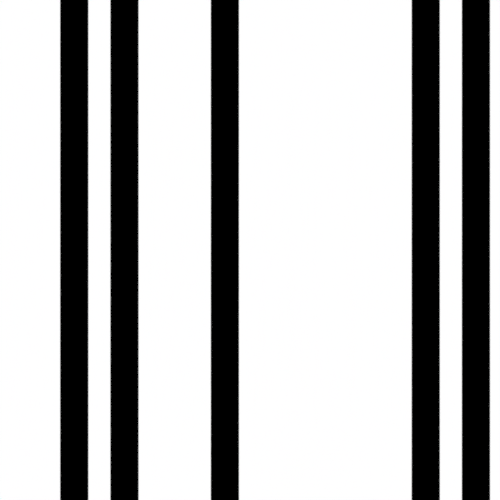
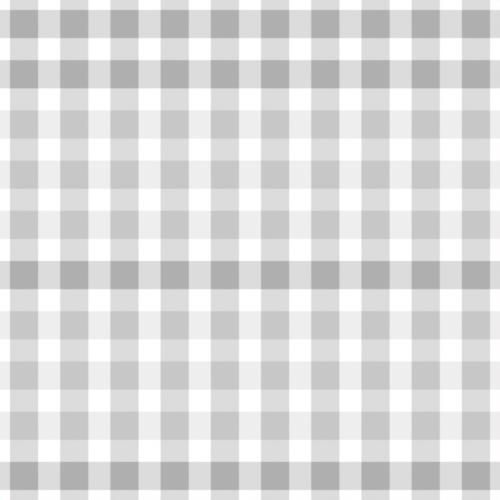
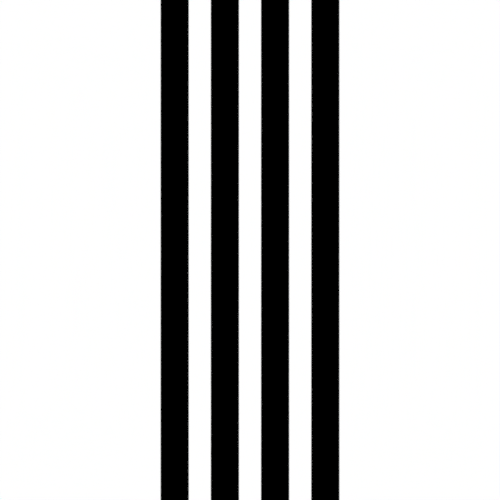
Decimate Mode
Specifies the mode for reducing the number of lines drawn per unit area.
 |
 |
 |
 |
 |
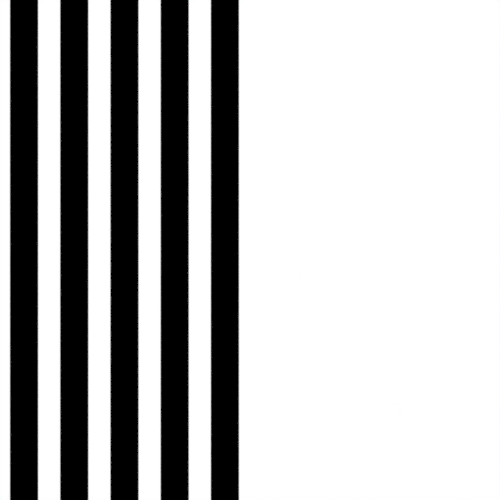 |
| Random (segment) | Random (segment & layer) | Random (line) | Random (line & layer) | Center Preserving | Sequential |
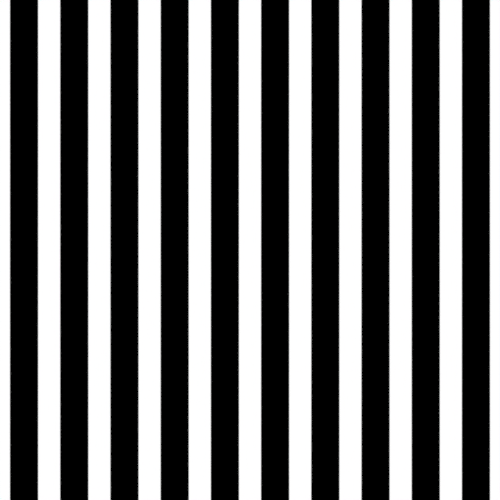
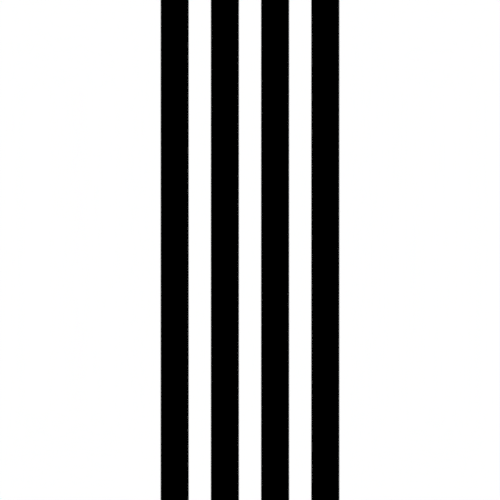
Density
Retains lines per unit area based on the specified density.
 |
 |
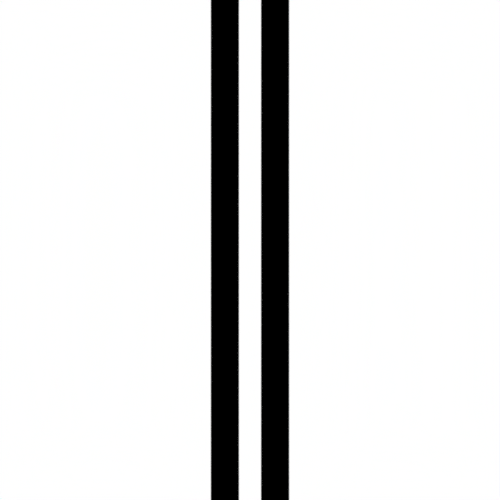 |
| 1 (default) | 0.5 | 0.25 |
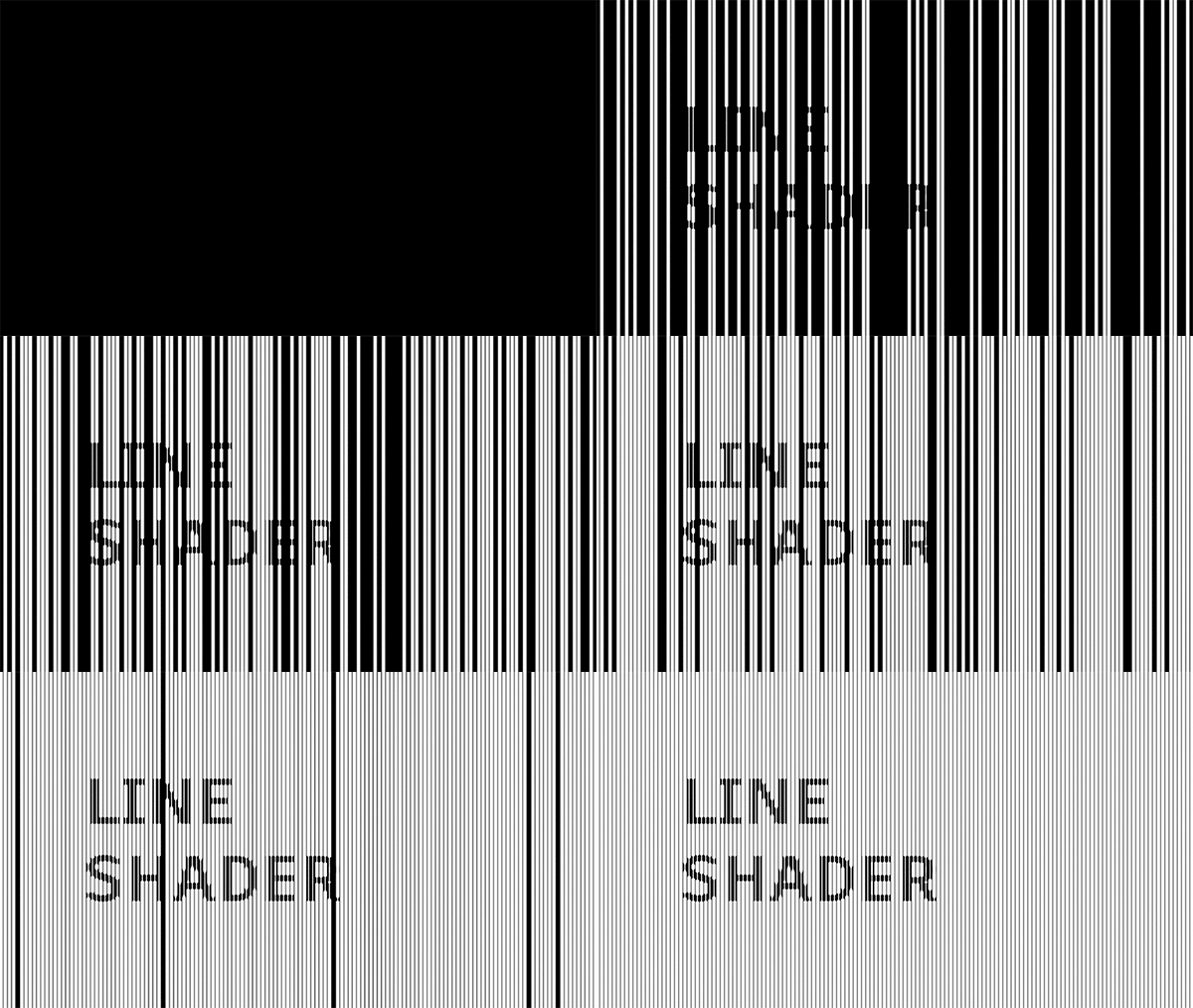
Density: 0 to 1. Decimate Mode: random (line)
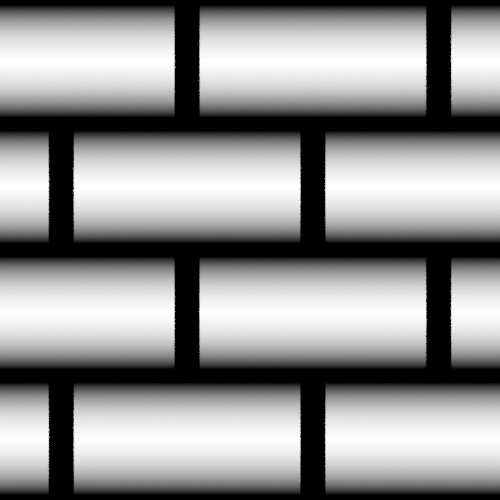
Smooth Mode
Specifies whether to blur both sides of the line (both_sides) or only the surrounding area (peripheral).
 |
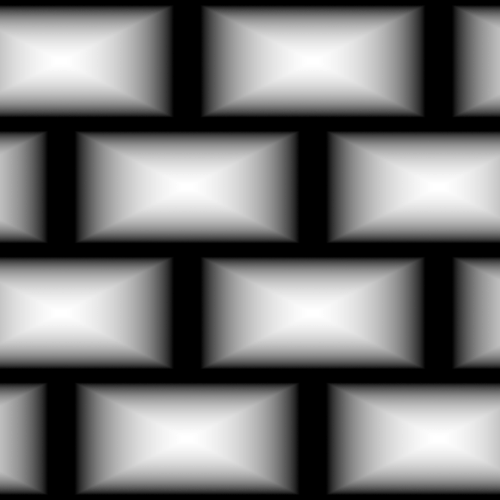 |
| Both Sides (default) | Peripheral |
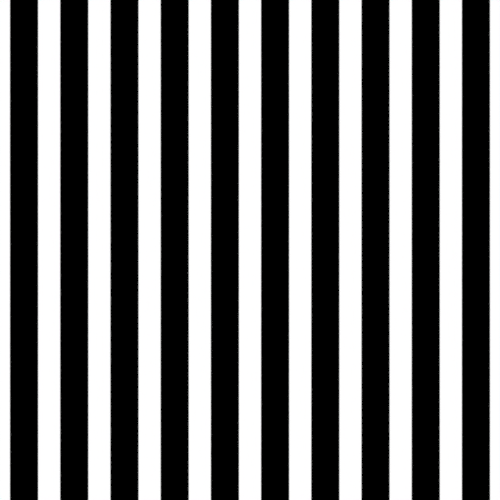
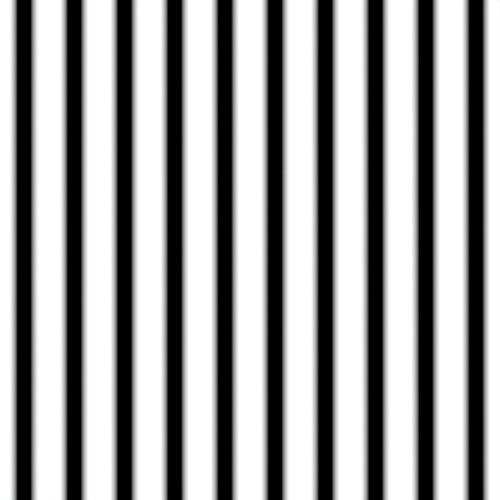
Smoothness
Specifies the amount of line blur. Values greater than 0 also help with antialiasing.
 |
 |
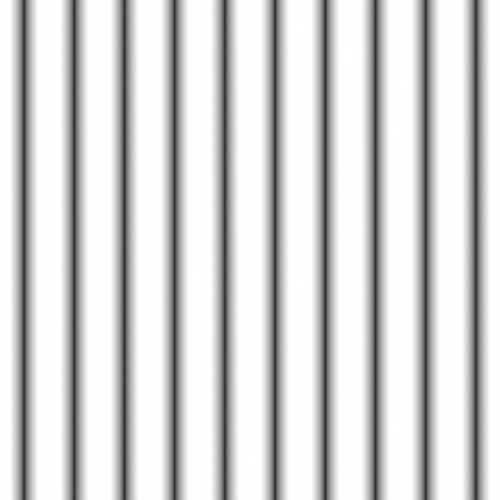 |
| 0 (default) | 0.5 | 1 |
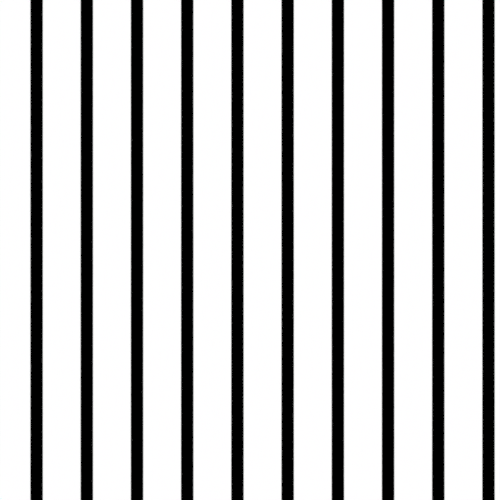
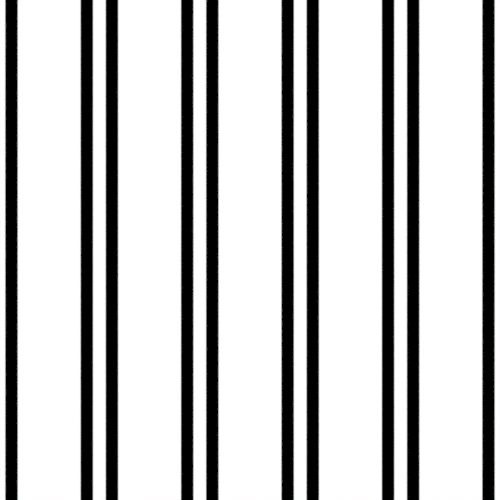
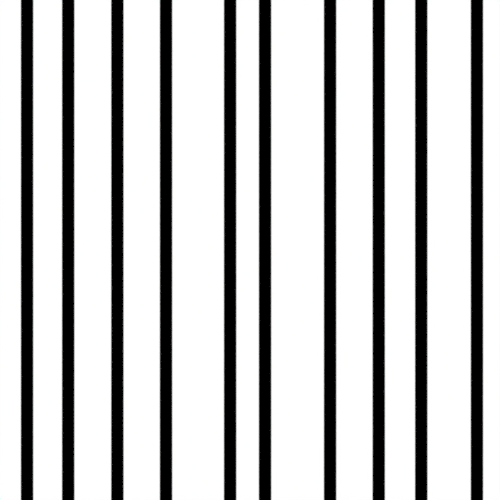
Interval Offset Mode
When the width is less than 1, gaps appear between adjacent lines, and interval offset mode determines how the lines are shifted within those gaps.
 |
 |
 |
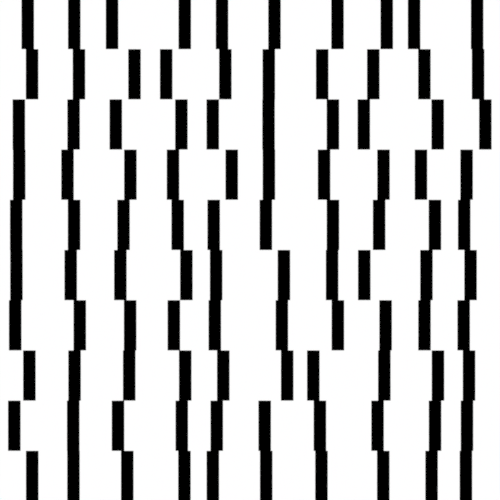 |
| Constant (default) | Interleave | Random | Random Segment |
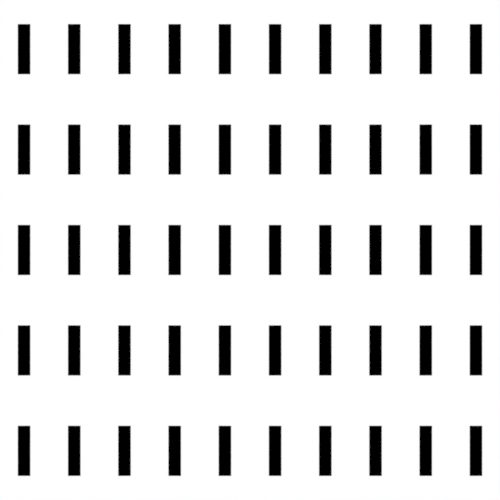
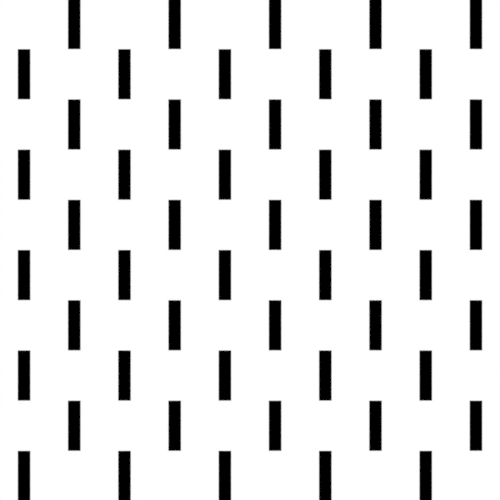
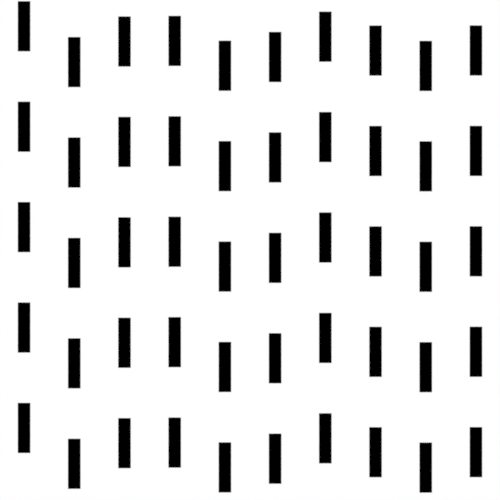
Line Offset Mode
When length is less than 1, gaps appear between adjacent line segments, and line offset mode determines how the lines are shifted within those gaps.
 |
 |
 |
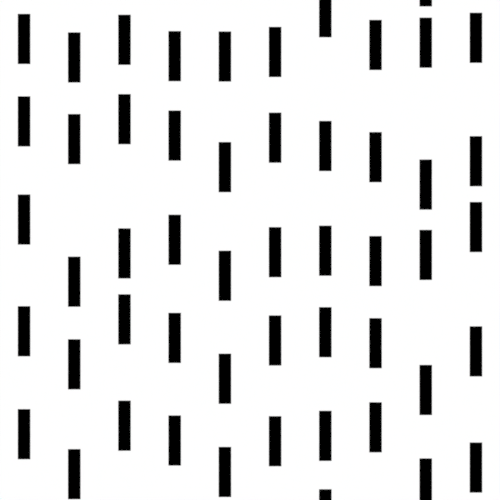 |
| Constant (default) | Interleave | Random (default) | Random Segment |
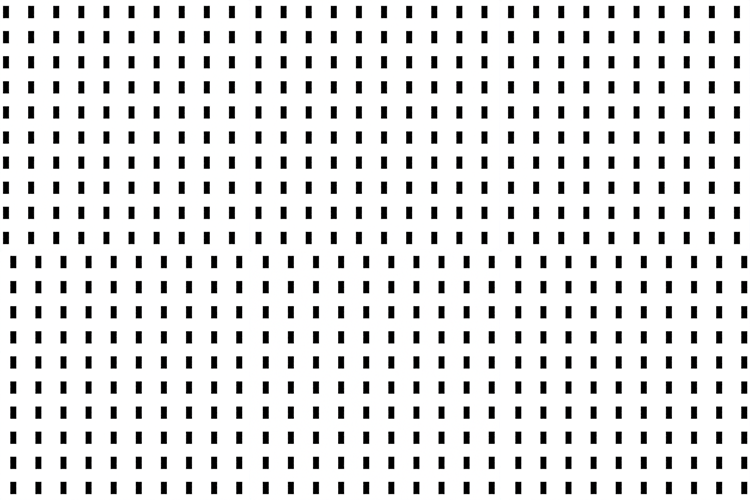
Offset
Specifies the amount a line moves in the direction of adjacent lines and segments.
 |
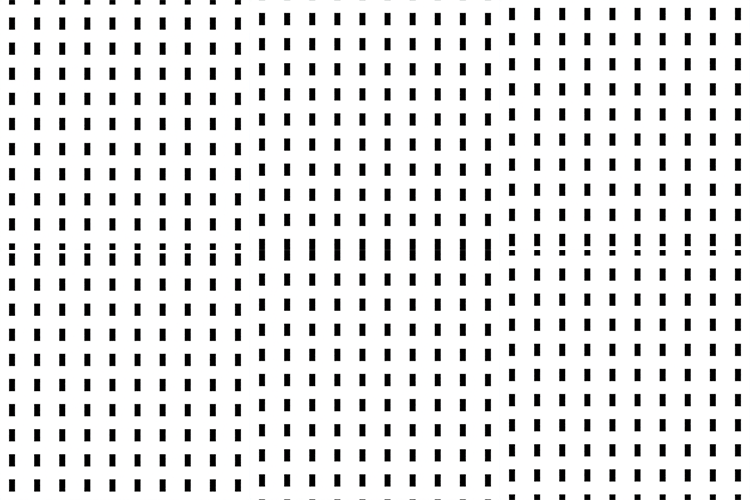 |
| Offset U: 0 to 1 | Offset V: 0 to 1 |
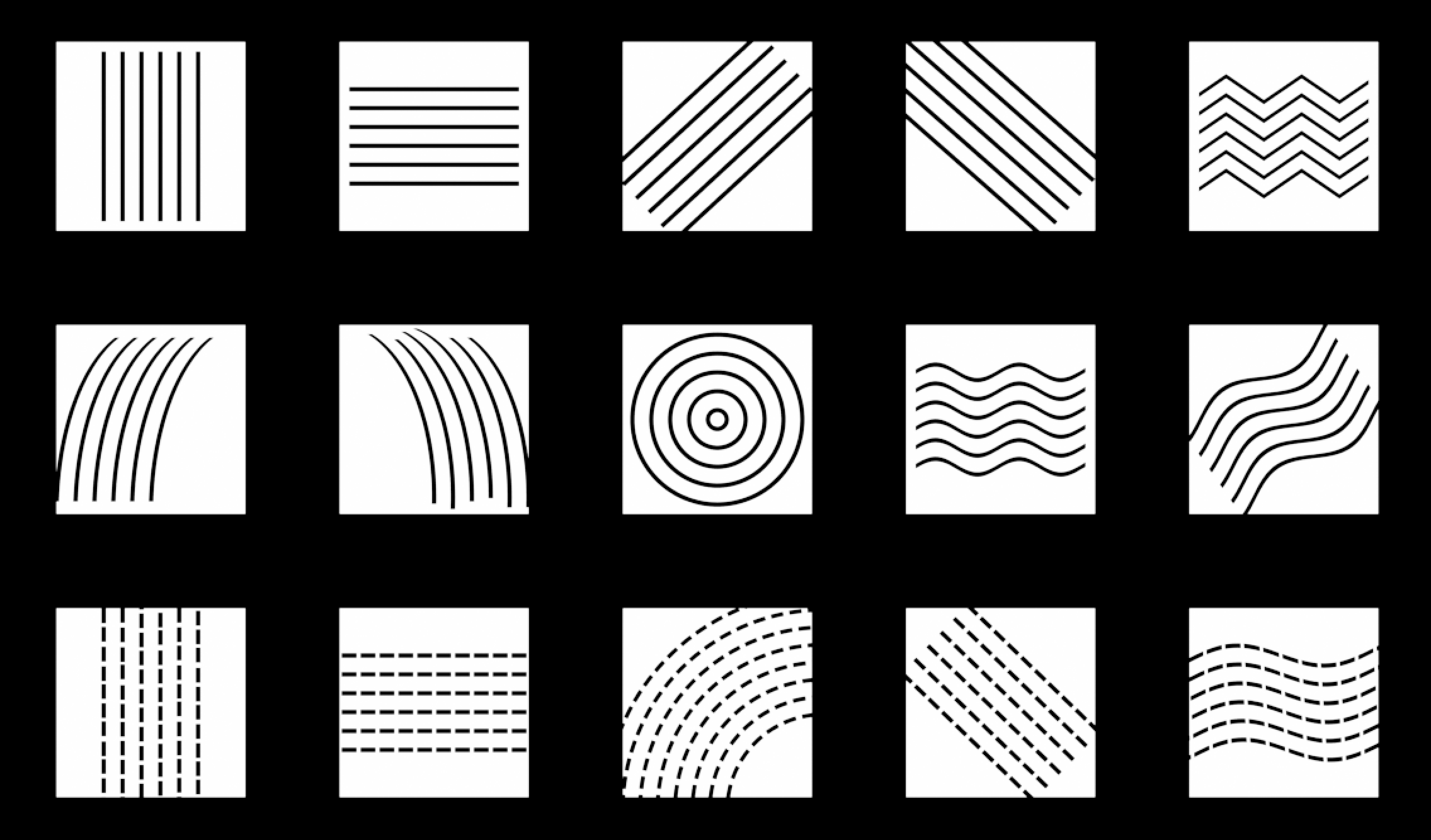
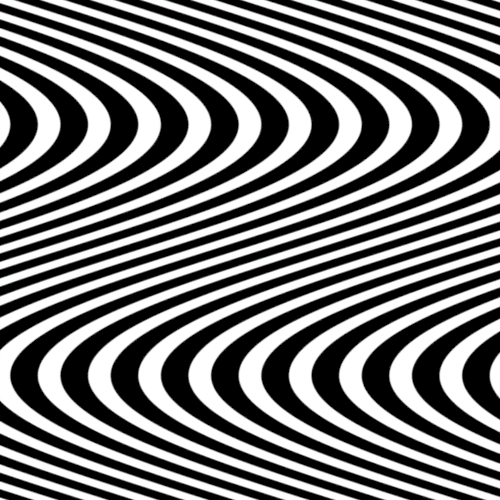
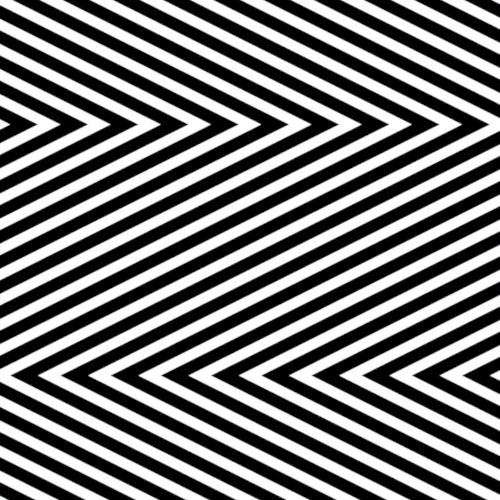
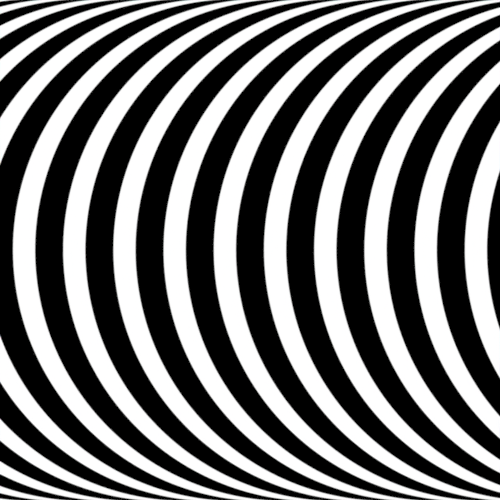
Style
Style
Specify the line style.
 |
 |
 |
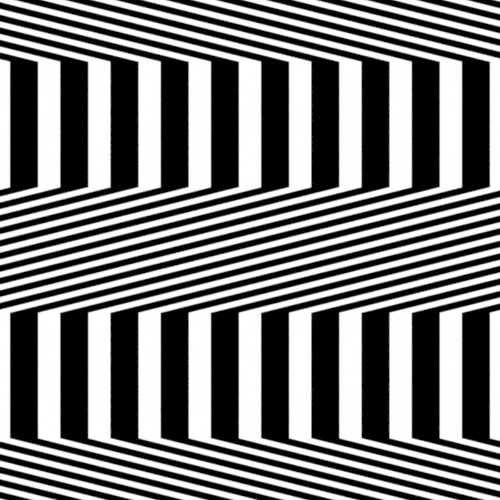 |
| Sine (default) | Half Arc | Quad Arc | Trapezoid |
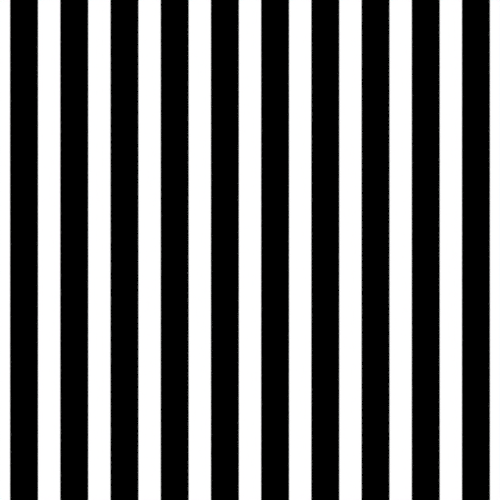
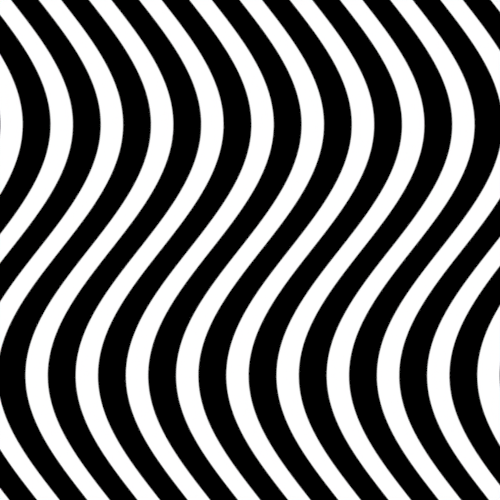
Amplitude
Specify the curvature strength of the wavy line.
 |
 |
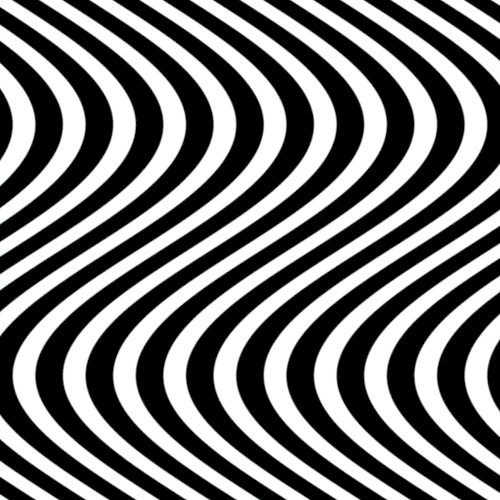 |
| 0 (default) | 0.25 | 0.5 |
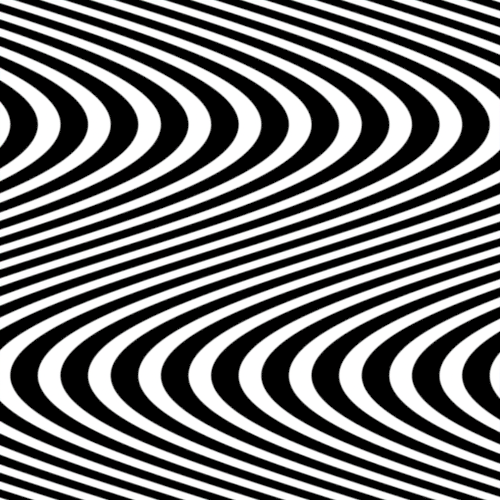
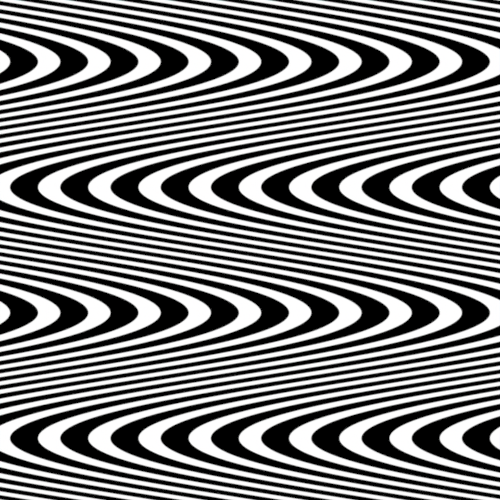
Frequency
Higher values produce more undulations in the wavy line.
 |
 |
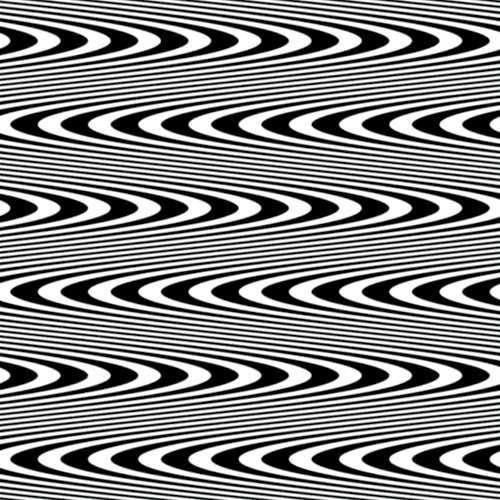 |
| 1 (default) | 2 | 3 |
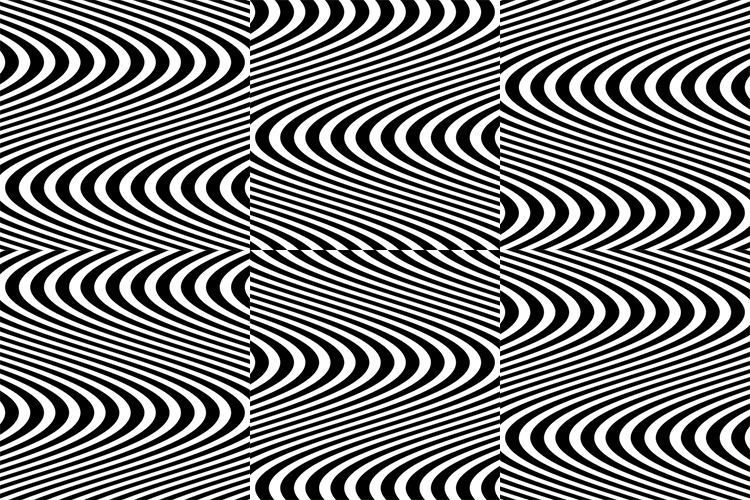
Phase
Shifts where the wave starts rising and falling.
Tip
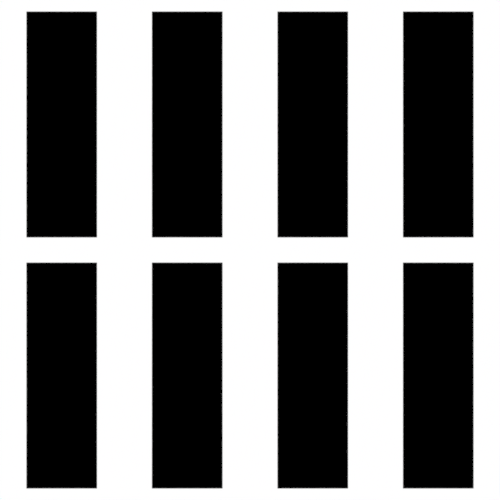
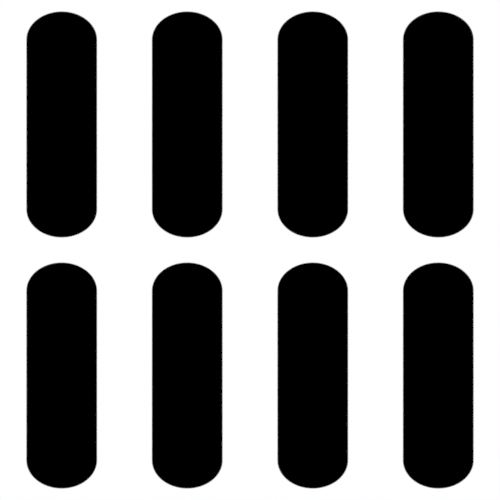
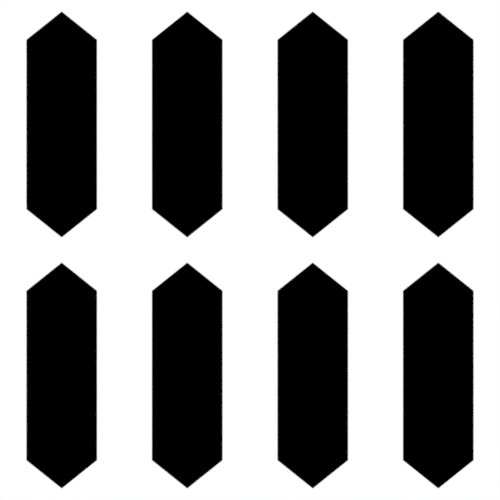
Tip Shape
Specifies the shape of the line end.
 |
 |
 |
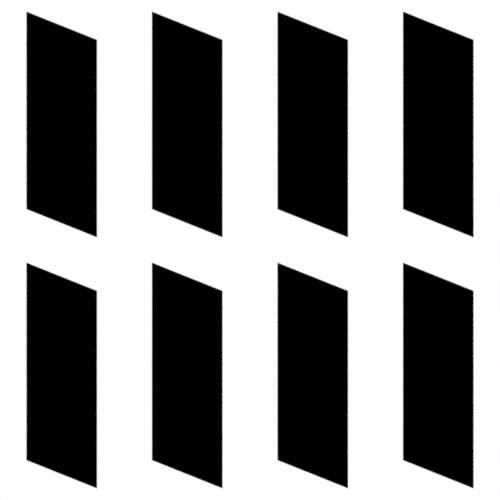 |
| Rectangle (default) | Elliptic | Triangle | Chisel |
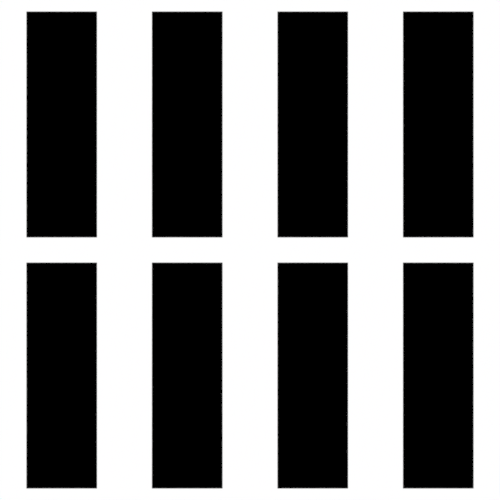
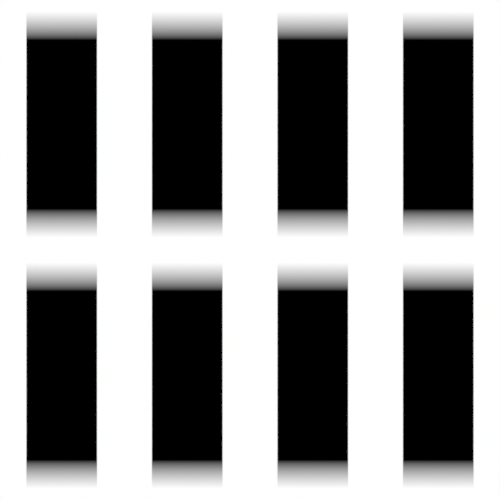
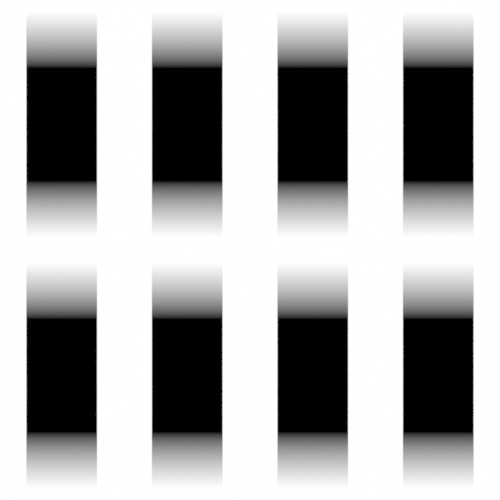
Tip Ratio
Specifies the proportion of the line covered by the tip shape. Use a value greater than 0 to display the tip_shape.
 |
 |
 |
| 0 | 0.25 (default) | 0.5 |
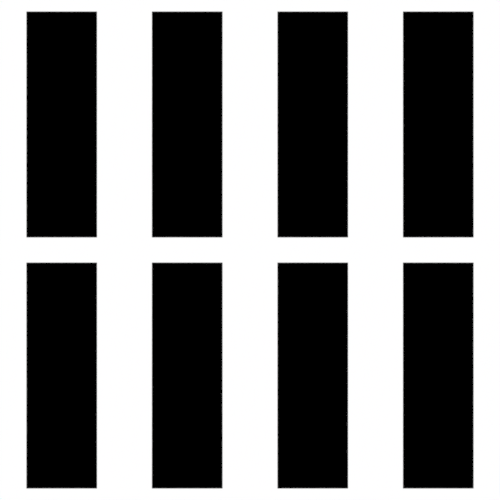
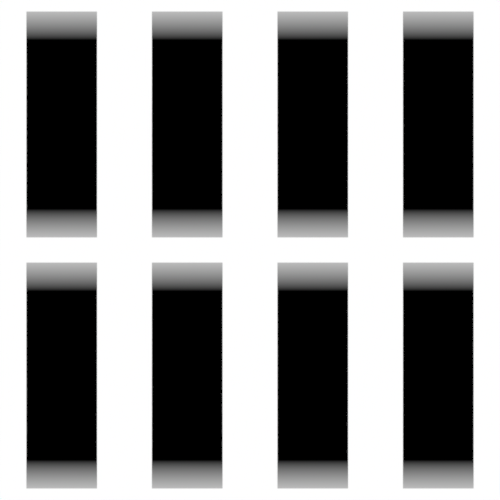
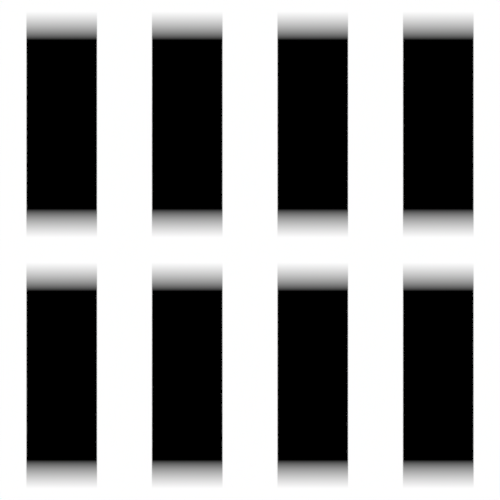
Tip Fade
For values greater than 0, the line color fades toward the tip. When set to 1, the tip becomes transparent.
 |
 |
 |
| 0 (default) | 0.5 | 1 |
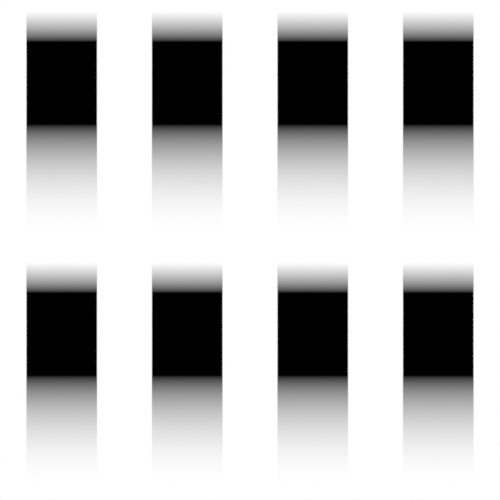
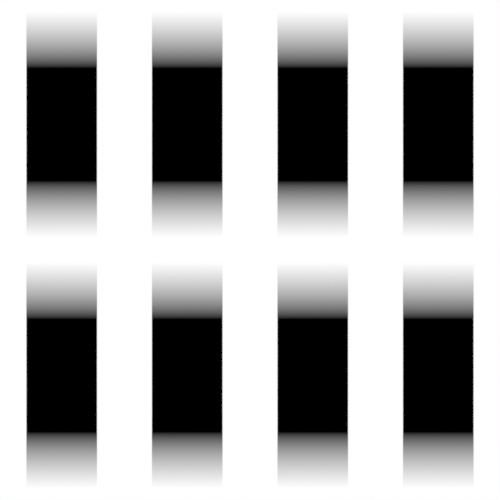
Tip Bias
Shifts the peak pressure from the line's head to the tail.
 |
 |
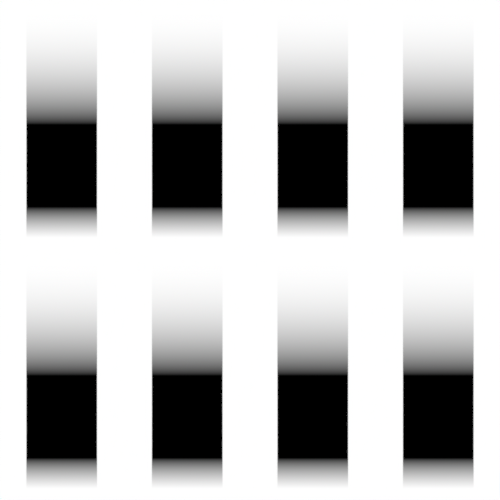 |
| 0 | 0.5 (default) | 1 |
Layer
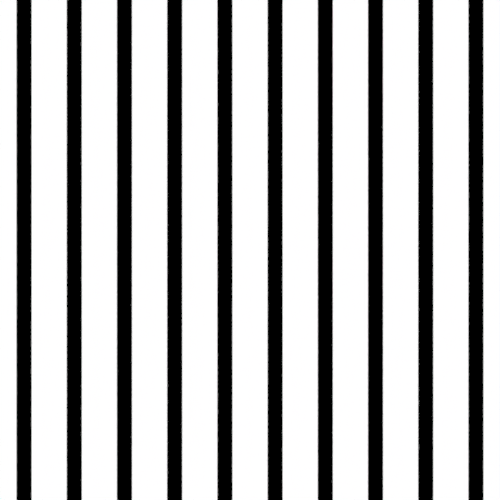
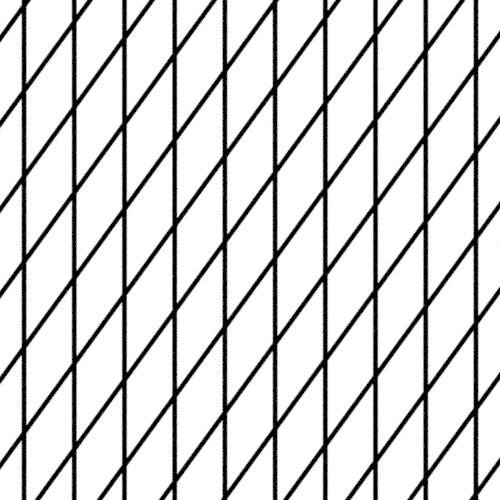
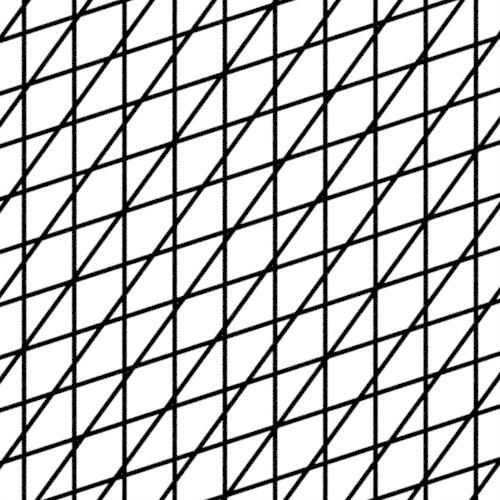
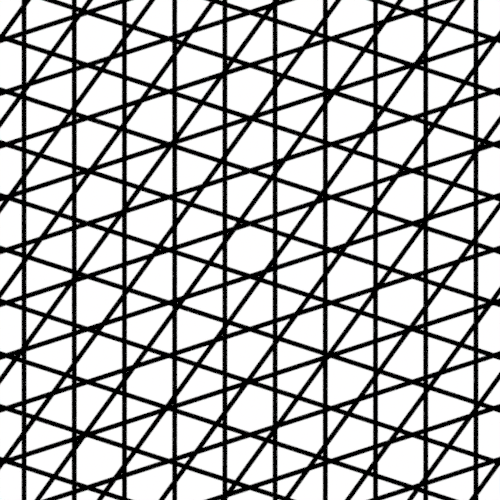
Num Layers
Specifies the number of layers to stack.
 |
 |
 |
 |
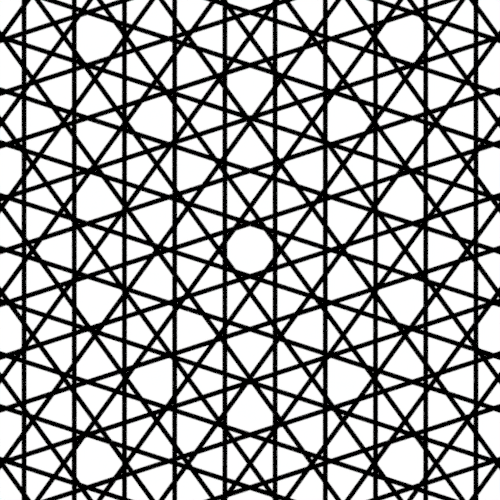 |
| 1 (default) | 2 | 3 | 4 | 5 |
Rotation Per Layer: 0.6
 |
 |
 |
 |
 |
 |
 |
 |
 |
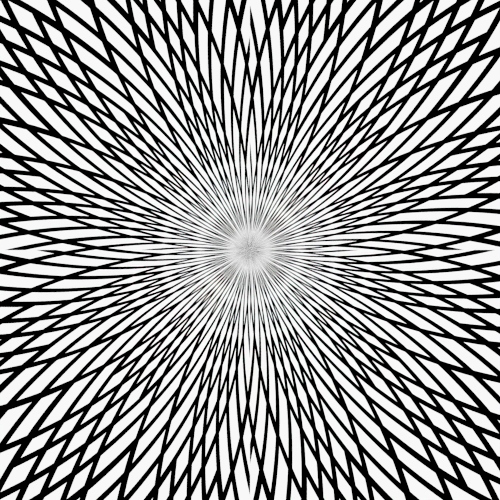 |
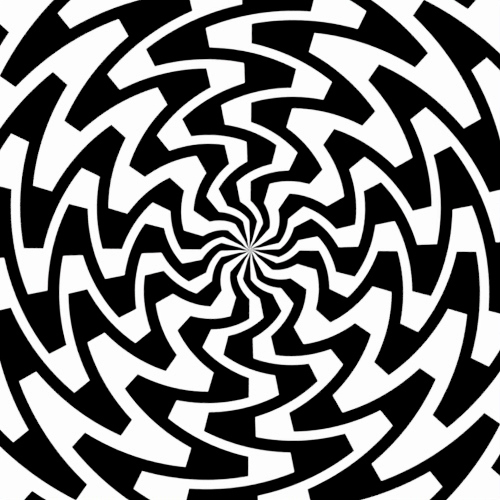
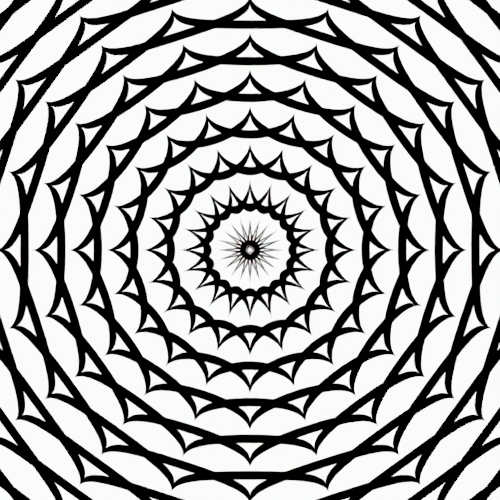
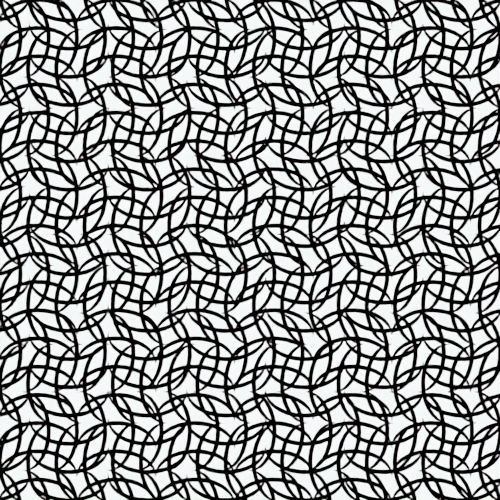
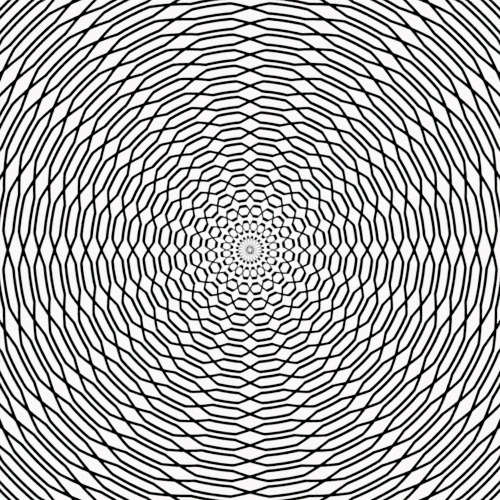
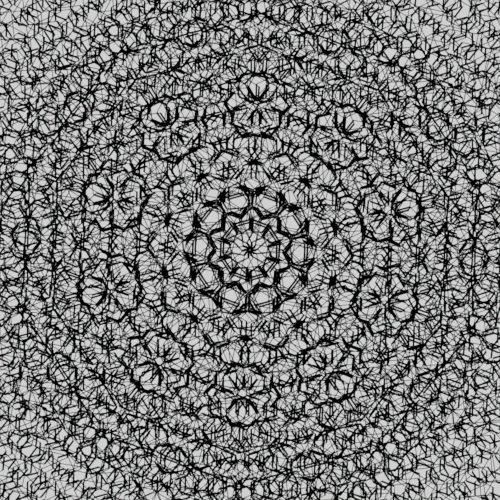
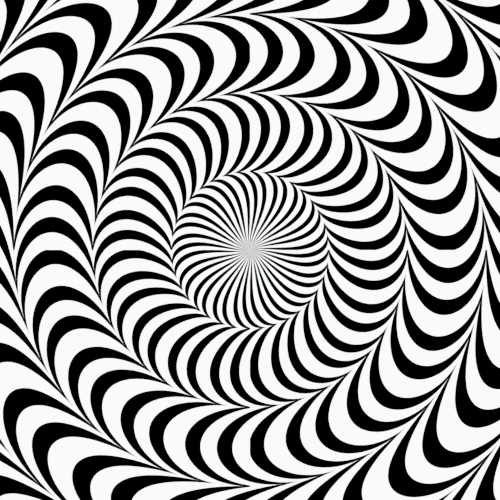
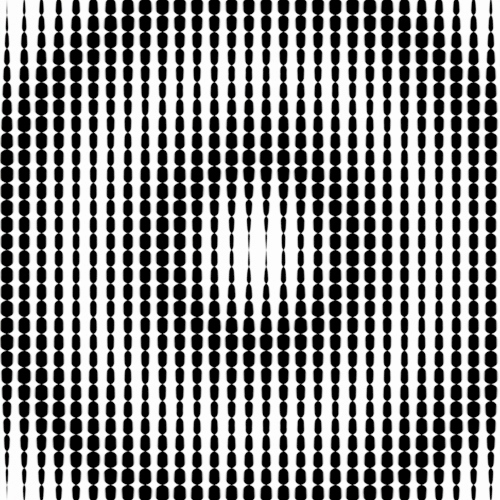
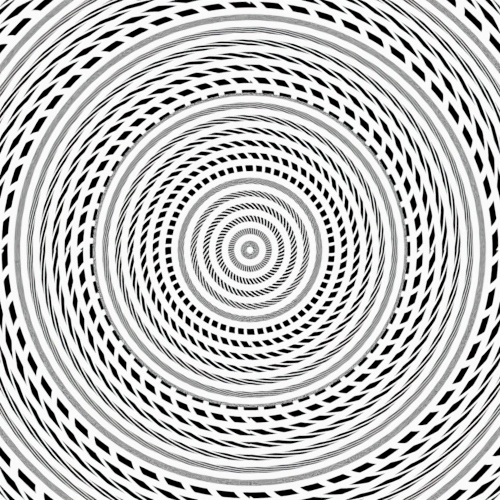
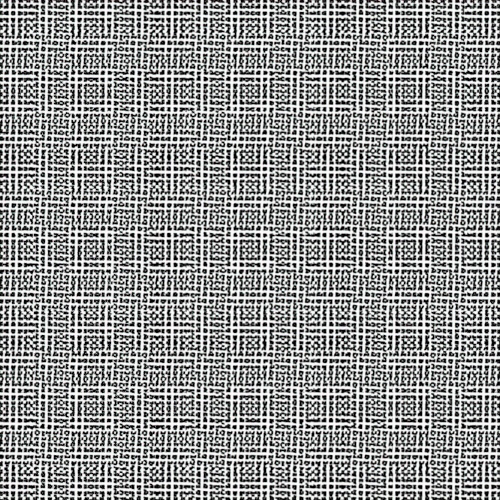
Combining Line Num with different coordinate systems and styles produces a wide range of patterns
Blend Mode
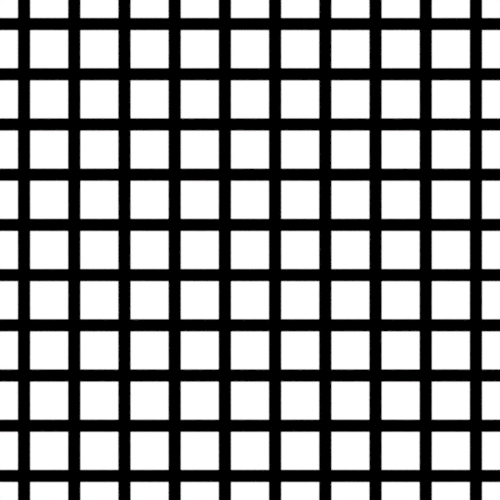
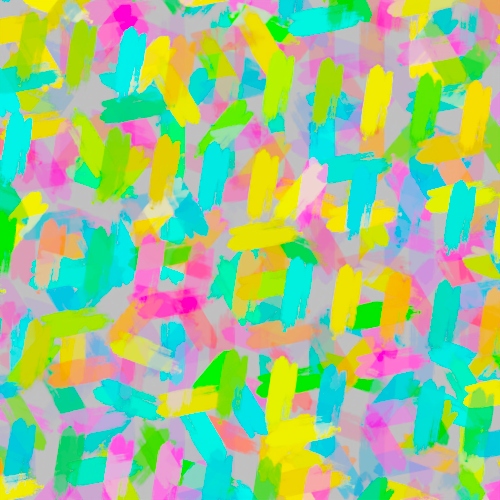
Specify the blending method for stacking multiple layers.
 |
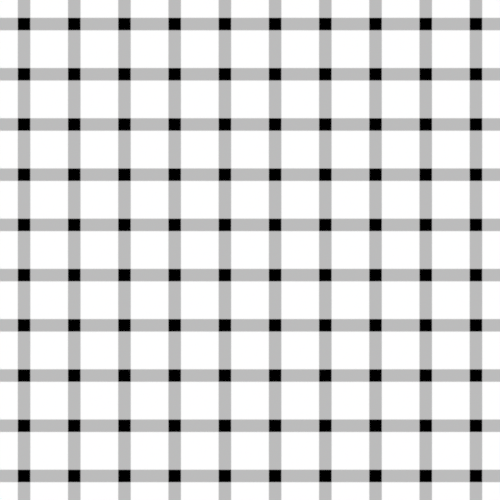 |
| Alpha (default) | Average |
 |
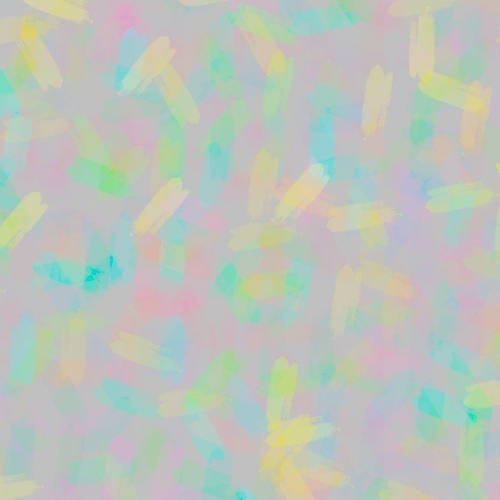 |
| Alpha (default) | Average |
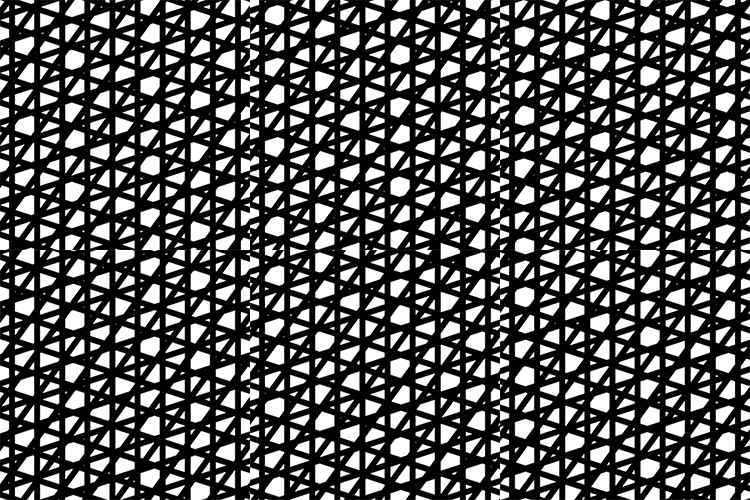
Shift Per Layer
Per-layer shift amount.
 |
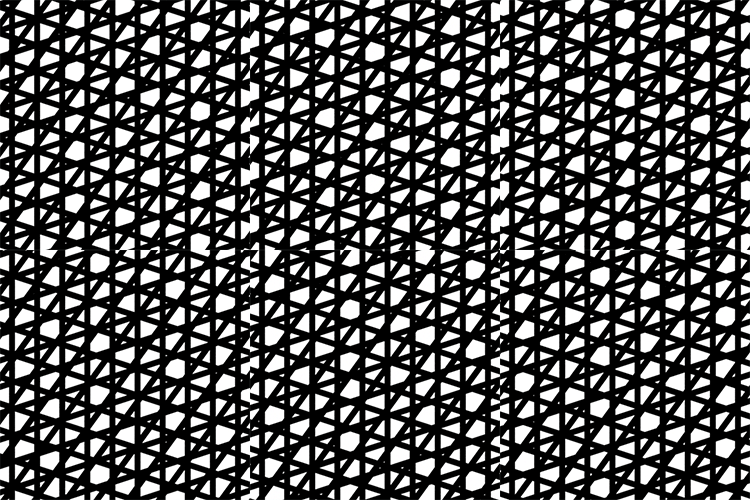 |
| U: 0 to 1 | V: 0 to 1 |
Rotation Per Layer
Per-layer rotation amount.
 |
 |
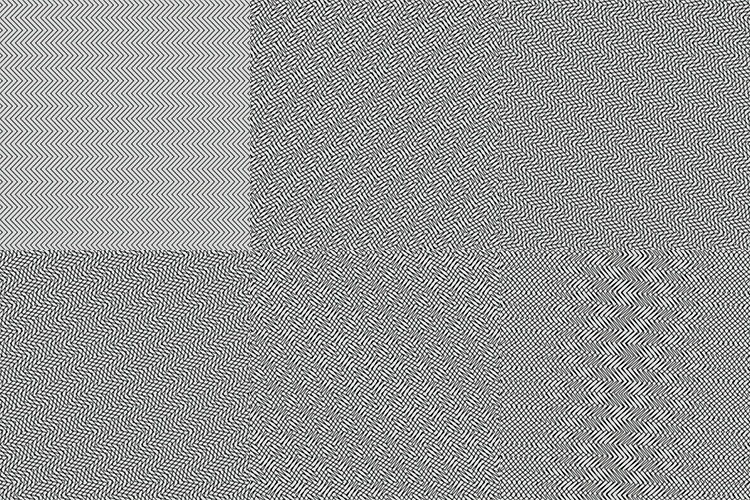 |
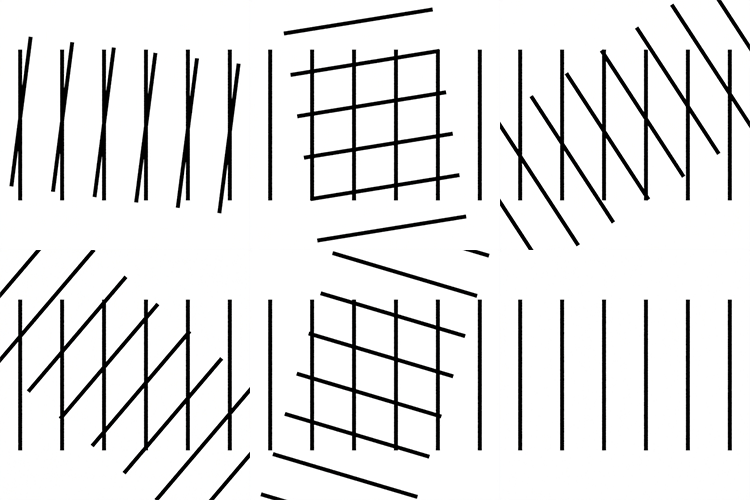
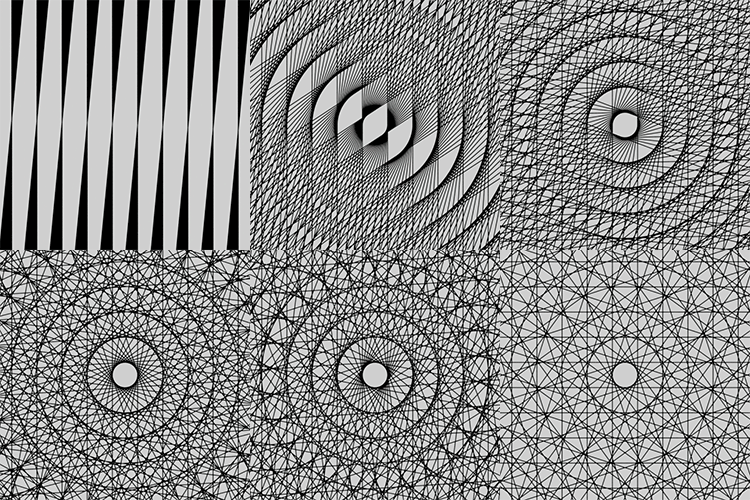
| 0 to 1. Num Layers: 2 | 0 to 1. Num Layers: 16 | 0 to 1. Num Layers: 2. Style: triangle |
Skip Transform
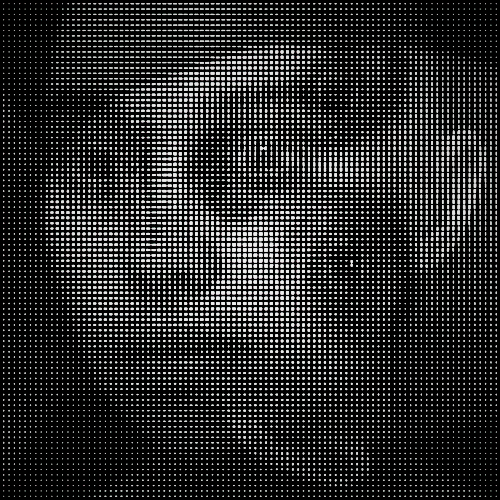
Ignores per-layer transformations when querying width, length, and density.
 |
 |
| Disabled (default) | Enabled |