
Document Templates in Cost Management
Create standard documentation formats for distribution using Cost Management's document template capabilities. Templates use variables (fields in brackets) that are automatically populated with data from the system when documents are generated.
Project administrators can create templates for:
- Contracts
- Budget payment applications
- Cost payment applications
- PCOs, RFQs, CORs, OCOs, and SCOs
In this article:
- Create a Document Template
- Customize Your Template
- Set a Template as Default
- Best Practices
- Troubleshooting
- Related Articles
- Members with account administrator permission can manage document templates at the account level. Create a template once and use it across all projects by adding it to the Library. See Cost Settings in the Library to learn more.
- Learn about variables to create effective document templates.
Create a Document Template
To create a document template:
Click the Settings tool from the left navigation.
Switch to the Budget, Cost, or Change Order tab.
Scroll down to the Document Templates section.
Click Edit in the upper left corner of the section where you want to add a template.
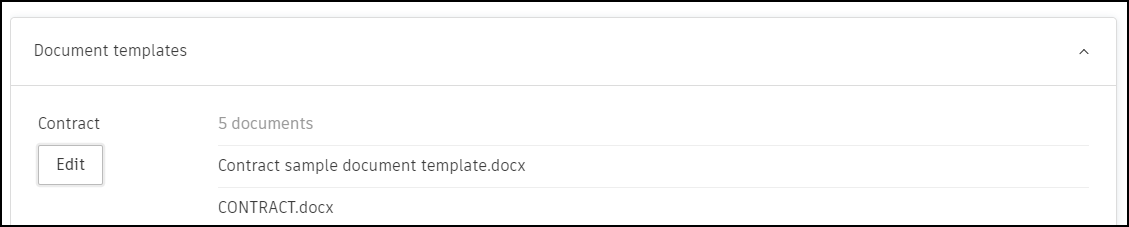
Select Download Sample Document to download a customizable Word or Excel template.
Customize the content as needed. See Customize Your Template for guidance.
Once customized, update the template name and click Save.
Drag or browse for your created document to upload it as the template.
Select Finish to save and exit.
Customize Your Template
When customizing your template, do not edit the content within the brackets - these are variables that the system uses to auto-populate data when generating documents. Learn more about variables.
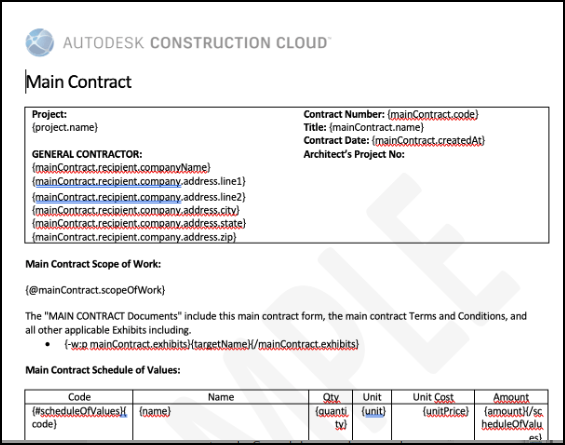
Payment Application Templates
Payment application templates include extra rows in the payment details table that allow you to define hierarchy levels, parent node background colors, and fonts.
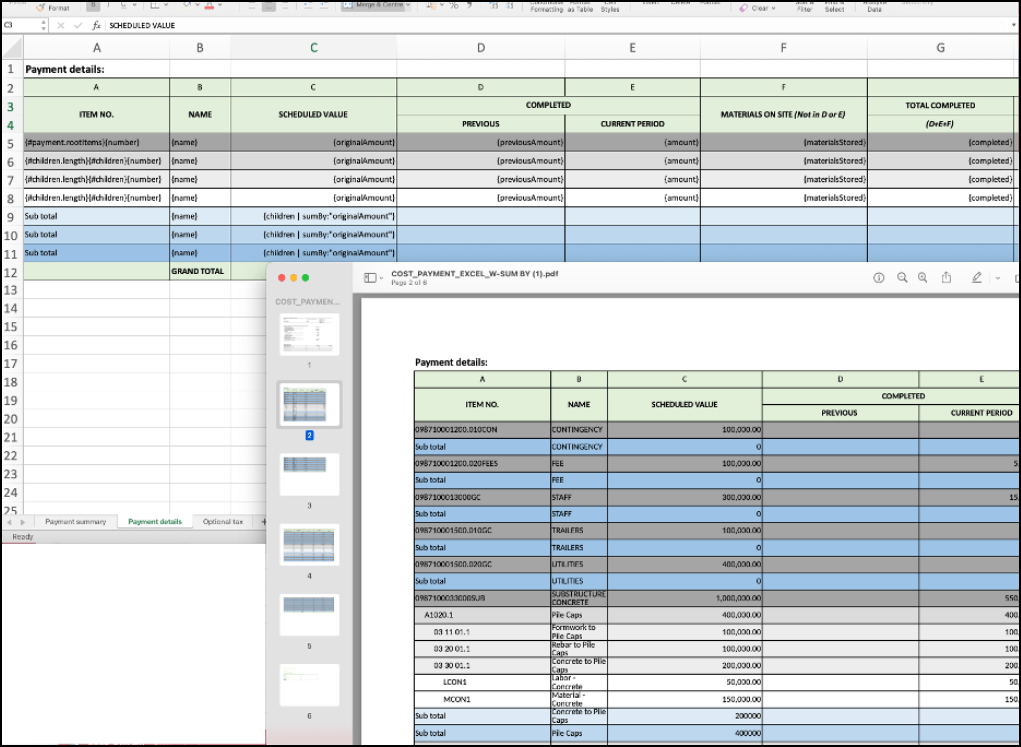
Tips for payment application templates:
- To remove the word SAMPLE, click the document header.
- Summaries can be placed at the top or bottom of a document to increase visibility of summary items.
- Templates support native Excel format cells such as Number, General, and Currency.
Use Percentages in Templates
There are two ways to incorporate percentage format into document templates.
Option 1: Automatic interpretation
Format cells as General in Excel. During import, Cost Management will automatically interpret the value as a percentage (for example, 12.39 becomes 12.39%).
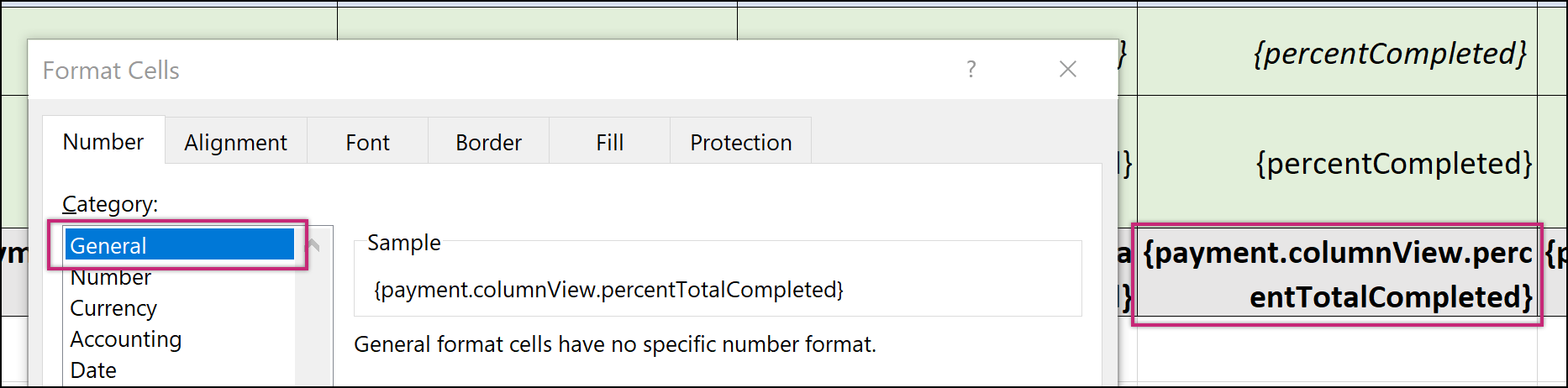
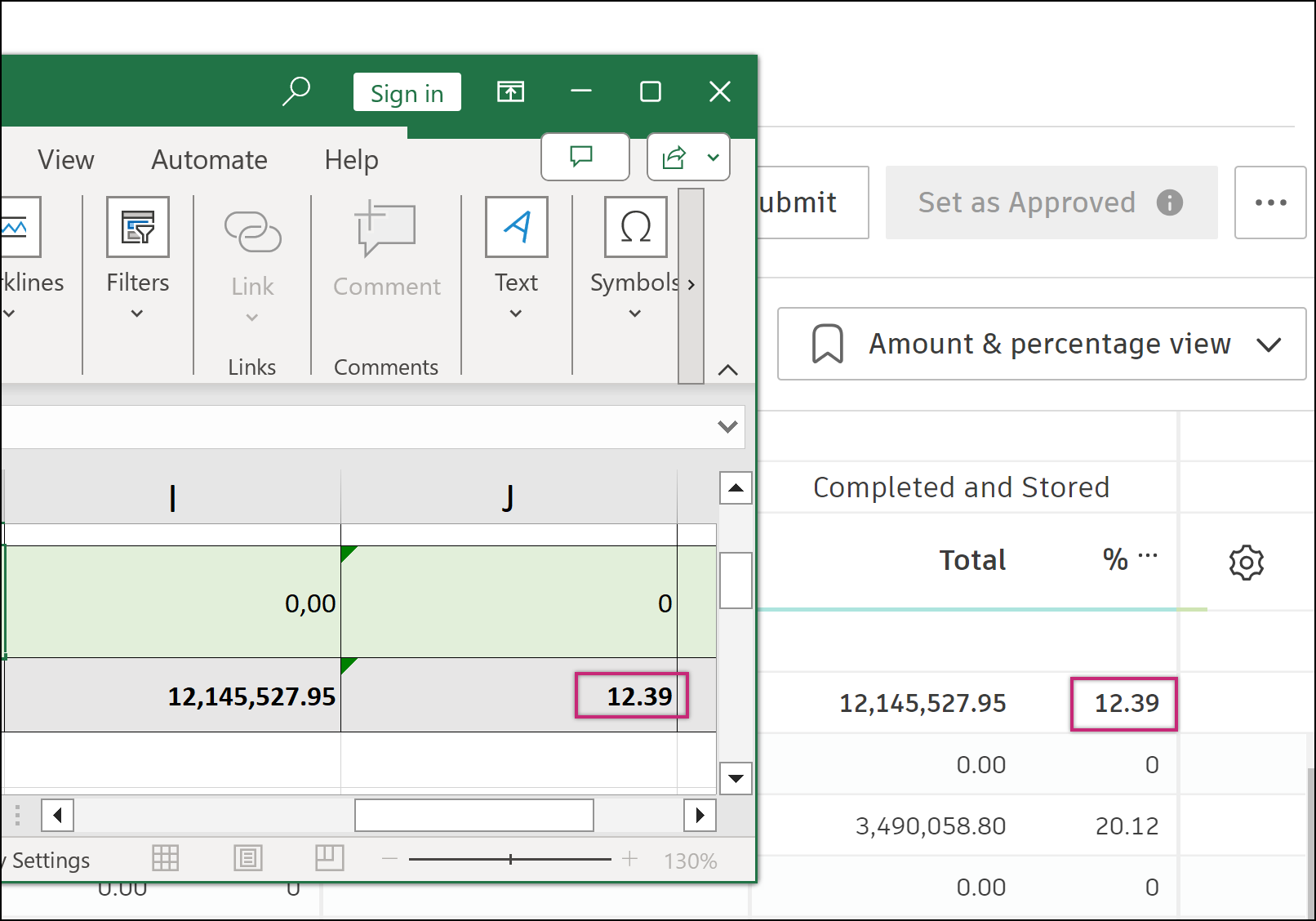
% character to each cell, format the cell as General and manually add % to the variable, for example: {payment.columnView.percentTotalCompleted}%.Option 2: Native Excel percentage format
Use Excel's native Percentage format cells by defining a percentage formula. For example, for the total completed percentage column of a Cost Payment Application:
{completed | divide: revisedValue}
Learn more about Variable Formatting.
Set a Template as Default
Set a document template as default to display it first in the list of available templates when generating documents.
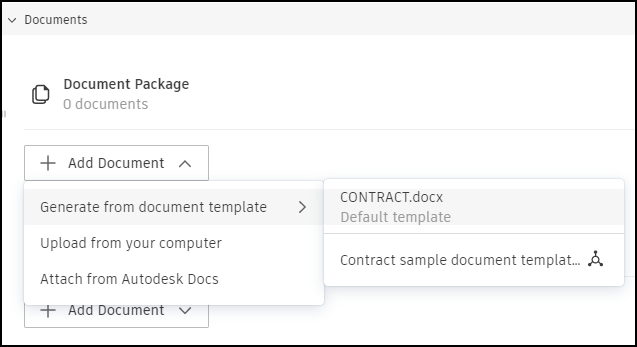
To set a template as default:
Select the Settings tool from the left navigation.
Switch to the Budget, Cost, or Change Order tab.
Scroll down to the Document Templates section.
Click Edit in the upper left corner of the section.
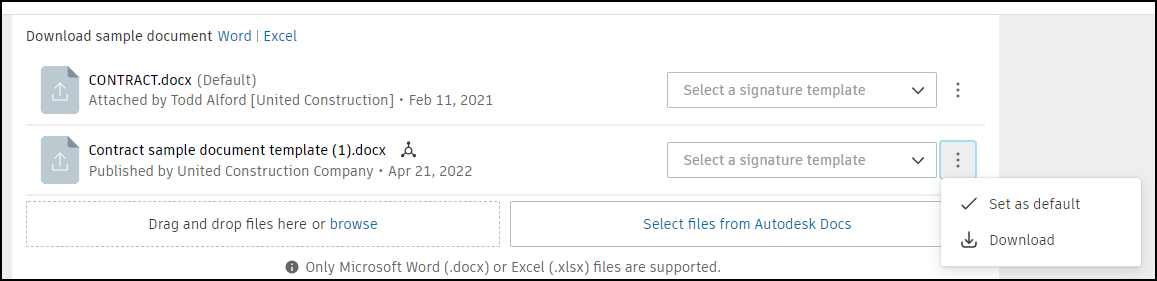
Click the More menu
 next to the template.
Click Set as Default.
Best Practices
Embed Fonts in Your Template
If you experience formatting issues with generated documents (such as fonts appearing differently than expected), embed the fonts in your Word template file. This ensures the document displays correctly regardless of which fonts are installed on the recipient's system.
On Mac:
- Open the template in Microsoft Word.
- Go to Word > Preferences.
- Select Output and Sharing > Save.
- Enable Embed fonts in the file.
On Windows:
- Open the template in Microsoft Word.
- Go to File > Options.
- Select Save.
- Enable Embed fonts in the file.
Template Design Tips
- Keep variable names exactly as provided—do not modify content within brackets
{ }. - Test your template by generating a sample document before deploying it to your team.
- Use consistent formatting throughout the template for a professional appearance.
- Consider creating separate templates for different use cases (for example, internal vs. external distribution).
Troubleshooting
Review Invalid Variables
When variables in a template become invalid (due to system updates or errors), you'll see a  icon next to the affected template. To resolve:
Click the More menu
next to the invalid document template.Choose Review Issues.
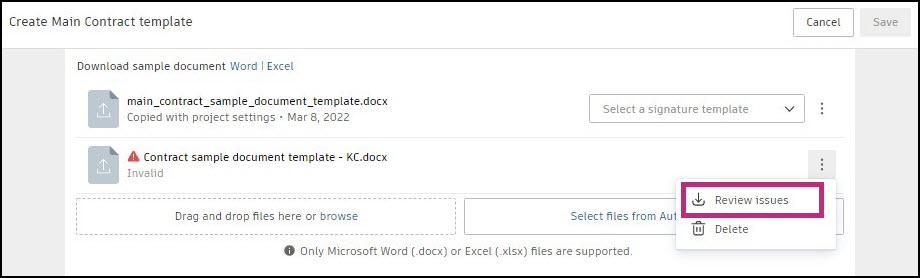
The template downloads automatically. Open it to see comments next to invalid variables.

Resolve the issues within the document.
Upload the corrected template.
Common Issues
| Issue | Solution |
|---|---|
| Fonts look different in generated document | Embed fonts in the template file |
| Variables not populating | Ensure brackets { } are not modified and variable names are spelled correctly |
| Percentage values incorrect | Check cell formatting—use General format or define a formula. See Use Percentages in Templates |
| Template shows warning icon | Use Review Issues to identify and fix invalid variables |