
Issue:
- Users reported that when trying to link a model in Revit from BIM 360 or Autodesk Construction Cloud (ACC), External Resource does not display/show any hubs, folders, and models. The content to which the project member has been added and can see after logging into BIM 360 / Autodesk Construction Cloud (ACC) in the web browser is missing in Revit.
- When navigating to External Resource from Manage Links, the folder appears blank and links will not load.
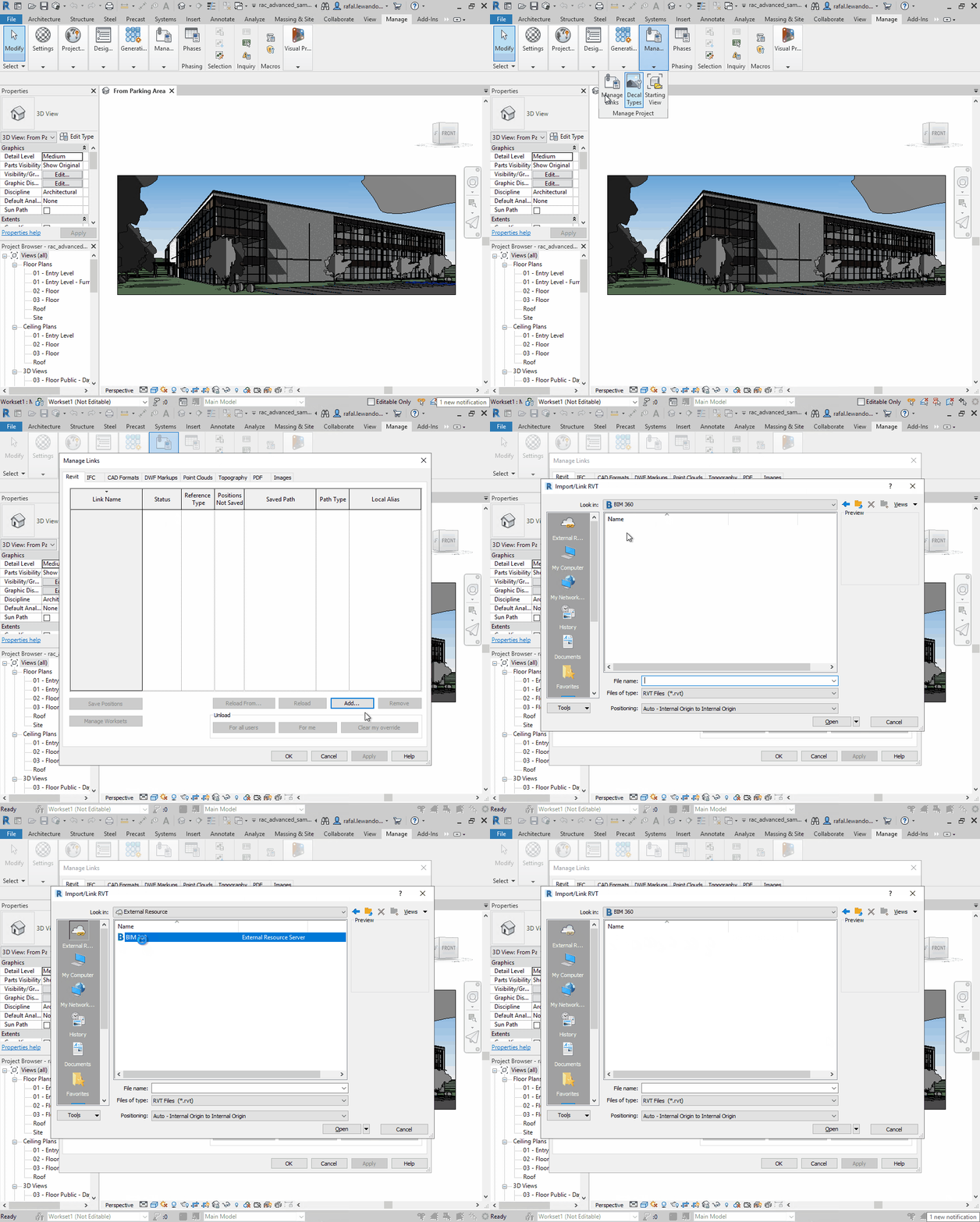
Other symptoms may include:
- The file can be linked using the Desktop Connector.
- When trying to initiate a new model to the cloud, External Resource does not display any hubs, folders, and models.
- Already linked models from External Resources cannot be loaded anymore, are suddenly unloaded.
- The behavior may be observed only for specific project member/ machine and for multiple projects, while other members/machines can work as expected.
- The journal file contains the following entries.
- The project list cannot be displayed:
'C 06-Nov-2020 09:23:56.674; 4:< Collaborate: CloudResourceManager.GetIem: Unable to get item, System.ArrayTypeMismatchException: 'Attempted to access an element as a type incompatible with the array.'
- Hubs cannot be displayed:
'C 06-Nov-2020 09:25:03.265; 0:< Collaborate: CloudResourceManager.GetHubs: Unable to get hubs, System.ArrayTypeMismatchException: 'Attempted to access an element as a type incompatible with the array.'
Causes:
There is a conflict between certain add-in/s and the Revit API leading to the loss of connection to cloud services.Solution:
See the following article for troubleshooting this behavior: Revit Journal records Unable to get hubs when working with cloud models