
Issue:
While using AutoCAD, Hardware Acceleration is intermittently disabled, and one or more of the following occurs:
- The screen turns blank.
- The screen flashes black.
- AutoCAD become temporarily unresponsive.
- AutoCAD crashes.
- Graphic became glitchy, almost unusable.
Solution:
Try one or more of the following solutions to prevent Hardware Acceleration from turning off:
Hardware Acceleration may be unavailable
At times, Hardware Acceleration in AutoCAD may be unavailable or disable on its own. See: Hardware Acceleration Troubleshooting Reference.
Updating the graphics card driver
To update the graphics driver, follow these steps:
In Windows, click Start.
Type "Device Manager" to search for the program, and press Enter or click on it.
Note: Although the search box doesn't immediately appear, when you start typing it will begin a search. You may also use the search box on the Task Bar, if this is still available for you.
Expand Display adapters:
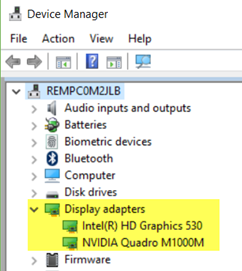
Double-click the graphics card.
Click the "Driver" tab.
Make note of the video card model and the date of the driver.
Note: Dates are easier for determining an older or newer driver instead of using the version number.
Right-click on the graphics card > Update Driver.
If Update Driver is dimmed, download and install the latest driver from the manufacturer's website:
NOTE: If updating does not resolve the issue, verify the computer processor and graphics card meet Recommended requirements for your product version (see System requirements for AutoCAD). If it does, make note of the video card model and the date of the driver. Contact the graphics card vendor as the card is faulty.
DirectX
- Change the use of DirectX to 11 instead of 12.
- Use the command GFXDX12.
- Set it to 0 to enable the use of DirectX 11 instead of DirectX 12.
- Close and re-open AutoCAD for it to take effect.