
Issue:
How to share cloud models with nonproject members from Document Management on the BIM 360 platform or Forma Data Management on the platform?
Solution:
Files can be shared and viewed with the following steps:
For external members without Autodesk Forma Data Management license who cannot be invited to the BIM 360 or Autodesk Forma project
- To be able to receive a link to a model hosted in the BIM 360 or Forma Construction Cloud platforms, a project administrator will need to enable public sharing. The process for enabling public sharing and then sharing the file to external members is outlined in the following Autodesk Help articles:
- BIM 360 Platform: See workflow outlined in the BIM 360 Help article, Share Documents.
- Forma Platform: See workflow outlined in the Forma Data Management Help article, Share Files and Folders. Specifically, Share with Anyone.
- After a file has been shared to an external member they will receive an email with a link to the file.
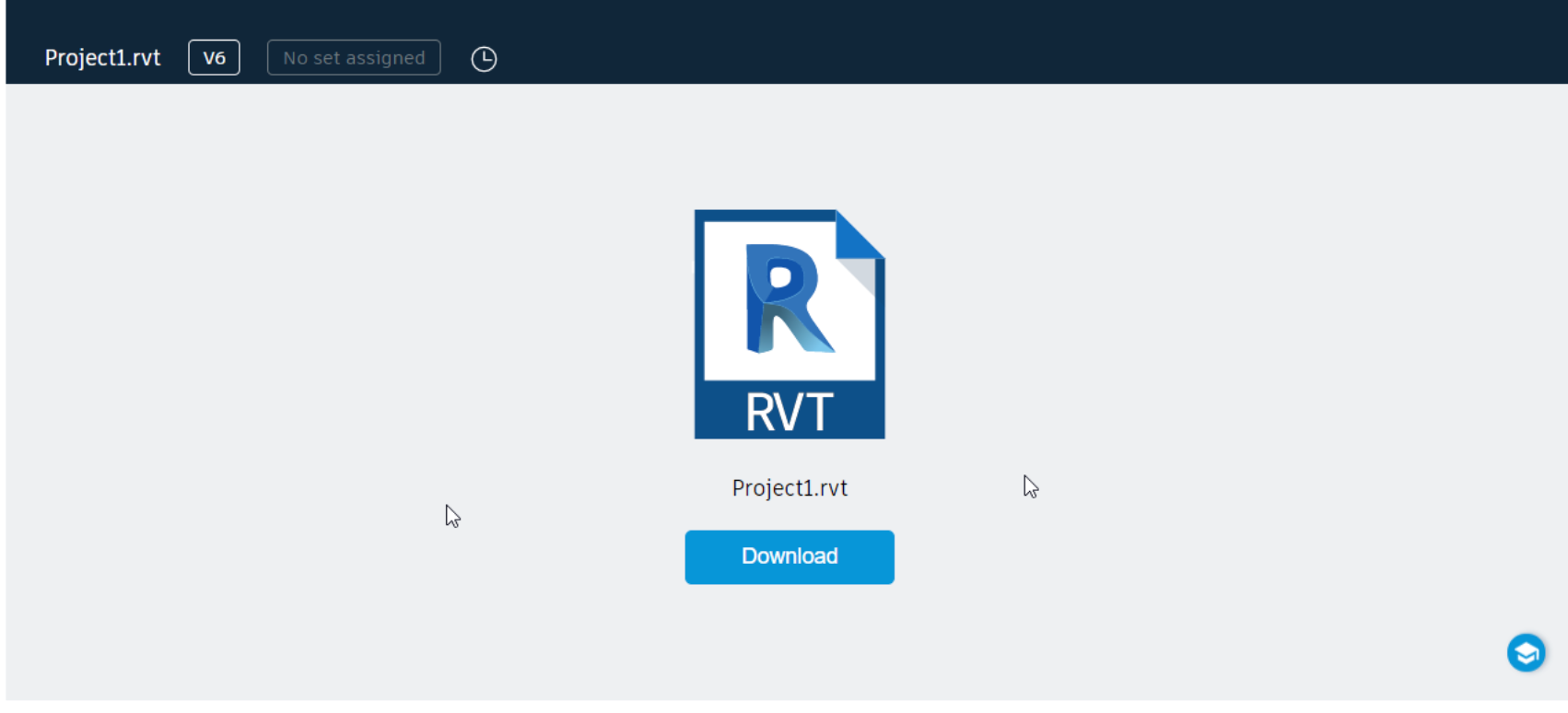
- Once they click the file link, they are directed to a page in their browser where they can download the file:
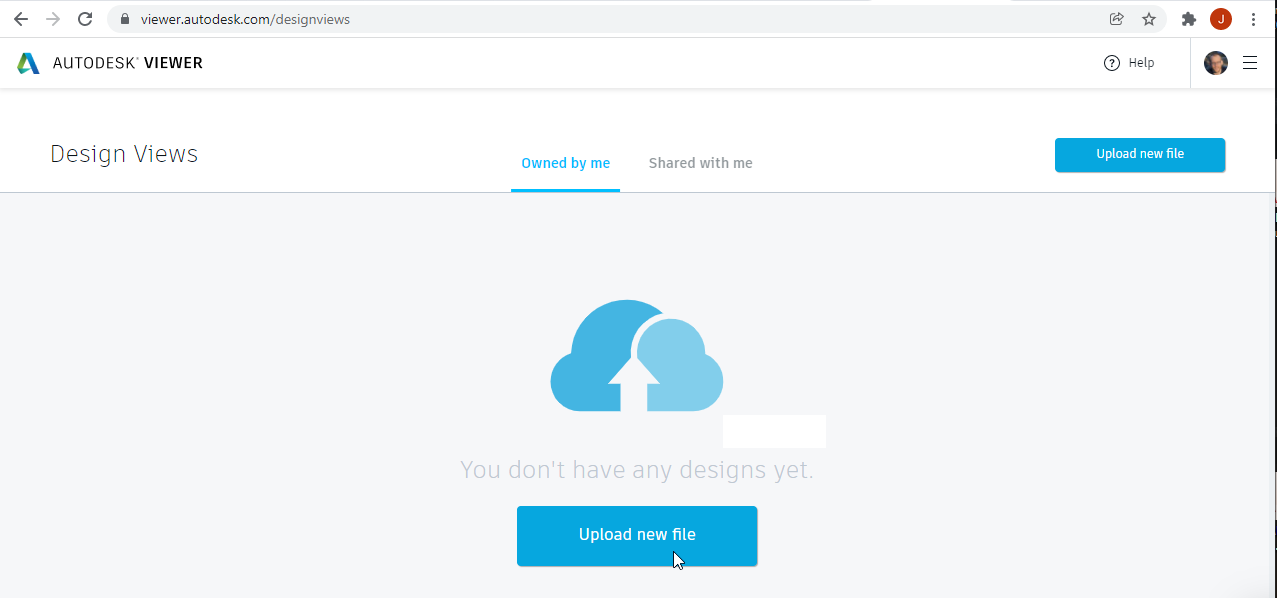
- After downloading the file, they can use Autodesk Viewer which is a free service to view files.
- They can click the "Upload new file" button or simply drag the downloaded file onto the viewer.
Note:
- Files, views, and sheets in the 'Plans' folder cannot be shared publicly. If a link is generated (for project members only from the Plans folder) and that link is clicked by nonmembers, they will receive the message, "This project is not active or you do not have access. Please check for an email invitation and follow the instructions.".
- To edit the shared link expiration date, create and resend the link from scratch to the recipients.
For members with an Forma Data Management license who can be invited to the project
Consider inviting external project stakeholders to the project with limited permissions. Members with project access have the following advantages:
- After sharing a folder or a model, members can open the folder or the model viewer directly in BIM 360 without any additional steps by simply clicking the link.
- Markups, Issues, and RFIs can be created by these members once the project admin assigns the required permissions.
- Project members can subscribe to folders so they will be informed about new file version uploads.