
Handling Unhealthy Environments
Overview
Does your workspace show no files or folders?

Do you have a sync icon continuously showing up? 
This page will outline Desktop Connector behavior when an unhealthy environment is identified and define the steps needed to clean up your unhealthy Desktop Connector environment.
Common scenarios leading to unhealthy environments
Scenario 1: Failed uninstall
Problem: You tried to uninstall Autodesk Desktop Connector, but it failed and Desktop Connector is still running. The removal process has been completed in the control panel, yet Desktop Connector continues to run in the background.
Solution:
- Refer to Properly Uninstall Desktop Connector.
- Alternatively, you may need to run the steps for Desktop Connector is not removed properly after uninstalling.
Scenario 2: Leftover workspace files after uninstall
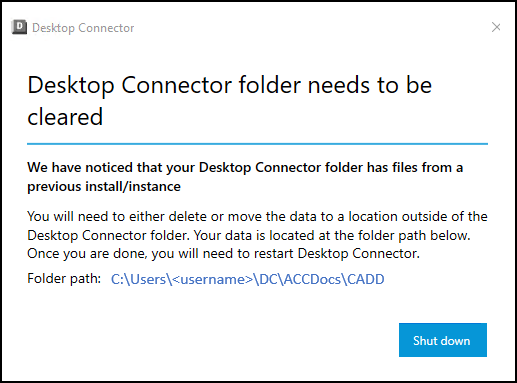
Problem: If you uninstall Desktop Connector, it will remove the databases but workspace files will stay on your device. Before reinstalling Desktop Connector, the workspace needs to be cleared. If it isn't, the outcome will depend on which Desktop Connector version you're running.
Solution:
- Version 16.13 and above: The previous Desktop Connector folder will be renamed automatically to prevent an unhealthy environment. Refer to Managing leftover workspace files for guidance.
- Version 16.12 and below: You will be shown a dialog box to resolve the issue.
- Selecting the offending folder path will open up Windows Explorer and take you to the folder where you can delete or move the data.
- Selecting
 will close the dialog box and allow you to manually delete the files and folders.
Scenario 3: Unauthorized files in workspace
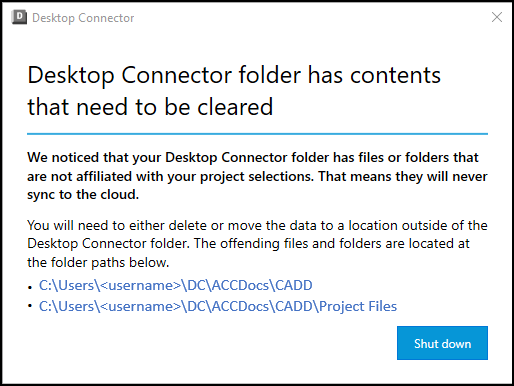
Problem: Desktop Connector will present you with a dialog box when the system detects files or folders in the workspace that are not part of your synced Autodesk Docs projects. This most often means that files or folders were added to the workspace location when Desktop Connector was not running, then when Desktop Connector is started this dialog is visible.
Solution:
- The offending files/folders are listed in the dialog box. You need to either delete or move the data outside the Desktop Connector workspace.
- Selecting the offending files and folders will open up Windows Explorer and take you to the folder where you can correct the problem.
- Selecting Shutdown will close the dialog box and exit Desktop Connector, allowing you to manually delete the files and folders.
Scenario 4: Unable to identify or cleanup the problem
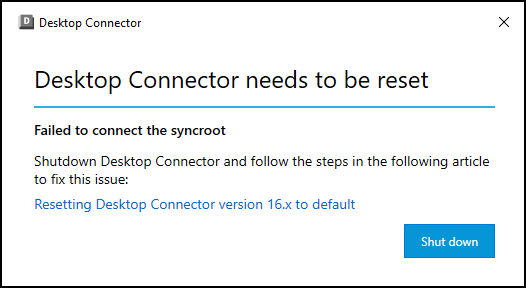
Problem: When Desktop Connector isn't able to fully cleanup or identify the cause of the problem, you may need to manually reset Desktop Connector.
Solution:
- Follow the steps in Reset Desktop Connector version 16.x to default. These steps will manually clean up the Desktop Connector environment.
Related Concepts:
- How to Reset Desktop Connector version 16.x to default to resolve local cache issues.
- How to perform a Clean Uninstall and reinstall of the Desktop Connector.
- How to clear the (hidden) local Autodesk Docs Desktop Connector cache for troubleshooting purposes.
- How to clear the Cache of the Autodesk Docs Desktop Connector to free up local disk space.