
Issue:
This article explains how to remove local login cache for Autodesk desktop software to resolve login and/or access issues. Login cache for Autodesk software versions 2020 to 2023 is stored in the LoginState.xml file. Login cache for Autodesk software versions 2024 and later is stored in the idservices.db file. Both files are locally on the machine.
Environment:
- Windows.
- macOS.
- Linux.
Solution:
Delete the relevant file located in the following locations, depending on the operating system used:
Windows
Option 1 - Use the Licensing and Sign-in Helper (also known as Licensing Support Tool)
- Download the Licensing and Sign-in Helper.
- Run the AdskLicensingSupportToolUI.exe within the AdskLicensingSupportToolUI folder.
- Go to the "Self-Service" Tab.
- Click on "Reset Login state".
Note. This will reset the Autodesk products login, Identity Manager, and licensing cache.
Option 2 - Manually remove the cache file:
For 2023 and older versions:
- Close all open Autodesk software.
- Open Task Manager (right-click the Windows taskbar and click Task Manager).
- Go to Details tab.
- Find and terminate the following processes, if present (right-click > click End task).
- AdSSO.exe
- AdAppMgrSvc.exe
- AutodeskDesktopApp.exe
- AdskLicensingAgent.exe
- ADPClientService.exe
- AdskIdentityManager.exe
- AccessCore.exe
- AdskAccessUIHost.exe
- Open File Explorer or any folder of your choice.
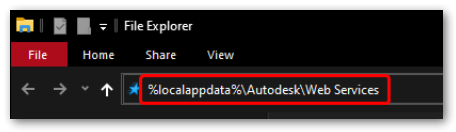
- Paste the following into the address bar %localappdata%\Autodesk\Web Services and press ENTER.
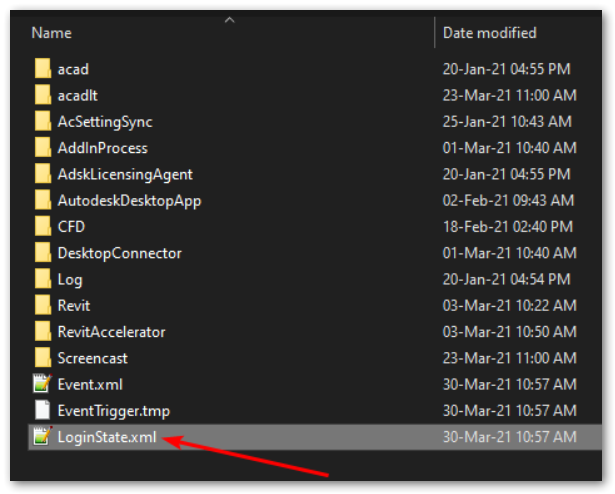
- Find the file LoginState.xml and delete it.
- Launch your Autodesk software and perform a new login.
For 2024 and newer versions:
- Close all open Autodesk software.
- Open Task Manager (right-click the Windows task bar and click Task Manager).
- Go to Details tab.
- Find and terminate the following processes, if present (right-click > click End task).
- AdSSO.exe
- AdAppMgrSvc.exe
- AutodeskDesktopApp.exe
- AdskLicensingAgent.exe
- ADPClientService.exe
- AdskIdentityManager.exe
- AccessCore.exe
- AdskAccessUIHost.exe
- Open File Explorer or any folder of your choice.
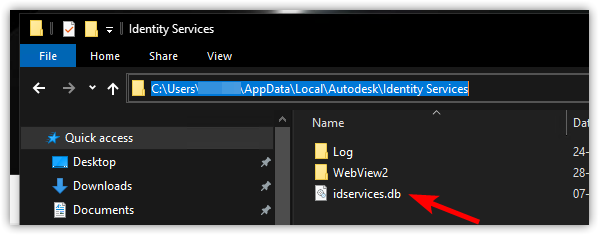
- Paste the following into the address bar %localappdata%\Autodesk\Identity Services and press ENTER.
- Remove the file idservices.db.
- Launch your Autodesk software and perform a new login.
macOS
Option 1 - Use the Licensing and Sign-in Helper (also known as Licensing Support Tool)
- Download the Licensing and Sign-in Helper.
- Extract the downloaded file and run the AdskLicensingSupportToolUI file.
- Go to the "Self-Service" Tab.
- Click on "Reset Login state".
Note. This will reset the Autodesk products login, Identity Manager, and licensing cache.
Option 2 - Manually remove the cache file
- Close all open Autodesk software.
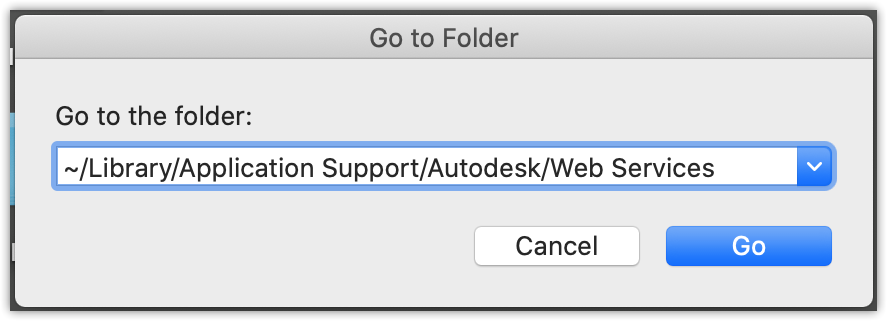
- In Finder click Go > Go to Folder...
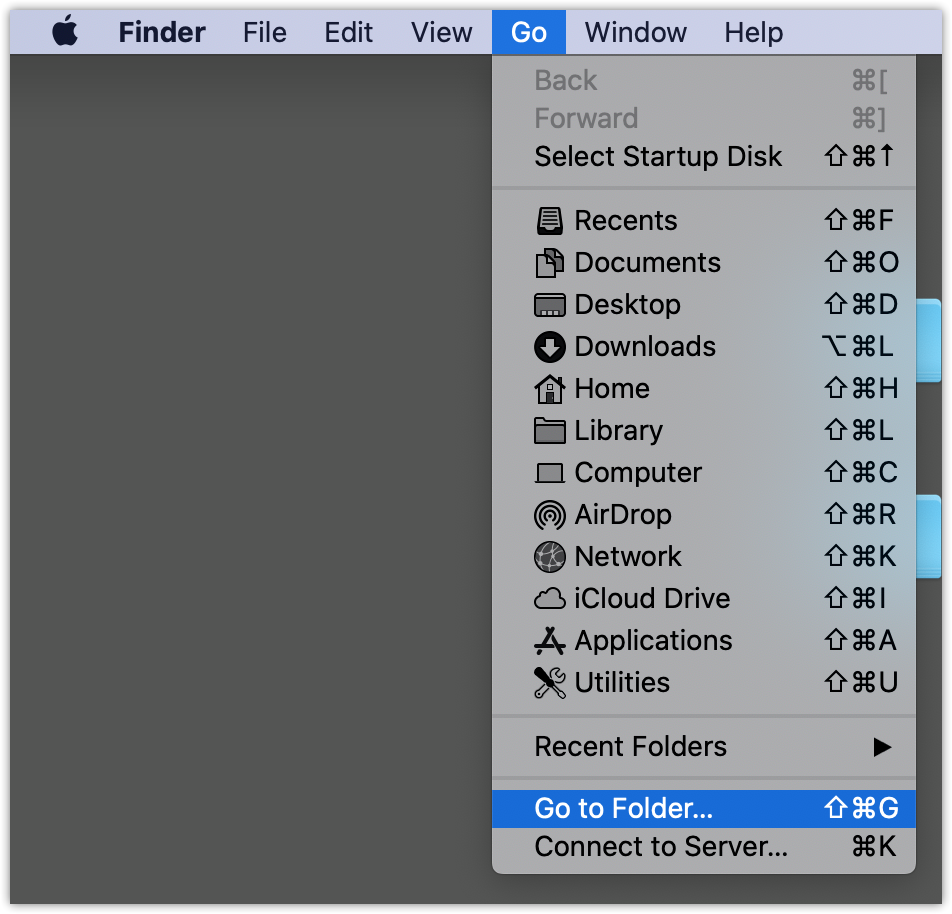
- Paste ~/Library/Application Support/Autodesk/Web Services and hit ENTER.
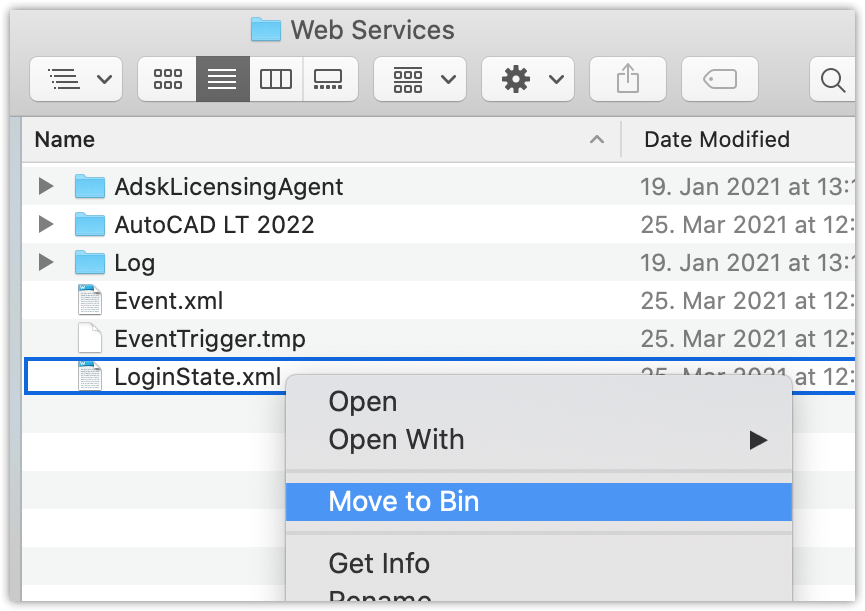
- Find the file LoginState.xml, right-click on it and click Move to Bin.
- Go to ~/Library/Application Support/Autodesk/Identity Services/.
- Remove idservices.db.
- Launch your Autodesk software and perform a new login.
Linux
- Close all open Autodesk software.
- Remove the file LoginState.xml located in /home/<username>/.local/share/Autodesk/Web Services/.
- Remove the file idservices.db in /home/<username>/.local/share/Autodesk/Identity Services/.