
Issue:
How to fix “your subscription has expired” message when launching Autodesk products
If you see an error message saying “your subscription has expired” when you launch Autodesk products, but you believe you have a valid subscription, there are several methods you can follow to rectify the issue.
In this guide, we’ll walk you through verifying your subscription status and license assignments, repairing licensing components if needed, or addressing temporary processing delays.
Your subscription has expired
Review your available options in Autodesk Account.
If you have recently purchased a new subscription or have renewed, close the windows and continue using your product.
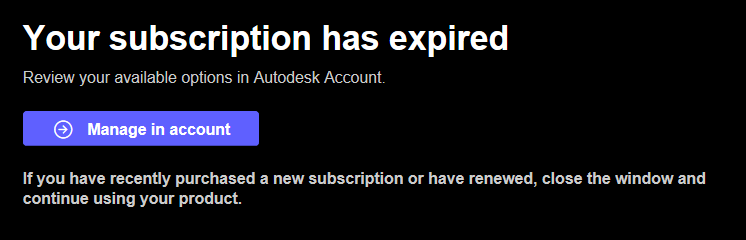
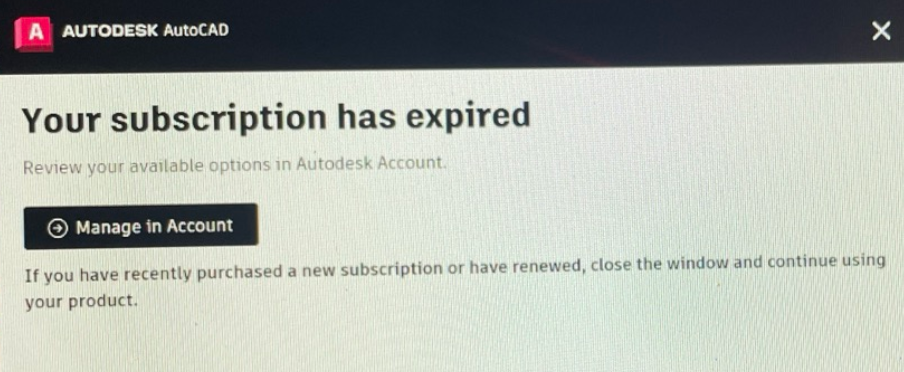
| Note: This messaging can appear for a given user if an expired product subscription is in the brief processing period. This holds true for the same team to which the user is assigned, even if there are active seats covering all assigned users. |
Environment:
- Windows.
Causes:
Why does my Autodesk product say my subscription has expired?
You may experience “your subscription has expired” messages despite having an active subscription in your Autodesk account.
This can be caused by issues including:
- The subscription has expired without another to replace it.
- The subscription has expired, and the renewal is still being processed during a brief processing period.
- A subscription on the same team has expired and is within the brief processing period, while other active subscriptions cover all assigned users.
- The subscription has expired and though a new one has been purchased, it has not been assigned to the user.
- Corrupted Autodesk Desktop Licensing Service.
- Corrupted Autodesk Identity Manager Component.
- Corrupted Autodesk Single Sign On Component.
- Incorrect software installed.
- The subscription has not expired and is still valid, and the license activation needs to be reset.
- The product offering has been upgraded from a Standard to a Premium plan.
Solution:
| Note: These steps require administrator permissions. If you receive errors while troubleshooting, contact a member of your IT team to help with the following solutions. |
How to fix Autodesk “your subscription has expired” message: Step by step
Several issues could be causing you to see a “your subscription has expired” error, even if you have an active subscription, try the solutions below 1 by 1 testing each solution before moving to the next.
1. Verify subscription status and license assignments
Click to view or hide this solution
The first step to fix subscription errors is to make sure you have an active subscription before attempting any technical fixes.
To do so:
Sign in to your Autodesk Account and Navigate to Products and Services, Billing and orders.
Verify your active subscription status for the product showing the error message. The end date should not show expired.
Confirm you have the right license assigned to the specific user account in User Management. Users email address should appear in the “assigned users” list.
Check the product version matches your assigned license type (Standard vs Premium, AutoCAD vs AutoCAD LT).
1.1: Subscription has expired without another to replace it
If you find your subscription has expired and you don’t have another to replace it, you will need to purchase a new subscription. After doing so, you can assign the new seat to yourself or another user.
1.2: Subscription has expired error when your renewal is being processed
If your subscription has expired and the renewal is still being processed, you may still see a message that says “your subscription has expired” when you launch Autodesk products. To avoid this issue:
Complete the renewal as soon as possible to avoid further access issues.
Close the error message and continue using the software. The message should disappear once the renewal process is complete.
1.3 Subscription on the same team has expired, but other active subscriptions cover all users
You may still see the “your subscription has expired” message if a subscription in your team has expired or is going through renewal. If this is the case:
- Move the expired subscription to another team, where no users are assigned to that product, to prevent active users from seeing the message.
1.4: License was renewed but not assigned after purchase or needs to be reset.
In some cases, you may have purchased a new subscription, but not yet assigned the license to the right user account, or the the local login cache corrupted.
To check and resolve this issue:
Sign into Autodesk Account to find license information. See View your product license information.
Assign the new license to the intended user or contact your account administrator to do so.
Reset the local login cache to clear old licensing information.
Restart the software and select the appropriate license method as per step 1.
Sign in using your Autodesk Account credentials.
2. How to repair subscription errors caused by a corrupted Autodesk Desktop Licensing Service
Click to view or hide this solution
| Note: This is needed for all versions starting from 2020. |
The Autodesk Desktop Licensing Service manages license activation for Autodesk software versions (2020 or newer). First, you should check if the Desktop Licensing Service is running. If it is corrupted, it can cause subscription error messages to display.
To repair: Uninstall and reinstall the latest Autodesk Desktop Licensing Service.
Open the Windows File Explorer.
Go to the folder: C:\Program Files (x86)\Common Files\Autodesk Shared\AdskLicensing.
Right-click on uninstall.exe and select "Run as administrator".
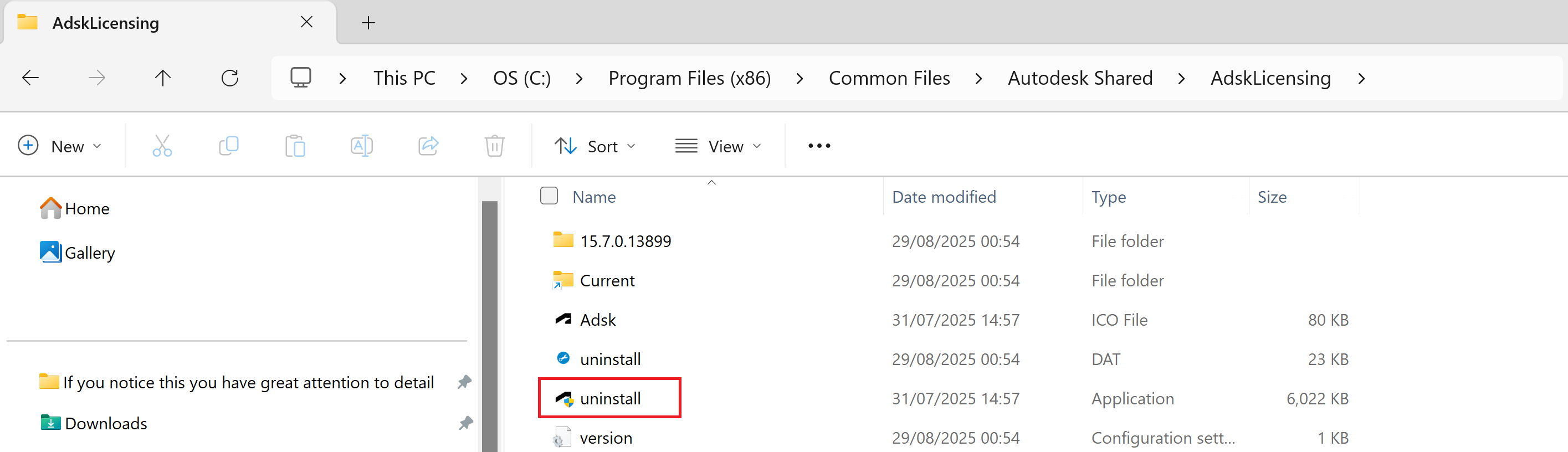
Wait until the folder becomes empty.
Install the latest Autodesk Desktop Licensing Service: see, Download Autodesk Desktop Licensing Service
Start the product to see if the issue is resolved.
Click here to expand the video tutorial for this solution.
Uninstall and reinstall the latest Autodesk Desktop Licensing Service
3. How to repair subscription errors caused by a corrupted Autodesk Identity Manager
Click to view or hide this solution
| Note: This is only needed if you have installed versions 2024 and newer, Autodesk Access or Autodesk Desktop Connector 16.X. |
Open the Windows File Explorer.
Go to the folder: C:\Program Files\Autodesk\AdskIdentityManager.
Right-click on "uninstall.exe".
Run the file as Administrator.
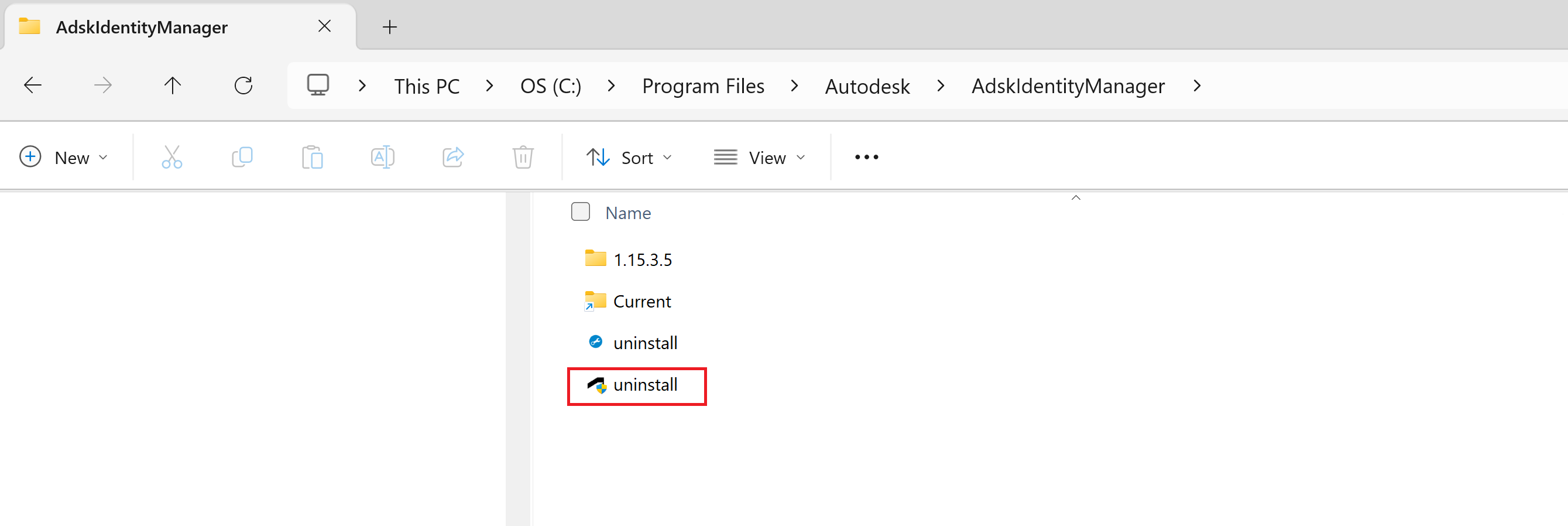
Wait until the folder becomes empty.
Reboot the system.
Download the latest Autodesk Identity Manager Component: See, Download Autodesk Identity Manager
Install by right-clicking on the downloaded exe and selecting "Run as administrator".
Start the product to see if the issue is resolved.
4. How to repair subscription errors caused by a corrupted Autodesk Single Sign-On component
Click to view or hide this solution
Products from version 2020 through 2023 use the Single Sign-On component for authentication. A corrupted Autodesk Single Sign On Component can cause subscription error messages to display in product versions 2020 to 2023.
| Note: This is only needed if you have installed versions 2020 to 2023. |
Click the Windows Icon in your system tray, in the search bar look for "Control Panel" and open.
When in the Control Panel, navigate to Programs\Programs and Features.
Look for and uninstall the "Autodesk Single Sign-On Component" by right-clicking on the Autodesk Identity Manager and selecting "Uninstall/Change".
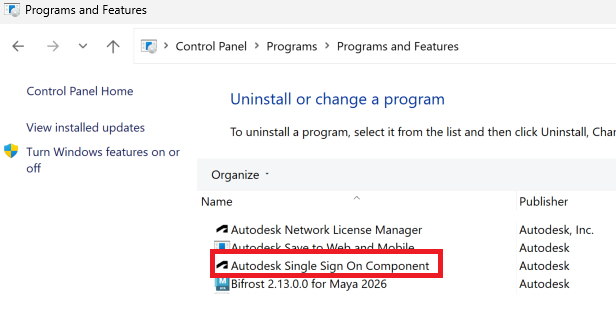
Download the latest update for the Autodesk Single Sign On Component. See, Download Autodesk Single Sign-On Component.
Install the Autodesk Single Sign On Component latest update.
Start the product to see if the issue is resolved.
Click here to expand or collapse the video tutorial for this solution.
Uninstall and reinstall the latest Autodesk Single Sign-On Component
5. How to resolve account and license assignment issues
Click to view or hide this solution
If you have confirmed you have an active subscription, but the software doesn’t recognize your access, there are several scenarios to work through to overcome the issue and verify your access:
5.1: Ensure the right product or software is installed
If the product you have installed doesn't match your assigned license type, for example, you may have an AutoCAD LT license assigned, but AutoCAD (full version) installed on your computer, you should:
Verify your assigned license type in Autodesk Account under Products and Services.
Uninstall the incorrectly installed product version.
Download the correct product that matches your license assignment.
Install the matching product and verify subscription access.
5.2 Reset license activation
If you have a subscription that shows as active in your Autodesk Account, but the software still won’t recognize your subscription, you may have to carry out a license reset as follows:
To do so:
Sign in to your Autodesk Account to verify current license information and status.
Confirm the license is assigned to your user account.
Reset the license using Autodesk's license reset procedure for your product.
Restart the software and select the appropriate activation method.
6. How to fix subscription has expired messages caused by product version upgrades
Click to view or hide this solution
When your product offering changes between Standard and Premium plans, you may find that you have issues with licenses. If this occurs:
Verify your current plan in Autodesk Account Products and Services.
Uninstall the Standard version and restart your computer.
Download and install the Premium version from your Autodesk Account.
Subscription error issues: Frequently asked questions
Click to view frequently asked questions
How do I solve the issue if I have multiple Autodesk accounts causing conflict?
If using multiple Autodesk accounts with different subscriptions creates authentication problems:
Sign out of all Autodesk products completely.
Clear browser cookies and cache for all Autodesk domains.
Sign in with the correct account matching your license assignment and check the product licenses have been applied.
Verify single active session across all applications.
What do I do if a recent Windows update has caused issues?
If you find the subscription error appears immediately after Windows system updates:
Install all pending Windows updates and check for any that are pending.
-
Repair all licensing components after Windows updates complete:
-
- Reinstall Desktop Licensing Service with latest version.
- Update Identity Manager or SSO component as appropriate.
-
- Check Windows security updates didn't block licensing services:
-
- Review Windows Security settings for blocked applications.
- Verify Autodesk licensing services are not quarantined.
- Add licensing components to Windows Security exclusions if needed.
-
What if my network or firewall is blocking license verification?
If you are on a corporate network and this or a firewall is preventing license verification with Autodesk servers:
Verify network connectivity to Autodesk licensing servers.
-
Check corporate firewall settings for Autodesk domains:
-
- Required URLs must be accessible for license verification.
- Consult your IT administrator for firewall configuration.
- Ensure there is no blocking of Autodesk licensing services.
-
Ensure required URLs are accessible through your network:
-
- licensing.autodesk.com must be reachable.
-
- Contact your IT administrator for enterprise network configurations:
-
- Request Autodesk licensing domains be whitelisted.
- Verify that no group policies are blocking authentication.
- Check for certificate or SSL inspection issues.
-
- Test on different networks to isolate connectivity issues.
See Also:
Subscription and Account Management
Access Issues and Troubleshooting
"Trial expired" or "Your trial has ended" when launching Autodesk software
- How to reset local login cache for Autodesk desktop software