
Learn how to troubleshoot issues relating to Maya hanging, crashing, or not loading on Windows 10 or 11.
Why is Maya failing to launch?
When you select the Maya application on your computer, Maya loads its dependencies and opens after a few moments. However, if you select the Maya application and it hangs, crashes, or otherwise doesn’t load with or without a splash screen and CER, review the following subsections for potential causes.
Maya issues
If your launch error is related to Maya itself, it’s likely due to one of the following:
- Broken or corrupted installation – If your installation stops midway while installing Maya for the first time, or if Maya won’t start after the installation finishes, the installation may be damaged.
- Corrupted preferences – After extended use and scene manipulation, Maya preferences can become corrupted and cause functionality and stability issues.
- Out-of-date software – If you don’t download updates periodically, you cannot access bug fixes or software improvements that keep Maya running smoothly.
- Conflict with running Python – If you reconfigure the PYTHONPATH file path incorrectly or add incompatible external libraries that you want to use in your Python scripts, it can cause issues launching Maya.
- Conflict with OpenCL – If there is an issue with the Open Computing Language API, it can cause issues launching Maya.
 Updates aren't included in the initial install of Maya, regardless of when the installation occurs. Updates aren't included in the initial install of Maya, regardless of when the installation occurs. |
Operating system issues
If your launch error is related to Windows 10 or 11, it’s likely due to one of the following:
- Corrupted Windows user profile – If your user profile has settings that conflict with Autodesk products, Maya cannot launch successfully.
- Controlled folder access – If Windows controls access to your folders and believes that Maya is a virus or threat, it will prevent Maya from launching.
- Folder redirection – If Windows redirects shell folders, Maya may be unable to find the correct location for its dependencies that it needs to launch successfully.
- Unsupported or out-of-date Windows version - If you don’t download updates periodically, you cannot access bug fixes or software improvements that keep Windows running smoothly with your version of Maya.
Hardware issues
If your launch error is related to hardware, it’s likely due to one of the following:
- Unsupported graphics card – Graphics cards that aren’t on the certified hardware list are incompatible with Maya.
- Out-of-date graphics card driver – If you don’t download updates periodically, you cannot access bug fixes or software improvements that keep your graphics card driver running smoothly with your version of Maya.
Licensing setup issues
If your launch error is related to licensing setup issues, it’s likely due to one of the following:
- Proxy/Firewall environment – If your computer connects to the internet through a firewall or a proxy server, the proxy must be configured to allow your licensing to work properly.
- Out-of-date Autodesk Licensing Service Agent - If you don’t download updates periodically, you cannot access bug fixes or software improvements that keep the Autodesk Licensing Service Agent running smoothly with your version of Maya.
Runtime libraries issues
If your launch error is related to runtime libraries issues, it’s likely due to Microsoft Visual C++ corrupted redistributable packages. This can cause a general failure during installation due to a conflict with installer prerequisites, or any type of misbehavior or crash during normal operation.
Troubleshooting methods
If you try to launch Maya and it hangs, crashes, or otherwise doesn’t load on Windows 10 or 11, troubleshoot using various methods according to the issue type.
To troubleshoot a launch failure related to a broken or corrupt Maya installation:
See How to perform a Clean Uninstall of Autodesk products on Windows.
To troubleshoot a launch failure related to corrupt Maya preferences:
- Using the File Explorer, navigate to the following directory:
C:\Users\<username>\My Documents\Maya\<version>\
- Locate the prefs folder, then rename it to prefsOld.
- Restart Maya. When prompted, select the Create Default Preferences option.
 When you copy and paste the directory path in step 1, be sure to edit <username> with the custom username for your computer or account, and <version> with the version of Maya in use. For example: C:\Users\MyName\My Documents\Maya\2026\ When you copy and paste the directory path in step 1, be sure to edit <username> with the custom username for your computer or account, and <version> with the version of Maya in use. For example: C:\Users\MyName\My Documents\Maya\2026\ |
To troubleshoot a launch failure related to Maya being out-of-date:
- Navigate to manage.autodesk.com.
- In the horizontal navigation, select Products and services. All Autodesk products that you have a license to display.
- In the sub-horizontal navigation, select Product Updates.

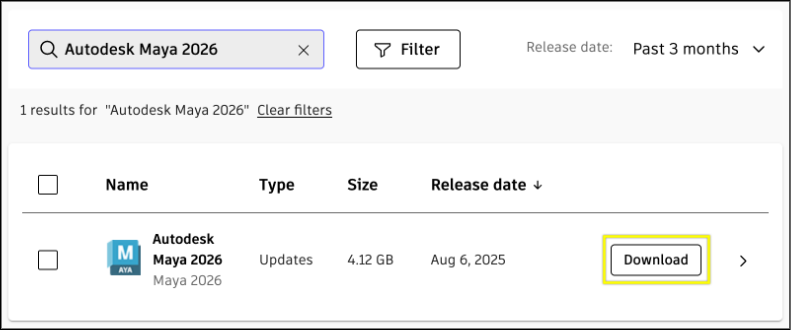
- Using the search filter, input the version of Maya you want to update, then click the Download button.
To troubleshoot a launch failure related to a conflict running Python:
- Turn off all external plug-ins and proprietary scripts.
- Verify that PYTHONPATH file path is configured correctly.
To troubleshoot a launch failure related to a conflict with OpenCL:
- Using the File Explorer, navigate to the following directory:
C:\Users\<username>\My Documents\Maya\<version>\
- Open the maya.env file with a text editor, such as the Notepad app.
- Put the following string into the file:
MAYA_DISABLE_OPENCL=1
- Save the file, then launch Maya.
To troubleshoot a launch failure related to a corrupted Windows user profile:
- Create a new local user or administrator account in Windows.
- Sign in to the new account, then launch Maya.
To troubleshoot a launch failure related to controlled folder access:
- In the bottom-left of your screen, open the Windows Start menu.
- Using the search bar, search for and launch the Windows Security app.
- Click Virus & threat protection, then in the Ransomware protection section, click Manage ransomware protection.
- To remove controlled folder access altogether, turn off Controlled folder access.
- To keep controlled folder access and make Maya an exception:
- Select Allow an app through Controlled folder access.
- Select Add an allowed app.
- Select Recently blocked apps to add Maya to be treated as a trusted app if it has been flagged as a threat. If Maya is not listed, select Browse all apps, navigate to the Maya.exe location, then click it to add Maya to the trusted app list.
To troubleshoot a launch failure related to folder redirection:
See the Applicable to all Autodesk Products section in a related article.
To troubleshoot a launch failure related to an unsupported or out-of-date Windows version:
- See System Requirements for Autodesk Maya to verify that your operating system is supported on your active version of Maya.
- If it is supported but out-of-date, download the Windows update.
- If it is not supported, upgrade your operating system.
To troubleshoot a launch failure related an unsupported graphics card:
- See the Certified Hardware List to verify that your graphics card is supported on your active version of Maya.
- If it is not supported, use a compatible graphics card.
To troubleshoot a launch failure related to an out-of-date graphics card driver:
- Confirm that your graphics card driver is up-to-date by going directly to the manufacture's website to get the latest version:
- If you don't know your graphics card driver version, see How to Find Graphics Card Information on Windows.
- If your graphics card driver is up-to-date but Maya is still failing to launch, reinstall the driver.
To troubleshoot a launch failure related to a Proxy/Firewall environment:
- If you’re using a single-user license, see Which URLs/Protocols need to be allowed for Autodesk Subscription Licensing for instructions on placing the right domains on your allow list.
- If you’re using a network/multi-user license, see Install network licensing software for instructions to make sure that you’re running the latest version the Network License Manager.
To troubleshoot a launch failure related to an out-of-date Autodesk Licensing Service Agent:
To troubleshoot a launch failure related to a runtime libraries issue:
Uninstall and reinstall Microsoft Visual C++.
To troubleshoot a launch failure related to Autodesk Single Sign On Components:
- Uninstall the Single Sign On components from the Add- or Remove programs window, then restart your computer.
- See Autodesk Single Sign On Component (AdSSO) update for 2020 - 2023 product versions for Windows users for instructions and a download link to install the latest single sign on components.
- Restart your computer again.