
Favorites on macOS
Users also have the ability to tag content with the Add to Favorite button located near the top of the PIX application.
Once the content is tagged as a favorite it will also appear in the PIX Favorites section so the user can access it quickly.
Use Favorites as shortcuts
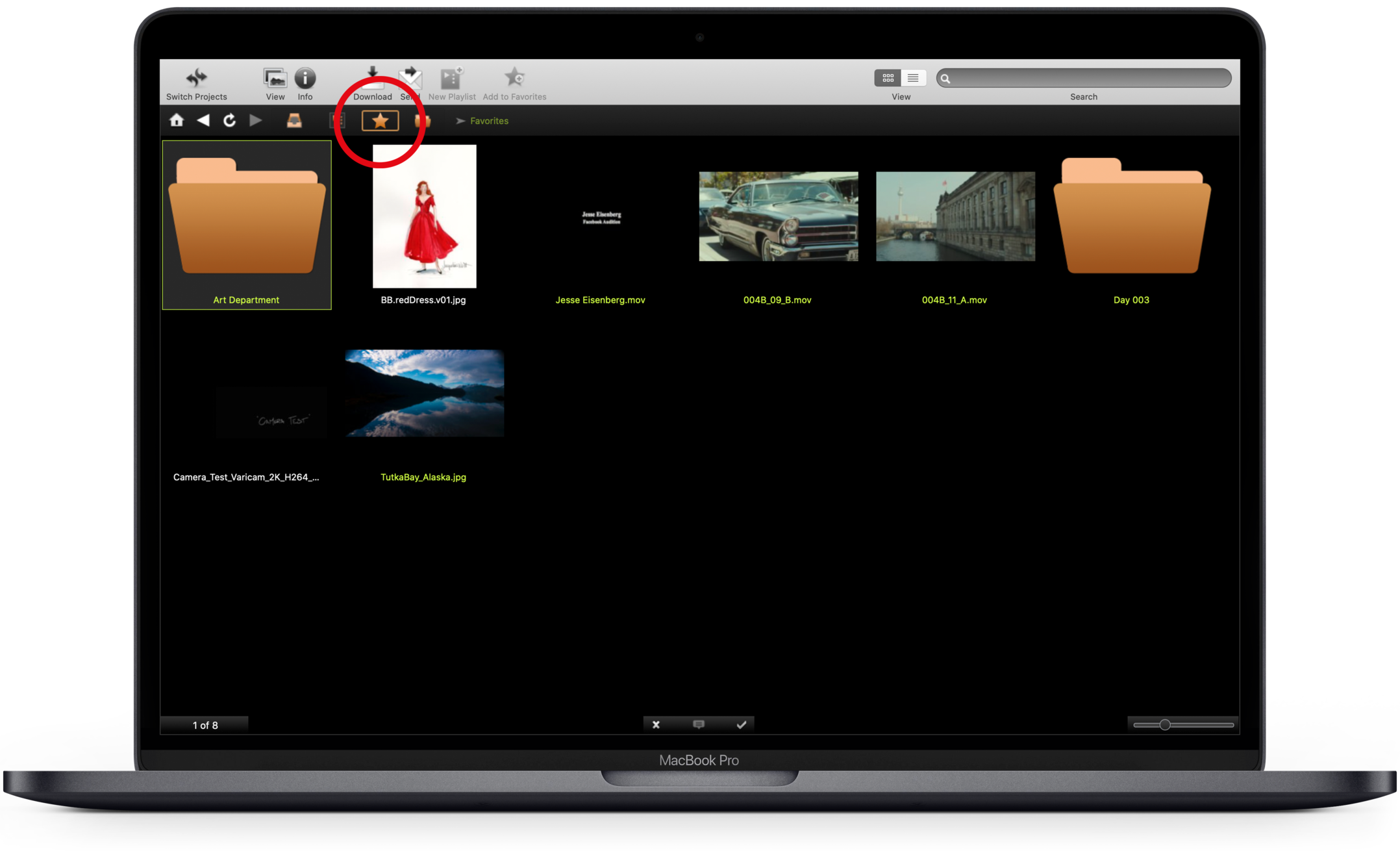
If there are items and folders you are visiting often or items that need your attention, it is helpful to mark them as Favorites. This lets you access these items quickly via your Favorites area.
Your favorites are unique to your account, no one else can see what you have marked as a Favorite. You can mark files, folders, and playlists as Favorites.
Mark new Favorites
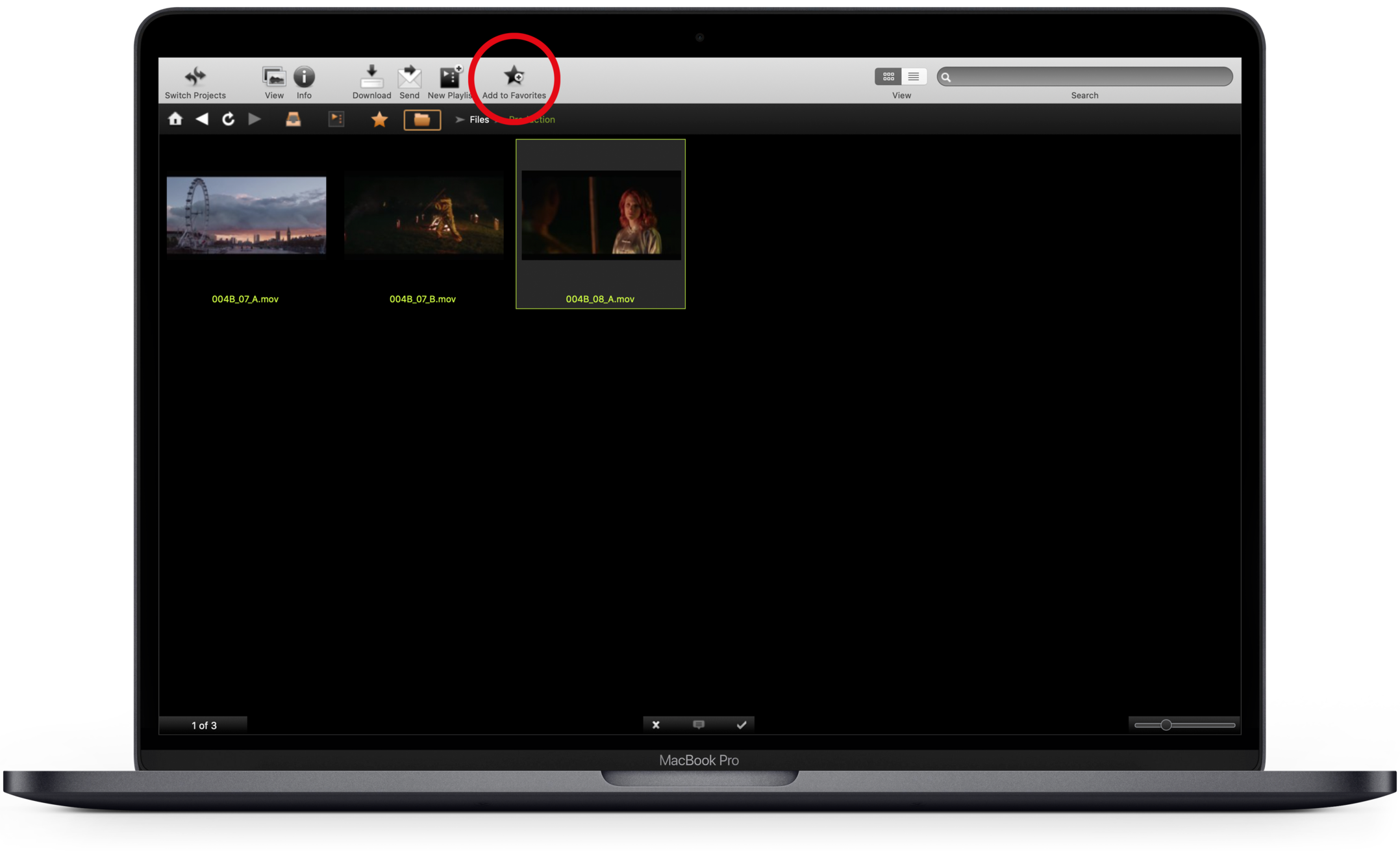
Select the items you wish to mark as Favorites, then click the Add to Favorites button in the top toolbar.
You can also Control-click or right-click an item and select Add to Favorites. Or, use the keyboard shortcut Command-T.
To view the items you have marked as Favorites, click the favorites button in the navigation toolbar.
Remove old Favorites
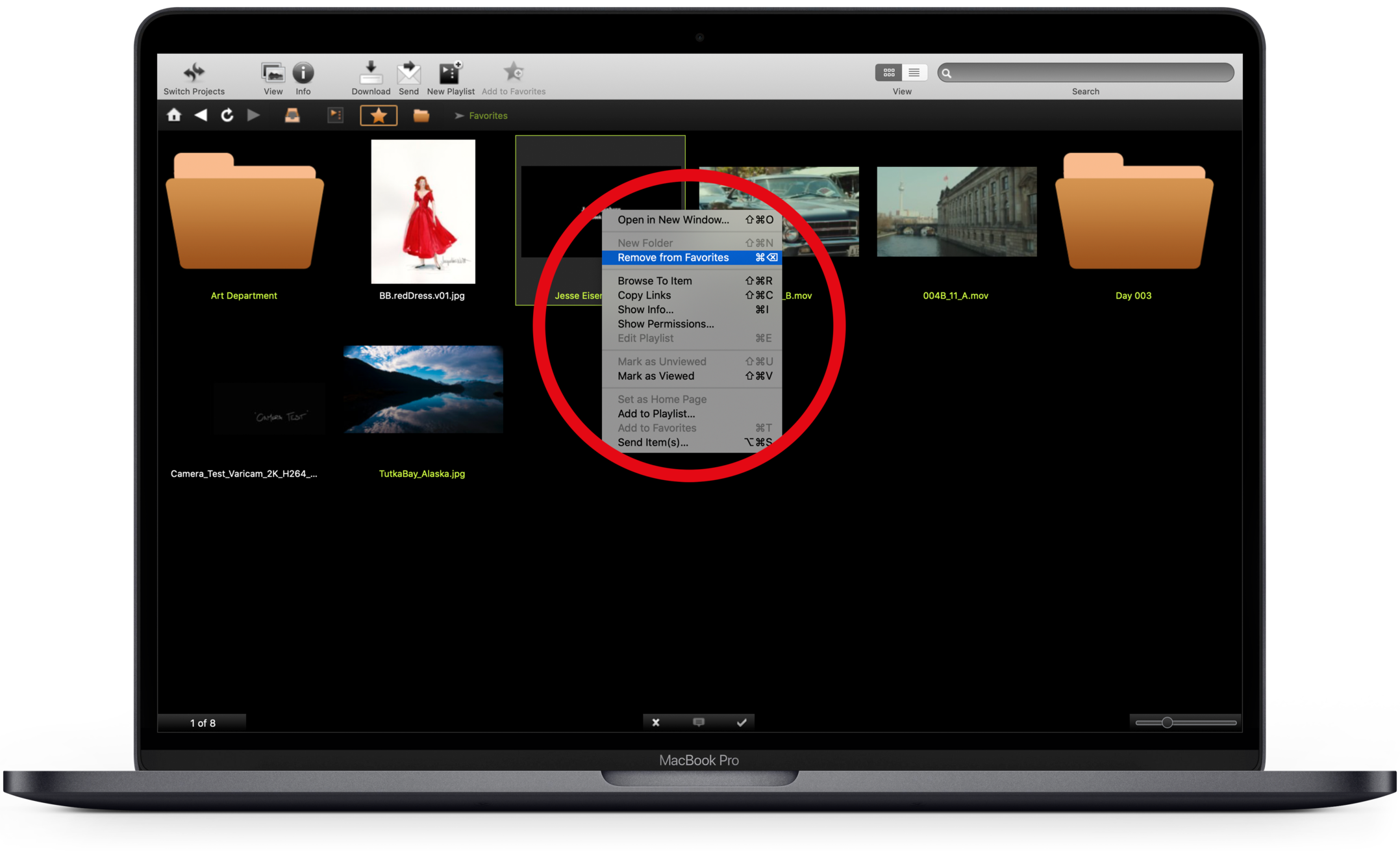
When you no longer need an item in your Favorites, you can remove it.
- Select the item and Control-click or right-click.
- Select Remove Items.
- When prompted to remove the items from your Favorites, select Yes.
Or, use the Shift-Command-Delete keyboard shortcut.