
Issue:
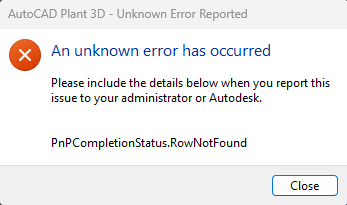
Below error message popups "PnPCompletionStatus.RowNotFound" while opening and saving the project file in AutoCAD Plant 3D.An unknown error has occured
Please include the details below when you report this
issue to your administrator or Autodesk.
PnPCompletionStatus.RowNotFound
Causes:
In a database table of the project, a needed row is not found.The most likely reason for this message is that the project is a network project. For performance reasons some data will be cached locally. These are data which will be modified seldomly, for example settings of the project configuration. If user A opens the network project 1, then some data will be saved locally on his hard disk. Now user B modifies some settings of the same project in the network. Because of that the local datacache of user A doesn't fit anymore to the project. The local datacache has to be purged.
Solution:
- Purging the local data cache
- Close the project and program.
- Double-click PnPLocalDataCachePurger.exe which is located directly in the program folder
- Afterwards re-open the project
- Another possibility is that there was a network issue during an action in the project, like saving a drawing to a network folder. The database may be corrupted. Try following commands:
- PLANTAUDIT for each drawing
- AUDITPROJECT
- AUDIT for each drawing
See Also:
An unknown error has occurred - PnPCompletionStatus.RowNotFound when saving project drawingError "PnPCompletionStatus.RowNotFound" when using command PLANTREFRESHACQPROPERTY