Issue:
You want to know how many cloud credits you have access to in your Autodesk Account.Solution:
Students and educators who have active Autodesk Education plans with an associated product entitlement also have access to unlimited cloud credits. Thoughtful consumption of cloud services will ensure good service level provision across the user base. Customers with an Education entitlement who regularly demonstrate excessive cloud credit consumption beyond market average may face restrictions.
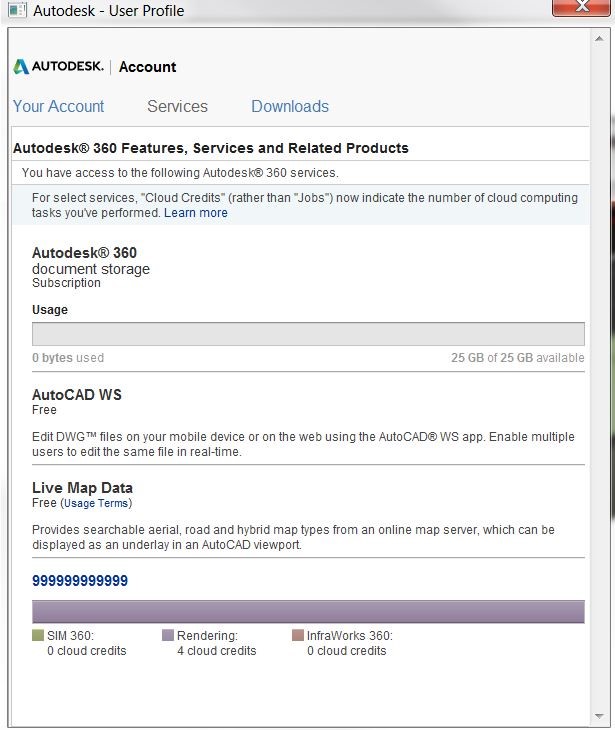
Note: If you see a relatively low number of individual cloud credits in your account instead of the unlimited shared cloud credits you expect as an educational customer (displayed as “999999999999”), you may first need to consume all of your existing cloud credits—that is, bring the balance down to 0 by using cloud services as needed—before the value in your account refresh shows unlimited cloud credits.
How to activate your account to gain additional Cloud Credits:
Note: Please confirm that you've downloaded and activated the latest version of the product. If not, we recommend you do so.
1. Open your Autodesk software (Autodesk Revit in this example).
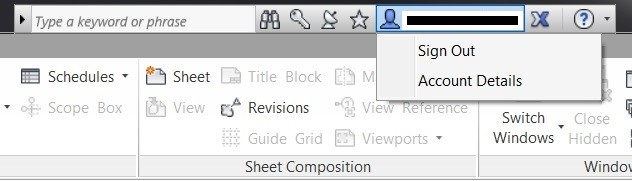
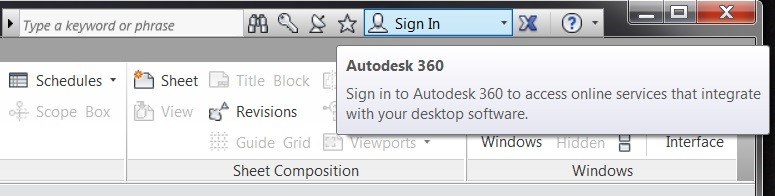
2. At the right corner of the toolbar, there is the sign-in box. If you just downloaded and installed the latest version of the software, simply sign-in with your Autodesk Education Community ID. If you’ve been using the latest version of software and have your Autodesk Education Community ID already signed in, be sure to SIGN OUT first, then SIGN IN (again) with your Autodesk Education Community ID.
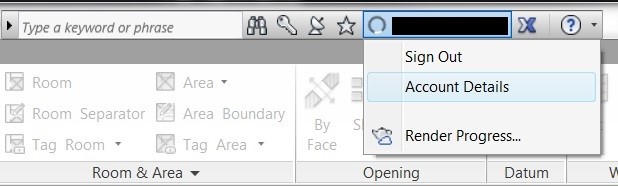
3. To check your sample cloud credits, click on your Sign In box, and choose “Account Details” to open up your user profile window.
4. Click on “Services”, and you can see the “999999999999” in the Live Map Data (as shown below).
You now have enough cloud credits to access Autodesk rendering in the cloud. Congratulations!
Please post any questions on the Autodesk Community to get help from our experts.