
Issue:
- Some custom/shared parameters are missing/not exported after IFC export from Revit.
- When the export is performed by one person then IFC contains all the parameters and when the export is performed by another person then some shared parameters are lost in IFC.
- How do I create a set of IFC properties to add them to an IFC export?
Solution:
To perform the export containing custom/shared parameters set the IFC Property Set by the following steps:
Prepare the IFC Property Set
Create a TXT file based on the file C:\ProgramData\Autodesk\ApplicationPlugins\IFC 20xx.bundle\Contents\20xx\DefaultUserDefinedParameterSets.txt
Add the data:
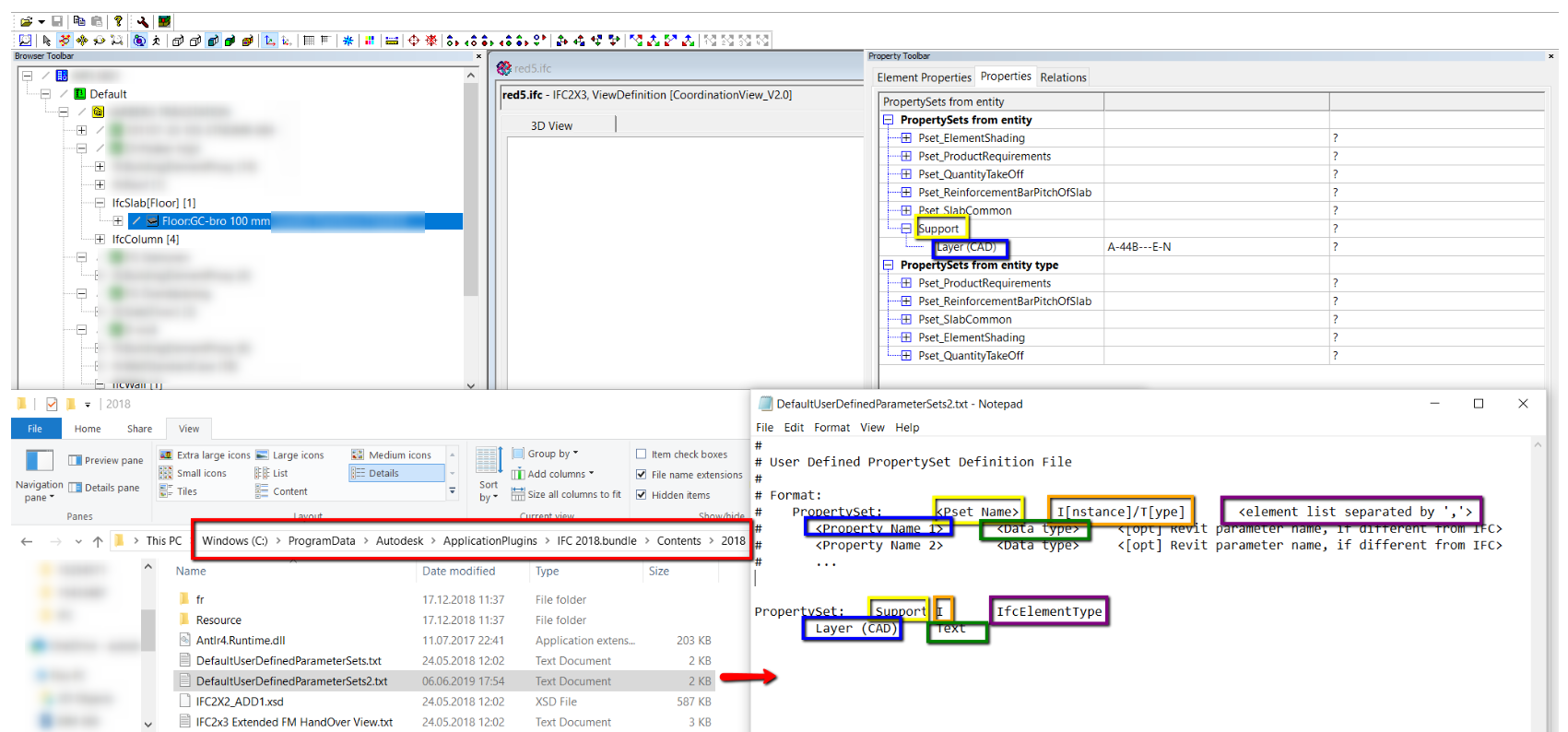
- PSet Name: The name that will appear in the .ifc viewer at the PSets.
- I/T: Set this depending on if the parameter is an instance or type property.
- Element list separated by: IFCElementType.
- Property name: name of the parameter displayed in IFC after export.
- Data type: format of data.
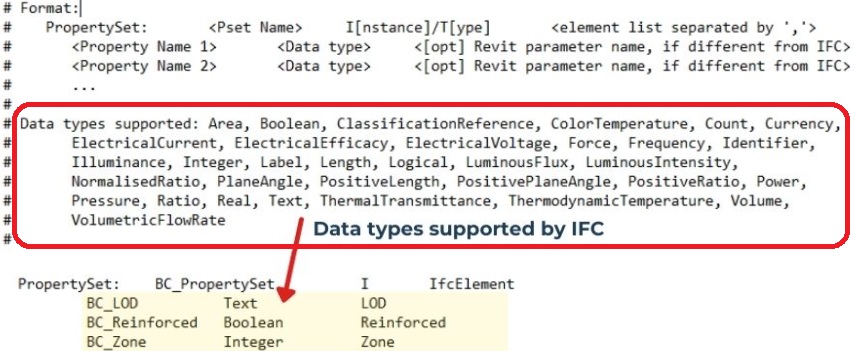
- Revit parameter name: the exact name of the Parameter used in Revit
At the IFC export settings load this TXT file at the option:
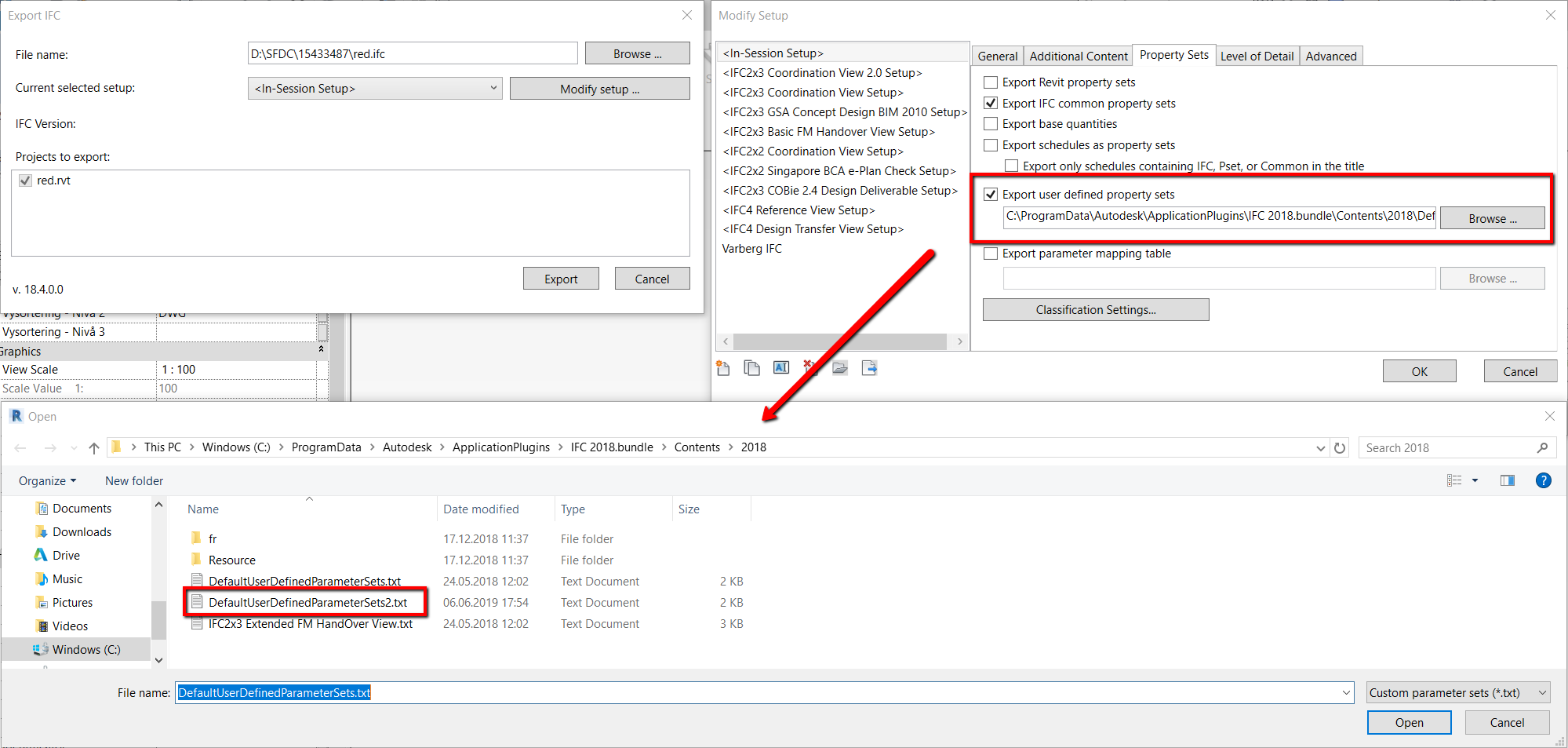
Note: For multiple missing parameter types create similar format entries in the TXT file.
Check the shared parameter file
When the shared parameters are missing, make sure that all the members are using the same shared parameters file.
Make sure that all members have the same Revit version
For Revit updates check Autodesk Account.
Check if all have the same IFC Exporter installed.
Check exported IFC file in different IFC viewers
Verify exported IFC model in Solibri, Navisworks, BIMVision, or BIMcollab.
Check that the model exported parameters do not occur several times
If a parameter with a specific/specified name is not exported to IFC, but was correctly entered in the property set, we suggest checking whether this parameter does not exist several times in the model.
Check "Allow use of type properties in instance property sets" option
Check "Allow use of type properties in instance property sets" while exporting type parameters to IFC.
