Issue:
Slow performance when working on large MEP projects in Revit.
Causes:
Many linked DWG files.
Many views.
No use of Worksets.
Calculation settings.
Several systems in a model.
Solution:
To improve the model performance, consider the following:
When linking many DWG files, consider using a separate RVT file as a DWG container and attach this file to the host model.
Using different Worksets for different systems and links allows for more control over the amount of loaded data.
Split the system to separate Revit files.
Split the systems into several smaller systems whenever possible.
Sync compacting the file (Recommended every day).
Check that only one system is associated with each pipeline. (No in-line elements belonging to a different system)
Avoid connecting different systems to each other.
Audit the model at least once per week.
Inspect MEP families for redundant Formulas and Shared Parameters. (This is especially important if using Families provided by manufacturers containing abundant information about a component.)
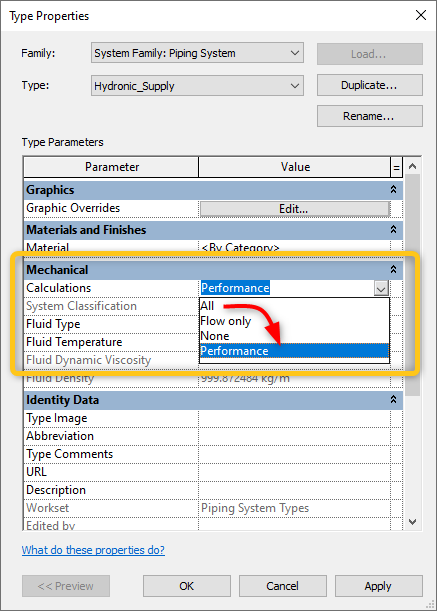
Change the calculation method for the pipe system by following the steps:
Click any element in a system with poor performance.
Look at the Properties for the "System Name" of the selected component.
Go to the "Families" section in the Project Browser and extend the Pipe Systems or Duct Systems section. (Depending on the type of the element)
Select the Piping System that you have previously checked.
Right-click and select "Type Properties".
Change the "Calculations" setting in a Mechanical section to "Performance".