Issue:
How can file versions be purged/removed from a Vault over the Autodesk Data Management Server (ADMS) Console, or directly in Vault Client? Can the operation be done in a bulk/ batch process? Are there any restrictions on purging?
How can the size of the Vault file store be reduced if it is nearly filling a drive on the server?
Causes:
- Old versions of files must be purged to free up hard disk space on the server or lower the run time for different Vault routines (migration, backup, restore ...).
- Files are missing from filestore and will continue to error until their version is purged from the database
Solution:
There are two methods for purging.
Note: Both methods require administrator privileges to use the purge command
ADMS Purge Files (See more details in ADMS Purge Files)
Before running any purge of Vault make sure to have a recent backup of Vault. It's also a good precaution to set up a test Vault system, restore the Vault backup there and test out the purging operation before running the purge in production.
See the guide here on how to purge more versions if needed:How to purge more versions in Vault
To run a purge from the server console:
- Start the ADMS Console on your Vault server.
- Select a Vault from the Vaults folder.
- Select Actions > Purge.
- Purging Vault will always purge first based on Lifecycle control settings. If Files have no lifecycle control settings then they can be manually purged following these parameters:
- Turn on the check box next to each of the selection rules to determine the data to be purged:
Versions except latest |
Specify how many file versions to leave in the Vault. |
Versions older than days |
Specify how old the files to purge should be. |
Exclude versions where comment contains: |
Enter a text string contained within the Comments field of the files in the Vault. Any files containing this string will be excluded from the purge process. |
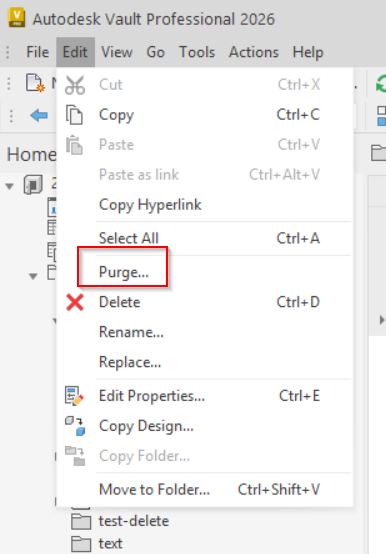
- Select the file in the Vault Client.
- Go to edit then 'Purge...'.