
Set up Web Based Tools
Configure Web Based Tools so users can access Forma-integrated tools from Workflow Advisory. Setup covers service account creation, Forma custom integration, and project indexing.
Before you begin
- Assign the Workflow Advisory subscription to users in Autodesk Manage. See Assign the Workflow Advisory subscription to users.
- Confirm subscription is active for those users. See Troubleshooting Subscription Access.
- You must be a Forma hub admin (or equivalent) to add custom integrations and members.
- Web Based Tools require a Forma Data Management subscription.
Open Web Based Tools and start configuration
- Sign in to Workflow Advisory.
- Select the Web Based Tools tab, or locate a Web Based Tool on the All tab.
- Select Launch on the tool card. The Web Based Tools experience opens in a new browser tab.
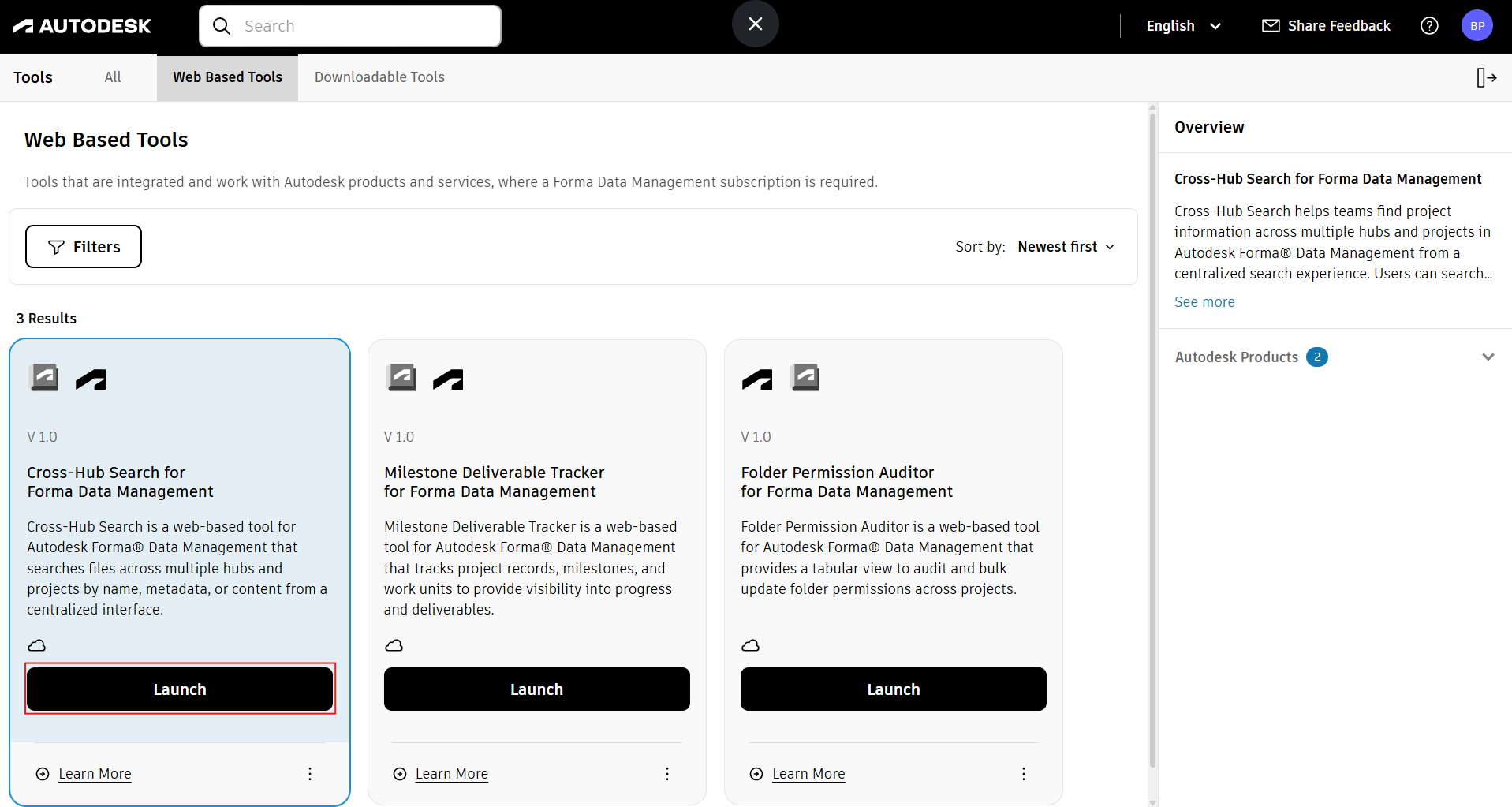
- Select Folder Permission Auditor for Forma Data Management or Cross-Hub Search for Forma Data Management.
- Select Settings.

Create the service account
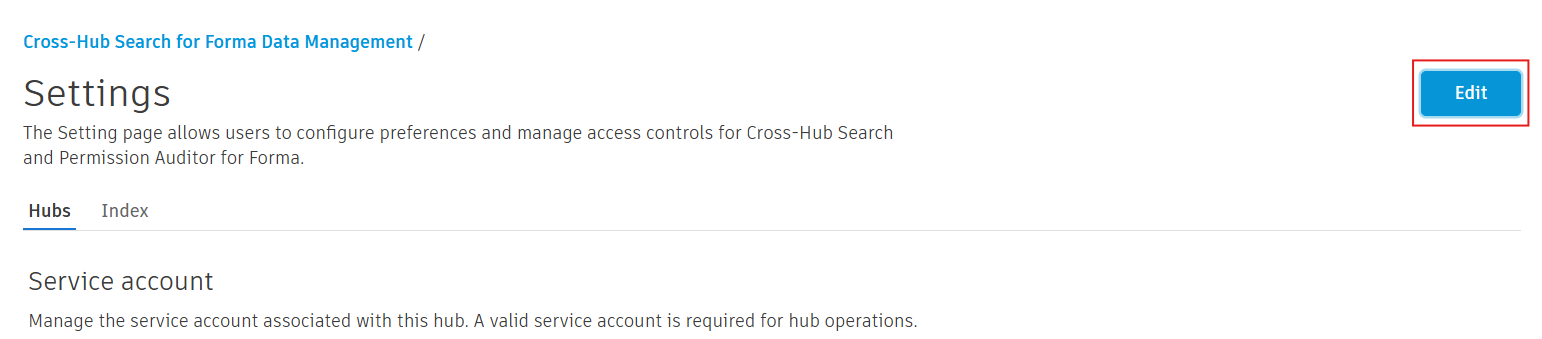
- In the Settings tab, select Edit.
- Next to the Service Account, select Create.

- View the Service Account generated.
- Select the text between DNuw.....PgS and copy it. This is your Client ID.

Important: Keep the Client ID available for the next step.
Add a custom integration in Forma
- Sign in to your Forma hub with Admin privileges.
- Open Hub Admin.
- Select Custom Integrations.
- Select Add custom integration.
- In Autodesk Platform Services Client ID, paste the Client ID from the Settings tab.
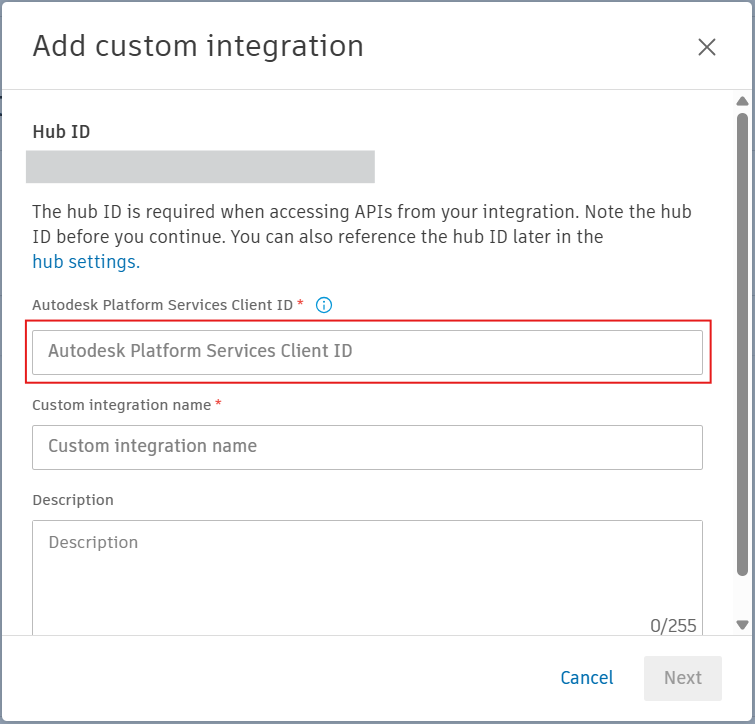
- Enter a name (for example, Workflow Advisory) and description.
- Select ADD.
See also: Forma Data Management | Custom integrations
Configure project indexing
- Return to the Web Based Tools portal by selecting Launch on a Web Based Tool in Workflow Advisory or open https://tools.advisor.autodesk.com.
- Open Settings.
- Select Edit.
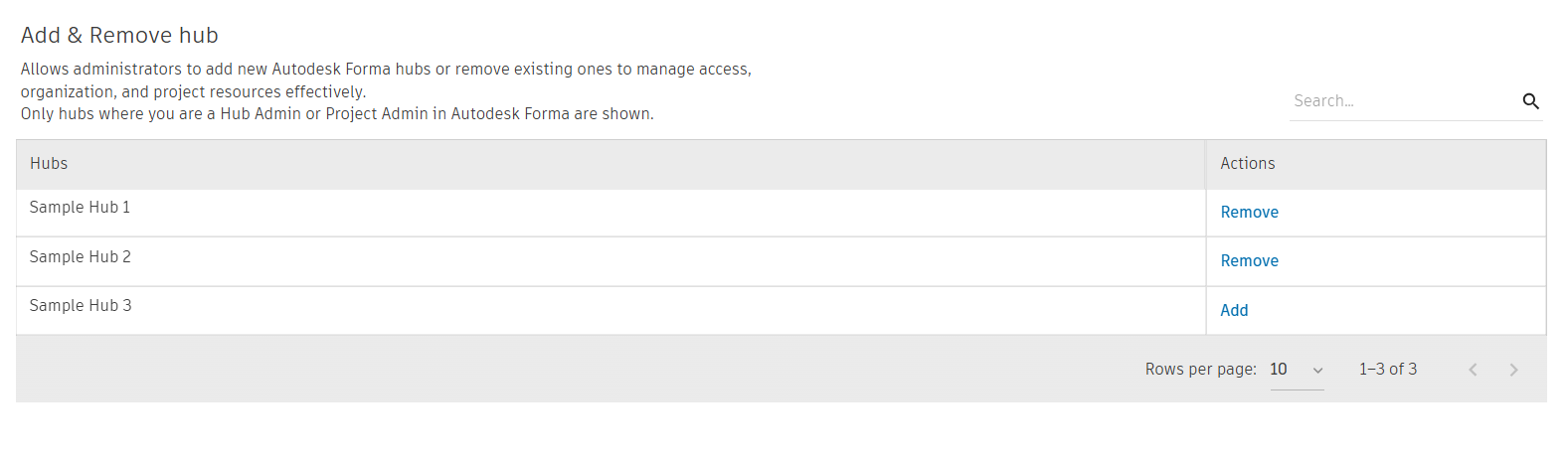
- Select Add to add hubs or accounts for which you have Account Admin access.
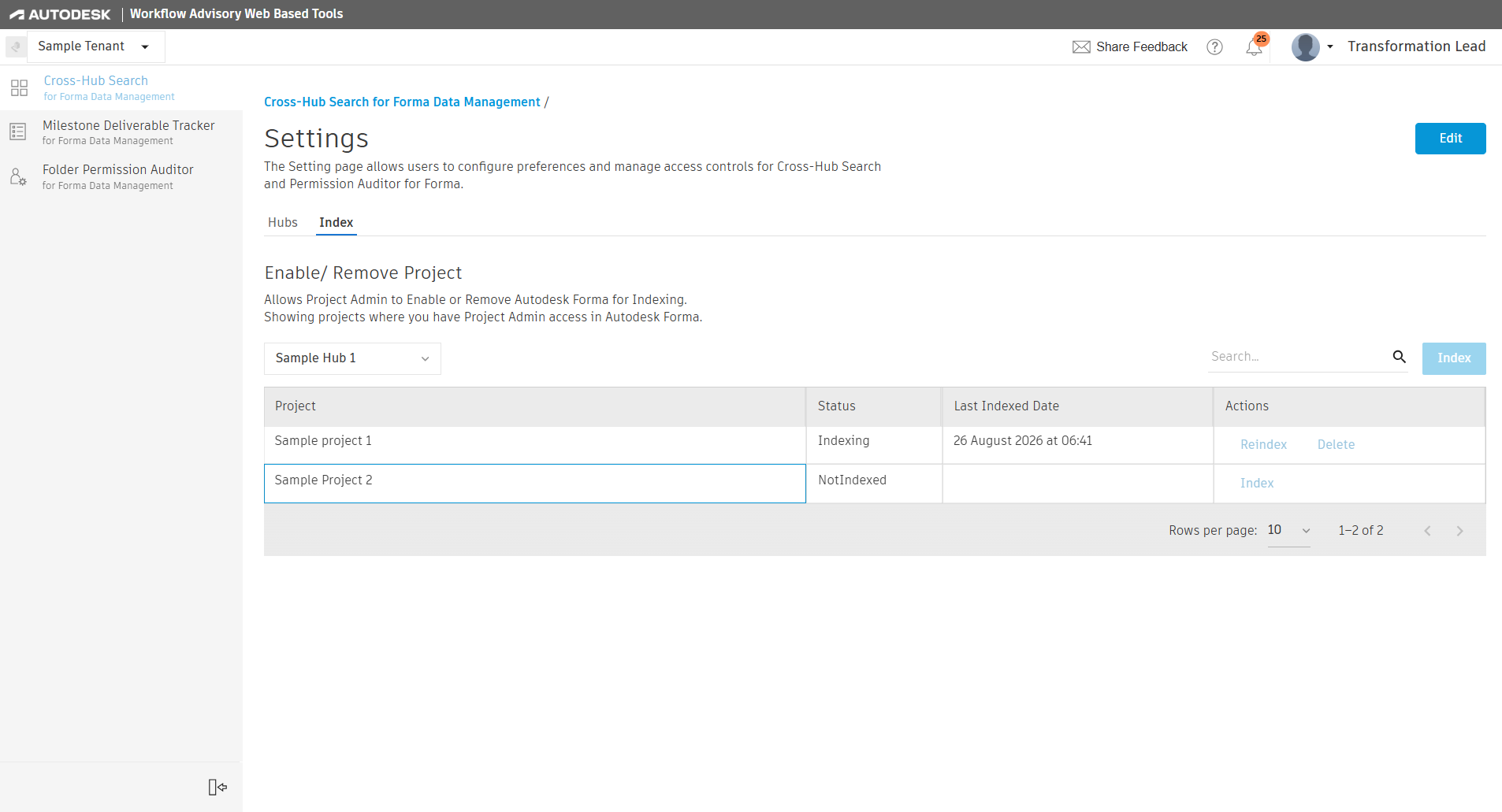
- Open the Index tab. Projects where the service account is a member appear in the list.
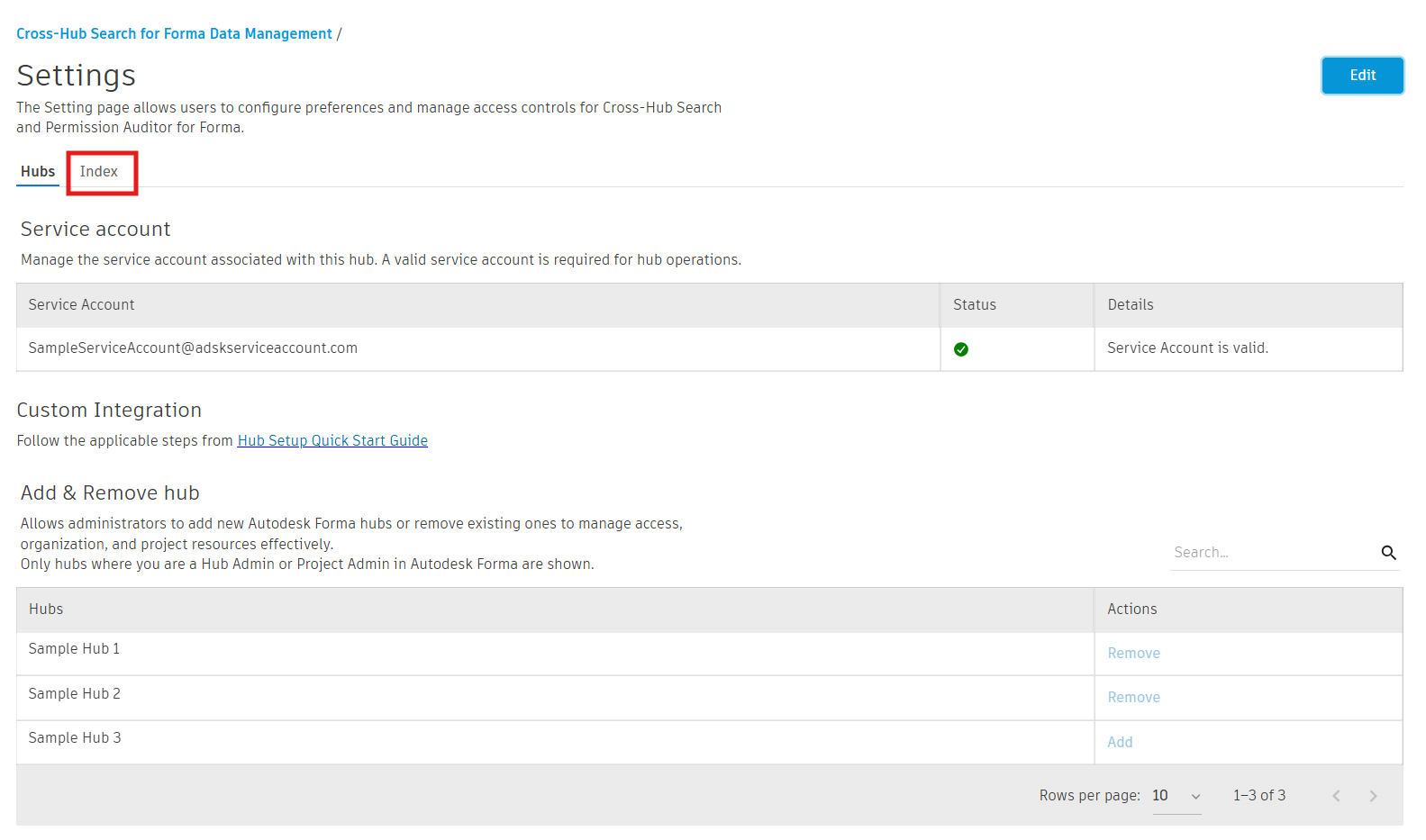
- Index individual projects, or select multiple projects and select Index.
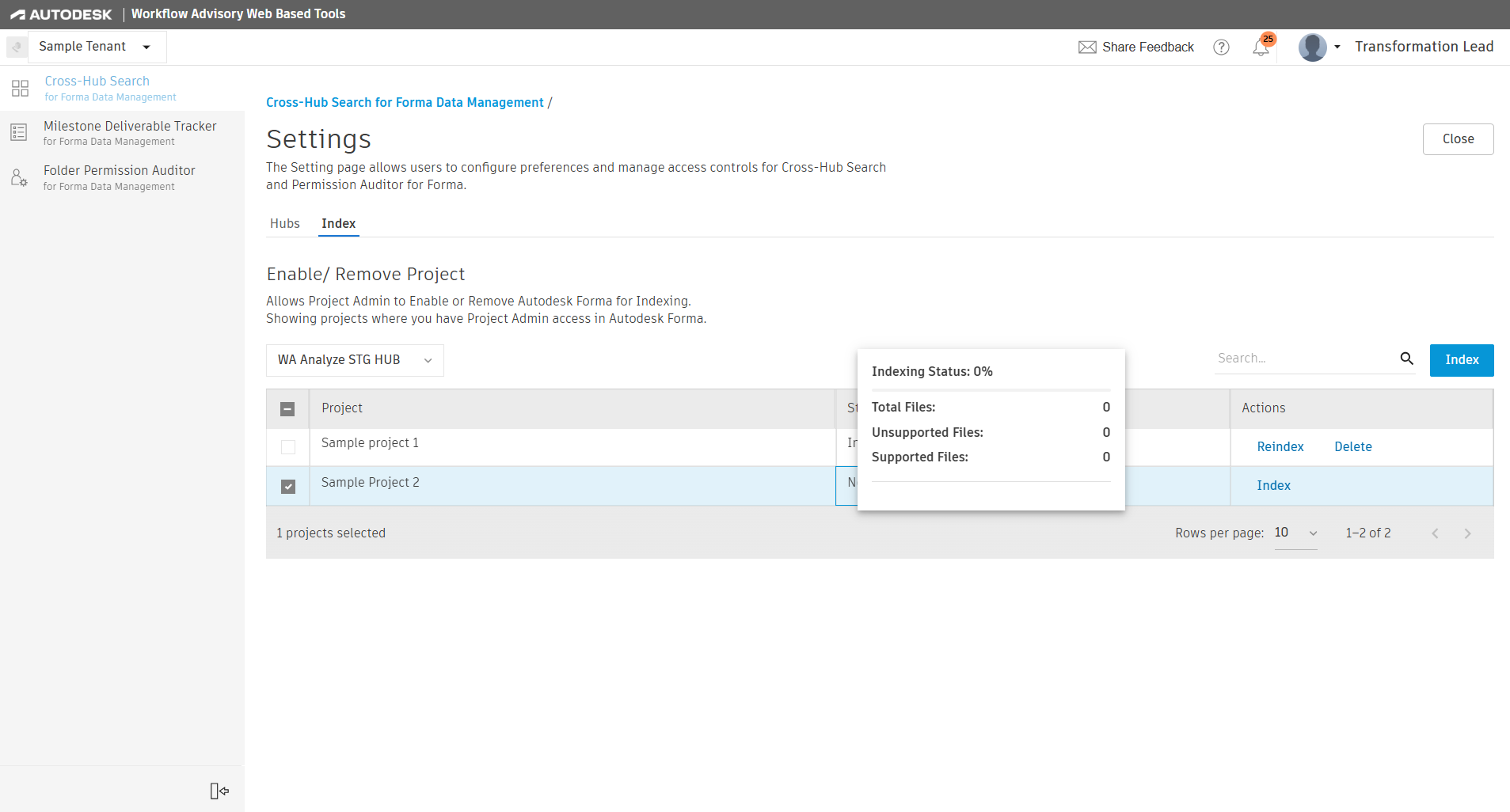
- Wait for indexing to complete. Hover over the status column to view current status. Files and folders re-index on a 24-hour cycle.
Troubleshooting
- Projects not appearing — Verify the service account has been added to target Forma projects with appropriate permissions.
- Search or permissions tools empty — Confirm indexing completed; trigger Index manually if needed.
- Integration errors — Verify the Client ID in Forma matches the Client ID from the Settings workflow.
Expected result
Web Based Tools can be launched from Workflow Advisory and use indexed Forma project data. For day-to-day use, see Launch a Web Based Tool.