
Learn how to troubleshoot issues related to 3ds Max crashing or freezing when rendering with the V-Ray render engine.
Why is 3ds Max crashing or freezing with V-Ray?
When you use the V-Ray render engine from Chaos Group to render a scene in 3ds Max, various issues can arise, such as:
- The viewport turning gray or black after an intensive render.
- A 3ds Max crash to the desktop with the module name vrender20xx.dlr, or without any error messages at all.
- The Frame Buffer window becoming unresponsive and freezing, or remaining idle when the render is activated.
If any of these scenarios happen to you, review the following subsections for potential causes.
3ds Max issues
If your crash or freeze is related to 3ds Max, it’s likely due to one of the following:
- Out-of-date software – If you don’t download updates periodically, you cannot access bug fixes or software improvements that keep 3ds Max and its rendering engines running smoothly.
- Multiple sessions – If you open multiple sessions at once, 3ds Max can freeze from consuming too many system resources at once.
V-Ray issues
If your crash or freeze is related to V-Ray, it’s likely due to one of the following:
- Out-of-date software – If you don’t download updates periodically, you cannot access bug fixes or software improvements that keep V-Ray running smoothly.
- Mismatched V-Ray and 3ds Max version – If your installed V-Ray version doesn’t match with your 3ds Max version, such as V-Ray for 2019 installed with 3ds Max 2018, V-Ray can become unresponsive.
- Broken or corrupted installation – If an improper program or plug-in wasn’t installed correctly, the installation may be damaged and unable to run properly.
Hardware issues
If your crash or freeze is related to hardware, it’s likely due to one of the following:
- Not enough or faulty memory (RAM) - If your computer doesn’t have enough memory, it will slow down as it moves data to your hard drive or SSD. This causes 3ds Max and V-Ray to become unresponsive, crash, or freeze.
- Processor issue within the computer’s BIOS settings – If you have issues with the firmware that controls the basic functions of your computer’s hardware, 3ds Max and V-Ray cannot run properly.
- Out-of-date graphics card driver – If you don’t download updates periodically, you cannot access bug fixes or software improvements that keep your graphics card driver running smoothly with your version of 3ds Max.
Runtime libraries issues
If your crash or freeze is related to runtime libraries issues, it’s likely due to Microsoft Visual C++ corrupted redistributable packages. This can cause a general failure during installation due to a conflict with installer prerequisites, or any type of misbehavior or crash during normal operation.
Troubleshooting methods
 Although V-Ray is available for Autodesk software packages like 3ds Max, the Chaos Group develops and sells the V-Ray renderer, not Autodesk. For issues specific to V-Ray, such as licensing questions, contact the Chaos Group’s technical support team. Although V-Ray is available for Autodesk software packages like 3ds Max, the Chaos Group develops and sells the V-Ray renderer, not Autodesk. For issues specific to V-Ray, such as licensing questions, contact the Chaos Group’s technical support team. |
If you try to use the V-Ray render engine to render a scene and 3ds Max crashes or freezes, you can troubleshoot using various methods according to the issue type.
To troubleshoot a crash or freeze related to 3ds Max being out-of-date:
- Navigate to manage.autodesk.com.
- In the horizontal navigation, select Products and services. All Autodesk products that you have a license to display.
- In the subhorizontal navigation, select Product Updates.

- Using the search filter, input the version of 3ds Max you want to update, then click the Download button.
To troubleshoot a crash or freeze related to multiple 3ds Max sessions:
Close any additional 3ds Max sessions until you only have one, then render your scene with V-Ray in the single instance.
To troubleshoot a crash or freeze related to out-of-date V-Ray software:
- Verify your V-Ray version.
- In 3ds Max's menu bar, navigate to Windows > Rendering Editors > Render Settings. The Render Setup window displays.
- In the Renderer drop-down window, check your V-Ray version.
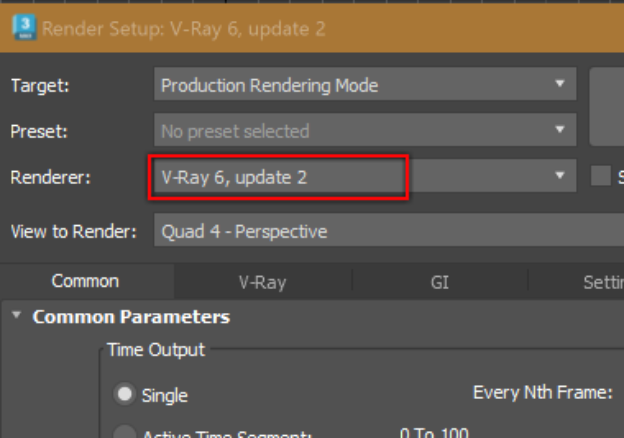
- If you are running an older version of V-Ray, download the latest version.
To troubleshoot a crash or freeze related to mismatched V-Ray and 3ds Max versions:
Use your machine’s file browser to verify that your V-Ray version matches the same version of 3ds Max. If not, download the matching V-Ray version.
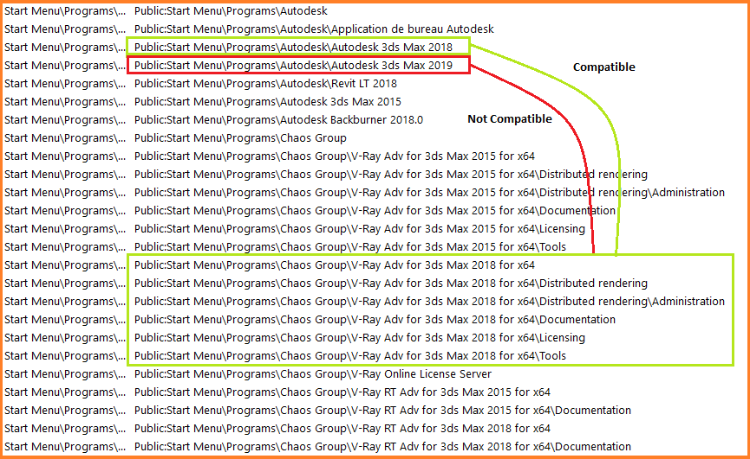
To troubleshoot a crash or freeze related to a broken or corrupted installation:
- Perform a clean uninstall of 3ds Max.
- Uninstall V-Ray and any additional plug-ins, such as iToo Software or VizPark.
- Reinstall 3ds Max from Autodesk, then reinstall all the latest versions of your plug-ins from the manufacturer's website.
- Restart your machine, then open 3ds Max and re-render the scene.
To troubleshoot a crash or freeze related to not enough or faulty memory:
Verify that you have at least 32-64 GB of RAM so that your machine can handle rendering larger, more complex scenes with higher render settings.
To troubleshoot a crash or freeze related to a processor issue within the computer’s BIOS settings:
- Reset the BIOS and verify that all processor cores are used; check your machine manufacturer’s support page for instructions on how to do this, such as the Dell system BIOS reset instructions.
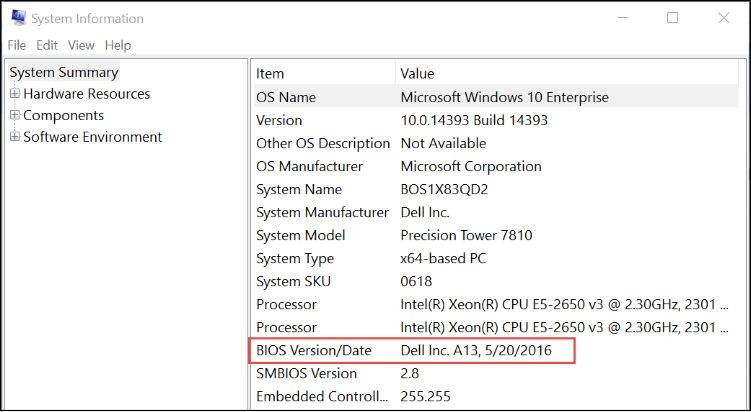
- For Windows devices, you can check if you need to update your BIOS by using a Windows System Information file (.NFO).
- In the bottom-left of your screen, open the Windows Start menu.
- Using the search bar, search for and launch System Information.
- In the System Information window, view the BIOS Version/Date field.
-
- If you need to save the file for review, use File > Save.
To troubleshoot a crash or freeze related to an out-of-date graphics card driver:
- See the Certified Hardware List to verify that your graphics card driver is supported on your active version of 3ds Max. If your graphics card driver is not on the list, it may have limitations when working with 3ds Max, including freezing or crashing.
- If your graphics card is on the list, confirm that your graphics card driver is up-to-date by going directly to the manufacture's website to get the latest version:
- If your graphics card driver is up-to-date but 3ds Max or V-Ray is still crashing or freezing, use a program such as DDU to help with a clean uninstall of NVIDIA drivers, then reinstall the driver. Do not roll back further than three (3) previous versions.
To troubleshoot a crash or freeze related to a runtime libraries issue:
Uninstall and reinstall Microsoft Visual C++.
 If none of these methods fix the issue, contact the Chaos Group to raise a dedicated V-Ray technical support ticket. If none of these methods fix the issue, contact the Chaos Group to raise a dedicated V-Ray technical support ticket. |
See Also:
- 3ds Max 2018 will not launch, or will experience instability when file browsing after installation
- Workstation machine freezes, crashes, or restarts while working in or rendering with 3ds Max
- V-Ray rendering freezes 3ds Max UI, but setting Windows CPU affinity to lower thread priority for V-Ray doesn't seem to work