
Issue:
3ds Max scene files take longer than normal to open (sometimes more than 20 minutes).
Additional points of note:
- Xref scenes or files from across a network may contribute to the loading/saving time.
- Under certain conditions, the file will open on one computer, but not another.
- The files may also crash 3ds Max.
Causes:
Includes, but is not limited to:- Windows operating system (OS) running out of virtual memory.
- Windows11 OS and hardware incompatibility.
- Number of objects in the scene.
- Complexity of each object in the scene.
- Outdated graphics drivers.
- Opening files from a network location.
- Working from home accessing company servers using WiFi and VPNs.
- Scene uses XRefs or networked Xref objects.
- Unused animation paths, motion clips, or Particle Flow systems in the scene.
- Unsupported storage drives (NAS).
- 3rd Party Max scripts.
- Outdated BIOS settings.
Solution:
The final solution may require one, or a combination of the following:
Reset 3ds Max
Reset the 3ds Max preference settings to remove any customization or corruption: How to reset 3ds Max user preference settings back to default
Update 3ds Max
Go to the Autodesk Accounts page or the Autodesk Access App and make sure that the latest update is applied.
Avoid NAS storage solutions
Due to the infinite number of configurations for each user, Network Attached Storage (NAS) devices are unsupported by Autodesk. Some may work, and others may not. Autodesk recommends local storage, or network locations managed by a professional Information Technology department.
Use the 'See Also' section below.
Increase the Windows OS Virtual Memory
3ds Max may require more physical and virtual memory than allocated by the Windows OS.
Change the amount of virtual memory by following the instructions from this guide at esri.com:
Click Start > Control Panel > System.
Under Tasks, click Advanced system settings.
In the System Properties dialog, click the Advanced tab.
Click Settings under Performance.
Click the Advanced tab, and click Change under Virtual Memory.
Select the drive to use to store the paging file.
Select Custom size and set Initial size (MB) and Maximum size (MB). For the initial size, Microsoft recommends using the recommended value in the Total paging file size for all drives.
Click Set, and click OK twice.
Click Restart Now.
WiFi and VPN
3ds Max was designed to access scenes from a local hard drive to edit in real time.
Working from home and accessing a scene from a company server is not recommended.
WiFi and Virtual Public Networks (VPN) severely impact 3ds Max trying to open, save, read, write, and close a scene in real-time.
- Use Ethernet cables instead of WiFi.
- Download the scene, work on it locally, and then upload the new version.
- Use remote screen share software to connect a home workstation to a company workstation with 3ds Max.
Check the scene file for unused animation and motion clips
Remove any Note Tracks, Motion Mixer Reference Targets, Anim Layers and Motion Clip Associations by using the SceneCleaner_Startup.ms file. (See article file attachment)
To run in the script in 3ds Max:
- Download the "SceneCleaner_Startup.ms" script.
- Save or copy the script to the 3ds Max Scripts folder. The default location is:
- C:\Program Files\Autodesk\3ds Max <version>\Scripts
- In 3ds Max, open the affected scene.
- Select Scripting > Run Script, and select the script file.
- The Scene Cleaner dialog box should appear after a few moments and remove all unused Note Tracks, Reference Targets, Anim Layers, and Motion Clip Associations from the scene.
- Save the scene file.
To add to the 3ds Max startup scripts folder:
- Download the "SceneCleaner_Startup.ms" script.
- Save or copy the script to the 3ds Max Startup Script folder. The default location is:
- C:\Program Files\Autodesk\3ds Max <version>\scripts\Startup
- In 3ds Max, open the affected scene.
- The Scene Cleaner dialog box should appear right after the scene has been opened and remove all unused Note Tracks, Reference Targets, Anim Layers, and Motion Clip Associations from the scene.
- Save the scene file.
Check the scene file for unused Particle Flow systems
Repeated merging of 3ds Max scene files into new scenes may accumulate unnoticed Pflow (Particle Flow) elements.
To check for this, press the H key to bring up the Scene Explorer, and make sure that unused Particle Flow elements are not present.
If they are, select all the Pflow elements in the scene, delete them, and then resave the scene file.
Note: if multiple scenes take long times to load due to the presence of PFlow elements, do a File > Merge to merge in the contents of affected scenes (minus the PFlow elements) into a clean 3ds Max scene file, then resave the scene.
Update the graphics card to the most recent driver version
If performance issues occur, try installing the most recent driver for the graphics card. See:
Optimize the 3ds Max scene file
There are many ways to optimize MAX files. The following can help reduce load and save times in 3ds Max:
Use the Merge option to merge scene objects into a new 3ds Max file. This can help remove any external scene component errors.
Check for re-timer issues. See: 3ds Max merging scenes delay
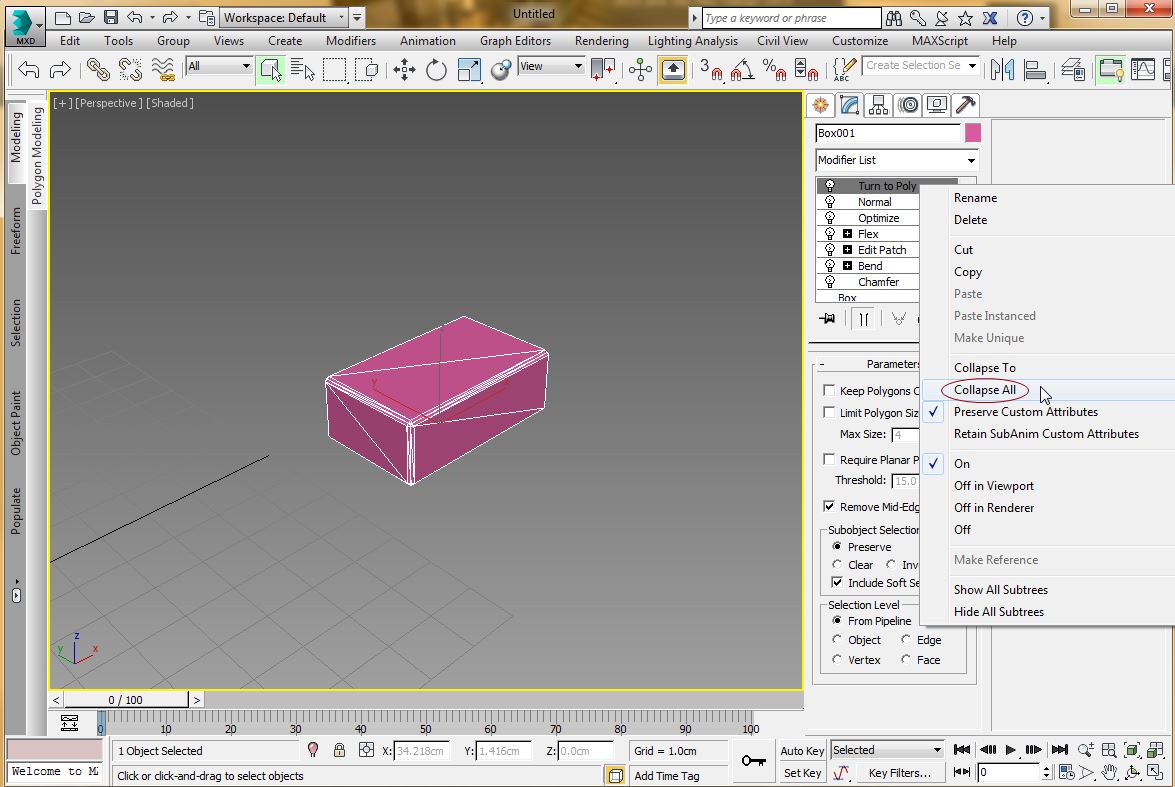
Collapse modifier stacks on objects to one 'Edit Poly'.
Heavily grouped will impact viewport, save, and load times. Collapse to Edit Poly where possible.
To collapse any object modifier stacks:
Right-click the modifier stack.
Choose "Collapse All." See: Modifier Stack Right-Click Menu
Note: It may also be necessary to collapse object modifiers to create unique poly objects.
Benefits include:
Frames Per Second (FPS) gain in viewport playback.
Render speed.
Save/Load times.
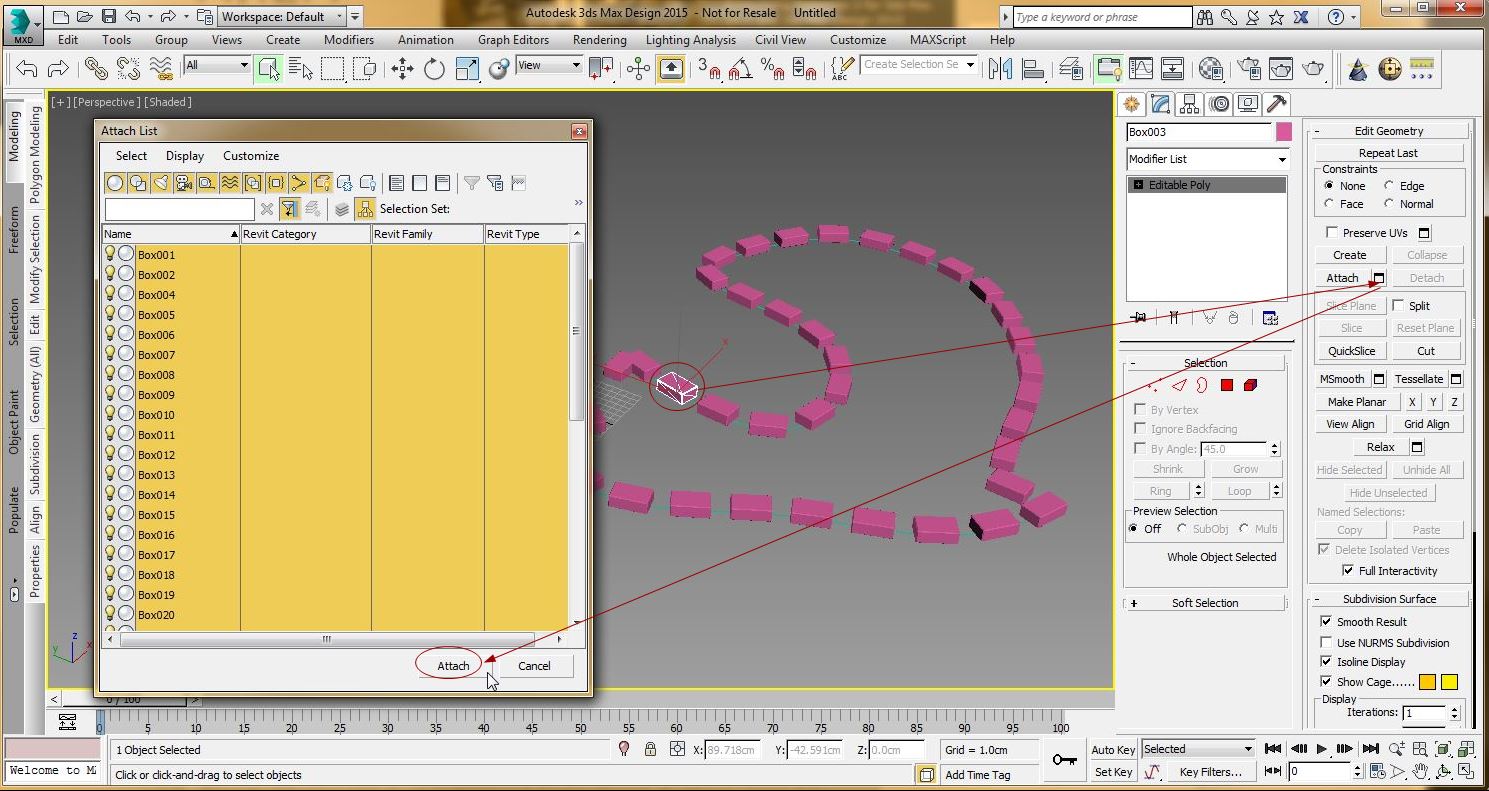
- Use the Attach option to attach elements where possible in an Editable Poly object. fewer objects in the scene means faster display refresh, and improved rendering calculations, and working with less than 10,000 objects will be better for performance, depending on the complexity of each one.
- Delete unused Helper objects. If there are large quantities of helpers in the scene (usually over 1,000), these take up substantial resources in 3ds Max. Helpers generally are not needed for non-animated scenes and can come from importing non-essential elements from an AutoCAD drawing (such as Blocks)
- Delete unused or unneeded objects. If the scene itself contains an excessive amount of polygons, this can cause a significant amount of RAM usage in 3ds Max.
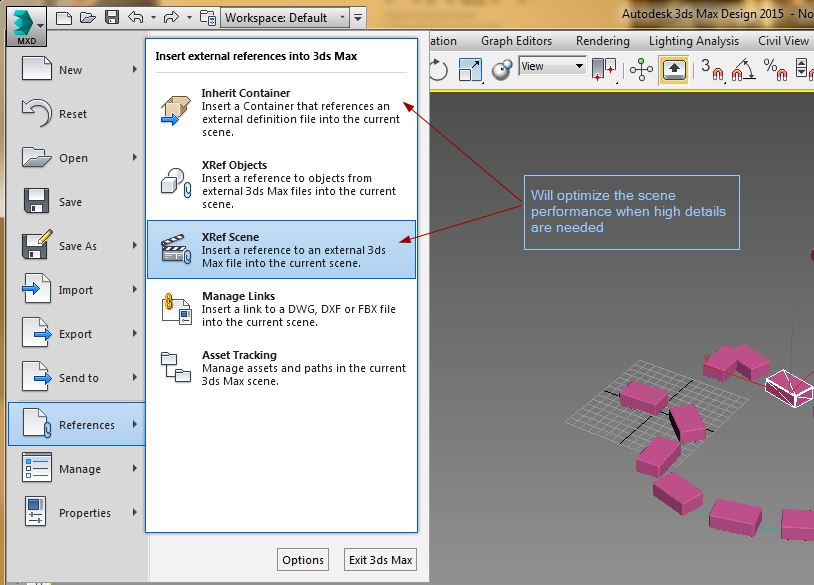
- Using Containers and XRef Scenes are good workflows to avoid performance hits to complex projects.
Xrefs using Network resources
Contact the Information Technology department to configure the workstation for security and speed. 3ds Max will experience issues if it cannot load all the required data from a network location as fast as possible.
Update the BIOS
Some motherboards may require an update of the BIOS to successfully open and save 3ds Max files.
Use Windows OS 10
If using Windows OS 11 and none of the solutions resolve the issue, Install and use Windows 10.
See Also:
- How to optimize performance in large 3ds Max scenes
- Running 3ds Max and Maya in Virtual Environments, such as Boot Camp, Parallels, VMWare, AWS Cloud, or Citrix
- Working with multiple copies of 3ds Max across a network environment
- UI lags or seems sluggish even on fast multi-core CPUs in 3ds Max
- Opening scene files or Material Editor in 3ds Max from a Network-Attached Storage (NAS) device is extremely slow
- Crashes or freezing in 3ds Max when saving across a network or to cloud storage