
Issue:
Autodesk software has just been installed but the materials library is missing.Solution:
Below is a collection of the most up-to-date solutions available. The list is not complete, and the final solution may require one, or a combination of the following:
The Autodesk Material Libraries are shared libraries installed with Autodesk products such as Autodesk Inventor, Autodesk AutoCAD, Autodesk Revit and 3ds Max.
The Material Libraries are installed by default (unless the option is deselected) when installing 3ds Max. If one of the other applications is already installed, the material libraries might be installed already.
Note: The material libraries are installed automatically with AutoCAD and its respective verticals, but not AutoCAD LT, as it does not have access to this feature.
If using 3DS Max
- When open, change the render solution from Scanline (Default) to one of the others provided or installed separately (Mental Ray, Arnold, VRay) in the Render Setup options.
- Set up a material as normal.
- Library materials are now visible.

Install libraries separately
Locate the installers for the libraries in the install files for the Autodesk software and run them individually. These installers will change, repair, or remove library installations.
- Downloaded the complete Autodesk product installer through the Download or Custom Install method.
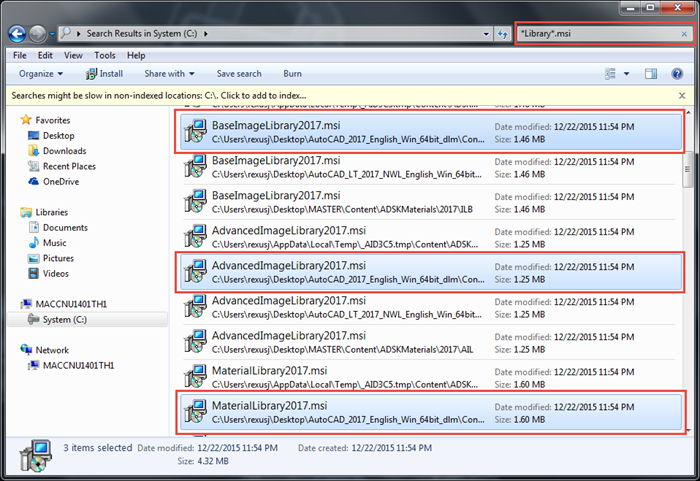
- Locate the Material Libraries installation files for the software on the computer or install media by searching for Library*.msi. The typically material library .msi file can be found in corresponding folders in the extracted product installer Content\ADSKMaterials\ folder (e.g. for AutoCAD 2017 it would be C:\Autodesk\AutoCAD_2017_English_Win_64bit_r1_dlm\Content\ADSKMaterials\).
- Double click the files that need to be installed to launch the installation process. If there is more than one Autodesk product on the computer, there may be several library files. Install the versions that correspond with the software currently in use.
Notes:
- If Install Now was used to install Autodesk software from Autodesk Account, the installation files may not be on the computer.
- 3ds Max specific:
- If the materials can be seen in the Compact or Slate material editor, then the materials are located at C:\Program Files (x86)\Common Files\Autodesk Shared\Materials. They can be copied and pasted to a desired location.
- If working over a network, use the Archive feature to send the scene across PCs.
- Mental Ray Specific:
- To see the Autodesk Material Library and the mental ray specific shaders, enable NVIDIA mental ray as renderer in the Render Setup.