
Issue:
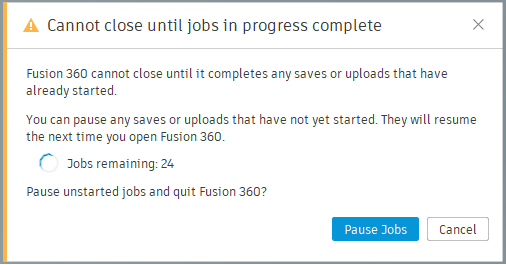
When closing, saving, opening, downloading, or uploading, the following message appears in Fusion:
Cannot close until jobs in progress complete
Fusion cannot close until it completes any saves or uploads that have already started.
You can pause any saves or uploads that have not yet started. They will resume the next time you open Fusion.
Jobs remaining: <value>
Pause unstarted jobs and quit Fusion?
Causes:
- Canceling an upload that was in-progress.
- Network issues when uploading.
Solution:
Cancel ongoing uploads:
- Click the clock icon (Job Status) in the top right corner.

- Click Cancel. If the cancel option is not showing, see File stuck in upload queue in Fusion.
Use the Fusion Service Utility:
Reset and Repair Fusion using the Service Utility.
Rename the folders in W.Login:
- Navigate to the following local folder:
- Windows: C:\Users\***\AppData\Local\Autodesk\Autodesk Fusion 360\***\W.Login
- macOS: Macintosh HD > Users > *** > Library > Application Support > Autodesk > Autodesk Fusion 360 > *** > W.Login
- W.Login folder will contain folders labeled F, Q, P, and X. Rename F and Q to F_old and Q_old.
Use a text command to remove the Upload Queue
- From the File menu, open Show Text Commands (How to show / hide Text Commands in Fusion).
- Enter the following text command. This cancels all ongoing uploads and creates a backup of all the uploads in a local folder.
Fusion.CancelUploads
Note: Drawings files (.f2d) that are backed up will not be able to be opened once reuploaded into Fusion, as they cannot be reassociated with the original solid file.
- Find the backups in the following locations:
- Windows: C:\Users\***\AppData\Local\Autodesk\Autodesk Fusion 360\Unique ID\UploadsBackup folder.
- macOS: Macintosh HD > Users > *** > Library > Application Support > Autodesk > Autodesk Fusion 360 > Unique ID > UploadsBackup folder.
- If creating the backup fails, use the following alternative text command.
Warning: This will cancel the upload and not create a backup.
Fusion.CancelUploads/force