
Issue:
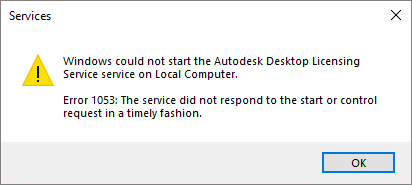
When launching Autodesk 2020 or higher versions software product, the following error message appears:
Services
Windows could not start the Autodesk Desktop Licensing Service service on Local Computer.
Error 1053: The service did not respond to the start or control request in a timely fashion.
Windows could not start the Autodesk Desktop Licensing Service service on Local Computer.
Error 1053: The service did not respond to the start or control request in a timely fashion.
Causes:
- Corrupted installation of Autodesk Desktop License Manager.
- Missing permissions on key program folders.
Solution:
Install the latest update for the Autodesk Licensing Service
- Download and install the update from the following link: Autodesk Licensing Service Updates.
- Run the product again.
Verify that the AdskLicensingService.data file is not empty/corrupted
Following is a sample content of AdskLicensingService.data file.
{"Addr":"127.0.0.1:63467","AutoPickFreePort":true}
If the file is empty, delete it and start Autodesk Desktop Licensing Service (see steps below), or try creating it in Notepad with the above mentioned content and after saving it verify that the file doesn't have a hidden .txt extension. Refer to How to turn on hidden files and folders on Windows.
How to start the Autodesk Desktop Licensing Service:
How to start the Autodesk Desktop Licensing Service:
- Click the Start menu, type services.msc and hit Enter key
- In the Name column of the Services console window, find the Autodesk Desktop Licensing Service
- Right-click on the service name and select Properties.
- In the Properties dialog, use the drop-down menu to change Startup Type to Automatic (Delayed Start).
- Click Apply, Start and OK.
- If the service fails to start move to option 2.
Verify permissions on Licensing component folders
- Navigate to C:\ProgramData\Autodesk.
- Right-click on AdskLicensingService > Properties > Security.
- Make sure that "Users" and "LOCAL SERVICE" have Full control permissions assigned. If not, click "Edit..." to add them both and then select the Full control checkbox.
- Repeat steps 2-3 for the folder C:\Program Files (x86)\Common Files\Autodesk Shared.
- Open Windows Services (click Start > type services.msc > press ENTER).
- Find the service Autodesk Desktop Licensing Service, right-click on it and click Stop and then Start (or click Start if the service was not running).
- Open the software again and test it.
Uninstall and reinstall Autodesk Desktop Licensing Service
- Uninstall the Licensing Service. See: How to uninstall Autodesk Desktop Licensing Service.
- Reinstall the Licensing Service. See: How to download and install Autodesk Desktop Licensing Service.
See Also:
- "Error 1067: The process terminated unexpectedly" when starting the Autodesk Desktop Licensing Service manually
- "License checkout timed out. What do you want to do?" when launching Autodesk 2020 software on Windows
- Autodesk Licensing Installer Helper tool guide
- Change or reset a network license server for Autodesk 2020 products
- "The License manager is not functioning or is improperly installed" with Autodesk 2020 software
- You receive an "Error 1053: The service did not respond to the start or control request in a timely fashion" error message when a service that uses the local system account tries to start