
Issue:
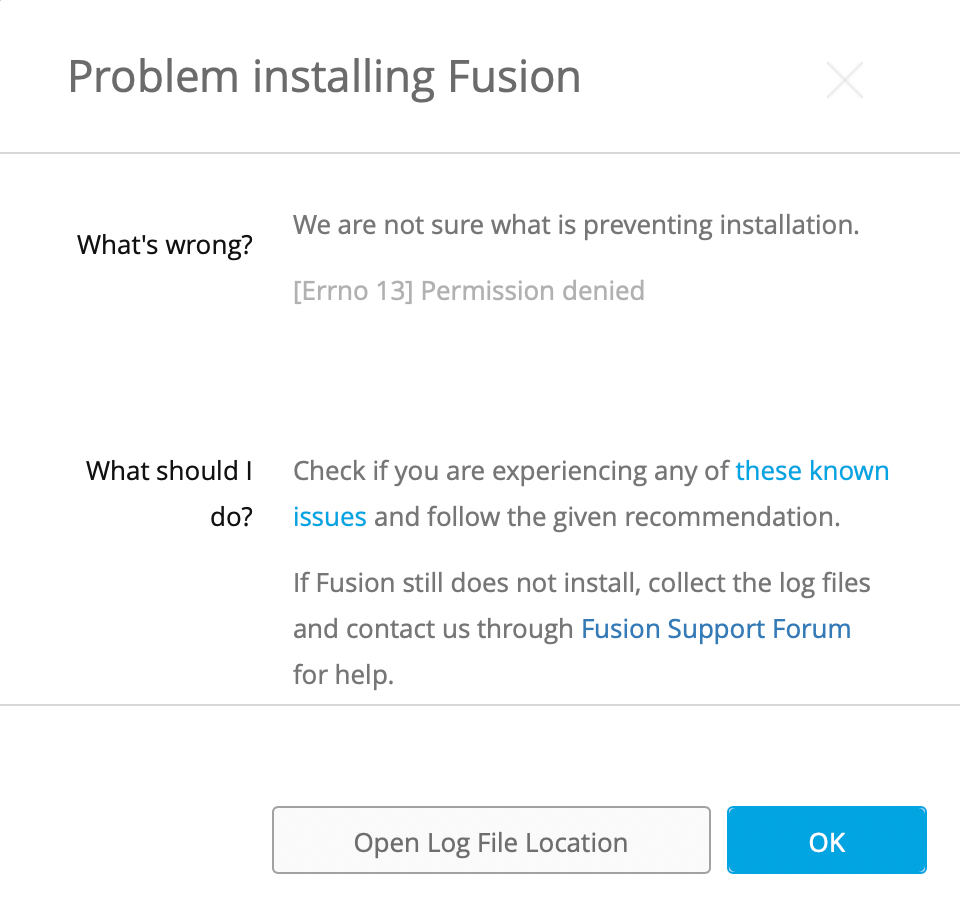
When trying to install Fusion, the installation fails with the warning:
Problem installing Fusion
What's wrong?
We are not sure what is preventing installation.
[Errno 13] Permission denied.
Solution:
Use troubleshooting form
Use this troubleshooting form to help solve the most common issues with installing Fusion.
Delete the file mentioned in the error message
If a file is mentioned in the error message, try deleting the file before installing Fusion again.
Note. One file could be, for example, the uninstall.wsf in %localappdata%\Autodesk\webdeploy\meta.
Check Read/write Permissions
Make sure to have full read/write privileges to the installation directories.
- Change the permission settings via Folder Properties.
- Go to the listed folder in the error message.
- Right click the folder.
- Click Get Info.
- Go to Sharing & Permissions.
- Change to 'Read & Write' for the user account.
- Change the permission settings via Terminal.
- Open terminal.
- Switch to root user with the sudo command: ’sudo -i'
- Note: This requires the admin password
- Navigate to the user’s application support library. In terminal, type cd /Users/<username>/Library/Application Support/‘
- Change permissions for the Autodesk folder and its contents inside Application Support to read, write, and execute using chmod command: 'chmod -R 777 Autodesk/‘
- Check ownership of /Users/<username>/Applications folder, if the folder is owned by root, grant logged in user and others full access rights to the folder using the command: 'chmod -R 777 ~/Applications'
- Finally, start the installer.
- If the installer would still fail please change the ownership of the 'Applications' folder with the below command running from a Terminal (it may prompt for password input) then do the install:
sudo chown <username> ~/Applications
Create new user profile
Create a new user admin profile on the same computer and install Fusion to that profile.
Note: If the installation is successful, there might be permission limitations on the original user profile.
Reset the computer
Reset the computer. For macOS, it is important to make the distinction between restart and reset. A restart may not completely clear the issue. Shutting the computer off and then back on should reset the full computer.
Disable AntiVirus
The AntiVirus can sometimes block the Fusion install. Check this by disabling any anti-virus software and trying again. The AntiVirus can be turned back on once installation is complete.