
Issue:
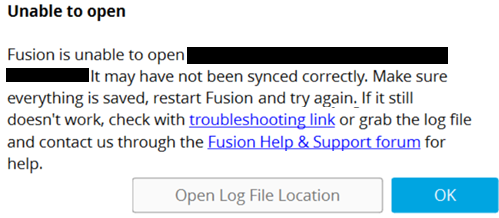
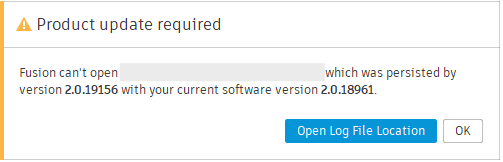
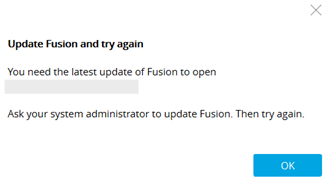
Users reported that, when trying to open a file in Autodesk Fusion, one or more of the following messages is generated:
- Unable to open. Fusion is unable to open [file name]. It may have not been synced correctly. Check that everything is saved, restart Fusion, and try again. If it still doesn't work, check with troubleshooting link or grab the log file and contact us through the Fusion Help & Support forum for help.
- Product Update Required. Fusion can't open [file name] which was persisted by version [version number] with your current software version [version number].
- Update Fusion and try again. You need the latest update of Fusion to open [file name]. Ask your system administrator to update Fusion. Then try again.
Note: The issue can also occur:
- When files are created with the "Save as Fusion design" feature in Inventor.
- When circuits/designs are created in EAGLE.
- On one computer, but on other computers opening file works correctly.
- When uploading and opening a file in Fusion Online.
Causes:
- The file was saved or imported on another machine using a newer version of Fusion.
- A Fusion update is required on the device.
- Fusion was installed as Administrator.
- The Fusion shortcut is referencing an older version.
- The file was saved in a Fusion Insider Build version, which is an unreleased future version of Fusion.
- Service Outage.
Solution:
Update Fusion
- Check for updates in Fusion and update to latest version.
- Repair Fusion using the Service Utility. This should reinstall Fusion and push to the latest version.
- Download Fusion. See How to download Fusion to install the latest version.
Remake the Fusion start shortcut
- Fusion may have been launched using a shortcut that leads to an older version of Fusion. Delete the current Fusion start shortcut:
- macOS: Right-click Fusion in the Dock > Hover over 'Options' > Select 'Remove from Dock'
- Windows: Right-click Fusion in the taskbar > Select 'Unpin from taskbar'
- Open the Fusion Launcher shortcut (this should open the updated version of Fusion):
- Windows:
- Turn on hidden files and folders on Windows
- Go to the following folder: C:\Users\***\AppData\Local\Autodesk\webdeploy\production\<numerical folder>
- Open FusionLauncher.exe.
- macOS:
- Access the hidden Library folder on macOS
- Go to the following folder: Library\Application Support\Autodesk\webdeploy\production
- Open Fusion360.app.
- Windows:
- With Fusion open, pin the new shortcut:
- macOS: Right-click Fusion in the Dock > Hover over 'Options' > Select 'Keep in Dock'.
- Windows: Right-click Fusion in the taskbar > Select 'Pin to taskbar'.
Fusion Insider
This warning can occur if the file was saved on an Insider build. If taking part in the Fusion Insider program, check that all team members are participating in the Insider program and are opening the file on the latest Fusion Insider build.
Open an older version of the Design
If it's not possible to install an updated version of Fusion, you can promote a previous version of the design. See How to open a previously saved version of a Fusion design.