
Issue:
Users reported that Autodesk Fusion shows the message "Not Responding" and freezes or crashes after starting. After forcibly closing the program, the operating system may also stop responding and may need to be restarted.
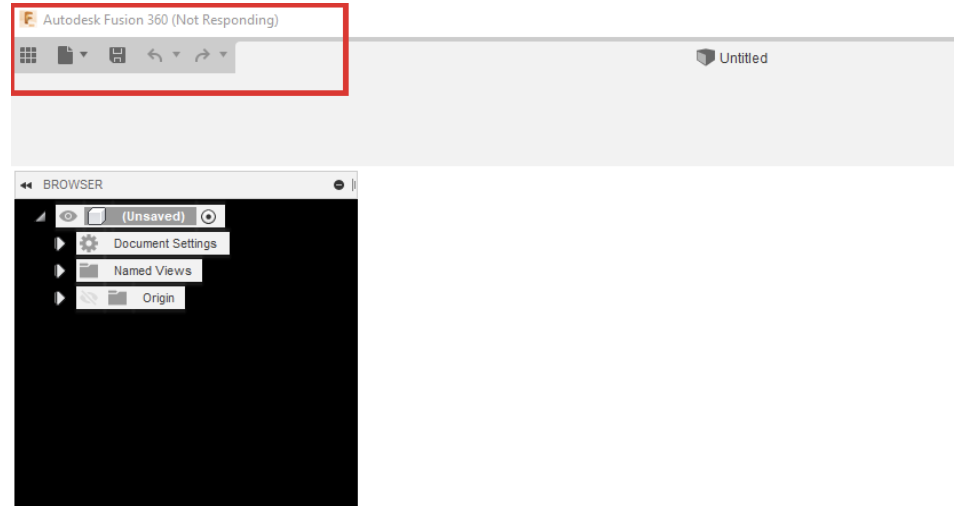
Causes:
- Incomplete download and Installation.
- Graphic drivers/card issue.
- Antivirus blocking the software.
- Network connectivity issues.
- Windows account issues.
- System or hardware is not compatible
Solution:
System or hardware compatibility issue
- Check the System requirements for Autodesk Fusion.
- Check 3rd party devices section of: Autodesk Licensing Service: Known Conflicting Applications.
- On a laptop unplug other external monitors, docking stations, and other hardware devices and then restart the software.
- On a desktop unplug other hardware devices and use only one monitor and then restart the software.
- Software may work correctly if external hardware is attached after Fusion has been successfully launched. Driver or firmware issues may be causing the issue. Proceed to the section below titled: "Check installation, graphics drivers, firewall, ports, and domains" for next steps.
Check for multiple instances.
- If multiple Autodesk Fusion windows are open, close all instances.
- Unpin any saved shortcuts or dock icons.
- Start Autodesk Fusion from the Windows Start menu or Mac Launchpad.
- Pin the new active shortcut.
Repair installation using the Service Utility.
- Close Autodesk Fusion if opened.
- Open the Service Utility.
- Use the Repair Autodesk Fusion option.
- Restart Autodesk Fusion as Administrator.
Check installation, graphics drivers, firewall, ports, and domains
- Uninstall Autodesk Fusion from the Service Utility.
- Restart the system.
- Check for the recommended latest graphics card drivers installed.
- Check for any Anti Virus or Firewall restrictions.
- If present, allow permissions for Autodesk Fusion by following this article: Configuring anti-virus software for use with Fusion, or disable the firewall completely.
- Check the Ports and Domains required by Fusion.
- Reinstall the open Fusion.
Troubleshoot network connectivity issues
- Restart the Internet router.
- Work through this article: Troubleshooting Network Connectivity Issues for Autodesk Fusion.
- Fusion Help | Ports and Domains required by Fusion | Autodesk
- Disconnect VPN or add Fusion to VPN safe list.
Windows account issues
- Create a Windows user performing the steps on the following Microsoft web page: Create a user account in Window.
- Install Autodesk Fusion on the new Account.
- Start and test Autodesk Fusion.
Manually Reinstall or Update Autodesk Fusion
- Manually uninstall Autodesk Fusion: How to do a manual clean uninstall of Autodesk Fusion
- Reinstall Fusion by downloading from your Autodesk Account.
- Run downloaded Autodesk Fusion Client Downloader.
- Install Autodesk Fusion.
- Start Autodesk Fusion .
Note: This solution may be helpful when the automatic update is not possible.
See Also:
- How to do a manual clean uninstall of Autodesk Fusion
- Fusion does not relaunch after installation or update
- Fusion is stuck in offline/maintenance mode
- Fusion Help | Ports and Domains required by Fusion | Autodesk.
- "Could not load the add-in..." error message when launching Fusion