
Issue:
Having trouble getting Bing Maps to appear in Civil 3D or Map 3D after setting a coordinate system?
The Online Map has been activated inside the Geolocation tab.

The GEOMAP command has been invoked, and one of the following options has been selected: Aerial, Road, Hybrid.

It can also lead to the cursor slowness.
it's usually a quick fix. This guide walks you through the most common causes and how to resolve them step by step.
Environment:
Civil 3D or AutoCAD Map 3D with version 2019 or newer.
Causes:
Here are the most frequent reasons:
There is no content inside the DWG file.
The content in the DWG file is outside the coordinate system range.
Minimum and maximum Latitude/Longitude settings are not correct for the Coordinate System used.
Internet connection restrictions such as a firewall or a proxy server blocking the service.
A problem with the connection to the Autodesk Account.
The options Not to use Online Map Data and "Remember my choice" were selected before.
Missing license component.
Solution:
----------------------------------------------------------------------------------------------------------------------------------------
Note:
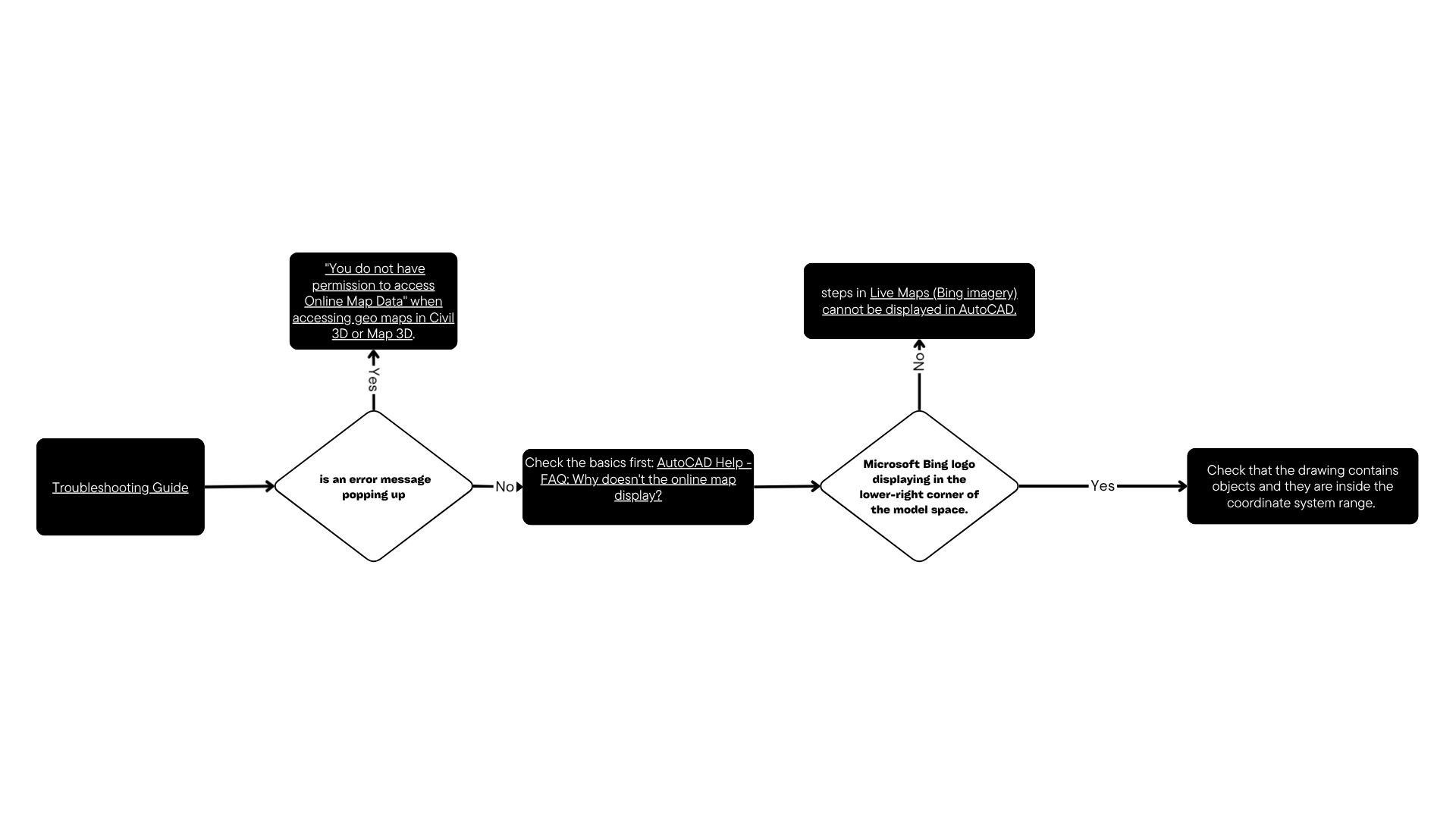
This issue has several potential causes and solutions. To narrow things down, try this Troubleshooting Guide to help find the suggestion that fits the particular scenario.
If there is an error message popping up indicating insufficient permissions to access online Map Data, see "You do not have permission to access Online Map Data" when accessing geo maps in Civil 3D or Map 3D.
----------------------------------------------------------------------------------------------------------------------------------------
Follow these steps:
Check the basics first: AutoCAD Help - FAQ: Why doesn't the online map display?
After activating the GEOMAP command, the Microsoft Bing logo should display in the lower-right corner of the model space.

If the Microsoft Bing logo is not displayed
Follow the steps in Live Maps (Bing imagery) cannot be displayed in AutoCAD.
If the Microsoft Bing logo is displayed
Check that the drawing contains objects and they are inside the coordinate system range. If not, convert the drawing to a more appropriate coordinate system.
Note: Use the command ID to know the coordinates of the data. Then, use online free tools to verify the correct coordinate system, like https://spatialreference.org/ or Coordinates Converter.
Check that the coordinate system in use has the correct minimum and maximum settings for the location of interest. If not:
Type MAPCSLIBRARY.
Find the coordinate system in use.
Create a copy and edit it.
Adjust the minimum and maximum Latitude/Longitude settings to the correct values.
Assign this CS to the drawing.
Check if the long coordinate notation (eight digits) is being used in the drawing but the coordinate system uses the short notation (six digits). Either way, move all data to the correct range or create a custom coordinate system with the corresponding shift.
For versions 2024 and newer:
If the computer connects to the Internet through a firewall or a proxy server, ensure that the proxy is configured to allow unrestricted and anonymous access to the following URLs:
- *.misc.autocad.com
- *.developer.api.autodesk.com
- *.Virtualearth.net
- *.bing.com
- *.arcgis.com
Sign out and Sign in
By signing out and in again, refresh the license info to check whether it's a license issue.