
Issue:
How to convert an imported mesh file (STL or OBJ) to a solid or surface body in Autodesk Fusion.
Solution:
Convert Mesh without generating a face group
Perform the following to convert the mesh.
Click the Mesh tab in the toolbar.

- From the modify menu click Convert Mesh.
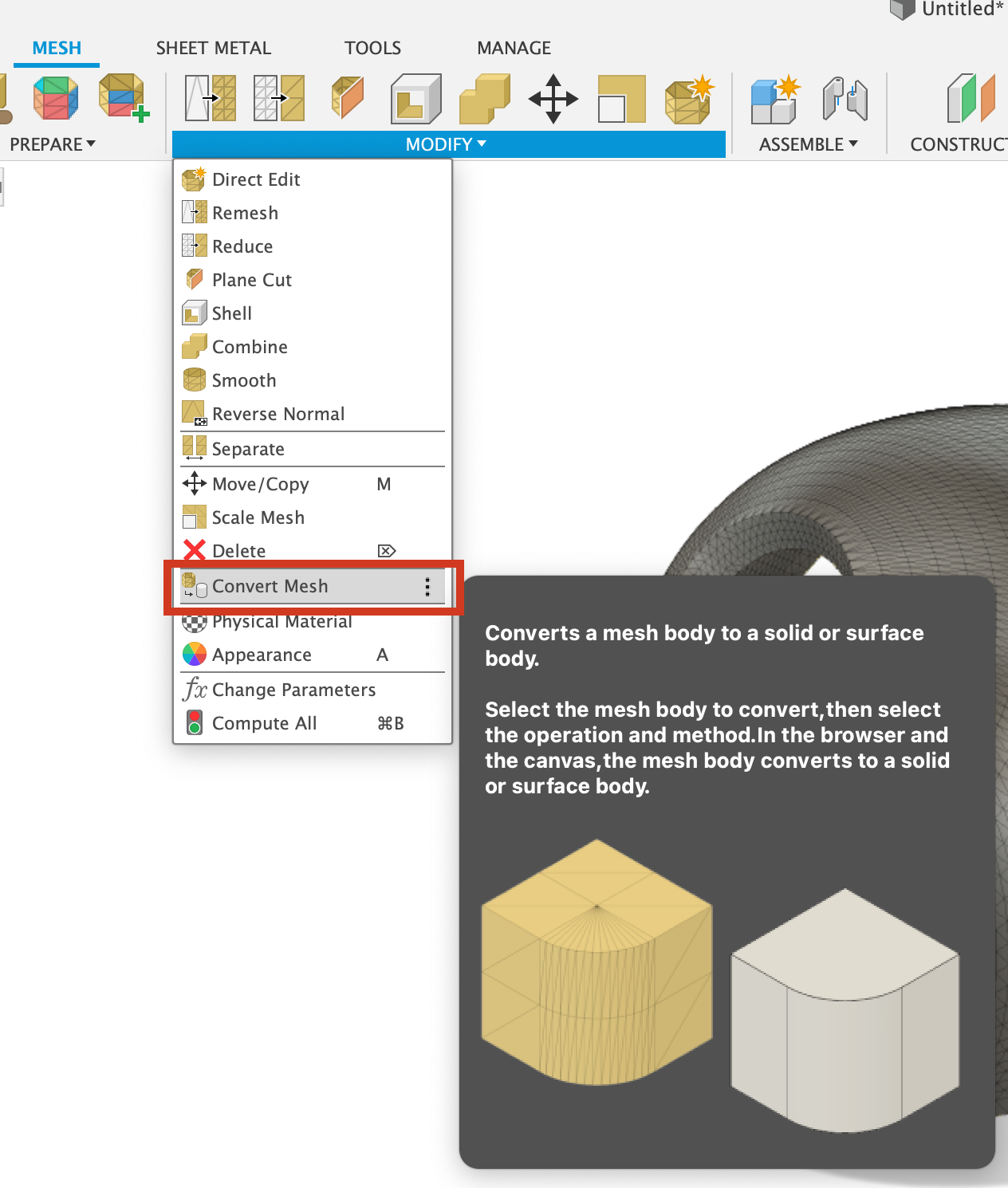
- Select the mesh body.
- Click OK.
For a more in-depth workflow (involving generating face groups), see the following steps:
- Click the Mesh tab in the toolbar.
- Any inserted mesh will be visible in the Bodies folder in the Browser Tree Menu.
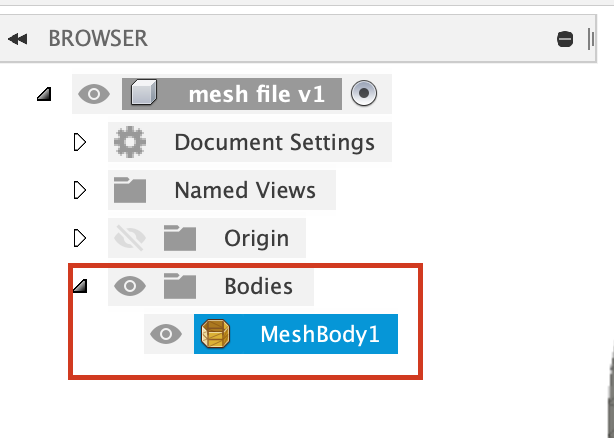
- If there are holes in the mesh, a warning symbol (exclamation mark) next to the mesh body in the Browser Tree may appear. See the article -> "Mesh is not closed" warning message in Fusion.
- From the Prepare menu click Generate Face Groups.
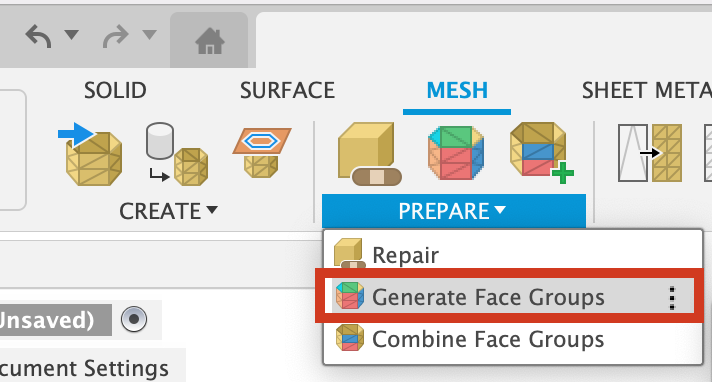
- Select the mesh body.
- Each color represents a different face.
- Adjust the boundary accuracy to make sure that each face is a different color.
- Click OK.
- From the Modify menu click Convert Mesh.
- Select the mesh body.
- Click OK.
Note: Fusion works best when converting meshes with less than 10,000 facets. If the mesh body contains more than 10,000 facets, the conversion process may fail. Use the tools from the Modify menu to reduce the count of mesh facets.
See Also:
- Fusion Mesh Overview
- Fusion Video Series: Mesh Modeling
- How to insert a mesh body into Fusion
- How to Convert a Mesh to T-spline in Fusion
- Mesh bodies saved in OBJ format from Fusion result in empty files
- How to edit a fully constrained locked mesh section sketch in Fusion
- How to Reverse Engineer Parts with a 3D Scanner Part 2 |
- "Cannot convert a mesh body to a solid or surface body" in Autodesk Fusion.