Issue:
- How to get a new font to show up in the Autodesk Fusion font menu.
- The font is not included in the default list of Autodesk Fusion.
Solution:
Follow the steps (or watch this video) to add a new font to the fonts list in Fusion:
- Install the font into the system fonts.
- Ensure the font is a .ttf (Fonts must be .ttf to work with 3D operations in Fusion. If the font is an .otf the file extension can be manually changed for it to work).
- Restart the computer.
- Reopen Fusion.
- Result: The font should now be seen in the font dropdown.
NOTE: Some fonts may not work with Fusion, even if they are .ttf. If a particular font is causing trouble, download and send the font to the Fusion support team so they can check with the developers if necessary.
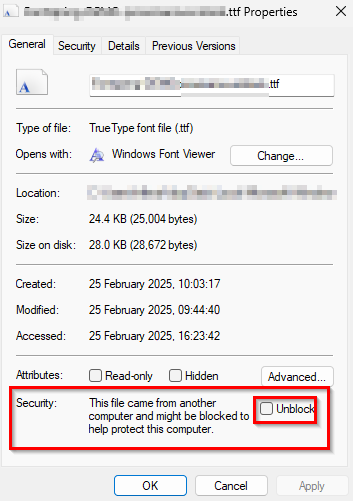
If the Font has come from another computer, it may have been blocked to protect the computer.
- Look at the properties of the selected font.
- Check the unblock checkbox.